How to Share Files Over Bluetooth on Linux with Blueman

Send and receive files over Bluetooth on Linux with Blueman. Install OBEX support, pair devices, choose a file, accept transfers, and fix common issues.
Use pwd, ls, and cd to browse folders from a Linux terminal. First identify the path where a drive is mounted, then change into that directory and list its files. Linux presents mounted filesystems inside the same directory tree as the rest of the system, so a disk usually appears under a mount point such as /media or /mnt, not as a folder named after the physical drive.
pwd, ls, and cdOpen a terminal and check your starting location. pwd prints the current working directory; ls lists its contents. Add -l for a detailed listing and -a to include hidden names beginning with a dot. The GNU Coreutils manual for ls documents these options.
pwd
ls -la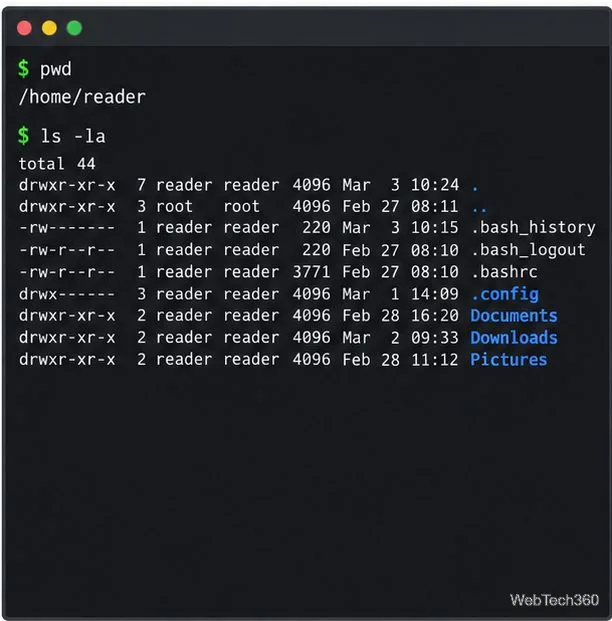
Use cd with an absolute path beginning with / or a relative path from your current folder. ~ is your home directory, .. the parent folder, and - the previous location in Bash; see the Bash manual for shell behavior.
cd /          # go to the filesystem root
ls -lah       # list its contents, including hidden entries
cd /home      # open a directory by its absolute path
cd ..         # move up one level
cd -          # return to the previous directory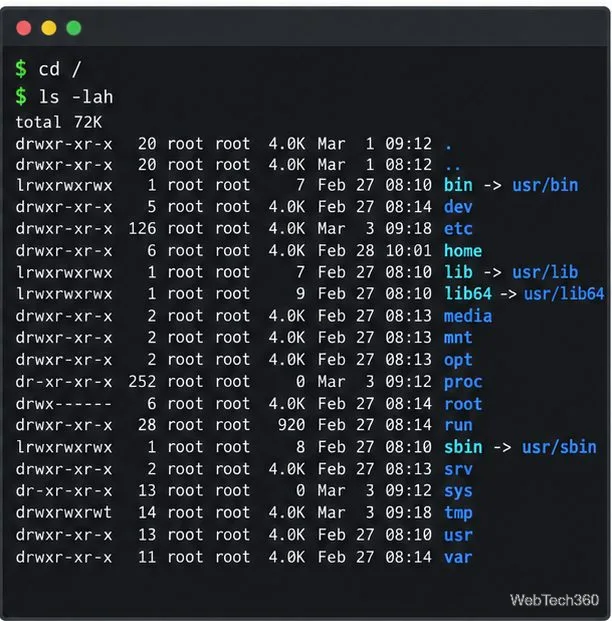
Before browsing a USB disk or another volume, check whether Linux has mounted it. Run lsblk -f to see block devices, filesystem types, labels, and mount points. Run findmnt to list mounted filesystems, or pass a known mount path to inspect it:
lsblk -f
findmnt
findmnt /media/$USER/Archive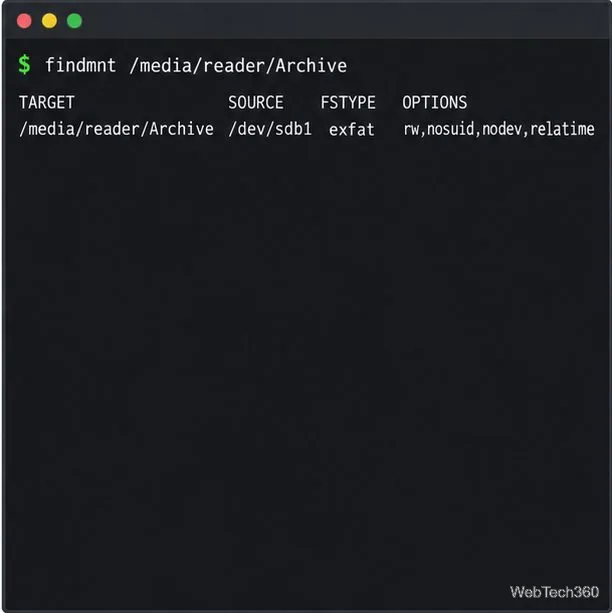
Here, the volume is mounted at /media/reader/Archive. Desktop automounters often use /media/<username>; manual mounts may use /mnt, but paths vary. Follow the MOUNTPOINTS or TARGET column instead of guessing. The lsblk manual and findmnt manual document these commands. /dev/sdb1 is a device path, not a directory to open with cd.
If lsblk shows no mount point, the filesystem may be unmounted. Use your desktop file manager or your distribution’s documented mounting procedure.
When you know the volume path but not the folder, use find. This example searches below the Archive directory for PDF filenames, without changing any files:
find "/media/$USER/Archive" -type f -iname '*.pdf'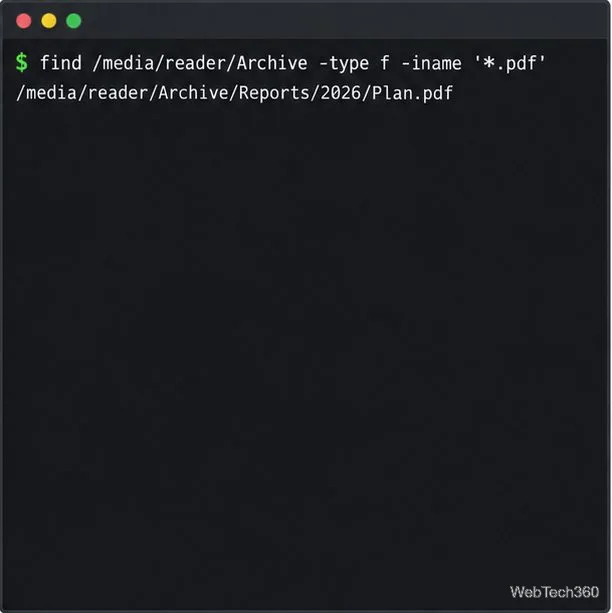
Quotes preserve spaces in the starting path; single quotes keep the wildcard from expanding in the shell. find searches subdirectories recursively and may take time on a large drive. See the GNU Findutils manual for its syntax.
A text-based file manager provides a visual listing in the terminal. The commands above are commonly installed already; these managers may need to come from your distribution’s repositories.
| Distribution family | Install both managers |
|---|---|
| Debian or Ubuntu | sudo apt updatesudo apt install mc ranger |
| Fedora | sudo dnf install mc ranger |
| Arch Linux | sudo pacman -S mc ranger |
| openSUSE | sudo zypper install mc ranger |
Install only mc or ranger if you prefer one. Check availability for your release in the official package searches for Debian, Ubuntu, Fedora, or Arch Linux.
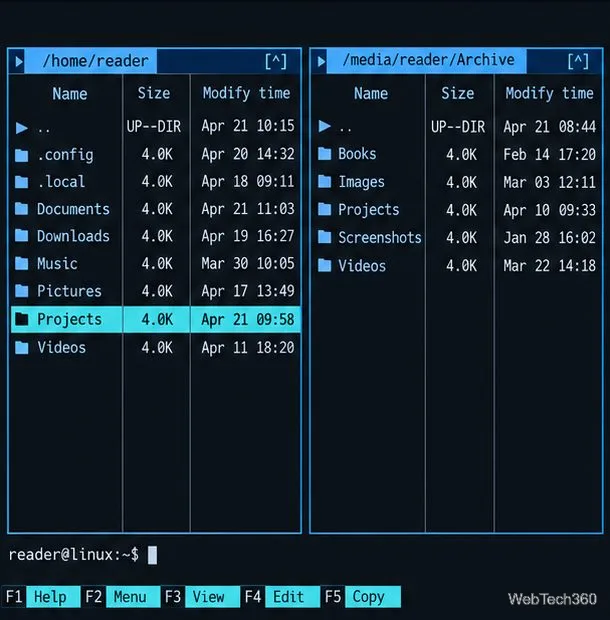
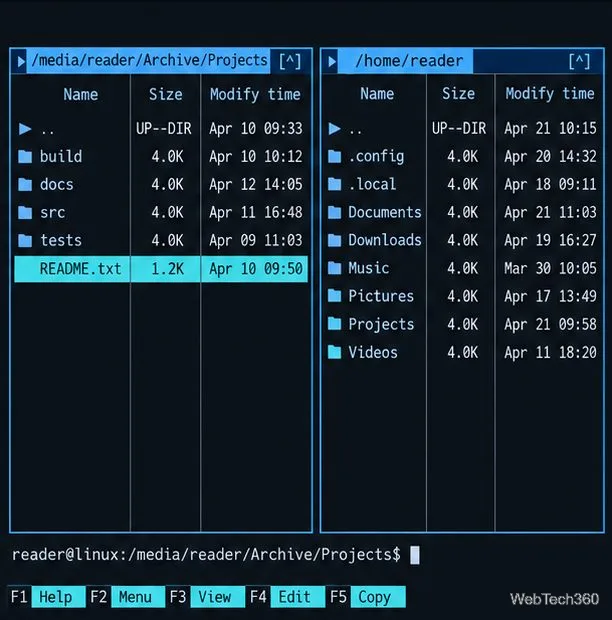
Start mc in the current folder or pass a mount path: mc "/media/$USER/Archive". It shows two panels. Use the arrow keys to select an entry, Enter to open a folder, .. to go up, and Tab to switch panels. Press F3 to view a file and F10 to quit. If your terminal intercepts function keys, see the MC manual for alternatives.
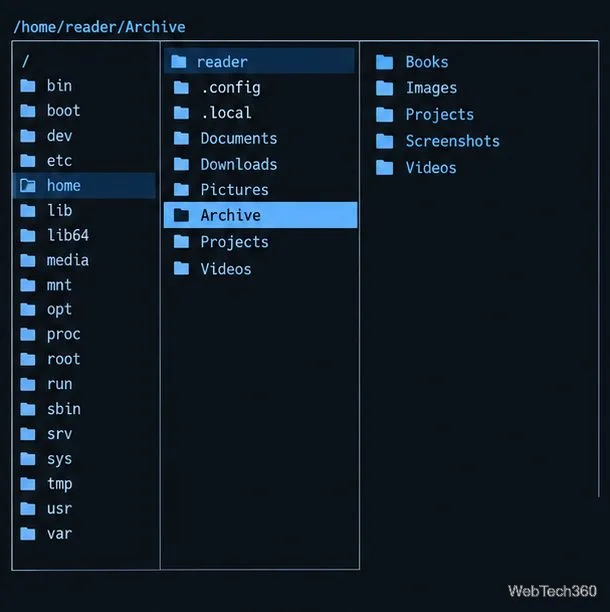
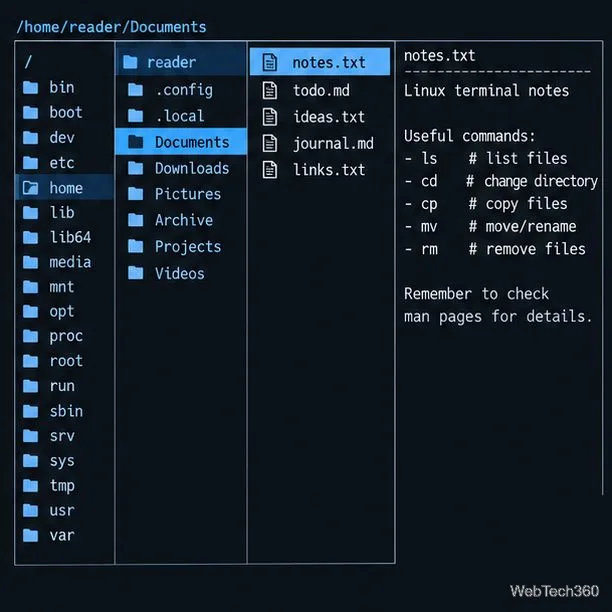
Launch Ranger at the volume with ranger "/media/$USER/Archive". The first column shows parent folders, the center shows the current folder, and the right can preview the selection. Navigate with arrow keys or h, j, k, and l; press Enter to open a selection or q to quit. Opening a file may launch its configured app, so select folders to navigate and use previews to inspect files. The Ranger README and manual list its controls.
“No such file or directory” usually means the path or capitalization is wrong; check with ls or findmnt and quote paths with spaces, such as cd "/media/$USER/Backup Drive". “Permission denied” means your account cannot read that location. Don’t run the whole file manager as root; use an accessible folder or follow your distribution’s permissions guidance.
Send and receive files over Bluetooth on Linux with Blueman. Install OBEX support, pair devices, choose a file, accept transfers, and fix common issues.
Connect GNOME Files to SSH/SFTP, FTP, SMB, WebDAV, or NFS with the correct server URI, sign-in details, and fixes for common connection errors.
Open SFTP, SSH, SMB, FTP, NFS, and WebDAV locations in Dolphin, sign in safely, transfer files, and save network folders for later.
Connect a DualShock 4 to Linux by USB or Bluetooth, then check controller detection and configure Steam Input only when a game needs it.
Use DNF5 parallel downloads to reduce RPM install waits in GNOME Software, then tell when mirror or Flatpak delays need a different fix.
Access iCloud on Linux in a current browser. Learn how to sign in, use iCloud Drive and other web apps, and understand the limits of browser access.
Save GRUB settings, boot files, and UEFI entry details to removable storage, then use rescue media to repair the correct boot path safely.
Install Bitwarden on Linux with the right DEB, RPM, Snap, Flatpak, or AppImage package, then sign in and set a secure vault timeout.
Pick a screensaver theme in Xfce, preview it, choose when it starts, and configure automatic locking in the separate Lock Screen tab.
Stop GNOME Shell from blanking or locking your display automatically. Change Power and Screen Lock settings, or use Caffeine for a temporary keep-awake toggle.








