Home
» LINUX
»
How to Check Hard Drive Health on Linux with SMART
How to Check Hard Drive Health on Linux with SMART
To check a hard drive, SSD, or NVMe drive on Linux, use SMART data from smartmontools. Start with sudo smartctl -H /dev/DEVICE for the drive’s health summary, then use sudo smartctl -x /dev/DEVICE to inspect more detail. GNOME Disks provides the same kind of check in a graphical interface. A “PASSED” result is useful, but it cannot guarantee that a drive will not fail, so keep a current backup.
1. Identify the physical drive
First list disks so you do not run a check against the wrong device. In a terminal, enter:
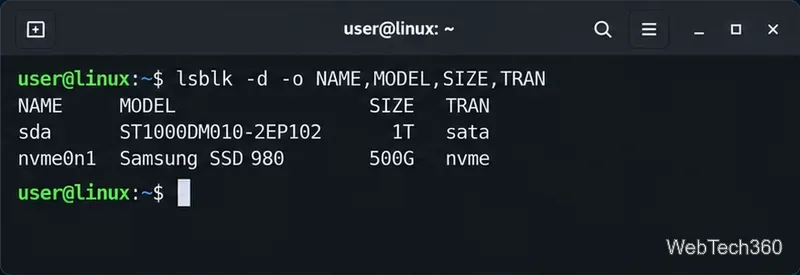
lsblk -d -o NAME,MODEL,SIZE,TRAN
The -d option lists whole devices instead of their partitions. Common names include /dev/sda for a SATA drive and /dev/nvme0n1 for an NVMe drive. A partition has an added number, such as /dev/sda1 or /dev/nvme0n1p1; use the whole-disk path for the SMART check. Confirm the model and capacity before continuing. The lsblk manual explains the device listing options.
Example device names from lsblk; your model, size, and device names will differ.
2. Install smartmontools
The smartctl command is included in the smartmontools package. Install it with your distribution’s package manager:
Ubuntu or Debian: sudo apt install smartmontools
Fedora: sudo dnf install smartmontools
Arch Linux: sudo pacman -S smartmontools
openSUSE: sudo zypper install smartmontools
For another distribution, look for smartmontools in its software repositories or use the project’s official download page. You do not need to open a root shell; prefix each check with sudo.
3. Read the health status and SMART report
Replace the example device path with the whole-disk name you found. For a SATA disk named sda, run:
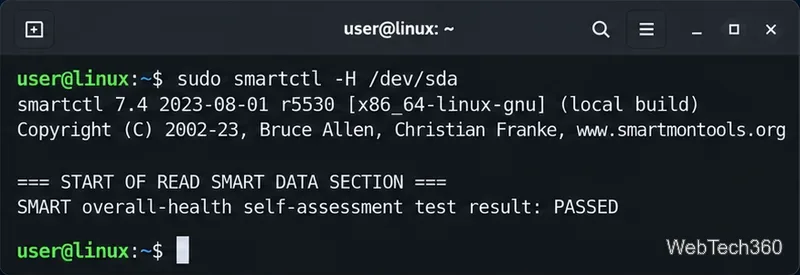
sudo smartctl -H /dev/sda
The summary may report PASSED or FAILED. To review attributes and recorded errors, run the fuller report:
sudo smartctl -x /dev/sda
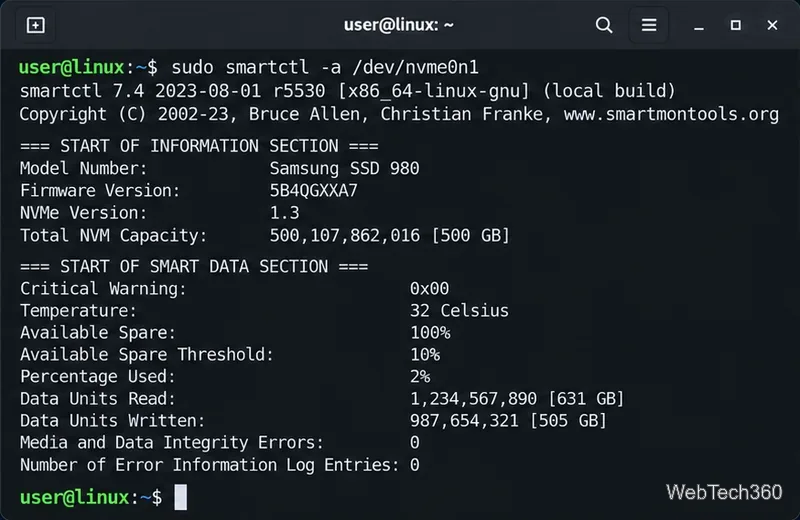
Use the same pattern for an NVMe drive, for example sudo smartctl -x /dev/nvme0n1. The -x option prints the expanded SMART and device information. The current smartctl manual from the smartmontools project documents health checks, report options, and self-tests.
Illustrative SMART summary. The actual wording and result depend on the drive.
How to interpret the report
Do not treat one line as a complete diagnosis. Review the overall health result, error logs, and whether concerning values change over time. On many SATA HDDs and SSDs, attributes such as reallocated sectors, current pending sectors, and offline uncorrectable sectors can signal media problems. Attribute names and raw values vary by manufacturer, so a nonzero raw value alone is not always proof of failure. Pay attention to a failed health result, a failure listed in the WHEN_FAILED column, or values that keep increasing.
NVMe reports use different fields. Check Critical Warning, Available Spare, Percentage Used, and Media and Data Integrity Errors. A nonzero critical warning or rising media-error count deserves attention. Percentage Used is an endurance estimate, not a direct pass/fail verdict. If the report says “FAILED,” shows a current attribute failure, or the system is logging disk I/O errors, back up important files immediately and plan to replace the drive. Even a clean report is not a substitute for backups.
Example NVMe fields to review; drive output and attribute interpretation vary by model.
4. Run a self-test when you need more information
A self-test asks the drive to check itself and records the result. For a short test, run:
sudo smartctl -t short /dev/sda
Smartctl prints an estimated completion time. After that time has passed, read the test log:
sudo smartctl -l selftest /dev/sda
A longer, more thorough test can be started with sudo smartctl -t long /dev/sda; it may take much longer, especially on a large HDD. Check the log again after it finishes. Use the correct device path in both commands. A self-test is diagnostic, not a repair. If the drive is already failing or contains the only copy of important files, prioritize copying the data before running additional tests.
Check health in GNOME Disks
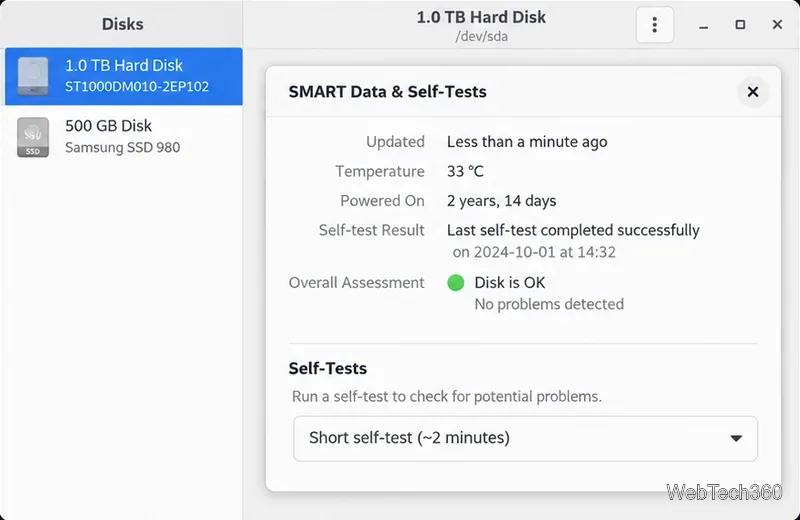
If you prefer a graphical tool, install gnome-disk-utility from your distribution’s repository if it is not already present, then open Disks. Select the physical drive in the left sidebar, open the drive menu, and choose SMART Data & Self-Tests. Review the overall assessment and attributes, or select a self-test from the dialog. GNOME’s official disk-check guide describes these steps.
Illustrative GNOME Disks view; labels and available tests can vary by version and drive.
If Linux cannot read SMART data
Some USB adapters, RAID controllers, or virtual disks do not pass SMART information through to Linux. Try sudo smartctl --scan-open to see which devices smartctl can open. If it still cannot identify the drive, check the adapter or controller documentation before trying a device-type option. A missing SMART report means the connection path may be limiting access; it does not by itself prove the drive is healthy or damaged.
For routine checks, save a report with sudo smartctl -x /dev/sda | tee ~/smart-report.txt and compare future reports. If warnings appear or the drive behaves erratically, make a backup first and treat the SMART report as an early warning rather than a promise about how long the disk will last.