Home
» LINUX
»
How to Clean Your Linux PC With KDE Sweeper
How to Clean Your Linux PC With KDE Sweeper
Sweeper is KDE’s privacy-cleaning utility for removing traces left by Plasma and KDE applications. It is useful for clearing recent-document history, run-command history, recently used applications, cached thumbnails, and selected web-browsing data. It is not a general-purpose Linux “junk cleaner” for package caches, system logs, or every browser profile. KDE’s current app page describes Sweeper as a tool for removing unwanted traces such as cookies and caches; see the official KDE Sweeper page.
What Sweeper can clean
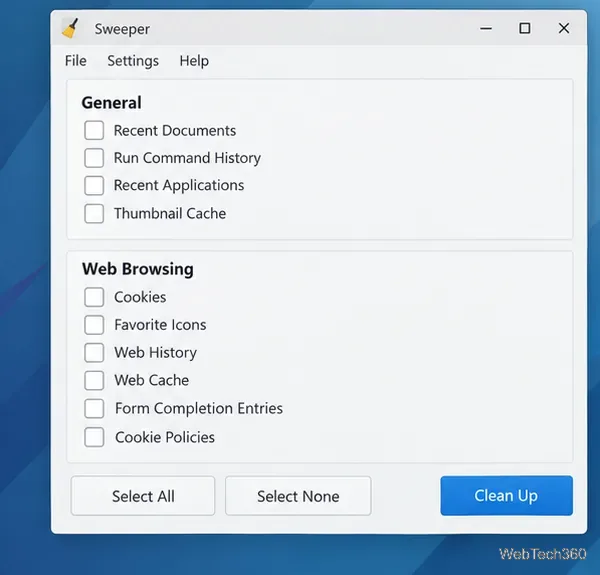
The current KDE Sweeper handbook organizes cleanup choices into two groups. General covers Recent Documents, Run Command History, Recent Applications, and Thumbnail Cache. Web Browsing covers Cookies, Favorite Icons, Web History, Web Cache, Form Completion Entries, and Cookie Policies.
That scope matters. Sweeper is aimed at Plasma and KDE application data, so do not assume it will erase Firefox, Chrome, Chromium, or another non-KDE browser’s entire profile. Use those browsers’ own privacy controls when you need to clear their history, cookies, or site data.
1. Install Sweeper
KDE recommends installing Sweeper through a distribution’s package manager or an AppStream-compatible software center such as Discover. The package name is sweeper on several major distributions.
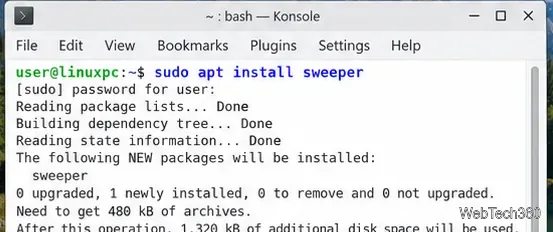
On Ubuntu and Debian, the package can be installed with sudo apt install sweeper.
After installation, open the application menu, search for Sweeper, and launch it.
2. Review the cleanup categories before deleting anything
Sweeper presents checkboxes rather than scanning your disk and deciding what to remove automatically. Start with Select None, then enable only the data you actually want to clear. Select All is convenient, but it can remove more history and web data than you intended.
Sweeper separates KDE and Plasma traces into General and Web Browsing categories.
Recent Documents and Recent Applications clear history lists; they do not delete the original documents or uninstall applications. Thumbnail Cache removes cached previews, which KDE can rebuild as needed.
3. Clean recent history and thumbnail cache
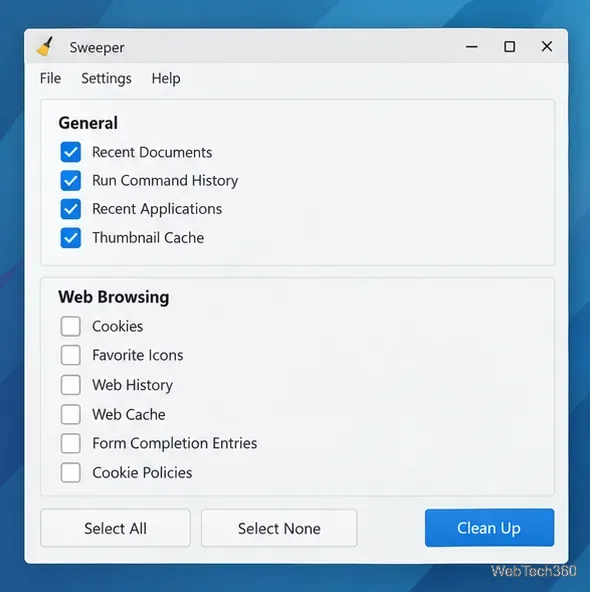
To clean only desktop and application traces, check the items you want under General and leave the Web Browsing options unchecked. Then click Clean Up and confirm the deletion when prompted.
Select only the General items when you want to clear KDE history and cached thumbnails without touching web-browsing data.
If you want to see where KDE stores its generic cache, the official handbook suggests running qtpaths --paths GenericCacheLocation in Konsole.
4. Clear KDE web-browsing traces
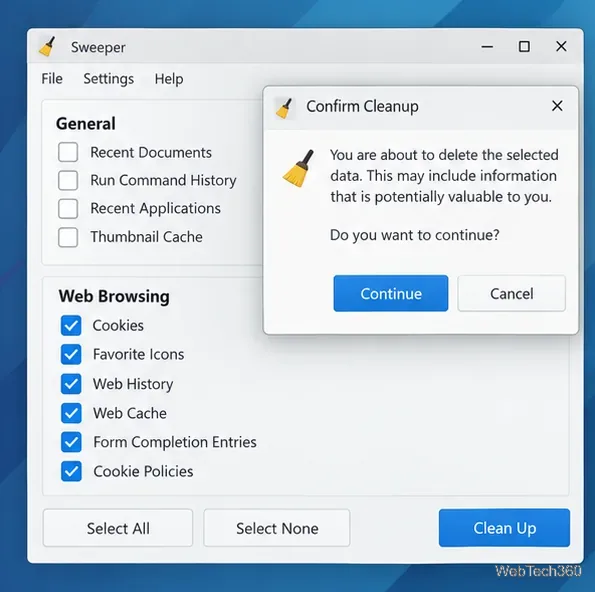
For KDE-related web data, select only the items you need under Web Browsing. Removing cookies can sign you out of affected sites, while clearing form-completion entries removes saved values used to fill forms. When your selection is correct, click Clean Up and confirm.
Review the selected web data carefully before confirming the cleanup.
When to use Select All
Select All is appropriate when you intentionally want to clear every category Sweeper offers, including both General and Web Browsing data. Before you use it, check whether you depend on recent-item lists, form-completion values, or cookies in KDE applications. Sweeper does not provide a preview showing the exact individual records that will be removed, so the checkbox list is your main chance to limit the cleanup. If your goal is simply to refresh thumbnail previews or clear recent-document history, selecting only that item is the more precise choice.
Use Sweeper as a privacy tool, not a full disk cleaner
Sweeper is best when your goal is to remove KDE and Plasma usage traces or clear specific caches. It is not designed to replace your distribution’s package-maintenance tools, a storage analyzer, or the privacy controls built into non-KDE browsers.
Choose Select None first and enable only the categories you understand.
Use your browser’s own clear-data controls for Firefox, Chrome, Chromium, and other non-KDE browsers.
Do not treat Sweeper as secure erasure. KDE notes that deleting cached data can make it inaccessible through normal file-management tools while raw data may still be recoverable with low-level disk tools.
For routine cleanup, this selective approach is safer than checking every box. You get the privacy benefit you want without unnecessarily discarding browsing state or history that you still use.