Home
» LINUX
»
How to Clear Program Cache Files on Linux Safely
How to Clear Program Cache Files on Linux Safely
To clear program cache files on Linux, inspect your user cache directory and remove only the cache folders you recognize. On many desktop systems, that directory is ~/.cache. Close the program first, check which folder is using space, and send the selected cache folder to Trash so you can review it before permanent deletion.
Find the Linux cache directory and check its size
The XDG Base Directory Specification sets $XDG_CACHE_HOME as the base for per-user, non-essential cached data. When that variable is unset or empty, its default is $HOME/.cache. Some applications use other locations or manage their caches inside the app, so check the path before removing files.
For a quick size check, open Terminal and run:
cache_dir="\${XDG_CACHE_HOME:-$HOME/.cache}"
printf 'Cache directory: %s\n' "$cache_dir"
du -sh "$cache_dir"
du -h --max-depth=1 "$cache_dir" | sort -h
The first du line reports the total; the second lists the immediate subfolders, with larger entries near the bottom. The --max-depth option is supported by GNU du, which is standard on most desktop Linux distributions; see the GNU Coreutils documentation for du. These commands only inspect sizes; they do not delete anything. If your cache directory is elsewhere, use the printed path when you scan it.
Inspect cache folders with Disk Usage Analyzer
GNOME’s Disk Usage Analyzer (also called Baobab) can scan one folder and show how its contents use disk space. You can use the steps below even if your Linux desktop has a different file manager; menu labels may vary.
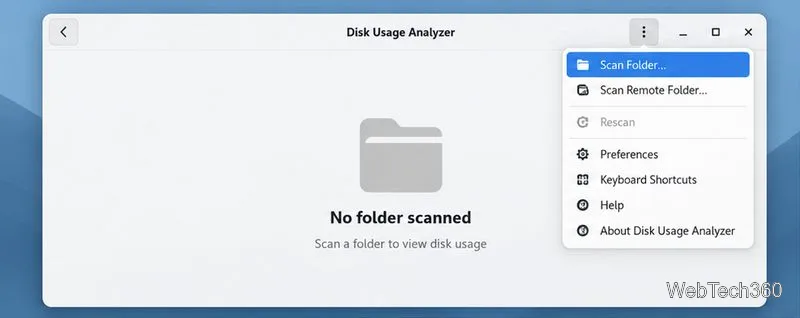
Disk Usage Analyzer with its Scan Folder command open. Menu placement varies slightly by desktop version.
Quit the application whose cache you plan to clear. A running program may recreate files while you are deleting them.
Open Disk Usage Analyzer from the application menu. Open its menu in the upper-right corner and choose Scan Folder…. GNOME documents this option for scanning an individual folder.
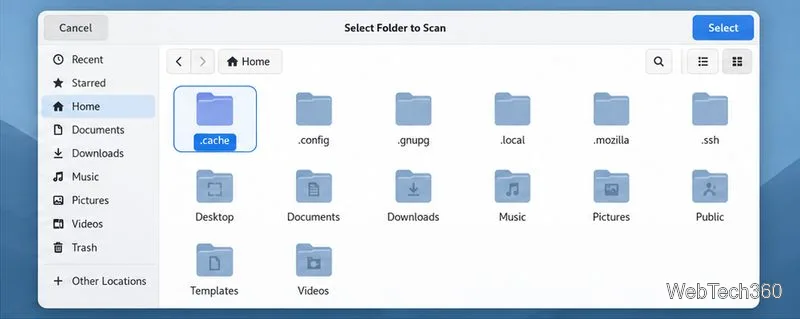
Choose the cache directory shown by your system; .cache is hidden in many file managers.
In the folder chooser, select the cache directory. In the default setup, open your home folder and select .cache. If hidden files are not visible, press Ctrl+H in GNOME Files; on another desktop, use its “Show Hidden Files” command. Select your custom $XDG_CACHE_HOME location instead if you use one.
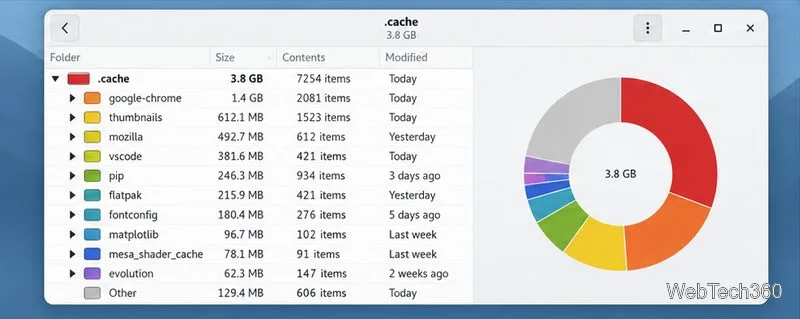
Example scan layout. Folder names and displayed sizes differ from one Linux system to another.
Wait for the scan to finish, then look at the folder list and chart. Expand the tree or sort by size to find which application-specific subfolder accounts for the space. Disk Usage Analyzer can report permission errors when a folder is not readable; scan your own home cache as your regular user instead of launching the tool with sudo.
Move selected cache files to Trash
Only remove a folder after confirming that it contains temporary cache data for the application you intend to clean. If you are unsure what an app-specific folder stores, check that application’s documentation or use its own cache-clearing setting.
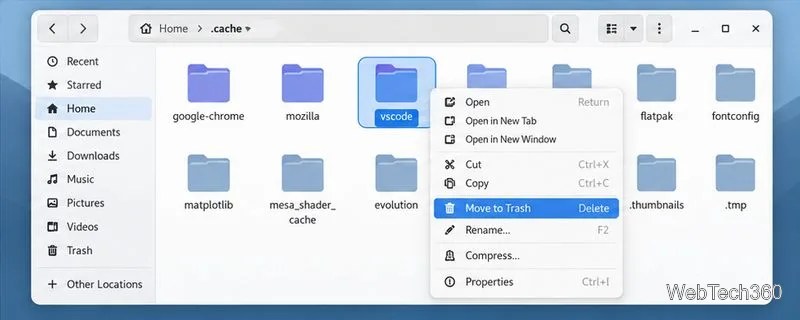
Move only a cache folder you have identified; the exact menu depends on your file manager.
In Disk Usage Analyzer, right-click the identified folder and choose Move to Trash. GNOME’s help describes this as the way to delete an unwanted folder from the analyzer.
Alternatively, open your home folder in the file manager, show hidden files, open .cache, and move the chosen app cache folder to Trash. Do not select adjacent folders just because they are large.
Open Trash and review its contents. Empty it only when you are ready to permanently delete those items; Trash may contain unrelated files, too. Otherwise, leave the items there until you have confirmed the application works as expected.
When the app starts again, it may rebuild thumbnails, indexes, or other cache files. That can make its first launch or the next load slower, and some cached downloads may need to be fetched again. The cache can grow back as the app runs.
What not to delete
Do not treat settings and personal data as cache. Avoid deleting ~/.config or ~/.local/share when your goal is only to clear temporary files; applications commonly use those locations for configuration and user data.
Do not use root privileges for your own cache. Removing files from your home directory with sudo is unnecessary and can leave files owned by the wrong account.
Do not confuse app caches with package-manager caches. A system package manager has its own cleanup commands and locations. Clearing ~/.cache will not necessarily reclaim that space.
Do not assume every large folder is disposable. A profile, offline library, or downloaded file may be useful data even if it sits near cache directories.
Common problems
If a removed folder returns immediately, the app may still be open or may have recreated its cache. Quit it and check again later. If the available disk space does not change after moving files to Trash, review and empty Trash after checking its contents. If ~/.cache is small, use Disk Usage Analyzer to scan other folders you own; the cache is only one possible source of disk usage.