How to Share Files Over Bluetooth on Linux with Blueman

Send and receive files over Bluetooth on Linux with Blueman. Install OBEX support, pair devices, choose a file, accept transfers, and fix common issues.
Yes. You can use GParted to copy a Linux drive by copying its partitions one at a time. Boot from GParted Live so the installed system is offline, prepare unallocated space on the replacement disk, then copy each required partition and apply the queued operations. This is a partition-by-partition migration, not a sector-by-sector image of the entire disk; GParted does not automatically copy the bootloader or guarantee that the replacement will boot.
Back up important files to a separate drive before changing partitions; GParted warns that failures can cause data loss. For the simplest copy, use an equal-or-larger destination with enough unallocated space for every partition. Note whether the source uses GPT or MBR-style msdos, and identify its boot and data partitions. Keep the old drive disconnected during the first boot from its copy because copied filesystems share UUIDs.
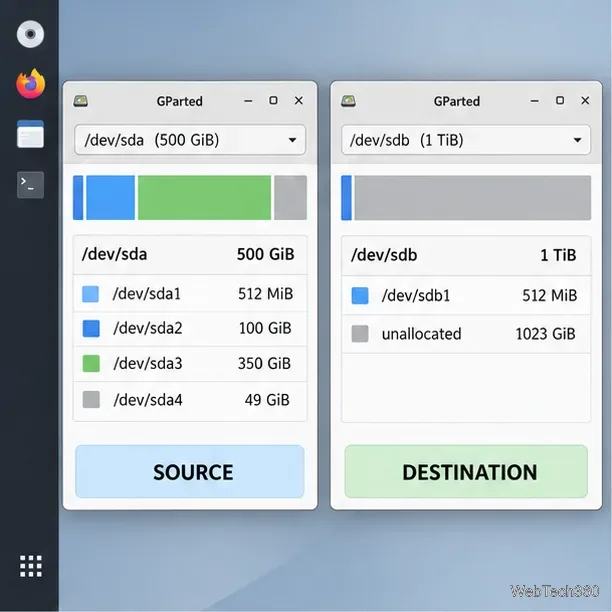
Compare each disk’s model, capacity, and partition map. Names such as /dev/sda or /dev/nvme0n1 are examples and can change, so never choose a disk by name alone. Identify the old drive as the source and the replacement as the destination.
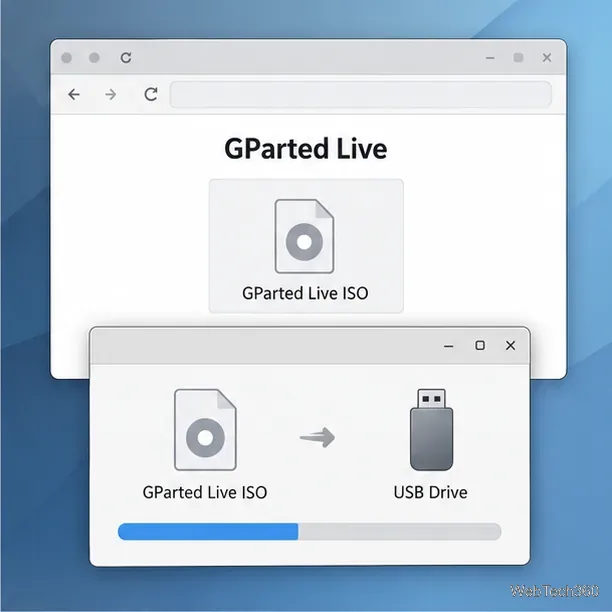
Download the ISO from GParted’s official download page. As of October 23, 2026, it lists GParted Live 1.8.1-6 for amd64 (x86-64); use the page’s current release and checksum. The current image is 64-bit.
In a USB writer such as balenaEtcher, select the ISO and the USB flash drive, then start writing. This erases the selected USB, so verify the target first. See GParted’s USB instructions for other methods.
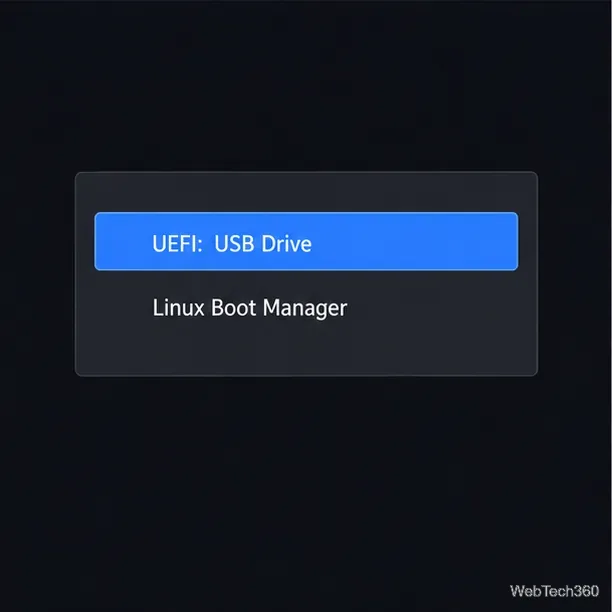
Restart and open the one-time boot menu; the key varies by computer. Select the USB device, choosing its UEFI entry on a UEFI system. In GParted Live, press Enter for the default boot settings, then accept or change the keymap and language. Press Enter to start the graphical environment; GParted launches automatically. If the desktop does not appear, choose Other modes of GParted Live > GParted Live (Safe graphics setting, vga-normal), the current GParted Live boot note.
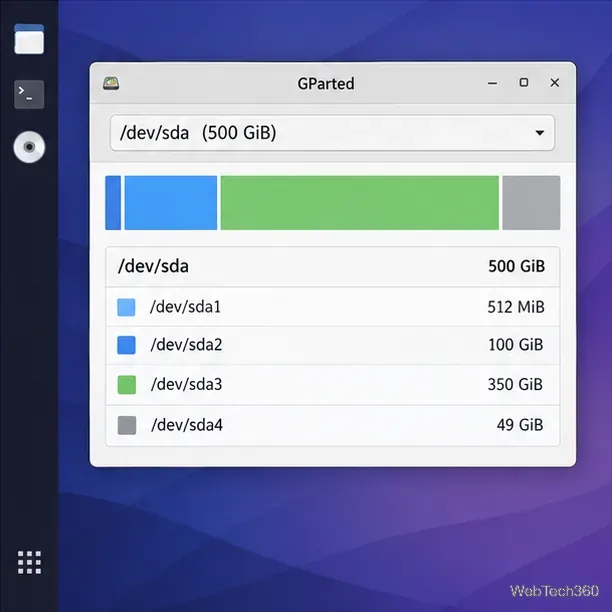
Select the source by its model and capacity. Its partitions must be unmounted; GParted Live keeps the installed system offline. Identify every required partition, including the EFI System Partition and separate /boot, root, or /home partitions. Swap can usually be recreated. LUKS, LVM, software RAID, and multi-device filesystems need additional migration planning.
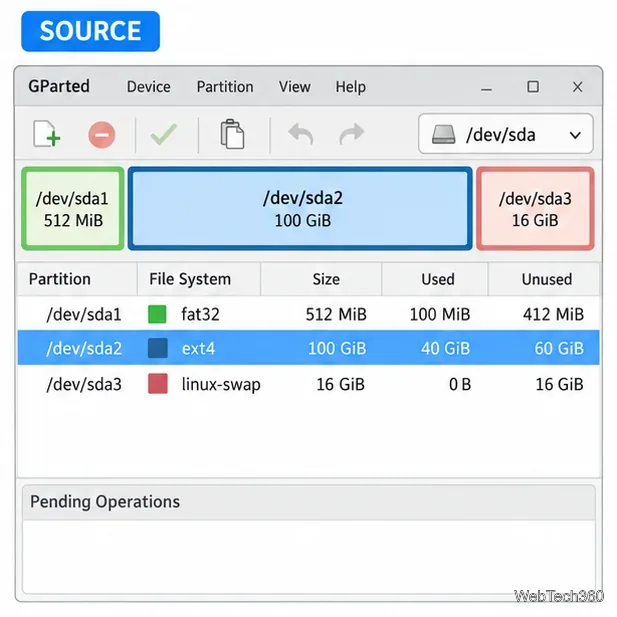
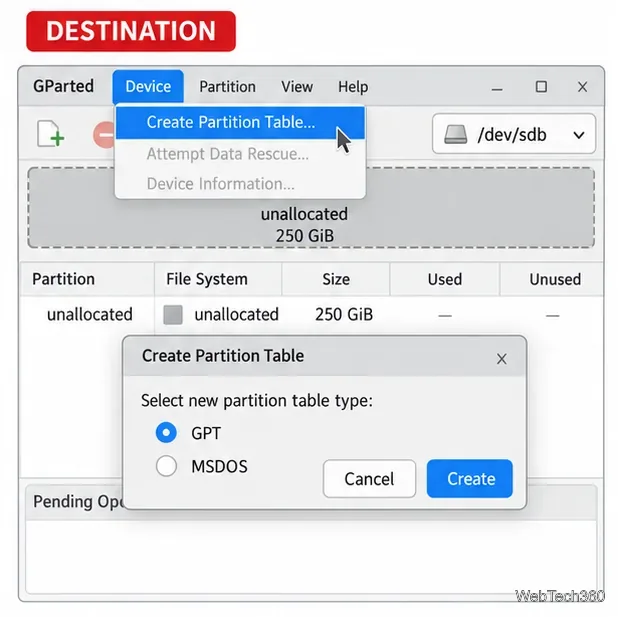
Select and verify the destination. If it already has a compatible partition table and enough unallocated space, use that space. For a blank disk, choose Device > Create Partition Table and match the source type, usually GPT or msdos. This erases the entire destination, so proceed only if it contains no needed data. Leave room for every partition you will paste.
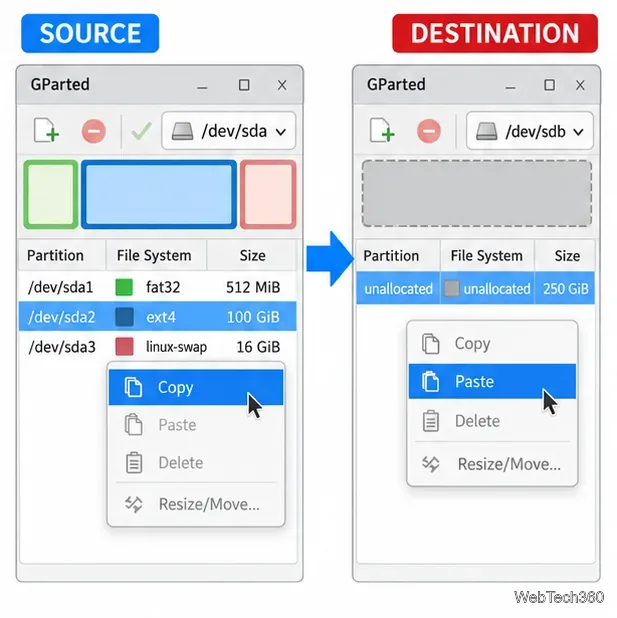
On the source, right-click an unmounted partition and choose Copy. Switch to the destination, right-click unallocated space, and choose Paste. Review the proposed size and location, then click Paste to queue the copy. Repeat for every required partition. If one will not fit, stop and confirm the filesystem can be safely resized before changing its size or applying the queue. You can leave extra destination space unused and expand a partition after the system boots.
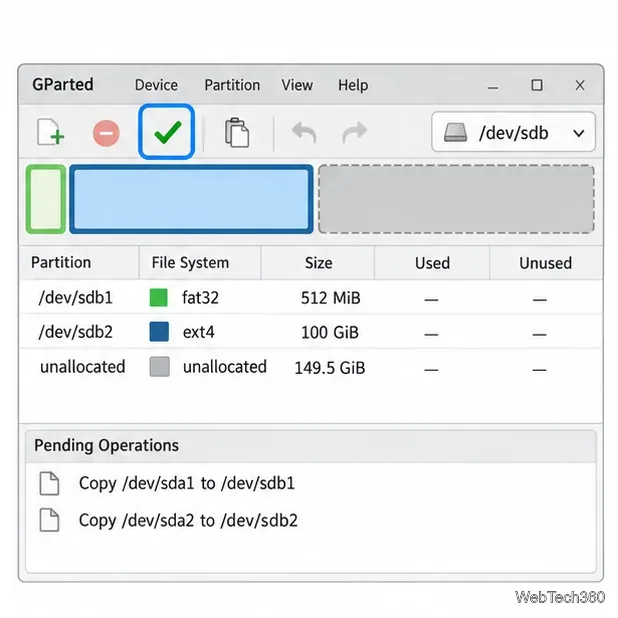
Inspect the pending list: each copy should point from the old disk to the replacement, with no unexpected delete or format. Click the green checkmark and confirm. Do not shut down, unplug a disk, or cancel while GParted is working; wait for completion.
Shut down, remove the USB, and disconnect the old drive before testing the copy. Select the replacement in the firmware boot menu, then verify Linux starts and your files and mounts appear. GParted does not install a bootloader or firmware entry, so you may need to repair GRUB if the system is not found.
Copied partitions retain the source filesystem’s UUID and label. If both disks are connected, Linux may mount either copy, risking confusing or lost-looking files and data loss. Keep the old drive disconnected while testing. To use both disks, change one copy’s UUID and duplicate label, then update /etc/fstab and boot references; changing a UUID alone can break startup.
For a whole-disk image, including the full layout, use a disk-imaging tool. GParted is for managing and copying individual partitions. Its manual explains copying, unallocated space, UUIDs, and applying operations.
Send and receive files over Bluetooth on Linux with Blueman. Install OBEX support, pair devices, choose a file, accept transfers, and fix common issues.
Connect GNOME Files to SSH/SFTP, FTP, SMB, WebDAV, or NFS with the correct server URI, sign-in details, and fixes for common connection errors.
Open SFTP, SSH, SMB, FTP, NFS, and WebDAV locations in Dolphin, sign in safely, transfer files, and save network folders for later.
Connect a DualShock 4 to Linux by USB or Bluetooth, then check controller detection and configure Steam Input only when a game needs it.
Use DNF5 parallel downloads to reduce RPM install waits in GNOME Software, then tell when mirror or Flatpak delays need a different fix.
Access iCloud on Linux in a current browser. Learn how to sign in, use iCloud Drive and other web apps, and understand the limits of browser access.
Save GRUB settings, boot files, and UEFI entry details to removable storage, then use rescue media to repair the correct boot path safely.
Install Bitwarden on Linux with the right DEB, RPM, Snap, Flatpak, or AppImage package, then sign in and set a secure vault timeout.
Pick a screensaver theme in Xfce, preview it, choose when it starts, and configure automatic locking in the separate Lock Screen tab.
Stop GNOME Shell from blanking or locking your display automatically. Change Power and Screen Lock settings, or use Caffeine for a temporary keep-awake toggle.








