How to Access a Windows BitLocker Partition in Linux

Use Dislocker to unlock a BitLocker volume in Linux, mount its virtual NTFS file read-only, and safely unmount it without exposing your password in a command.
The simplest reliable way to switch PipeWire outputs from a script on Debian is to use wpctl, the WirePlumber command-line tool: identify the two sink nodes you care about, inspect the current default sink, and call wpctl set-default ID for the other one. This is preferable to hard-coding a numeric node ID because PipeWire object IDs can change when devices disconnect, reconnect, or the session restarts.
This guide uses a two-device toggle—for example, laptop speakers and Bluetooth headphones—and deliberately keeps the logic compatible with both current Debian 13 (Trixie) and Debian 12 (Bookworm). As of October 2026, Debian's package pages list WirePlumber 0.5.8 in Debian 13 and 0.4.13 in Debian 12. Newer WirePlumber releases provide additional listing features, but wpctl status -n, wpctl inspect, and wpctl set-default are the common denominator needed here.
Use this approach when PipeWire is already handling desktop audio and you want a keyboard shortcut, launcher, shell alias, or hotkey to alternate between two outputs. It works well for a built-in analog output plus USB DAC, HDMI monitor, Bluetooth headset, or another sink that appears under the Sinks section of wpctl status.
It is not the right tool for every routing problem. wpctl set-default changes the default target used for streams that need automatic connection. It does not promise that every already-running application will immediately migrate an existing stream. Some applications follow the new default automatically; others may need their stream moved separately or the application restarted.
Confirm that the user-level PipeWire and WirePlumber session is healthy. The official WirePlumber documentation recommends checking the daemon with systemctl --user status wireplumber. Debian also recommends the pipewire-audio metapackage on Debian 12 and newer when setting up a complete PipeWire audio stack.
systemctl --user status wireplumber
systemctl --user status pipewire pipewire-pulse
If wpctl is missing, install WirePlumber and the normal PipeWire audio components rather than trying to substitute an unrelated mixer utility:
sudo apt update
sudo apt install pipewire-audio wireplumber
Do not run wpctl with sudo. PipeWire and WirePlumber normally operate in your desktop user's session, so the command should connect to that user's media graph.
Run:
wpctl status -nThe -n option asks wpctl to show object names instead of human-friendly descriptions. Under Audio → Sinks, note the names of the two outputs you want to toggle. A machine might show a built-in sink resembling alsa_output.pci-0000_00_1f.3.analog-stereo and a Bluetooth sink beginning with bluez_output..
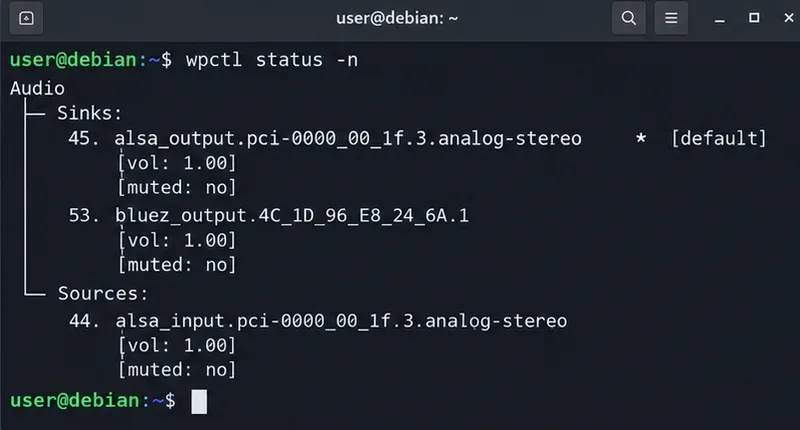
wpctl status -n: identify stable name fragments under the Sinks section rather than copying numeric IDs into the script.Choose a fragment that is distinctive enough to match only the intended output. For a built-in card, the full alsa_output... node name is usually a sensible choice. For a Bluetooth device, a shorter bluez_output. fragment is convenient only if you normally have one Bluetooth audio sink connected. If you frequently connect several Bluetooth outputs, use a longer fragment unique to the intended device.
Before scripting the switch, inspect one of the IDs shown by wpctl status -n:
wpctl inspect 45Replace 45 with the current ID on your system. Look for properties such as node.name and media.class. For a playback output, media.class should identify an audio sink. The numeric ID is useful for inspection and for the immediate set-default command, but the script below resolves a fresh ID each time it runs.
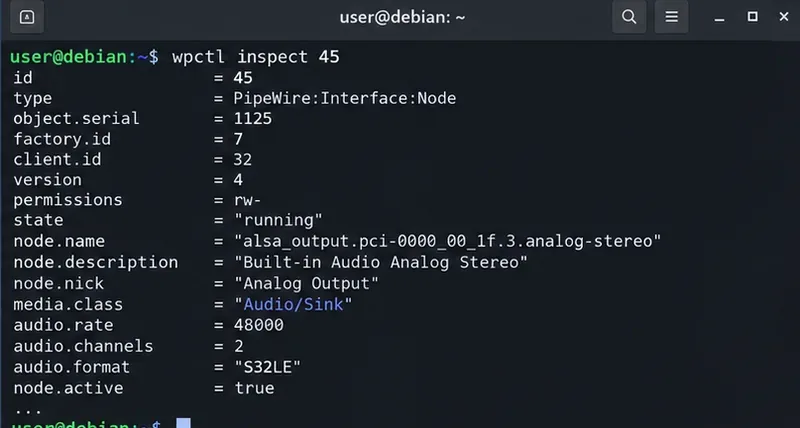
You can also ask WirePlumber which sink is currently the default without knowing its numeric ID:
wpctl inspect @DEFAULT_AUDIO_SINK@The special identifier @DEFAULT_AUDIO_SINK@ is documented by WirePlumber and resolves at runtime to the current default playback node.
Create a personal executable directory if necessary, then open the script:
mkdir -p ~/.local/bin
nano ~/.local/bin/toggle-audio-output
Paste the following code and replace SINK_A and SINK_B with fragments from your own wpctl status -n output:
#!/usr/bin/env bash
set -euo pipefail

# Replace these with distinctive fragments from `wpctl status -n`.
SINK_A="alsa_output.pci-0000_00_1f.3.analog-stereo"
SINK_B="bluez_output."

find_sink_id() {
    local needle="$1"
    wpctl status -n | awk -v n="$needle" '
        /Sinks:/   { in_sinks=1; next }
        /Sources:/ { in_sinks=0 }
        in_sinks && index($0, n) {
            for (i=1; i<=NF; i++) {
                if ($i ~ /^[0-9]+\.$/) {
                    gsub(/\./, "", $i)
                    print $i
                    exit
                }
            }
        }'
}

current_name="$(
    wpctl inspect @DEFAULT_AUDIO_SINK@ |
    awk -F'= ' '/node.name/ {
        gsub(/"/, "", $2)
        print $2
        exit
    }'
)"

if [[ "$current_name" == *"$SINK_A"* ]]; then
    target_pattern="$SINK_B"
elif [[ "$current_name" == *"$SINK_B"* ]]; then
    target_pattern="$SINK_A"
else
    # If the current default is neither target, switch to A first.
    target_pattern="$SINK_A"
fi

target_id="$(find_sink_id "$target_pattern")"

if [[ -z "$target_id" ]]; then
    printf 'No available sink matched: %s\n' "$target_pattern" >&2
    exit 1
fi

wpctl set-default "$target_id"
printf 'Default audio sink changed to ID %s\n' "$target_id"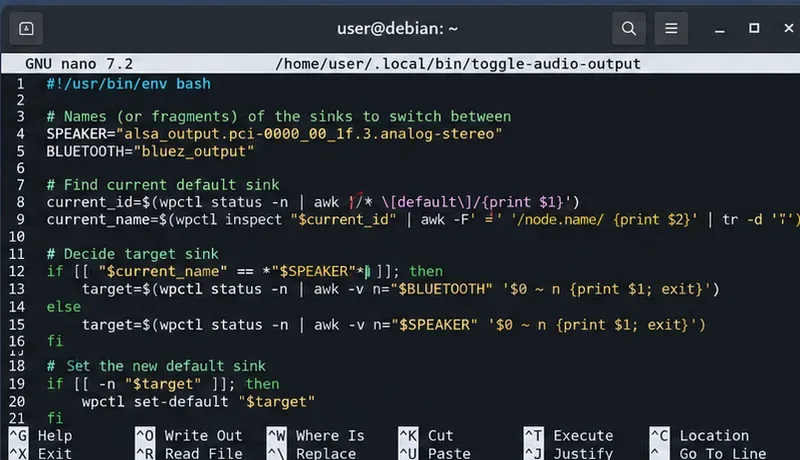
wpctl set-default.PipeWire object IDs are session objects, so treating an ID such as 45 as a permanent device identifier is brittle. The script stores recognizable node-name fragments instead, parses the current Sinks section, and extracts the numeric ID only at the moment of switching.
The script asks @DEFAULT_AUDIO_SINK@ for its node.name. That avoids depending on the visual placement of an asterisk in wpctl status when determining which sink is currently selected. It then compares that name with SINK_A and SINK_B.
Save the file, then run:
chmod +x ~/.local/bin/toggle-audio-output
~/.local/bin/toggle-audio-output
wpctl status -n
If the target sink is available, the script should print the ID it selected. Run it again and it should choose the other configured sink. Confirm the result with wpctl status -n or by inspecting @DEFAULT_AUDIO_SINK@.
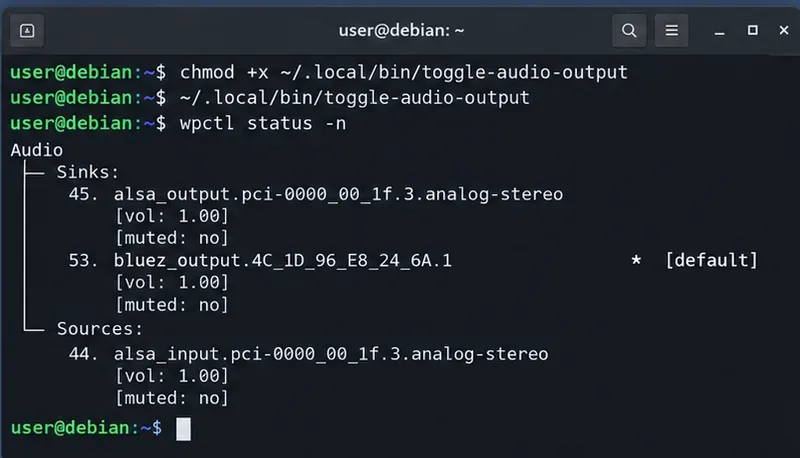
wpctl status -n to confirm that the intended sink is now the default.WirePlumber documents wpctl set-default ID as setting a sink or source as the default target. In modern WirePlumber, that user selection is remembered and can outrank automatic priority-based selection. If you later want WirePlumber to return to automatic default selection, use:
wpctl clear-defaultOnce the terminal test is reliable, bind /home/YOUR_USER/.local/bin/toggle-audio-output to a desktop keyboard shortcut. Use the absolute path rather than ~ because some shortcut launchers do not expand shell shorthand. The exact shortcut UI depends on the desktop environment, so the important test is that the script works correctly from a normal user terminal first.
If a shortcut runs but wpctl reports that it cannot connect, the launcher may not be inheriting the expected user-session environment. Verify the same command from a terminal inside the graphical session, then review the desktop environment's shortcut execution rules. Do not solve that problem by prefixing the script with sudo.
The target is probably disconnected, its node name changed, or your pattern is too specific. Run wpctl status -n again and update the corresponding SINK_A or SINK_B value. For Bluetooth, confirm the headset is connected and has exposed an audio sink before invoking the script.
This can be normal. The upstream documentation describes set-default as selecting the target for new streams that require auto-connection. If a particular application's existing stream stays on the old sink, stop and restart playback or reopen the application. If you specifically need to migrate existing streams, treat that as a separate routing task rather than assuming set-default guarantees it.
Make SINK_B more specific. A generic pattern such as bluez_output. is suitable only when one matching Bluetooth sink is present. Use the complete node name or a unique middle fragment when multiple wireless outputs can be connected at once.
Check:
systemctl --user status wireplumber
journalctl --user -u wireplumber
Upstream documentation recommends systemctl --user --now enable wireplumber when the daemon is installed but not enabled. On an already-configured Debian desktop, investigate why the user service stopped before repeatedly restarting the entire audio stack.
| Debian release | WirePlumber package | Practical implication for this script |
|---|---|---|
| Debian 12 (Bookworm) | 0.4.13 in the standard repository | Use the compatible wpctl status -n, inspect, and set-default workflow shown here. |
| Debian 13 (Trixie) | 0.5.8 in the standard repository | The same script works; newer WirePlumber also has expanded CLI and JSON-based configuration behavior. |
Do not copy WirePlumber 0.5 configuration examples blindly into an older 0.4 installation. WirePlumber 0.5 changed its configuration system; this tutorial avoids that version boundary by using command-line operations instead of persistent policy files.
systemctl --user status wireplumber shows the session manager running.wpctl status -n lists both intended outputs under Sinks.wpctl inspect @DEFAULT_AUDIO_SINK@ returns a valid current playback node.For command semantics and current WirePlumber behavior, see the official WirePlumber wpctl manual and the official WirePlumber getting-started guide. For Debian-specific package and setup information, use the Debian PipeWire documentation, the Debian 12 WirePlumber package page, and the Debian 13 WirePlumber package page.
Use Dislocker to unlock a BitLocker volume in Linux, mount its virtual NTFS file read-only, and safely unmount it without exposing your password in a command.
Learn how to reduce RAM usage on Linux by finding memory-hungry apps, trimming browser and startup load, and testing a lighter desktop safely.
Compare four WhatsApp alternatives for Linux by privacy defaults, desktop support, setup requirements, and the people each app suits.
Troubleshoot a VirtualBox VM that will not start on Linux by checking vboxdrv, kernel headers, Secure Boot, Extension Pack versions, and VM logs.
Transfer your Ubuntu user data with a tar archive and external drive, then restore personal files and selected settings without overwriting the new setup.
Install gThumb on Linux, browse and make simple photo edits, then set it as the default app for the image types you choose in GNOME.
Create an organized playlist in Rhythmbox or save a reusable XSPF playlist in VLC. Learn how to add tracks, name a list, and reopen it on Linux.
Install Dino on Linux with Flatpak or your distribution’s package manager. Get current Ubuntu, Debian, Fedora, and Arch commands, plus first-launch tips.
Install Arch Linux’s linux-lts kernel, add it to GRUB or systemd-boot, select it at startup, and verify it while keeping a fallback kernel.
Download the right Pi 4 image, write it to a microSD card, and complete LibreELEC’s first-run setup with Raspberry Pi Imager.








