4 Best Adobe Acrobat Alternatives for Linux: PDF Reading and Markup
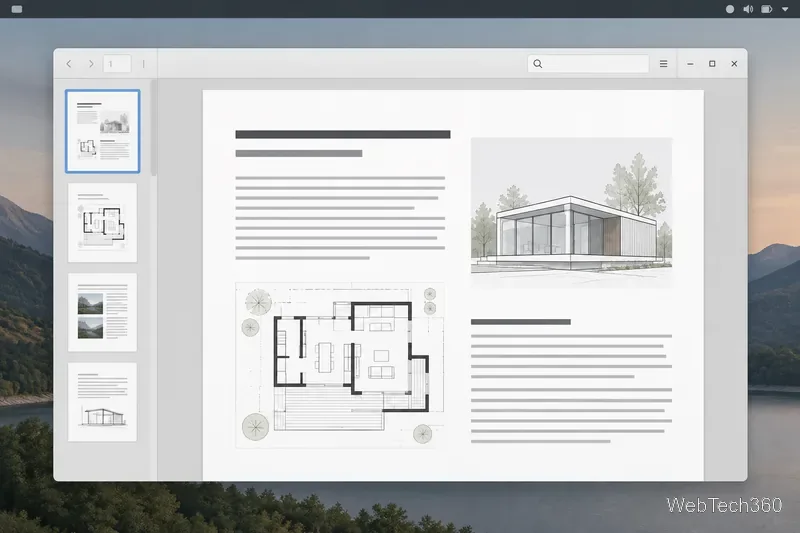
Compare four Adobe Acrobat alternatives for Linux, from Okular’s signatures and markup to GNOME Papers, Atril, and MuPDF.
This procedure creates a software RAID 1 data array on Debian 12 (Bookworm) with mdadm, formats the assembled device as ext4, and mounts it persistently. It assumes Debian is already installed on a separate system disk and that the two RAID disks are unused. The commands below are examples; device names and sizes must be checked on the server you are configuring.
Data-loss warning: partitioning and formatting can destroy data. Do not run these commands on a disk that contains files you need. RAID 1 mirrors writes; it does not replace an independent backup, and it cannot protect against deletion, filesystem corruption, theft, or malware that changes both copies.
sudo before each administrative command.Debian 12 Bookworm provides the tools used here. The behavior of mdadm, sgdisk, and update-initramfs is documented in the Debian Bookworm mdadm manual, sgdisk manual, and update-initramfs manual. Check these versioned references if your installed packages differ.
Start with a read-only inventory:
lsblk -o NAME,SIZE,TYPE,FSTYPE,MOUNTPOINTS,MODEL,SERIAL
findmnt
In the example below, /dev/sda is the Debian system disk, while /dev/sdb and /dev/sdc are blank 2 TB data disks. Your names will probably differ. Match size, model, serial number, filesystem, and mount points; do not identify a disk by its /dev/sdX name alone. For a persistent identifier, inspect ls -l /dev/disk/by-id/ and correlate each link with the serial printed by lsblk.
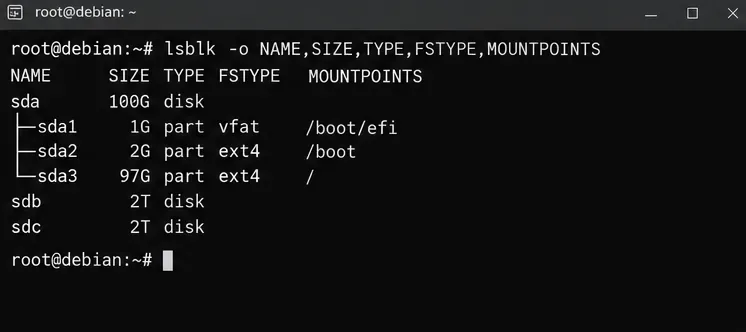
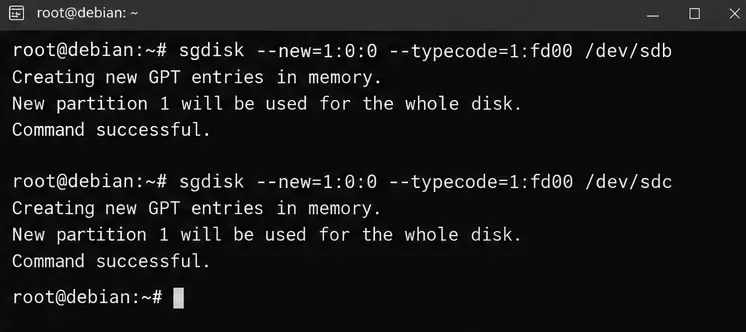
For disks that are confirmed empty, create one GPT partition across the available space and mark it as Linux RAID. Here, fd00 is sgdisk's short type code for Linux RAID:
sgdisk --new=1:0:0 --typecode=1:fd00 /dev/sdb
sgdisk --new=1:0:0 --typecode=1:fd00 /dev/sdc
partprobe /dev/sdb /dev/sdc
udevadm settle
lsblk -o NAME,SIZE,TYPE,FSTYPE,MOUNTPOINTS /dev/sdb /dev/sdc
Replace both example disk names with the two verified targets. --new=1:0:0 asks sgdisk to allocate partition 1 through the available space. The partition-table edits are destructive if you select disks with existing data. If sgdisk reports an existing layout, unexpected partitions, or unclear errors, stop and investigate rather than forcing the change. Confirm that the new partitions (normally /dev/sdb1 and /dev/sdc1) are present and approximately the same size.
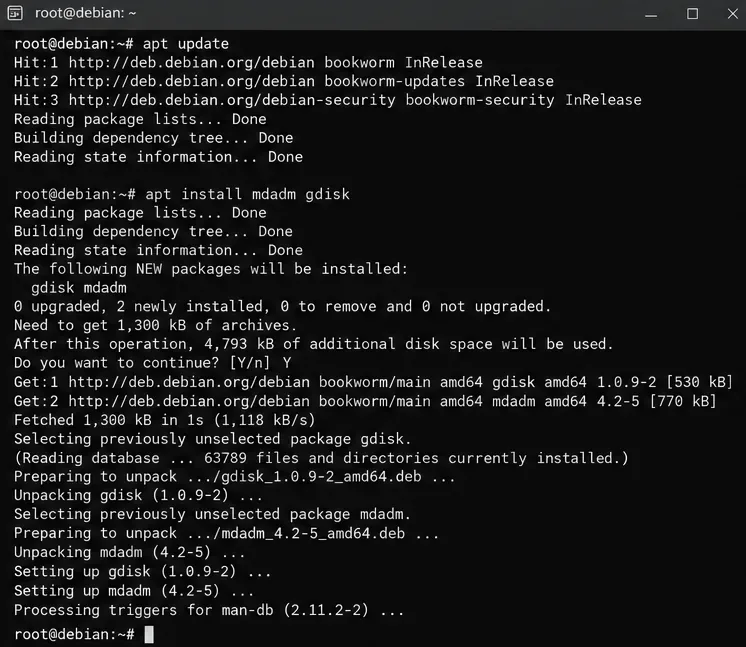
Update the package index and install the required commands:
apt update
apt install mdadm gdisk
The gdisk package supplies sgdisk. Review the package manager's proposed changes before accepting them, particularly on a production host.
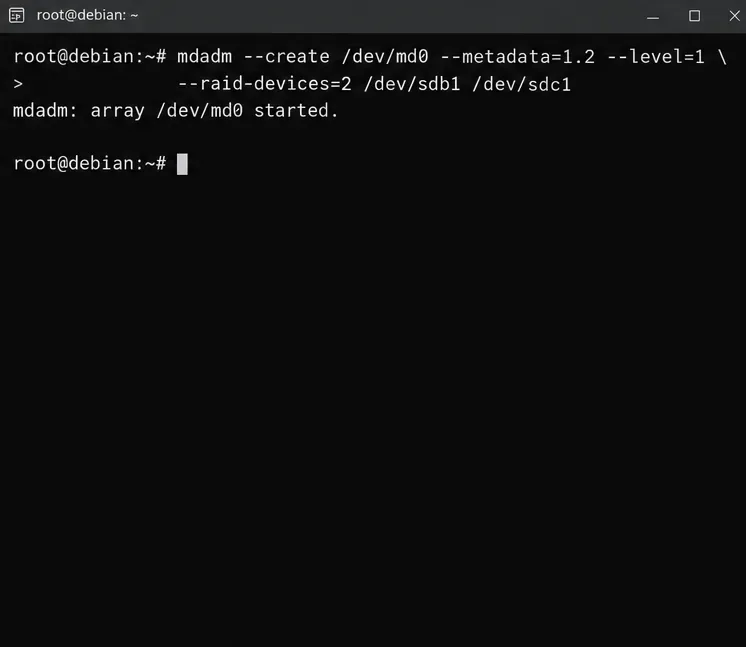
Use the partition devices, not the full disks, as the array members. Substitute the stable /dev/disk/by-id/…-part1 paths you verified if available; the short names below keep the example readable:
mdadm --create /dev/md0 \
  --metadata=1.2 --level=1 --raid-devices=2 \
  /dev/sdb1 /dev/sdc1
--level=1 selects mirroring, --raid-devices=2 sets the two members, and metadata version 1.2 is specified explicitly. Creating the array writes RAID metadata and starts synchronization. Do not continue if mdadm warns that a member contains existing RAID metadata or data you cannot account for. Do not respond with --force as a shortcut.
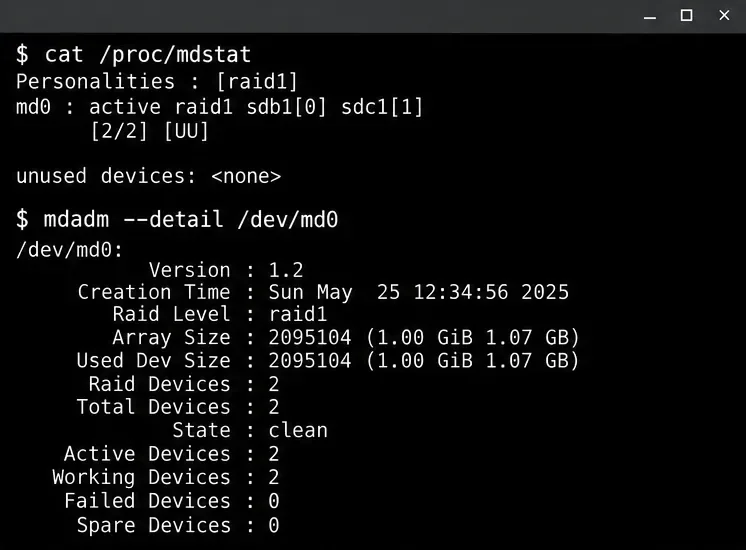
Check progress and the array's current state:
cat /proc/mdstat
mdadm --detail /dev/md0
During the initial synchronization, /proc/mdstat may show a resync percentage and estimated time; let it complete before treating the mirror as fully synchronized. A typical completed two-member array shows [2/2] [UU], meaning both expected member slots are present, while mdadm --detail should list two active devices and report a clean state. These indicators describe array health at that moment; they are not a backup check or a guarantee that either physical disk will remain healthy.
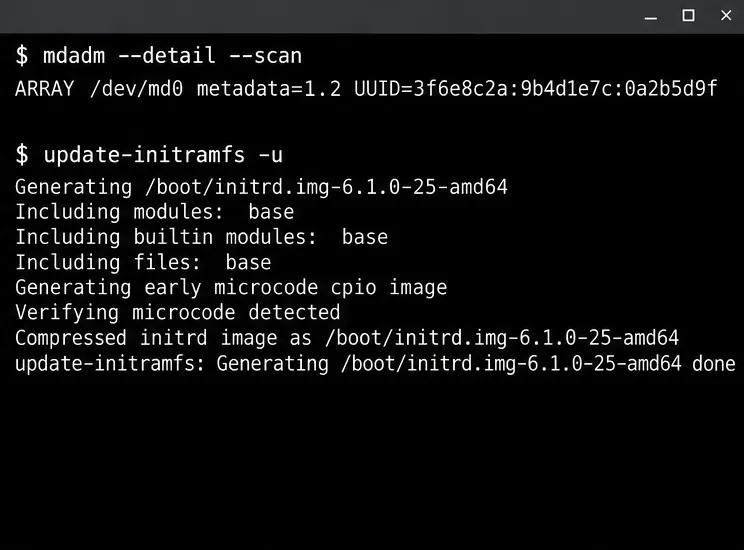
Ask mdadm for the array definition:
mdadm --detail --scan /dev/md0Review the returned ARRAY line and add that exact line to /etc/mdadm/mdadm.conf, using an editor and preserving any existing array entries. Avoid blindly appending repeated copies. Debian's mdadm.conf manual documents this file and how array definitions support assembly. On a standard Debian installation using initramfs-tools, rebuild the initramfs after changing the configuration:
update-initramfs -uThis updates the existing initramfs image; it does not create a backup of your array. If this system uses a different initramfs framework or nonstandard boot setup, follow that framework's documented update procedure.
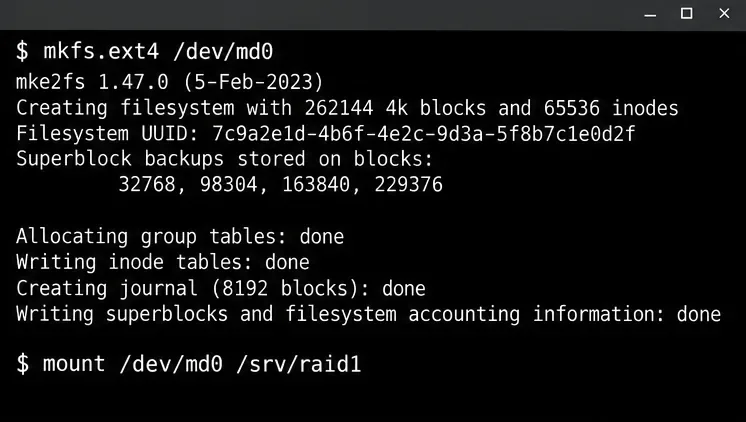
Only after verifying that /dev/md0 is the new array, create an ext4 filesystem on that device:
mkfs.ext4 /dev/md0
mkdir -p /srv/raid1
mount /dev/md0 /srv/raid1
blkid /dev/md0
mkfs.ext4 erases filesystem data on its target. Run it on the assembled array device, not on /dev/sdb1 or /dev/sdc1; formatting a member directly would bypass the mirror. Copy the filesystem UUID printed by blkid, then add a line like the following to /etc/fstab, replacing the placeholder with that real UUID:
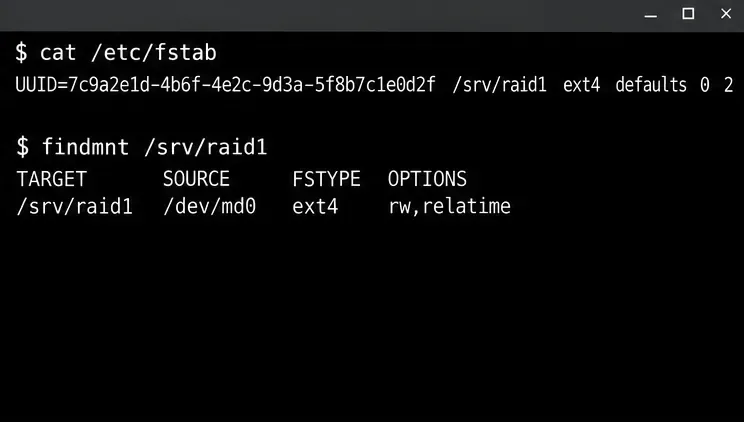
UUID=YOUR-FILESYSTEM-UUID /srv/raid1 ext4 defaults 0 2Using the filesystem UUID avoids depending on the order in which Linux discovers the disks. The final 2 enables the normal secondary filesystem check order for ext filesystems. If you choose the nofail mount option so boot can continue when storage is unavailable, ensure services do not write into the bare mount-point directory while the array is absent.
Check the fstab entry without rebooting, then verify the resulting mount and RAID state:
mount -a
findmnt /srv/raid1
df -hT /srv/raid1
cat /proc/mdstat
mdadm --detail /dev/md0
findmnt should show /dev/md0 mounted at /srv/raid1 with the expected filesystem. If it does not, correct /etc/fstab before restarting; a typo can interrupt boot or leave the mount absent. Once the checks pass, schedule a controlled reboot and repeat the mount and RAID checks afterward. This article does not claim that a particular server has been reboot-tested.
/proc/mdstat shows both members present as [UU] after synchronization, and mdadm --detail reports two active devices.findmnt /srv/raid1 shows the array-backed device and expected filesystem at the intended path./etc/mdadm/mdadm.conf, the filesystem UUID is in /etc/fstab, and a planned restart confirms both are assembled and mounted.RAID 1 keeps a copy of written blocks on each member, so a single member failure can leave the array operating in a degraded state. That does not mean every application will behave normally or every failure can be handled without downtime. Monitor the machine and act promptly on disk or array alerts. Before replacing a failed disk, use mdadm --detail /dev/md0 and stable device identifiers to determine which member is affected. The replacement normally needs to be at least as large as the existing member and partitioned to match the array; adding the correctly identified replacement partition with mdadm --add /dev/md0 /dev/REPLACEMENT_PARTITION starts a rebuild. Verify device identity carefully before running any recovery command, and monitor the rebuild until both members return to a healthy state.
Do not use this data-volume walkthrough to mirror a Debian root filesystem. A bootable root RAID setup adds requirements around the EFI System Partition, bootloader installation, initramfs contents, and recovery testing. Likewise, do not treat a healthy mirror as an independent copy: maintain a separate, versioned backup and test restoring files from it. For general Debian software RAID administration, consult the Debian SoftwareRAID documentation alongside the versioned Bookworm manuals linked above.
Compare four Adobe Acrobat alternatives for Linux, from Okular’s signatures and markup to GNOME Papers, Atril, and MuPDF.
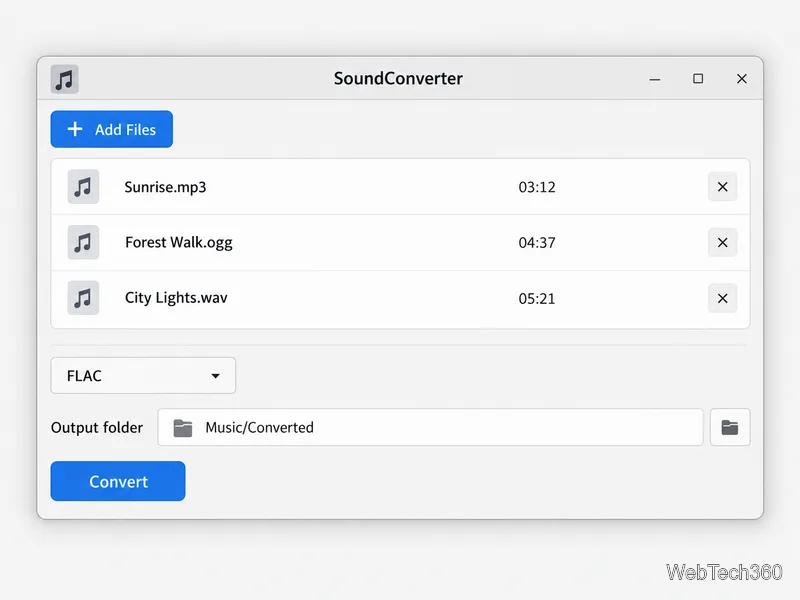
Compare Linux audio converters for batch jobs, CD ripping, editing, and command-line workflows, with practical format and codec notes.
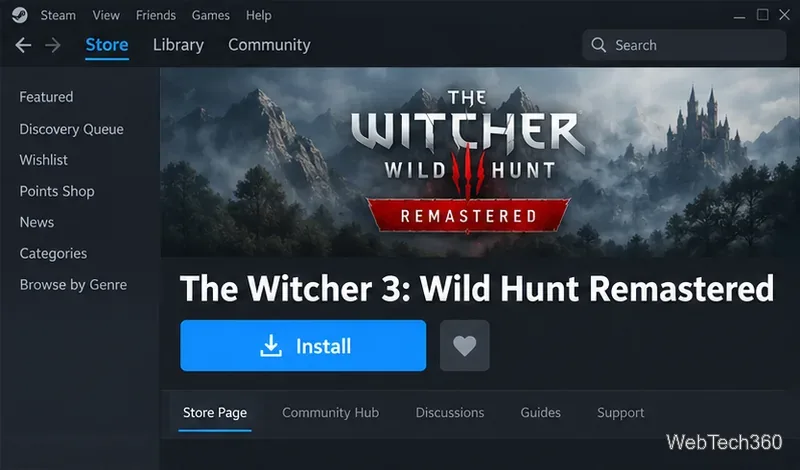
Set up The Witcher 3 on Linux with Steam Proton or a GOG copy in Heroic, with current guidance for Remastered compatibility issues.
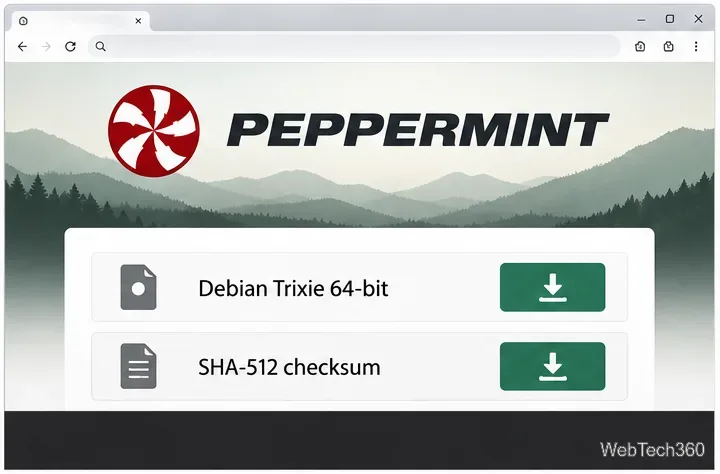
Install Peppermint OS from the Debian Trixie 64-bit ISO: verify the download, create a bootable USB, choose a disk layout, and complete setup safely.
Compare four Linux wallpaper apps for searching, filtering, saving, and rotating desktop backgrounds, with current install links and compatibility notes.
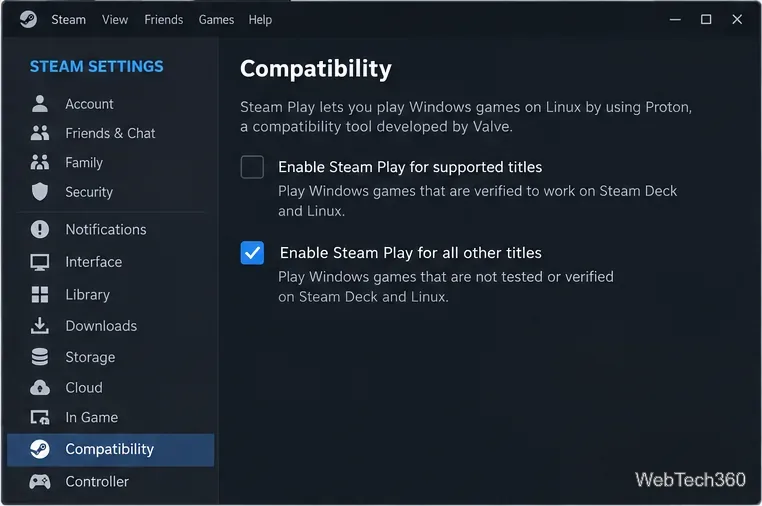
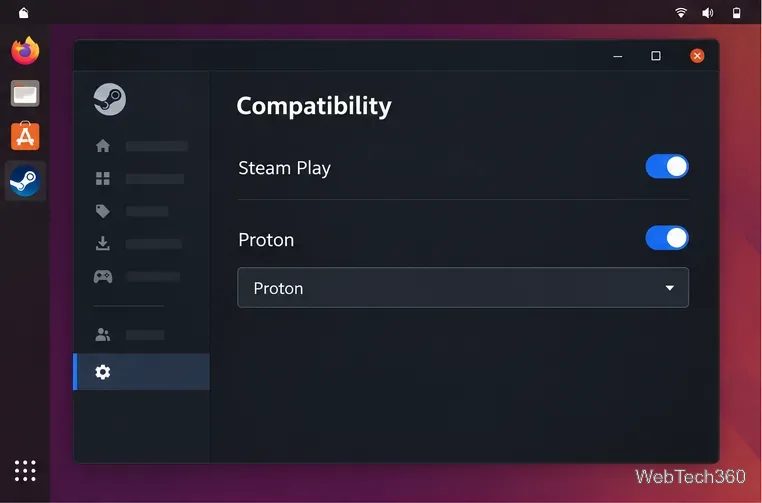
Install Fallout 4 from Steam on Linux, enable Proton for Windows games, and troubleshoot common launch problems with practical compatibility steps.
Use Steam Play and Proton to install The Sims 3 on Linux, or try a PC DVD copy with Wine. Follow current setup steps and compatibility tips.
Prepare a model-matched microSD card, install OSMC with the official desktop installer, and complete first-run setup on your Raspberry Pi.
Install the Steam version of No Man’s Sky on Linux with Proton, then troubleshoot launch failures, graphics issues, and compatibility settings.
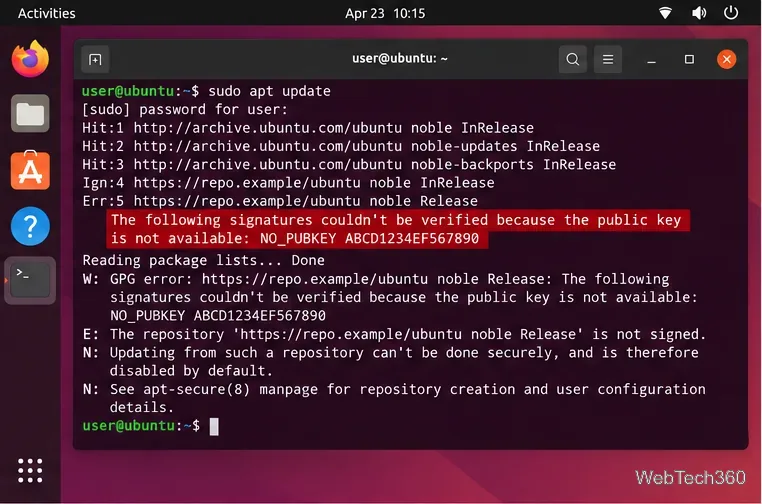
Find the repository that raised NO_PUBKEY, verify its publisher’s signing key, scope it with Signed-By, and refresh APT safely without weakening signature checks.