How to Access a Windows BitLocker Partition in Linux

Use Dislocker to unlock a BitLocker volume in Linux, mount its virtual NTFS file read-only, and safely unmount it without exposing your password in a command.
A WireGuard point-to-site VPN on Debian 12 (Bookworm) is a practical way to let laptops, phones, or remote workstations reach a server or route traffic through it. One important clarification comes first: WireGuard does not have a special “server mode.” Every participant is a peer. In a point-to-site design, one Debian host simply acts as the stable, publicly reachable hub and each remote device gets its own key pair and tunnel address.
This guide uses Debian’s packaged WireGuard tools, wg-quick, IPv4 forwarding, and nftables. It assumes the Debian server has root or sudo access and that UDP port 51820 can reach it. If the server is behind a home or office router, you must forward that UDP port to the Debian host. If the ISP uses carrier-grade NAT (CGNAT), ordinary router port forwarding may not be enough; confirm that you actually have a reachable public address before troubleshooting WireGuard itself.
The example VPN uses 10.8.0.0/24. The server is 10.8.0.1, and the first client is 10.8.0.2. The client can be configured as either a full-tunnel VPN, where IPv4 Internet traffic exits through the Debian server, or a split tunnel, where only selected private networks use WireGuard.
Debian’s own WireGuard documentation confirms that WireGuard is available through the distribution packages, while the official WireGuard quick-start documents key generation, wg-quick, and the optional persistent keepalive behavior. See the Debian WireGuard documentation, the official WireGuard Quick Start, and Debian’s wg-quick manual page.
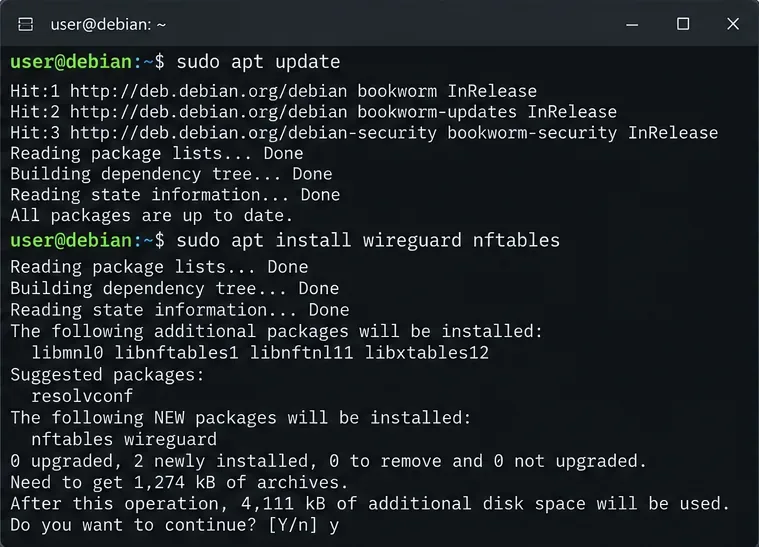
Update package metadata, then install WireGuard and nftables:
sudo apt update
sudo apt install wireguard nftables
A common misconception is that Debian 12 needs an out-of-tree WireGuard kernel module. It does not. WireGuard has been in the Linux kernel for years; Debian’s packages provide the userspace management tools you need. Action: use Debian packages instead of downloading an unverified installation script.
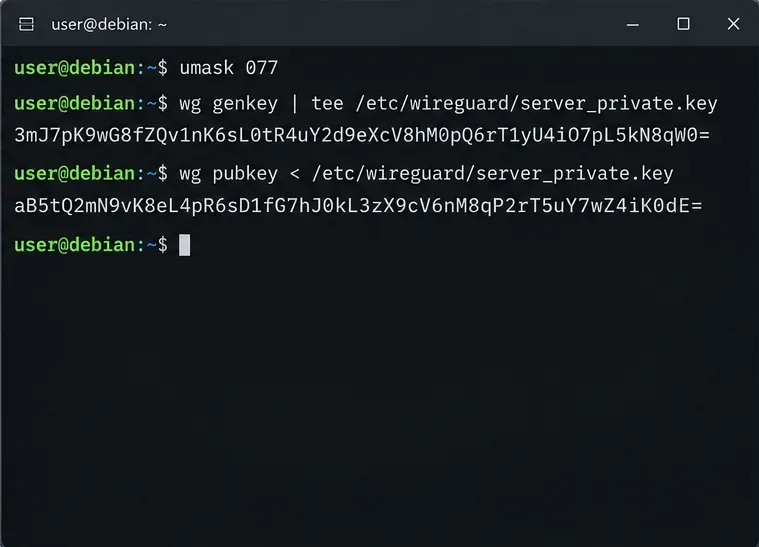
Create the key files with restrictive permissions:
sudo -i
install -d -m 700 /etc/wireguard
umask 077
wg genkey | tee /etc/wireguard/server_private.key | wg pubkey > /etc/wireguard/server_public.key
chmod 600 /etc/wireguard/server_private.key
cat /etc/wireguard/server_public.key
The private key must remain private. The public key is what you copy into client configurations. Ideally, generate each client’s private key on that client rather than on the server. That way the server never needs to possess client private keys.
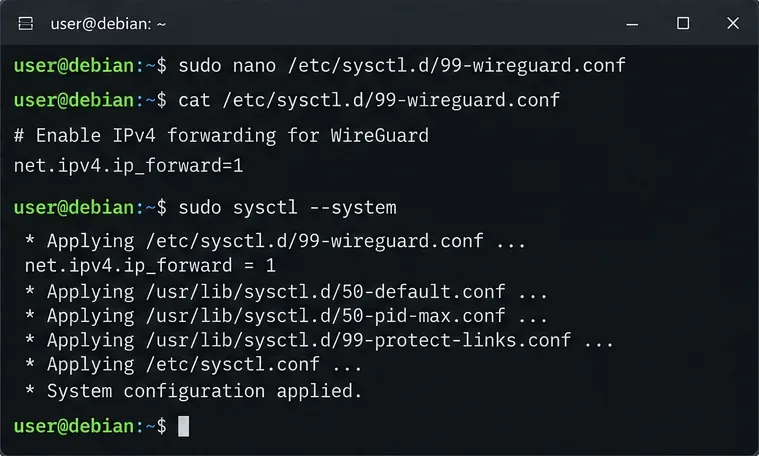
A VPN tunnel can come up successfully while routed traffic still fails. The reason is that Linux IP forwarding is a separate kernel setting from WireGuard itself. Create a persistent sysctl file:
echo 'net.ipv4.ip_forward=1' | sudo tee /etc/sysctl.d/99-wireguard.conf
sudo sysctl --system
sysctl net.ipv4.ip_forward
The final command should report net.ipv4.ip_forward = 1. Debian’s kernel documentation describes ip_forward as the switch that enables forwarding of IPv4 packets. Action: verify this value explicitly rather than assuming the tunnel interface automatically turns routing on. See the Debian ip(7) manual and sysctl.conf documentation.
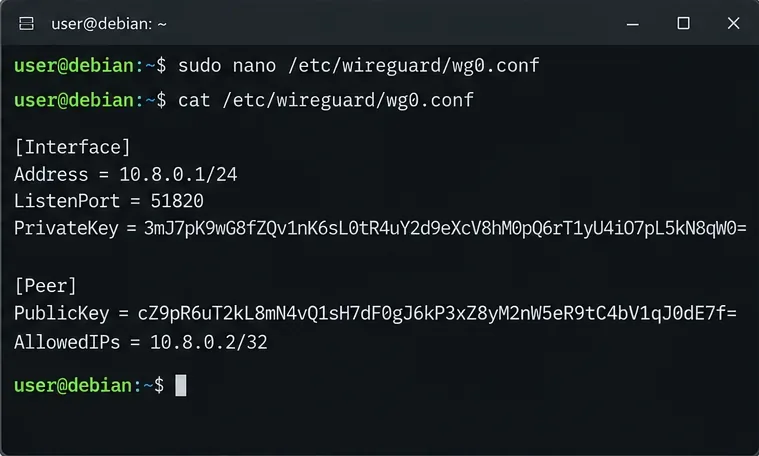
Read the server private key, then create /etc/wireguard/wg0.conf:
[Interface]
Address = 10.8.0.1/24
ListenPort = 51820
PrivateKey = SERVER_PRIVATE_KEY

[Peer]
PublicKey = CLIENT_PUBLIC_KEY
AllowedIPs = 10.8.0.2/32
Then protect the file:
sudo chmod 600 /etc/wireguard/wg0.confAllowedIPs is often misunderstood as only a firewall-style allowlist. It also controls routing. On the server, assigning 10.8.0.2/32 to this peer tells WireGuard that packets for that exact tunnel address belong to this client. Give every client a unique address and a separate [Peer] block.
Another useful choice is to omit SaveConfig = true when you intend to manage this file by hand. With SaveConfig, wg-quick can write the live state back to the configuration on shutdown, which may overwrite manual edits. Action: keep the file declarative unless you specifically want live state saved.
If full-tunnel clients should access the Internet through the Debian server, the easiest arrangement is IPv4 masquerading. First identify the server’s outbound interface:
ip route get 1.1.1.1Look for the interface after dev, such as eth0, ens3, or enp1s0. Do not assume it is always eth0.
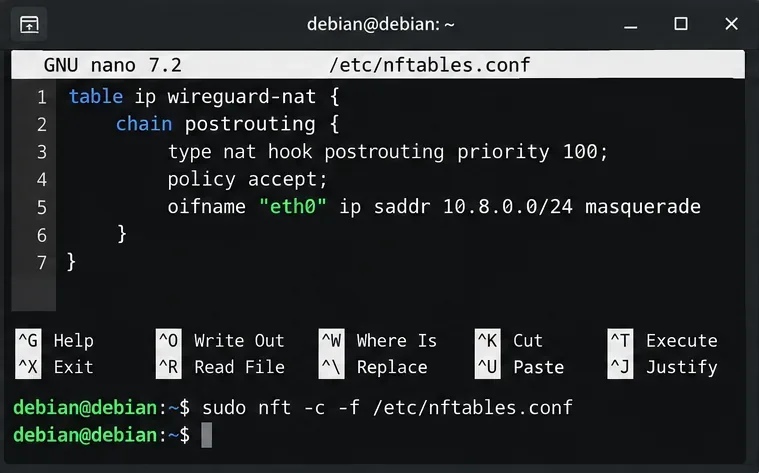
If you already maintain /etc/nftables.conf, merge the following NAT table into your existing ruleset instead of replacing the file:
table ip wireguard-nat {
    chain postrouting {
        type nat hook postrouting priority 100; policy accept;
        oifname "eth0" ip saddr 10.8.0.0/24 masquerade
    }
}
Replace eth0 with the actual outbound interface. Validate before loading:
sudo nft -c -f /etc/nftables.conf
sudo systemctl enable --now nftables
sudo nft list ruleset
NAT is not inherently required by WireGuard. If the destination LAN already has a route back to 10.8.0.0/24, routed access can work without masquerading. NAT is mainly convenient when you want remote clients to use the server’s existing Internet route and you do not control return routes elsewhere. Action: use masquerading for the simple Internet-egress case; prefer explicit routing when you control the network and want source addresses preserved.
That depends on the firewall already installed. If your nftables input policy is restrictive, allow inbound UDP 51820. If your forward chain has a default drop policy, add rules there to permit traffic from wg0 to the intended destination and to permit established return traffic. Cloud VPS providers may also have a separate security group or provider firewall that must allow UDP 51820.
Do not blindly paste an entirely new drop-by-default firewall ruleset into a remote SSH server. That can lock you out. Action: inspect sudo nft list ruleset and integrate WireGuard into the firewall you already have.
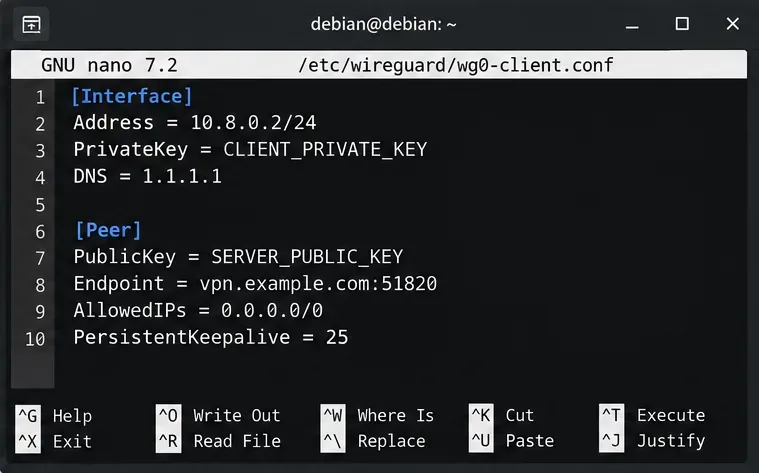
On the client, generate its own key pair using the WireGuard app or wg genkey. A full-tunnel IPv4 profile looks like this:
[Interface]
Address = 10.8.0.2/24
PrivateKey = CLIENT_PRIVATE_KEY
DNS = 1.1.1.1

[Peer]
PublicKey = SERVER_PUBLIC_KEY
Endpoint = vpn.example.com:51820
AllowedIPs = 0.0.0.0/0
PersistentKeepalive = 25
Replace vpn.example.com with the server’s public DNS name or public IP. The DNS line is optional and client implementation support varies. For a split tunnel, change AllowedIPs to only the networks that should cross the VPN, for example 10.8.0.0/24 plus a private LAN such as 192.168.50.0/24.
PersistentKeepalive = 25 is also optional. WireGuard’s official documentation recommends 25 seconds as a sensible value when a peer behind NAT or a stateful firewall needs to preserve its mapping during idle periods. It is not a performance setting and is not mandatory for every client. Action: use it mainly for roaming or NATed clients that otherwise become unreachable after idle time.
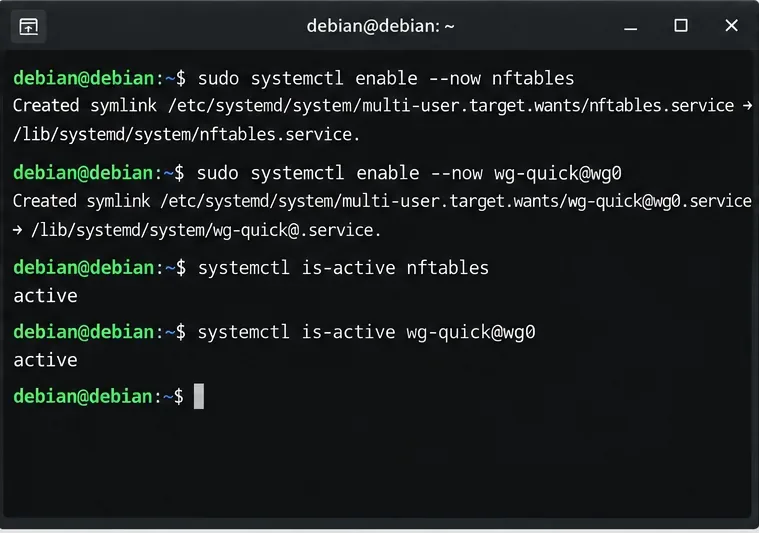
Bring up nftables first, then enable the WireGuard interface:
sudo systemctl enable --now nftables
sudo systemctl enable --now wg-quick@wg0
systemctl is-active nftables
systemctl is-active wg-quick@wg0
wg-quick@wg0 reads /etc/wireguard/wg0.conf. The wg-quick manual confirms that this naming convention is the normal shortcut for configurations stored under /etc/wireguard. Action: use the service rather than a custom boot script unless you have a more complex network manager design.
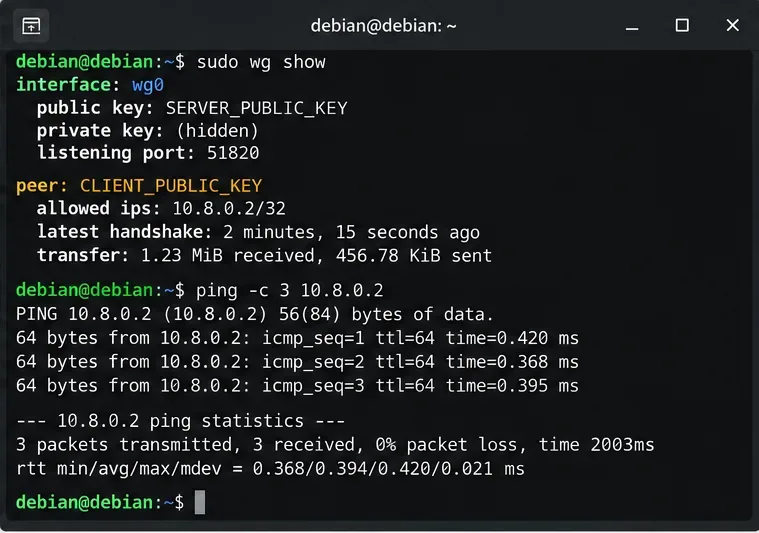
Connect the client, then inspect the server:
sudo wg show
ip address show wg0
ping -c 3 10.8.0.2
A healthy peer normally shows a recent handshake and nonzero transfer counters after traffic crosses the tunnel. If you configured a full tunnel, check the client’s public IPv4 address with a trusted IP-check service; it should match the Debian server’s egress address.
| Symptom | Likely cause | Useful next action |
|---|---|---|
| No handshake | Wrong keys, endpoint, UDP port, upstream firewall, router port forwarding, or CGNAT | Confirm UDP 51820 reaches the Debian host and recheck both public keys. |
| Handshake works but no Internet | IPv4 forwarding, forwarding firewall rules, or NAT is missing | Check sysctl net.ipv4.ip_forward, nft list ruleset, and the outbound interface name. |
| Can reach 10.8.0.1 but not a private LAN | The client lacks the LAN route or the LAN lacks a return route | Add the LAN subnet to client AllowedIPs and configure routing or NAT appropriately. |
| Some sites stall | Possible path-MTU issue | Test with smaller packets before forcing an MTU. wg-quick can choose an MTU automatically, so do not set 1420 just because another guide does. |
| IPv4 uses VPN but IPv6 does not | The profile only routes 0.0.0.0/0 | Configure IPv6 through WireGuard too, or deliberately disable/block client IPv6 if avoiding IPv6 leakage is a requirement. |
Use a full tunnel when the goal is to protect traffic on untrusted Wi-Fi or make Internet traffic exit from the Debian server. Use a split tunnel when you only need remote access to a server, home network, lab, or internal application and want normal Internet traffic to remain local. The choice is controlled primarily by the client’s AllowedIPs.
For a small point-to-site deployment, the configuration above is enough to establish a maintainable baseline: one peer block per client, unique tunnel addresses, Debian-managed services, and nftables for the routing behavior you actually need. For larger deployments, key distribution, peer lifecycle, DNS, logging, and configuration management become operational concerns even though the WireGuard protocol itself remains simple.
wg-quick@wg0 is active and wg0 has 10.8.0.1/24.51820 and that port is reachable through any upstream firewall or router./32 entry on the server.net.ipv4.ip_forward equals 1 when routed access is required.wg show displays a recent handshake after the client sends traffic.AllowedIPs matches the intended full-tunnel or split-tunnel design.These steps target Debian 12 and the standard WireGuard tooling available through Debian. Network topology, upstream NAT, cloud firewalls, private LAN routing, and IPv6 policy are environment-specific, so those pieces cannot be inferred from WireGuard configuration alone. Validate each one separately rather than treating every connectivity problem as a WireGuard failure.
Use Dislocker to unlock a BitLocker volume in Linux, mount its virtual NTFS file read-only, and safely unmount it without exposing your password in a command.
Learn how to reduce RAM usage on Linux by finding memory-hungry apps, trimming browser and startup load, and testing a lighter desktop safely.
Compare four WhatsApp alternatives for Linux by privacy defaults, desktop support, setup requirements, and the people each app suits.
Troubleshoot a VirtualBox VM that will not start on Linux by checking vboxdrv, kernel headers, Secure Boot, Extension Pack versions, and VM logs.
Transfer your Ubuntu user data with a tar archive and external drive, then restore personal files and selected settings without overwriting the new setup.
Install gThumb on Linux, browse and make simple photo edits, then set it as the default app for the image types you choose in GNOME.
Create an organized playlist in Rhythmbox or save a reusable XSPF playlist in VLC. Learn how to add tracks, name a list, and reopen it on Linux.
Install Dino on Linux with Flatpak or your distribution’s package manager. Get current Ubuntu, Debian, Fedora, and Arch commands, plus first-launch tips.
Install Arch Linux’s linux-lts kernel, add it to GRUB or systemd-boot, select it at startup, and verify it while keeping a fallback kernel.
Download the right Pi 4 image, write it to a microSD card, and complete LibreELEC’s first-run setup with Raspberry Pi Imager.








