How to Access a Windows BitLocker Partition in Linux

Use Dislocker to unlock a BitLocker volume in Linux, mount its virtual NTFS file read-only, and safely unmount it without exposing your password in a command.
Gooroom OS browser isolation is configured differently from a simple privacy option such as clearing history or opening a private window. Gooroom’s own product material describes a Chromium-based Gooroom Browser that can apply different user permissions according to the destination site, block specified URLs and harmful sites, and delete user data when the browser closes. It also describes centralized policy management through the Gooroom Platform Management System (GPMS). The exact menus and policy fields vary by build and deployment, and the public documentation reviewed for this guide does not provide a current, universal click-by-click setup path.
For that reason, treat the following as a safe configuration workflow: identify the installed browser and who manages it, define the site rules, have the authorized administrator apply them through the supported management route, and verify what users can access. Do not assume that a Chrome setting or a menu found in another Gooroom release applies to your installation.
Browser isolation separates web activity or permissions so that content from one browsing context has less ability to affect another context or the device. In Gooroom’s published material, the relevant model is associated with Gooroom Browser security and different policies for trusted and untrusted browsing destinations. A trusted site is a destination that an organization has explicitly approved for a defined work purpose; an untrusted site is handled under the more restrictive policy. These labels and the resulting permissions should be defined by your organization, rather than inferred from whether a website looks familiar.
This is different from site isolation, a Chromium security architecture that places site content into separate processes. Google documents that browser-level feature for managed Chrome, but that does not prove that every Gooroom build exposes the same switches or that changing Chrome policies configures Gooroom’s trust-based browser controls. Do not use chrome://flags or generic Chrome enterprise settings as a substitute for Gooroom’s documented management path.
The official Hancom Gooroom product brochure is dated August 19, 2022. It documents browser and GPMS capabilities at that time, not a guaranteed menu layout for every current image. Gooroom’s public browser source repository shows a Gooroom 4.0 branch/tag and continued repository activity in 2026, but source code is not a user guide. Confirm your device’s release, browser package, and local deployment with your administrator before changing policy.
Open the browser supplied with your Gooroom image and note its name and version using the About information if available. Capture the OS edition/build shown by your organization’s normal support or inventory tool. Then ask whether the browser’s trusted/untrusted behavior is managed per user, device, department, or centrally by GPMS. This determines where policy changes belong: a user-facing preferences panel, if your build includes one, or the organization’s administrative console.
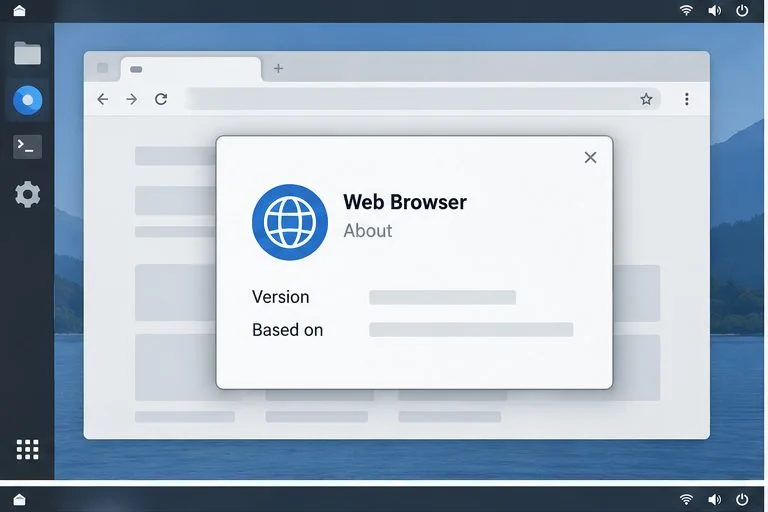
If you cannot identify the version or policy owner, stop before editing configuration files. Ask the device administrator for the supported browser build and the approved policy workflow. Gooroom’s public materials describe centralized software and security policy management, but they do not document a universal end-user menu for those controls.
Build a short, reviewed URL classification list. For every entry, record the purpose, responsible business owner, whether the destination is approved for trusted browsing, and any required access restrictions. Specify exact hostnames where possible instead of broad wildcards. A broad rule such as an entire cloud-service domain can include personal accounts, user-generated content, or unrelated services. Ask the security team to resolve redirects, subdomains, and external identity-provider URLs before deployment.
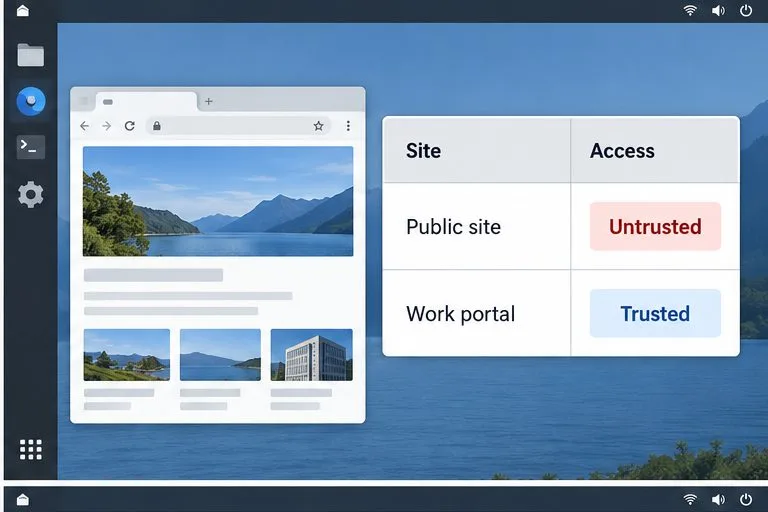
Do not mark a site trusted only because it is frequently used. Confirm its ownership, business purpose, authentication flow, and data handling with the site owner. If a site needs permissions such as downloading or copying text, state the business reason explicitly so the administrator can apply the least access needed.
On managed installations, give the approved URL list and intended behavior to the GPMS or endpoint administrator. Ask them to confirm how the installed release maps a destination to trusted or untrusted browsing, how blocked URLs are handled, and whether the policy is assigned to a device group or user group. The brochure describes GPMS as supporting security policy creation and application to endpoints; it does not publish the current field names, buttons, or click path. Follow the procedure supplied for your organization’s exact GPMS release.
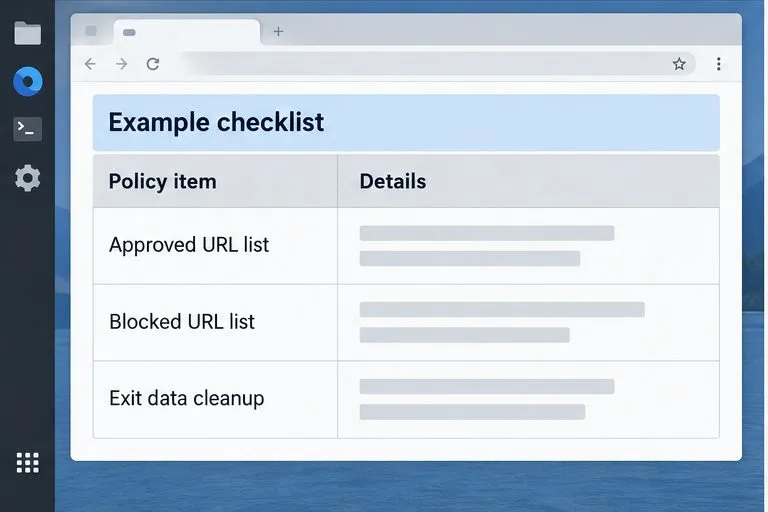
Before applying changes broadly, request a pilot on one test device or a limited user group. Confirm that the policy has reached the device and that the administrator can roll it back. Keep a copy of the approved URL rules and change record. If your device is unmanaged and has no documented settings page for these controls, do not assume you can add trusted/untrusted behavior by editing Chromium preferences; contact the Gooroom distributor or deployment provider for the correct package and instructions.
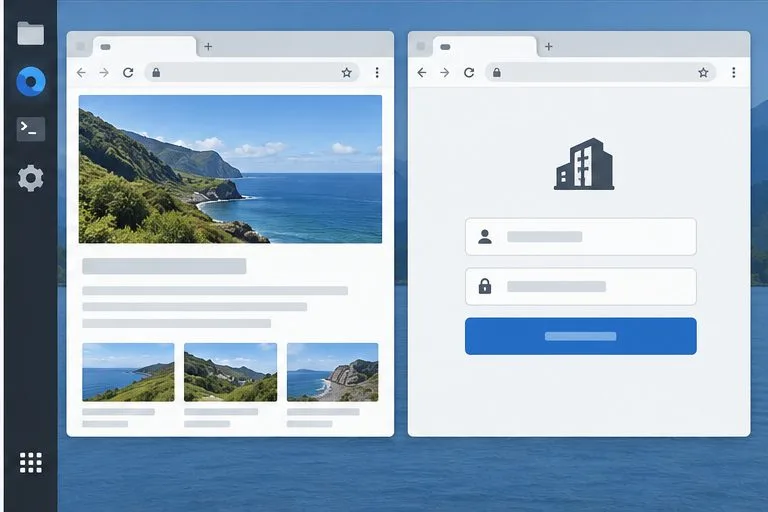
After the administrator confirms that the policy is applied, test the three destinations from the prepared list. The approved work site should open in the organization’s assigned trusted context, an ordinary public site should receive the intended restrictive context, and the blocked URL should be denied or handled as the policy specifies. The exact visible prompts or browser labels may differ by build; verify the resulting access, not a particular color or icon.
Then check the restrictions that matter to your organization: whether a site can open local files, download or upload documents, print, use clipboard functions, or retain data after closing. The 2022 brochure specifically says user data is deleted when Gooroom Browser closes, but the available public source does not define which data categories are covered or how that behavior varies by version. Test the deployed build with a non-sensitive account and ask the administrator what “user data” includes before relying on it for a compliance requirement.
Check the exact URL, redirects, and subdomains with the policy owner. A site may redirect to a separate login or content domain that is not on the original list. Ask the administrator to review the destination chain and adjust only the necessary entries. Avoid adding an entire top-level domain unless that scope has been approved.
The installed Gooroom browser may not expose the control locally, or a central policy may overwrite local changes. Confirm your version and policy-assignment group. Do not repeatedly edit preference files or install a separate browser; those actions can bypass the managed configuration and make the device harder to support.
Report the affected URL, user group, browser version, time, and visible error to the administrator. Ask them to review authentication redirects and required site permissions. Do not disable the browser protection globally as a quick workaround.
Gooroom Browser’s published security model supports site-based policy and browser data cleanup, but the exact settings interface depends on the product release and deployment. This guide is based on the public Hancom Gooroom brochure dated August 19, 2022, the public Gooroom source repository reviewed October 6, 2026, and Chromium’s official site-isolation documentation. Confirm current controls with the administrator or vendor for the installed image before treating a specific policy as active.
Use Dislocker to unlock a BitLocker volume in Linux, mount its virtual NTFS file read-only, and safely unmount it without exposing your password in a command.
Learn how to reduce RAM usage on Linux by finding memory-hungry apps, trimming browser and startup load, and testing a lighter desktop safely.
Compare four WhatsApp alternatives for Linux by privacy defaults, desktop support, setup requirements, and the people each app suits.
Troubleshoot a VirtualBox VM that will not start on Linux by checking vboxdrv, kernel headers, Secure Boot, Extension Pack versions, and VM logs.
Transfer your Ubuntu user data with a tar archive and external drive, then restore personal files and selected settings without overwriting the new setup.
Install gThumb on Linux, browse and make simple photo edits, then set it as the default app for the image types you choose in GNOME.
Create an organized playlist in Rhythmbox or save a reusable XSPF playlist in VLC. Learn how to add tracks, name a list, and reopen it on Linux.
Install Dino on Linux with Flatpak or your distribution’s package manager. Get current Ubuntu, Debian, Fedora, and Arch commands, plus first-launch tips.
Install Arch Linux’s linux-lts kernel, add it to GRUB or systemd-boot, select it at startup, and verify it while keeping a fallback kernel.
Download the right Pi 4 image, write it to a microSD card, and complete LibreELEC’s first-run setup with Raspberry Pi Imager.








