How to Access a Windows BitLocker Partition in Linux

Use Dislocker to unlock a BitLocker volume in Linux, mount its virtual NTFS file read-only, and safely unmount it without exposing your password in a command.
Need to add a USB or network printer on HamoniKR OS? The shortest route is usually the desktop Printers utility. CUPS, the Common UNIX Printing System, provides the print queues behind many Linux desktop tools and also offers a local browser-based administration page. Use the desktop utility when it detects the printer; use CUPS directly when you need to inspect a queue or enter a connection URI yourself.
The name in the article topic is often written “Harmonica OS,” but the project’s official English spelling is HamoniKR OS. Its current printer documentation describes a graphical setup flow and driverless IPP support. Menus and available packages can differ by release, so treat exact labels below as version-dependent. CUPS illustrations in this guide are schematic interface examples, not captures from a tested HamoniKR installation.
| Goal | Start here | What you need |
|---|---|---|
| Connect a USB printer | Printers utility | Printer powered on and connected by USB |
| Add a Wi-Fi or Ethernet printer | Printers utility or CUPS at http://localhost:631 | Printer on the same local network; its IP address if discovery fails |
| Use a printer not listed by model | Try driverless IPP, then the vendor’s Linux driver | Exact printer model and manufacturer support files |
| Check a queue or print a test page | CUPS printer page or lpstat | Administrative authorization for changes |
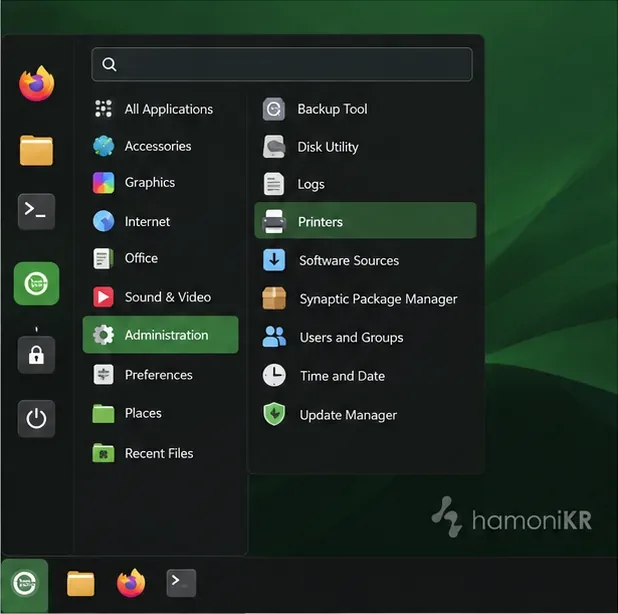
In HamoniKR, open Menu > Administration > Printers or open the Printers section in System Settings. The official HamoniKR 8.0 guide also lists system-config-printer as a way to start its printer utility. If your desktop has a different menu, search the application launcher for “Printers.”
If you specifically want the CUPS web interface, open http://localhost:631 in a browser on the same computer that will manage the printer. This address points to the local machine. If it does not load, check whether CUPS is installed and running:
systemctl status cupsOn a Debian- or Ubuntu-based HamoniKR installation where CUPS is missing, install the package from the configured distribution repositories, then start the service:
sudo apt update
sudo apt install cups
sudo systemctl start cups
Use the package manager’s prompt to review the packages before accepting. A personal desktop generally does not need to expose the CUPS administration page to the wider network. Keep the browser on localhost; do not loosen CUPS access rules or open port 631 just to add a local printer.
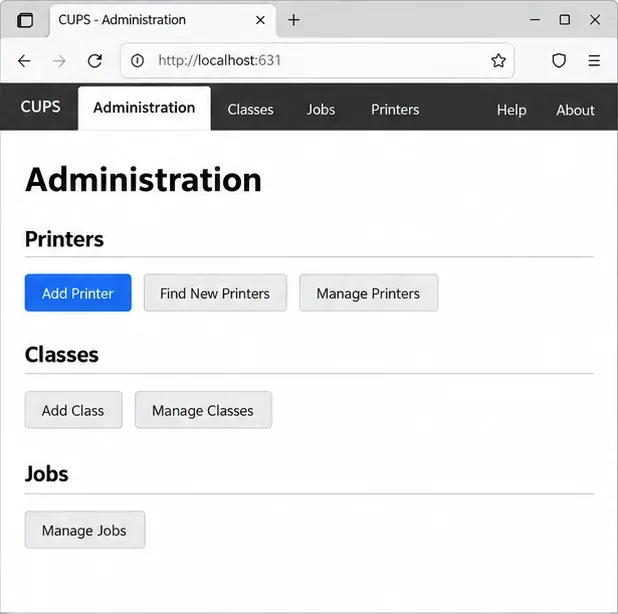
In CUPS, choose Administration, then Add Printer. Sign in when prompted with an account authorized to administer printing on this computer. The list may show locally attached USB devices and printers discovered on the network. Select the correct device, confirm its connection, and give the queue a short name you will recognize, such as office_laser.
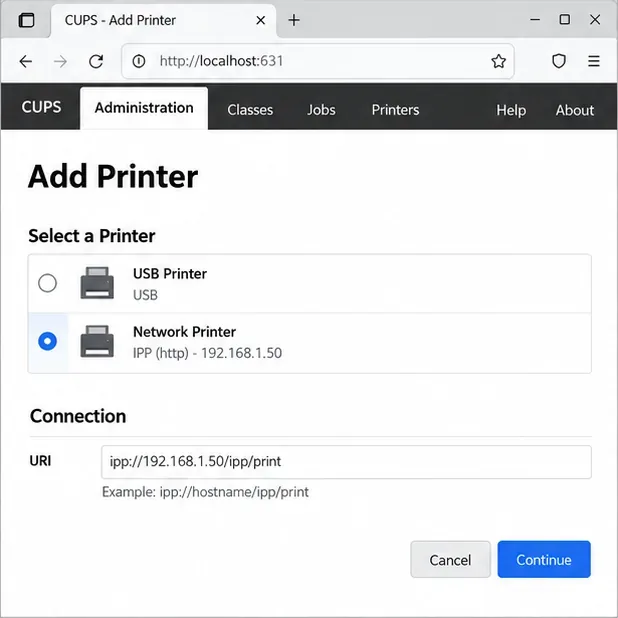
For a network printer that does not appear, use its network address rather than guessing. Find the address in the printer’s network menu, router device list, or the manufacturer’s setup page. In the CUPS connection step, choose the matching protocol and enter the URI supplied by the printer documentation. For many modern devices, an IPP URI resembles ipp://192.168.1.50/ipp/print, but the path is model-specific; do not assume that example fits your printer. CUPS also supports protocols such as IPP, IPPS, LPD, and AppSocket/JetDirect.
When the setup wizard asks for a model or driver, prefer IPP Everywhere or the HamoniKR utility’s Driverless IPP option if the printer advertises support. Driverless printing reads capabilities reported by a compatible printer instead of relying on a traditional model-specific PPD file. It is a good first choice for many recent network printers, but it may not expose every vendor feature.
If driverless setup is unavailable or prints incorrectly, choose the exact make and model from the available list. HamoniKR’s documentation recommends installing its printer support package when a printer is not recognized:
sudo apt update
sudo apt install hamonikr-printer-drivers
Confirm the package is offered by the repositories configured for your HamoniKR release. For a model still missing, check the printer manufacturer’s official Linux support page for the precise model and a package compatible with your OS version. Avoid selecting a vaguely similar model just to get through the wizard: unsupported resolution, duplexing, paper trays, or color modes can produce poor output.
After adding the queue, set the options you actually use: paper size (for example, Letter or A4), color or grayscale, and duplex printing if supported. CUPS and the desktop dialog may offer different controls depending on the driver. Choose Set Default Options or the equivalent apply/save control so the settings persist.
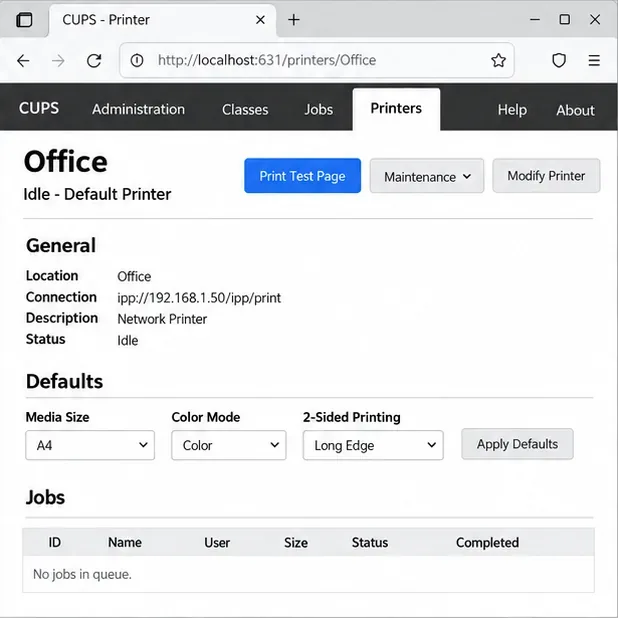
From the printer’s CUPS page, use the maintenance menu to select Print Test Page. You can also print a simple document from a desktop application. A successful setup means the job appears in the queue, changes to completed, and the physical page has the expected orientation, paper size, color, and margins.
For a quick terminal check, list configured queues and their state:
lpstat -tTo print a file to a named queue, use:
lp -d office_laser /path/to/test.pdfReplace the queue name and file path with your own. If you want to add an IPP Everywhere printer from a terminal, the CUPS command-line form is:
sudo lpadmin -p office_laser -E -v ipp://PRINTER_IP/ipp/print -m everywhereReplace PRINTER_IP and the URI path with the printer’s documented address. This command creates or updates a queue; it does not discover the correct URI for every model.
For release-specific instructions, start with the HamoniKR printer guide. For CUPS details, use the official CUPS overview, printer administration reference, and network printer guide. The menu path, driver package, and list of supported features may change across OS versions and printer models.
Use Dislocker to unlock a BitLocker volume in Linux, mount its virtual NTFS file read-only, and safely unmount it without exposing your password in a command.
Learn how to reduce RAM usage on Linux by finding memory-hungry apps, trimming browser and startup load, and testing a lighter desktop safely.
Compare four WhatsApp alternatives for Linux by privacy defaults, desktop support, setup requirements, and the people each app suits.
Troubleshoot a VirtualBox VM that will not start on Linux by checking vboxdrv, kernel headers, Secure Boot, Extension Pack versions, and VM logs.
Transfer your Ubuntu user data with a tar archive and external drive, then restore personal files and selected settings without overwriting the new setup.
Install gThumb on Linux, browse and make simple photo edits, then set it as the default app for the image types you choose in GNOME.
Create an organized playlist in Rhythmbox or save a reusable XSPF playlist in VLC. Learn how to add tracks, name a list, and reopen it on Linux.
Install Dino on Linux with Flatpak or your distribution’s package manager. Get current Ubuntu, Debian, Fedora, and Arch commands, plus first-launch tips.
Install Arch Linux’s linux-lts kernel, add it to GRUB or systemd-boot, select it at startup, and verify it while keeping a fallback kernel.
Download the right Pi 4 image, write it to a microSD card, and complete LibreELEC’s first-run setup with Raspberry Pi Imager.








