Home
» LINUX
»
How to Configure Razer Devices Using RazerGenie on Linux
How to Configure Razer Devices Using RazerGenie on Linux
RazerGenie is an open-source Linux app for configuring supported Razer peripherals. It adjusts RGB lighting and brightness and, on compatible mice, DPI stages and polling rate. It relies on OpenRazer, so the driver and daemon must be installed on the host before RazerGenie—especially its Flatpak build—can detect devices.
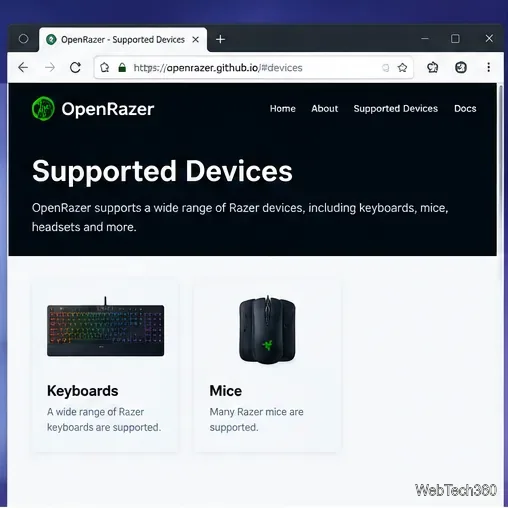
Check OpenRazer's supported-device list before installing the driver.
1. Check support and install OpenRazer
Check your exact model in the official OpenRazer device list. Stable and development support can differ, so a model listed only on the development branch may need a newer package. Use the current installation guide if your release is not covered below.
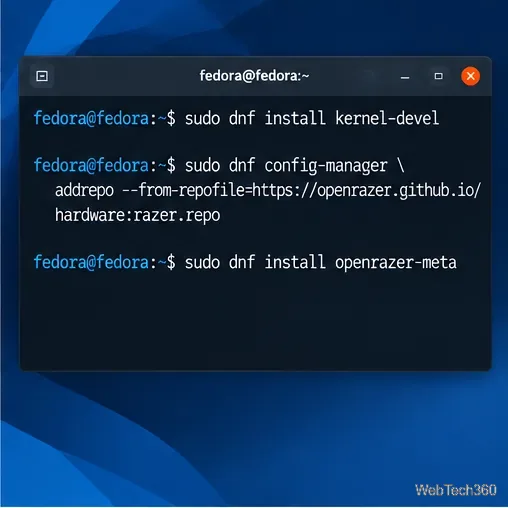
OpenRazer uses DKMS to build a kernel module. Install headers matching your running kernel if your package manager does not add them; Ubuntu and Debian often pull them automatically.
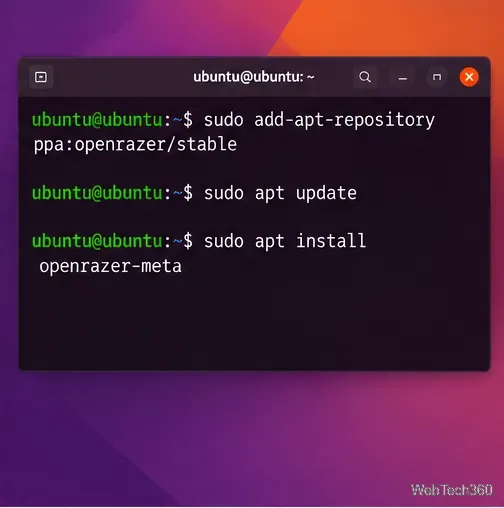
Ubuntu, Linux Mint, elementary OS, Pop!_OS, and Zorin OS
For the latest stable release, add the OpenRazer PPA and install its meta-package. On elementary OS, install the PPA helper first if needed.
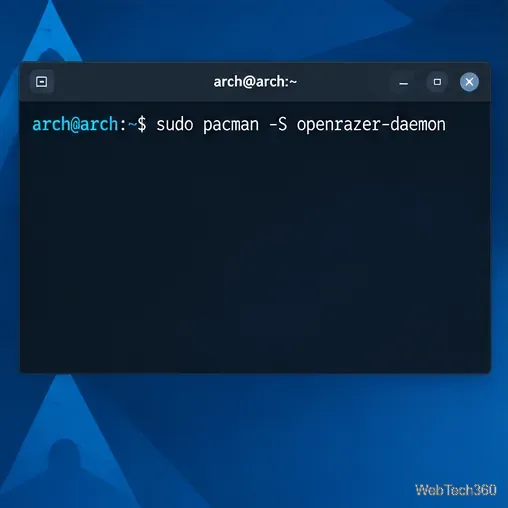
Use linux-headers for the standard Arch kernel; for another kernel flavor, install its matching header package. The daemon package depends on the OpenRazer driver package. See the official Arch package list for current package details.
Arch packages OpenRazer through its official repositories.
For Debian, start with the official package search; newer device support may require the OpenSUSE Build Service. The OBS page also covers openSUSE. Avoid outdated release-specific repository commands.
2. Set permissions and reboot
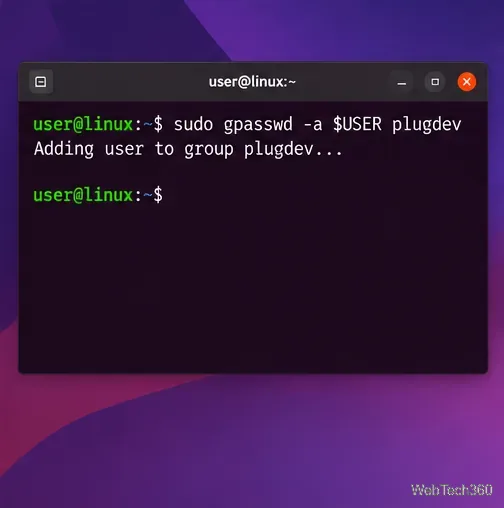
OpenRazer needs your user account to belong to the group that grants access to the device files. On most distributions, use plugdev:
sudo gpasswd -a $USER plugdev
On Arch-based distributions, current OpenRazer troubleshooting guidance says to use the openrazer group instead:
sudo gpasswd -a $USER openrazer
Reboot after installing the driver and changing group membership so the kernel module and permissions are reloaded.
Most distributions use plugdev; Arch-based systems use the openrazer group.
If the driver will not load, check the kernel headers and DKMS build. Secure Boot can block unsigned modules; see the official troubleshooting guide before changing firmware settings.
3. Install RazerGenie
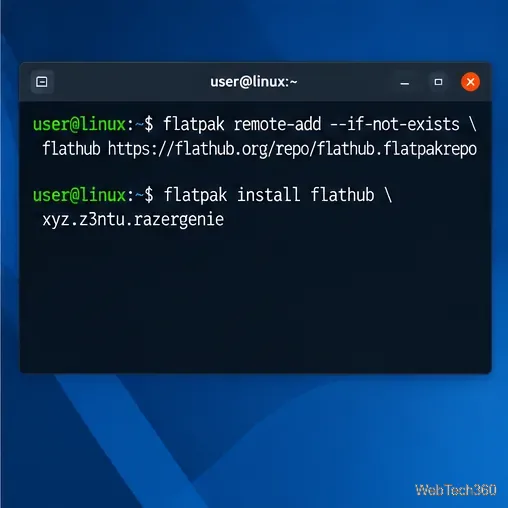
Flatpak works across distributions. If Flathub is not configured, add the remote and install RazerGenie:
Confirm the installation when prompted. The Flathub listing notes that OpenRazer must be installed outside Flatpak. The project README lists native package options.
Install the GUI only after OpenRazer is installed on the host system.
4. Configure your Razer device
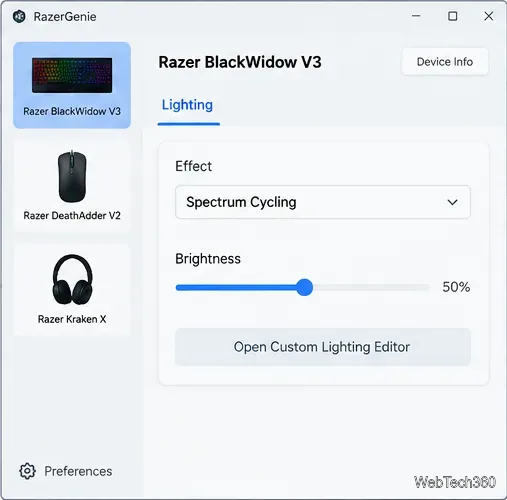
After rebooting, open RazerGenie from the application menu and select a device in the left sidebar. Controls depend on the model and OpenRazer support.
Select the keyboard, mouse, or other supported device you want to configure.
Change lighting effects and brightness
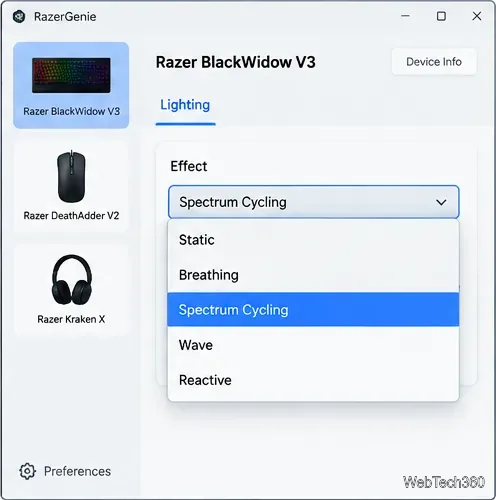
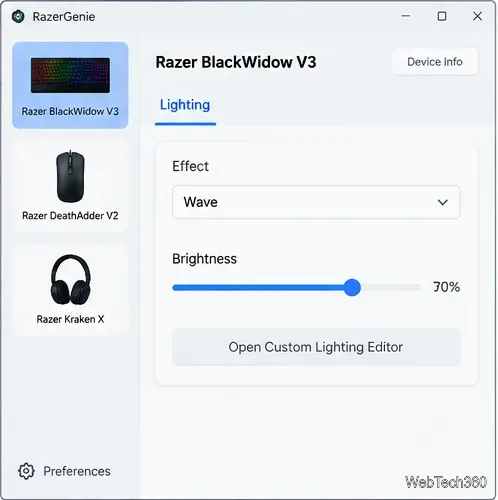
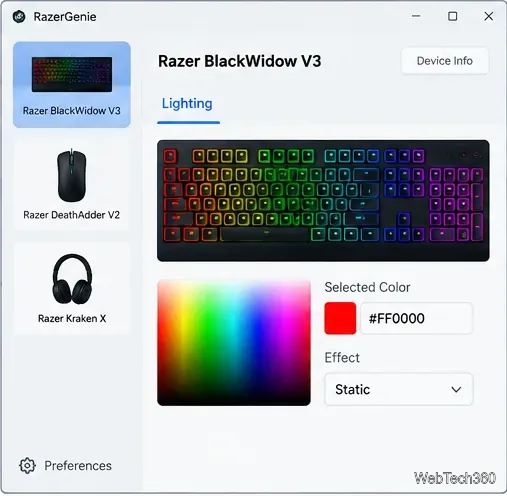
In Lighting, choose an available effect—such as Static, Breathing, Spectrum Cycling, Wave, or Reactive—and set a color if offered. Effects vary by device.
Choose one of the lighting effects supported by your device.
Use the brightness slider to dim or brighten the lighting. If available, open Open Custom Lighting Editor to assign colors to keys or zones; supported controls vary by model.
Adjust brightness independently from the selected lighting effect.Use the custom editor for per-key or per-zone lighting when the hardware supports it.
Adjust mouse DPI
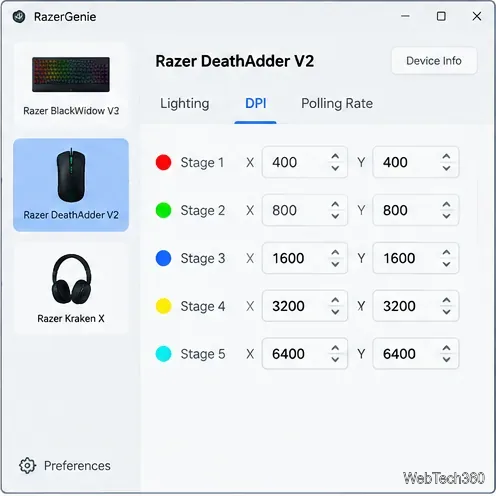
For a compatible mouse, open DPI and edit a sensitivity stage. Some devices expose separate X and Y values or a control to link them. Values in the illustration are examples; stages and maximum DPI depend on the mouse.
Set only DPI stages and values supported by your mouse.
Change the polling rate
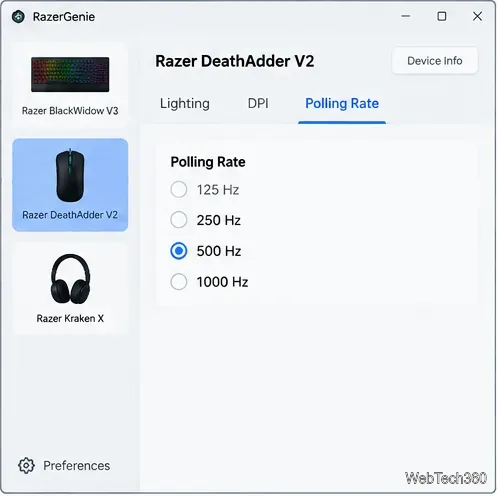
Open Polling Rate and choose an available value. Common options include 125, 250, 500, and 1,000 Hz, but supported rates vary by mouse and may depend on its receiver. Do not assume the highest rate is available.
Choose from the polling rates the connected device actually exposes.
5. If RazerGenie does not detect your device
Check USB detection: run lsusb | grep 1532, then compare the product ID with the stable support list.
Check the daemon: run systemctl --user status openrazer-daemon.service; if stopped, try systemctl --user restart openrazer-daemon.service.
After kernel updates: confirm the matching headers are installed and DKMS built the module for the running kernel.
Rule out USB issues: reconnect the device, try a direct port instead of a hub or KVM switch, and reopen RazerGenie.
Once OpenRazer detects the hardware, RazerGenie provides a convenient graphical way to adjust the lighting and device controls that the specific peripheral supports.