Home
» LINUX
»
How to Configure SLES 15 Firewall with firewall-cmd
How to Configure SLES 15 Firewall with firewall-cmd
A service can be running on a SLES 15 server and still time out for remote clients because the firewall blocks new incoming traffic. The fix is usually to identify the active firewalld zone and allow only the service or port the application needs. The SLES command-line tool for this job is firewall-cmd.
This guide follows SUSE’s SLES 15 SP7 Security and Hardening Guide and the firewalld command reference, checked October 7, 2026. Earlier service packs and upgraded SLES 12 systems may have different states or legacy firewall configuration. The terminal images show representative examples, not captured results from a real server; replace interface names, zones, and services with the values on your host.
1. Check that firewalld is running
SUSE documents firewalld as installed and enabled by default on SLES 15. YaST normally starts it after installation and puts interfaces in the default public zone. Still, check the machine rather than assuming that defaults have not changed. Run these commands with an account allowed to use sudo:
sudo systemctl status firewalld
sudo firewall-cmd --state
The service manager should report that firewalld is active, and firewall-cmd --state should report running. If the service is installed but stopped, start it and enable it at boot:
sudo systemctl enable --now firewalld
If firewall-cmd is missing, check whether the firewalld package is installed and available in the enabled SUSE repositories. Do not install or replace firewall components blindly on a managed server.
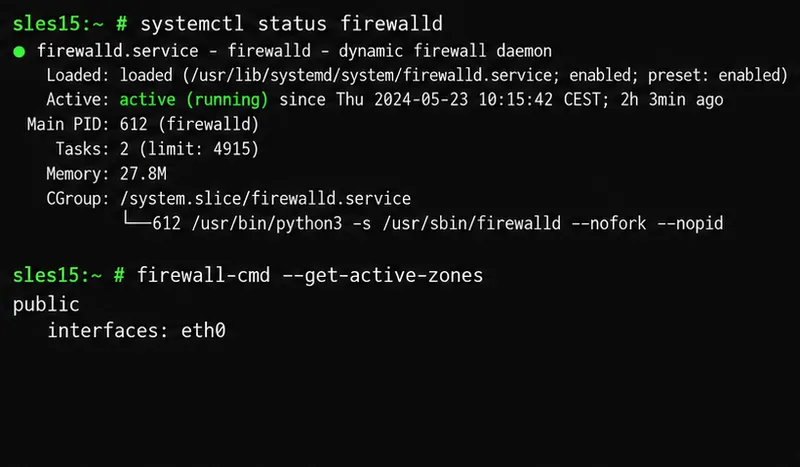
The sample terminal checks firewalld status and shows an example active public zone with the eth0 interface.
2. Find the zone that protects the server interface
Firewalld groups rules into zones, which represent different trust levels. The public zone is commonly used for networks that are not trusted. A service opened in one zone does not automatically open in every zone, so a correct rule in the wrong zone can leave your application unreachable.
Use the active-zone output to find the zone attached to the interface carrying client traffic. The interface name might be eth0, ens160, or another name. If you need to check one interface, run:
sudo firewall-cmd --get-zone-of-interface=eth0
Replace eth0 with the actual interface. An interface not explicitly assigned to a zone is handled by the default zone. Avoid changing the default zone casually: doing so can affect interfaces that depend on it. On a remote server, identify the SSH or other management zone and confirm its access rule before reloading firewall settings. Keep a console or out-of-band recovery path available if one exists.
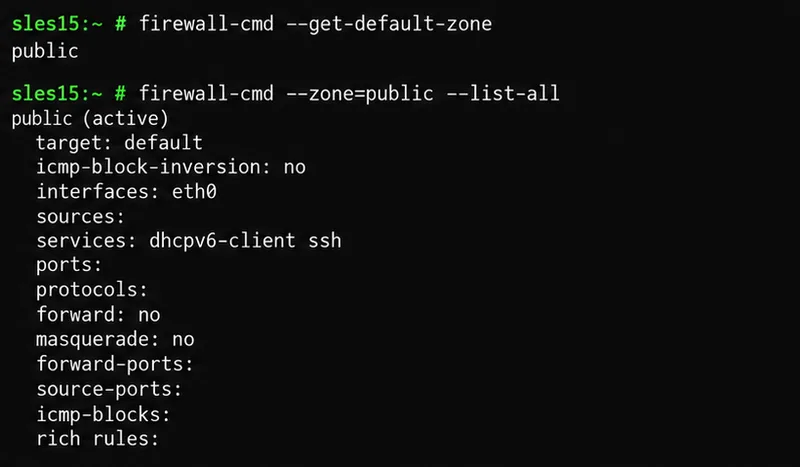
The zone listing shows which interface and services are associated with the example public zone before any changes.
3. Choose a named service or a specific port
A firewalld service is a named definition that can include one or more ports and protocols. It is usually easier to allow a known service by name than to memorize its port number. Check the installed service list and inspect a definition before using it:
For a web server, the predefined http service typically covers TCP port 80; https is the separate service for TLS web traffic. The SLES documentation shows the same service-based method with examples such as DHCP. Use the actual service your application requires, and verify the service definition locally if you are unsure.
If no predefined service fits, open only the required port and protocol. For example, an application listening on TCP port 8443 can be allowed with --add-port=8443/tcp. Opening a port in the firewall does not start an application, bind it to the network, or make it secure; confirm that the service itself is configured to listen on the intended address.
Test a temporary rule first
For a short test, apply a rule to the runtime configuration. Runtime changes take effect immediately but are lost after a firewall reload or service restart unless you also save them permanently. Firewalld supports a time-limited rule, which is useful when you want a test to expire automatically:
For a one-off port test, use --add-port=8443/tcp --timeout=5m in place of --add-service=http. Select the zone that actually contains the server interface; do not copy public if your host uses another zone.
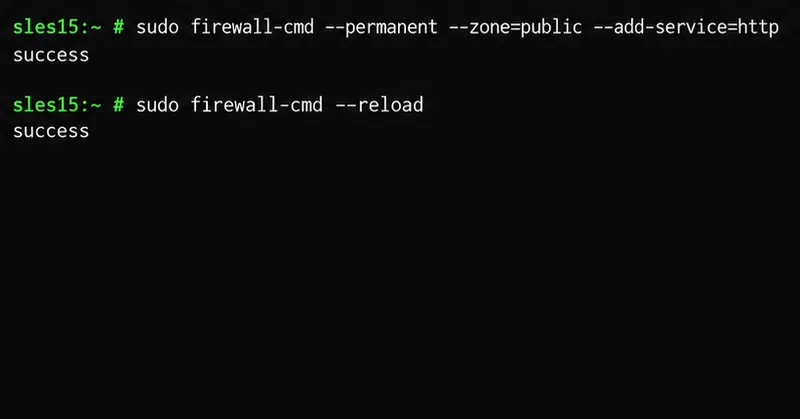
The example command adds the HTTP service to the public zone’s permanent configuration, then reloads firewalld to apply it.
4. Save the rule and reload firewalld
When you are ready to keep a rule, add it to the permanent configuration. The following example allows HTTP in the public zone:
These examples modify the permanent configuration first, then reload it so the new rule becomes active. A reload also replaces runtime settings with the permanent configuration. Any runtime-only changes elsewhere may therefore be discarded. Before reloading a production system, review important runtime and permanent rules, especially remote administration access.
There is also a runtime-first workflow: test a rule in runtime, confirm the service works, then add that same rule with --permanent and reload. Avoid using --runtime-to-permanent as a shortcut unless you intend to save every current runtime rule, including temporary changes made by other administrators or software.
How can you verify that the change worked?
Check both the active runtime rule and the saved rule. For an HTTP service in the public zone, run:
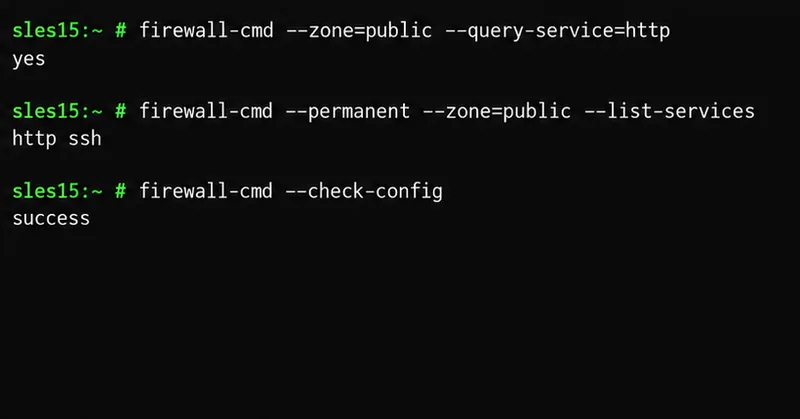
The query should return yes, the permanent service list should include http, and the configuration check should complete successfully. For a port rule, use --query-port=8443/tcp and --list-ports in the equivalent commands. Also test from a separate client that can reach the server; a local firewall query confirms the rule is present, not that DNS, routing, upstream firewalls, or the application listener are correct.
The verification commands check the active service rule, the saved service list, and permanent configuration syntax.
Common problems and safe corrections
The rule is present, but connections still time out: make sure it was added to the zone attached to the client-facing interface. Then verify the application is listening on the expected address and port, and check any network firewall upstream.
The rule worked until a reload: it was probably added only to runtime. Add it with --permanent and reload, then query both configurations.
SSH access is at risk: check the active zone’s services and permanent services before reloading. If SSH is required and absent, add the ssh service to the correct zone permanently before the reload. Do not close your current remote session until you have tested a second connection.
You are migrating from an older SUSE release: SLES 15 replaced SuSEfirewall2 with firewalld. SUSE warns that legacy firewall profiles have limited backward compatibility; review the migration guide rather than assuming every older rule was translated.
Rules appear to conflict: firewalld is intended to manage the host’s firewall rules. SUSE cautions against modifying the same rules separately with tools such as iptables, which can confuse the active configuration.
To remove an unnecessary permanent service or port, use the matching --remove-service or --remove-port option with --permanent, then reload and verify again. For example, remove HTTP from the public zone with sudo firewall-cmd --permanent --zone=public --remove-service=http followed by sudo firewall-cmd --reload.
Self-check before you finish
firewalld is running and starts when the server boots.
You identified the active zone for the interface that receives traffic.
Only the service or port the application needs is allowed in that zone.
Remote administration remains permitted before and after reload.
The rule appears in runtime and permanent queries, and the configuration check passes.
A connection test from another host confirms the application is reachable.