Home
» LINUX
»
How to Configure VPN Connections on Pardus Linux Desktop
How to Configure VPN Connections on Pardus Linux Desktop
You have the VPN server address, credentials, or a configuration file, but Pardus either shows no suitable VPN type, refuses to import the file, or says “connected” while the private network is still unreachable. Those symptoms usually come from three different layers: the required NetworkManager VPN plugin is missing, the connection profile is incomplete, or the tunnel is established but its routes and DNS settings do not match what the remote network expects.
This guide starts with the least disruptive path and moves toward deeper troubleshooting. It applies to Pardus 25 Desktop, whose official ISO archive shows Pardus 25.2 GNOME and XFCE images dated July 16, 2026. The original Pardus 25 release notes identify GNOME 48.4 and Xfce 4.20.2 as the supported desktop environments. NetworkManager is the networking layer underneath these desktop tools, so the same connection profiles can also be inspected and controlled from the command line.
Before changing anything, identify the VPN you actually have
Do not start by picking a protocol that “looks close.” Ask your VPN administrator or provider for the exact protocol and authentication method. At minimum, collect the server hostname, protocol, username if one is used, and any configuration or certificate files. Corporate setups may also require a CA certificate, a client certificate and private key, a one-time password, a specific DNS domain, or routes for internal subnets.
OpenVPN: often supplied as a .ovpn profile, sometimes with separate CA/client certificate files.
WireGuard: uses a private key, peer public key, endpoint, and AllowedIPs. NetworkManager supports WireGuard natively rather than through a separate VPN plugin.
OpenConnect: commonly used with Cisco AnyConnect-compatible gateways and some other enterprise SSL VPNs.
IKEv2/IPsec: commonly handled with the strongSwan NetworkManager plugin.
L2TP/IPsec: requires its own NetworkManager plugin on Debian-family desktops.
NetworkManager’s current VPN documentation explicitly marks PPTP as cryptographically broken and says it should not be used. If an old organization still gives you PPTP instructions, the better next step is to ask for a supported replacement instead of treating PPTP as the normal fallback.
Step 1: Open Pardus network settings
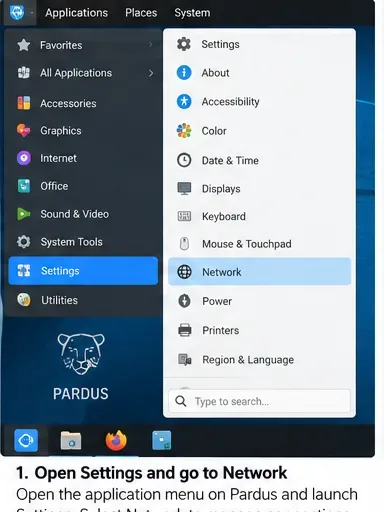
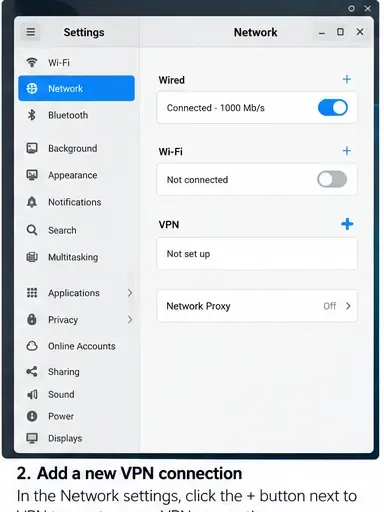
On Pardus GNOME, open Settings and choose Network. GNOME’s own help describes adding a VPN from the VPN section with the plus button. On Pardus XFCE, the layout is different; the NetworkManager connection editor can be opened from the network applet, or you can run nm-connection-editor if that graphical editor is installed.
Open Settings and then Network. Pardus GNOME and XFCE present different shells, but both ultimately manage NetworkManager connection profiles.
If the VPN section is present but does not offer the protocol you need, do not keep recreating the connection. That usually means the corresponding NetworkManager integration is not installed.
Step 2: Confirm NetworkManager is running
Before installing anything, check that Pardus is using NetworkManager normally:
nmcli -t -f RUNNING general
nmcli -t -f STATE general
systemctl is-active NetworkManager
A healthy desktop should report NetworkManager as running/active. If the service is not active, resolve that first; a VPN plugin cannot work when its parent network service is stopped.
The VPN section is where a new profile is added in the GNOME network panel. If your protocol is missing from the next dialog, check the relevant NetworkManager package.
Step 3: Install the plugin only when your protocol needs one
Pardus is Debian-based, and the current Debian 13 package set provides the same NetworkManager plugin families used here. Install only what matches your VPN:
sudo apt update
sudo apt install network-manager-openvpn-gnome
# or
sudo apt install network-manager-openconnect-gnome
# or
sudo apt install network-manager-l2tp-gnome
# or, for IKEv2/IPsec
sudo apt install network-manager-strongswan
The official Debian package pages describe network-manager-openvpn-gnome as the GNOME GUI component for NetworkManager’s OpenVPN plugin, network-manager-openconnect-gnome as the OpenConnect integration, and network-manager-strongswan as a NetworkManager plugin for IKEv2 IPsec. You normally do not need a separate NetworkManager VPN plugin for WireGuard because NetworkManager has supported it natively since version 1.16.
After installing a plugin, close and reopen the connection editor. A full reboot is usually unnecessary. If the GUI still does not refresh, restarting NetworkManager will interrupt active networking, so do it only when you can tolerate a brief disconnect:
sudo systemctl restart NetworkManager
Step 4: Import a supplied profile instead of retyping it when possible
If your administrator gave you an OpenVPN profile, importing it is usually safer than manually copying every option. In GNOME, choose the option to import a saved VPN configuration file when it is available. The exact list of VPN choices depends on which plugins are installed, so do not expect every Pardus system to show the same menu.
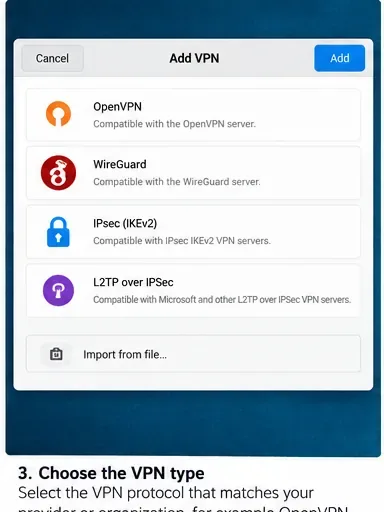
Choose the protocol that exactly matches the server. The entries shown in the Add VPN dialog depend on installed plugins; legacy options should not be selected merely because they appear in the list.
NetworkManager also documents an OpenVPN import path through nmcli:
nmcli connection import type openvpn file ~/Downloads/company.ovpn
If that command says the VPN type is unsupported, first verify that the OpenVPN NetworkManager plugin is installed. If the file contains vendor-specific directives that NetworkManager’s importer does not understand, compare the profile with the VPN administrator’s supported Linux instructions rather than deleting unknown lines at random.
Step 5: Enter authentication and certificate details carefully
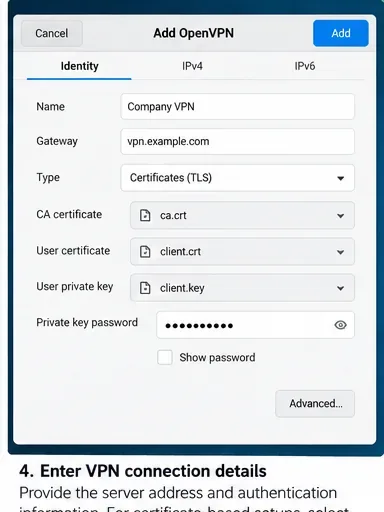
For a manually created OpenVPN or IPsec profile, the gateway, authentication type, CA certificate, user certificate, private key, and credentials must match the server configuration. A common failure is mixing a username/password profile with certificate-based instructions, or choosing the wrong CA file.
Fill only the authentication fields required by your VPN design. Certificate-based deployments may require a CA certificate plus a client certificate and private key; password-only deployments use a different authentication mode.
Be cautious with options that store a password for all users. Whether a secret should be saved, requested each time, or shared system-wide is an organizational policy decision. NetworkManager can store connection secrets in its profile system, and its documentation notes that connection files may contain passwords or private keys. On shared devices, prefer the narrowest access that still meets your operational requirement.
Step 6: Authorize changes and connect
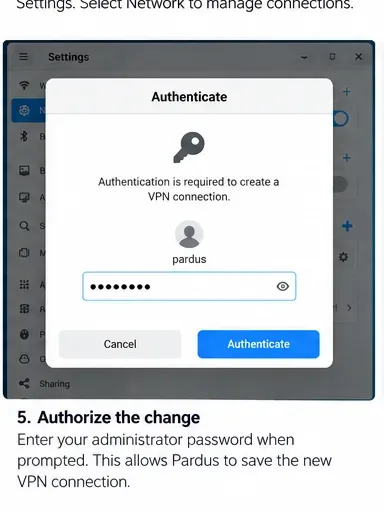
Creating or changing a system network profile can trigger a desktop authorization prompt. Enter your local administrator password only if you initiated the change and recognize the action.
Pardus may ask for local authorization before saving a system connection. This is separate from the VPN account password used to authenticate to the remote server.
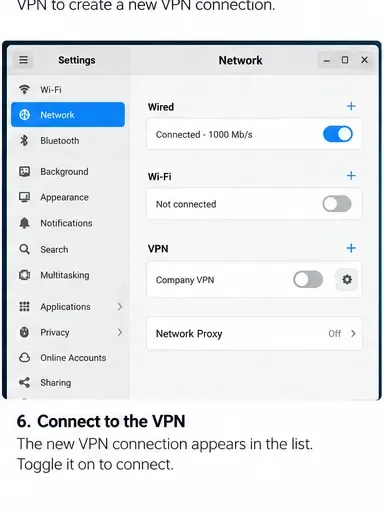
Once the profile is saved, turn it on from the Network panel or the desktop network menu. If your VPN uses MFA or a password that is not stored, you may receive another prompt at connection time.
Activate the saved VPN profile from the network controls. A profile appearing in the list only confirms that it was saved; it does not prove the remote VPN accepted the connection.
Step 7: Verify the tunnel instead of trusting the toggle alone
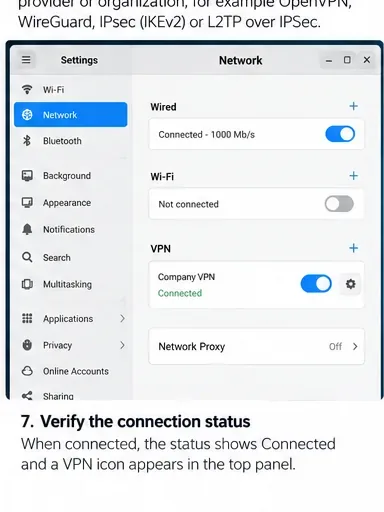
When the GUI reports Connected, confirm the state with NetworkManager:
nmcli connection show --active
nmcli device status
ip route
ip -6 route
A Connected status is the first success signal. Continue with route, DNS, and reachability checks before considering the VPN configuration finished.
For a full-tunnel VPN, you may expect the default route or policy-routing rules to send internet traffic through the tunnel. For a split-tunnel corporate VPN, the ordinary internet route may stay unchanged while only specific private prefixes go through the VPN. That means “my public IP did not change” is not automatically a failure.
Step 8: Test the resource the VPN is meant to reach
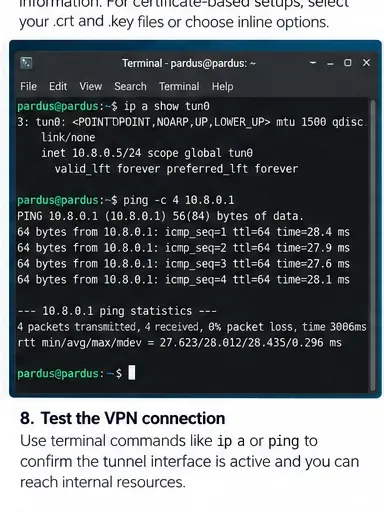
The best validation target is an internal resource that should only be reachable through the VPN: for example, an internal DNS name, web portal, Git server, or private IP supplied by your administrator. Do not invent an arbitrary private address and assume it should reply to ping; many networks block ICMP.
nmcli connection show --active
ip route get 10.20.30.40
getent hosts intranet.example.internal
curl -I https://intranet.example.internal/
Use terminal checks to confirm that a tunnel interface or VPN connection is active and that the intended private destination is reachable. The actual interface name and internal address depend on your VPN.
For OpenVPN, the tunnel interface is often named tun0, but that name is not guaranteed. WireGuard commonly appears as its own interface name. Use nmcli connection show --active and ip link to discover what your system actually created.
If the VPN connects but internal sites still fail
Check routing first
Run ip route and ip route get INTERNAL_IP. If the lookup selects your normal Wi-Fi/Ethernet gateway instead of the VPN path, the profile may be missing the required private subnet route. Ask the VPN administrator which prefixes should be routed through the tunnel before adding routes yourself.
Then check DNS
If private IP addresses work but internal hostnames do not, the problem is probably name resolution rather than the tunnel itself. On systems using systemd-resolved, resolvectl status can show DNS servers and per-link domains. On other setups, inspect the DNS information exposed by NetworkManager:
nmcli device show | grep -E 'IP4.DNS|IP6.DNS|IP4.DOMAIN|IP6.DOMAIN'
Split DNS is especially important in corporate environments: only names for an internal domain may need to go to the company DNS server. Replacing all DNS settings with a public resolver can make a working tunnel look broken because private names no longer resolve.
Use logs when authentication or negotiation fails
If the connection never reaches the connected state, watch NetworkManager logs while retrying:
Look for certificate validation errors, unreachable gateway messages, authentication failures, or plugin startup errors. Avoid pasting complete logs publicly without reviewing them because they can contain server names, usernames, certificate paths, and network details.
WireGuard on Pardus: use the native NetworkManager support
WireGuard is different from the plugin-based VPN types above. NetworkManager’s official VPN documentation states that WireGuard is supported natively, and the NetworkManager settings reference exposes WireGuard-specific properties such as private keys, peers, endpoints, AllowedIPs, and persistent keepalive.
If you have a WireGuard configuration, prefer importing or creating a NetworkManager WireGuard profile with the exact values supplied by your administrator. Pay special attention to AllowedIPs: it determines which destination prefixes are sent to the peer. A configuration containing 0.0.0.0/0 and ::/0 is usually intended as a full tunnel; narrower prefixes indicate split tunneling.
When to stop troubleshooting NetworkManager and change approach
NetworkManager is a good fit when the VPN technology has a maintained NetworkManager integration and the desktop needs a persistent profile that users can toggle easily. Change approach when the vendor requires functionality that its NetworkManager plugin does not expose, when the corporate client performs device posture checks or proprietary authentication, or when your administrator explicitly supports only the vendor’s Linux client.
NetworkManager itself warns that some third-party VPN plugins are unmaintained. Its current support page identifies the old Fortinet SSLVPN plugin as end-of-life and suggests OpenConnect for the older compatible Fortinet protocol, while PPTP is both unmaintained and cryptographically broken. A visible plugin in a package repository is therefore not the same thing as a protocol you should deploy today.
Final self-check
Before you call the Pardus VPN configuration complete, disconnect and reconnect once and verify the result again. A good setup should pass these checks:
The expected VPN profile activates without a plugin or authentication error.
nmcli connection show --active shows the VPN or WireGuard profile while it is connected.
The route to an approved internal destination goes through the intended tunnel path.
Internal DNS names resolve when the organization expects them to.
You can reach at least one real internal service that is part of the VPN’s purpose.
Disconnecting the VPN removes the private route or access as expected.
If the connection passes authentication but fails routing or DNS checks, do not keep changing passwords and certificates. Move the investigation to routes, DNS domains, server-side policy, and the required split-tunnel design. If the protocol itself requires an unmaintained or obsolete plugin, the more durable fix is to migrate to a currently supported VPN technology rather than forcing the old one to work.