Home
» LINUX
»
How to Connect to an SFTP Server in Ubuntu
How to Connect to an SFTP Server in Ubuntu
To connect to an SFTP server in Ubuntu, you normally only need the server hostname or IP address, your username, and either a password or SSH key. In a Terminal, run sftp username@server. On Ubuntu Desktop, you can also connect through Files using an SSH address such as ssh://username@server.
What you need before connecting
SFTP is the SSH File Transfer Protocol, so it uses an encrypted SSH connection rather than traditional FTP. Ask the server administrator or hosting provider for the hostname, username, authentication method, and port. Port 22 is the usual SSH/SFTP port, but a server can use another one.
Ubuntu includes the OpenSSH client on many installations. If the sftp command is not available, install the client package:
sudo apt update
sudo apt install openssh-client
Ubuntu's OpenSSH documentation identifies openssh-client as the client package and openssh-server as the server package. You do not need to install the server package merely to connect to someone else's SFTP server.
Connect to SFTP from the Ubuntu Terminal
Open Terminal.
Run sftp username@hostname. For example:
sftp alex@sftp.example.com
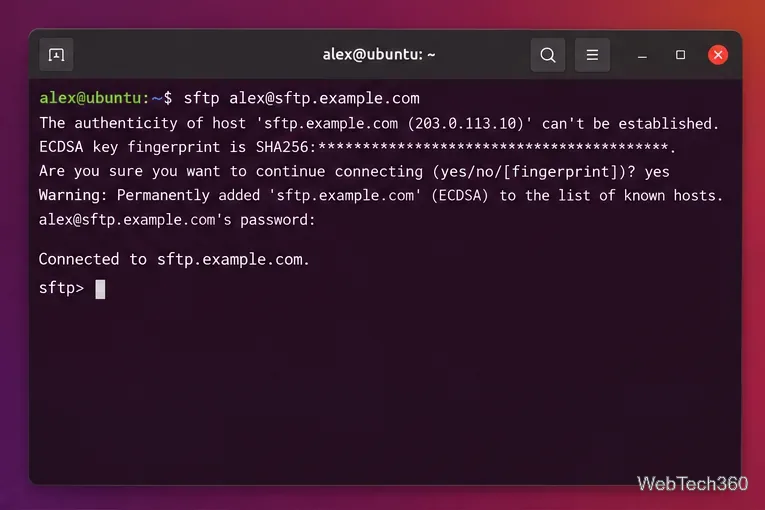
On the first connection, SSH may display the server's host-key fingerprint. Verify that fingerprint with the server administrator before accepting it, especially for an internet-facing server.
Enter your password when prompted, or let OpenSSH use your configured SSH key. A successful login displays an sftp> prompt.
An SFTP session opens in the Ubuntu Terminal after SSH host verification and authentication.
If the server uses a non-default port, use uppercase -P:
sftp -P 2222 alex@sftp.example.com
The Ubuntu SFTP manual page documents -P for a custom port and -i for selecting a private-key file.
Browse, download, and upload files
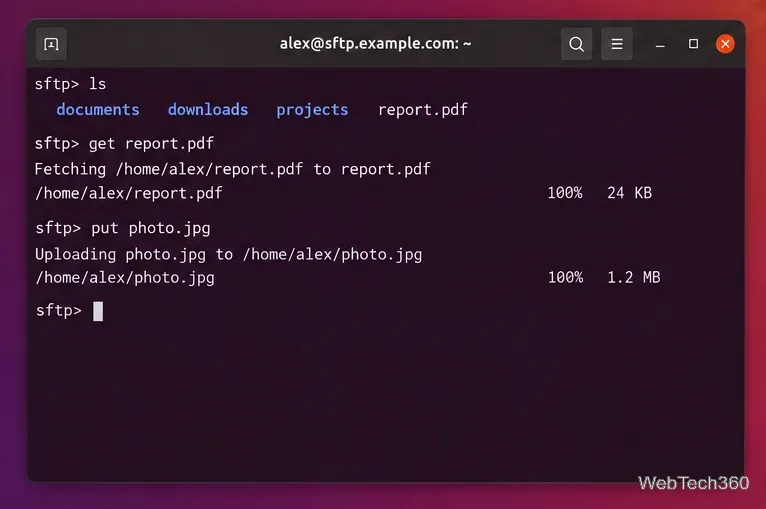
Once connected, these commands cover most everyday transfers:
ls — list files on the remote server.
pwd — show the current remote directory.
lpwd — show your current local directory.
cd folder — change the remote directory.
lcd folder — change the local directory.
get report.pdf — download a remote file to the current local directory.
put photo.jpg — upload a local file to the current remote directory.
bye — close the SFTP session.
The get command downloads from the server, while put uploads from the local Ubuntu computer.
Connect with Ubuntu Files instead of the command line
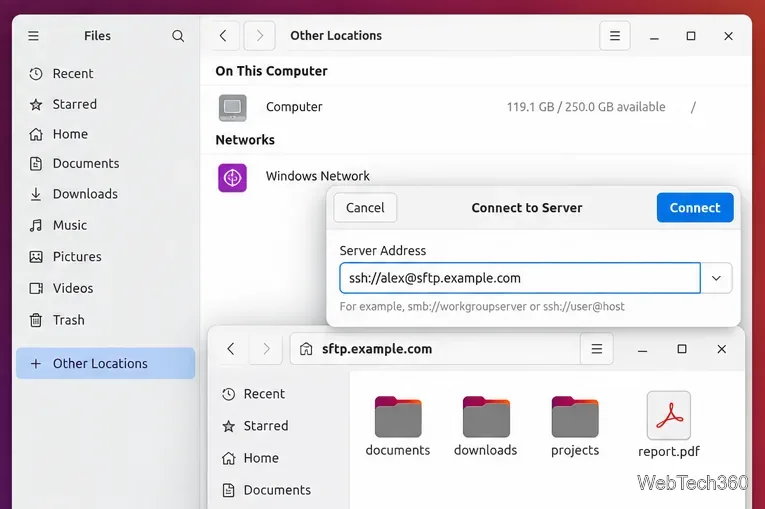
Ubuntu Desktop's GNOME Files app can browse an SSH server like another file location. GNOME's current help uses the ssh:// URL scheme for this connection.
Open Files and select Other Locations in the sidebar.
In Connect to Server, enter ssh://username@hostname. For a custom port, add it after the host, such as ssh://alex@sftp.example.com:2222.
Click Connect and provide the requested credentials.
Browse the remote folders normally. Drag or copy files between the remote location and local folders to transfer them.
GNOME Files can connect to an SSH/SFTP account from Other Locations using an ssh:// server address.
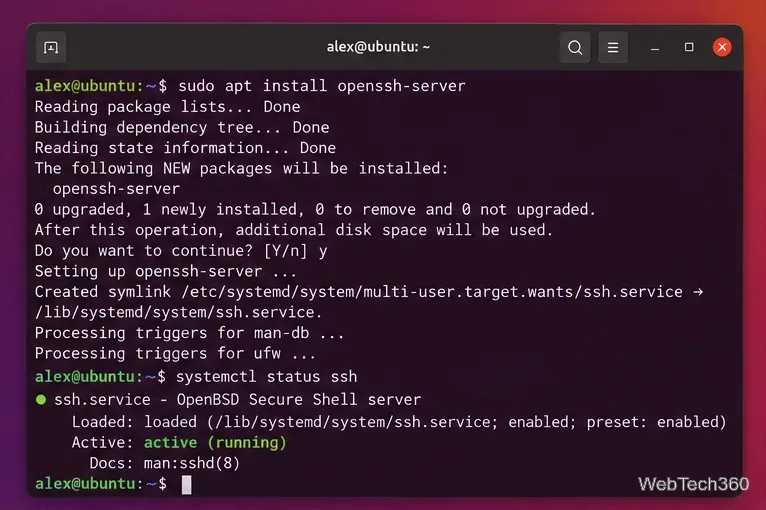
If you control the remote Ubuntu computer and it is not already running SSH, install OpenSSH Server on that remote machine:
sudo apt update
sudo apt install openssh-server
systemctl status ssh
Install OpenSSH Server on the remote Ubuntu host only when you are setting up the machine that will accept SFTP connections.
For key-based authentication, Ubuntu recommends Ed25519 keys. On your client, create a key with ssh-keygen -t ed25519, then, for a server you administer, install the public key with ssh-copy-id username@server. Keep the private key private and protect it with a passphrase where appropriate.
Fix common SFTP connection problems
Connection refused: confirm the hostname and port, and if you manage the server, check that the SSH service is running and that network/firewall rules allow the SSH port.
Permission denied: verify the username and authentication method. With keys, confirm that the correct public key is authorized for that account.
Connection timed out: check DNS, routing, VPN requirements, the server's public accessibility, and the port number.
Host key changed: do not automatically remove the warning. First verify with the server administrator that the host key was legitimately replaced; an unexpected change can indicate that you are reaching the wrong system or a security problem.
For most Ubuntu users, the Terminal method is the fastest and most transparent option, while GNOME Files is convenient when you prefer drag-and-drop transfers.