Home
» LINUX
»
How to Connect to Ubuntu from Windows With SSH and SFTP
How to Connect to Ubuntu from Windows With SSH and SFTP
Use SSH for an Ubuntu terminal and SFTP for graphical file transfers. Install OpenSSH Server on Ubuntu; current Windows 10 and 11 include an OpenSSH client for PowerShell or Windows Terminal. WinSCP uses the same SSH service for file access.
These steps assume both computers share a local network or trusted VPN. For remote access, use a VPN or approved provider rules; avoid exposing SSH publicly. Terminal output and Settings labels can vary by release.
Prepare Ubuntu for SSH
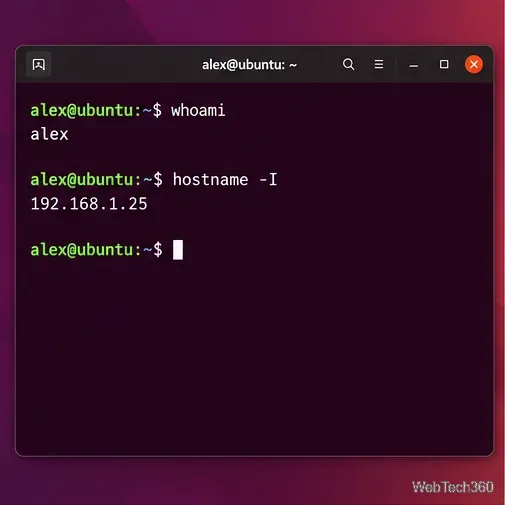
Find the Ubuntu username and address. On Ubuntu, open Terminal and run whoami for the account name and hostname -I for network addresses. Note the private LAN address for your active connection, such as 192.168.1.25. For a managed server, ask its administrator for the correct host name or address.
On Ubuntu, note the account name and LAN address you will enter in Windows.
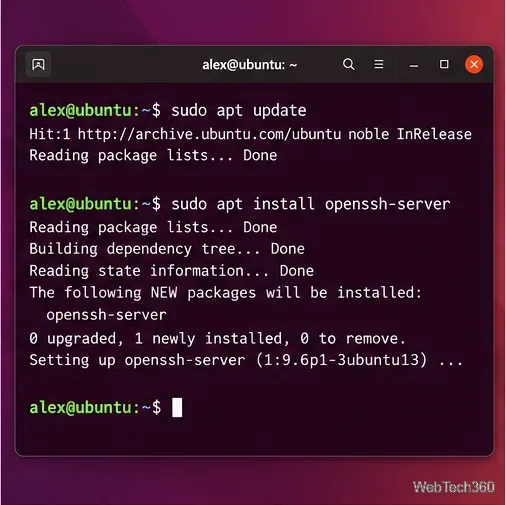
Install the OpenSSH server. In the Ubuntu terminal, update the package list and install the server package:
sudo apt update
sudo apt install openssh-server
Ubuntu documents openssh-server as the package for accepting SSH connections. APT reports if it is already current.
Install OpenSSH Server on the Ubuntu computer.
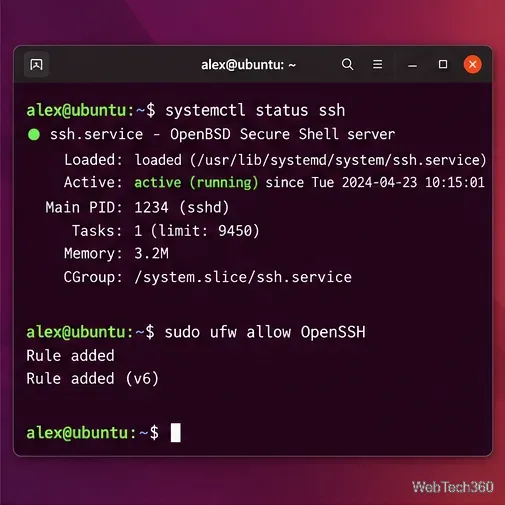
Check the service and firewall. Verify that SSH is running:
systemctl status ssh
Look for active (running); if stopped, run sudo systemctl start ssh. Check sudo ufw status. If UFW is active, allow SSH with sudo ufw allow OpenSSH or sudo ufw allow 22. A cloud server may also need an inbound SSH rule in its provider firewall. Do not change remote firewall rules until you know they will preserve access.
Confirm the SSH service is active; allow SSH through UFW only if that firewall is enabled.
Connect from Windows with PowerShell
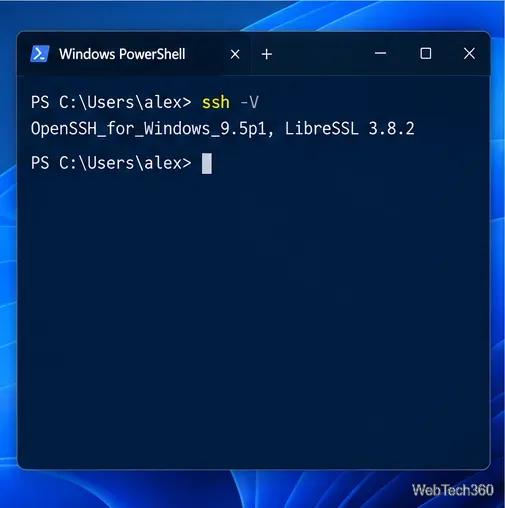
Confirm that the Windows SSH client is installed. Open PowerShell or Windows Terminal and run ssh -V. If ssh is missing, search Settings for Optional features, add OpenSSH Client, and install it. The menu is under Apps on some Windows 10 builds and System on Windows 11.
Check that the Windows OpenSSH client is available.
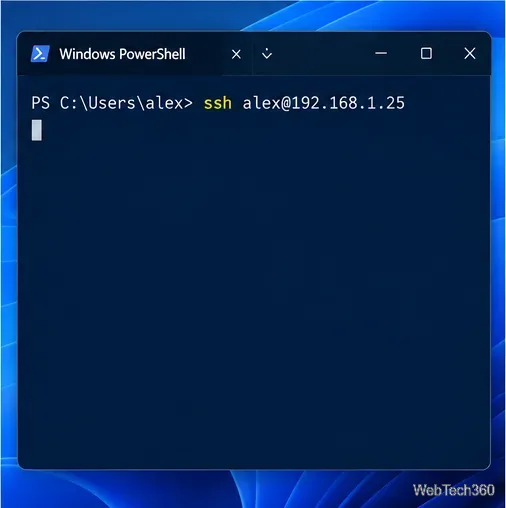
Start the connection. In PowerShell, enter ssh username@address, replacing both values with the Ubuntu account and address from step 1. For example:
ssh alex@192.168.1.25
For a nonstandard SSH port, add -p, for example ssh -p 2222 alex@192.168.1.25.
Connect using the Ubuntu username and address.
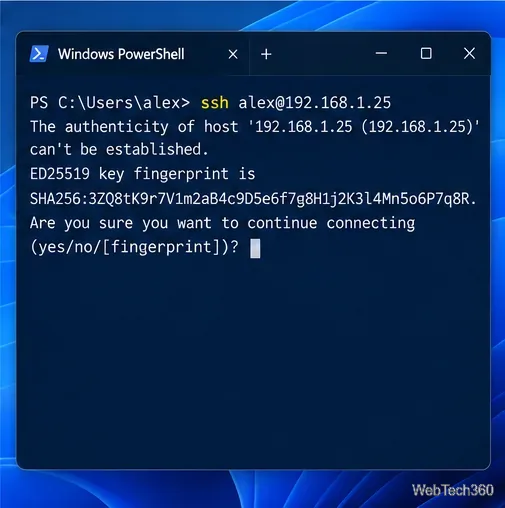
Verify the server’s host key on the first connection. SSH displays an authenticity warning and fingerprint. Verify it with the administrator or on Ubuntu using sudo ssh-keygen -lf /etc/ssh/ssh_host_ed25519_key.pub. If it matches, type yes. If it differs or cannot be verified, stop and check the server address.
Verify the host key before trusting a new SSH server.
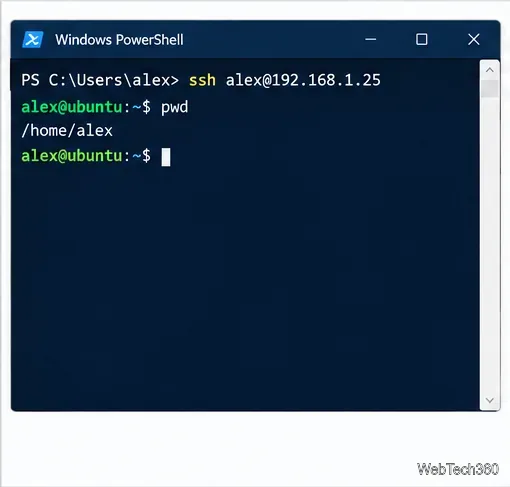
Sign in and use the remote shell. Enter the Ubuntu password; no characters appear as you type. The remote shell prompt confirms login. Commands now run on Ubuntu, so check the prompt before using administrative commands.
After authentication, PowerShell accepts commands in the remote Ubuntu shell.
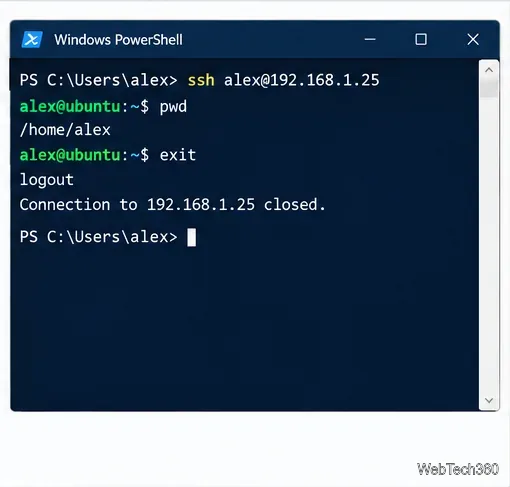
Disconnect when finished. Type exit and press Enter to close the SSH session and return to the Windows prompt.
Type exit to close the remote session.
Browse Ubuntu files from Windows with SFTP
Windows File Explorer’s older ftp:// workflow requires a separate FTP service and does not use the SSH connection above. Use SFTP instead: it transfers files through SSH’s encrypted connection. WinSCP is a Windows client that supports SFTP and provides a two-pane file manager.
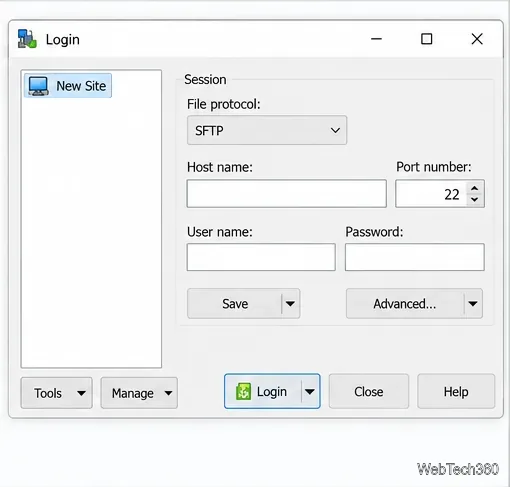
Install WinSCP and select SFTP. Download WinSCP from its official site. In the Login window, select SFTP as the file protocol.
Open WinSCP and select SFTP for the file protocol.
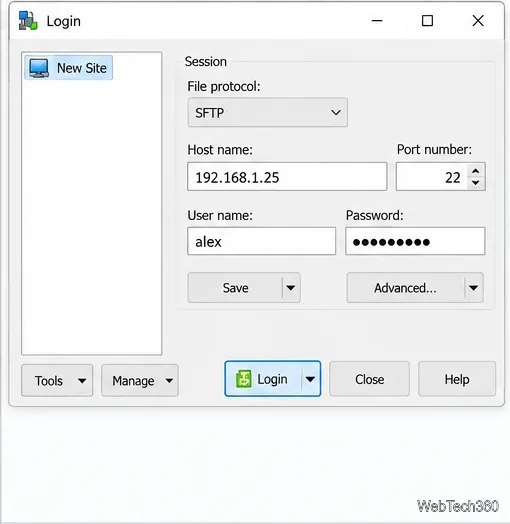
Enter the Ubuntu connection details. Enter the Ubuntu IP or host name, port 22 (unless changed), and account credentials, then select Login. If passwords are disabled, configure your SSH key in WinSCP’s advanced session settings.
Enter the Ubuntu host, SSH port, and account credentials.
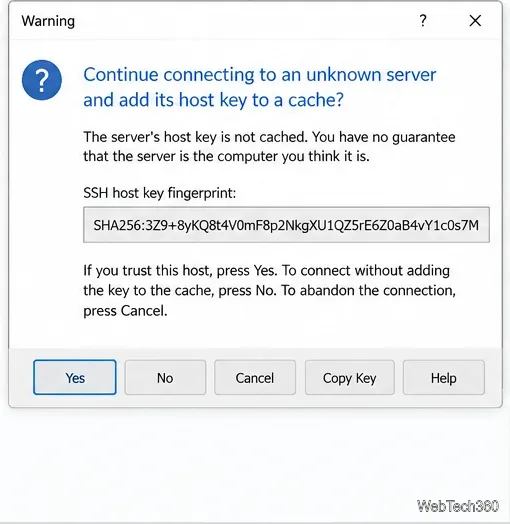
Verify the SFTP host key. Compare the first-connection fingerprint with the verified value from step 6 or the administrator. Accept only if it matches; otherwise cancel.
Compare WinSCP’s fingerprint with the value verified from Ubuntu before accepting.
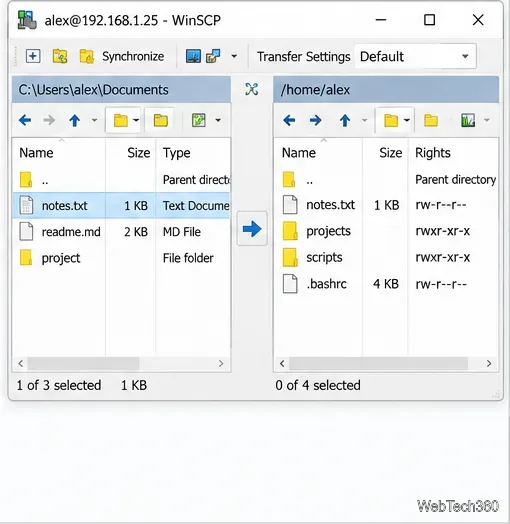
Transfer files. WinSCP shows local Windows files in one pane and Ubuntu files in the other. Browse to the folders, then drag files between panes or use the transfer controls. Ubuntu file permissions still apply.
Transfer files between the local Windows pane and the remote Ubuntu pane.
Fix common connection errors
Connection timed out: Check the address, network, VPN, and firewall rules.
Connection refused: Check that openssh-server is installed, ssh is running, and the port is correct.
Permission denied: Check the username, password, or required SSH key.
Host name not found: Try the Ubuntu LAN IP or ask for the correct DNS name.