Home
» LINUX
»
How to Convert eBooks from PDF to EPUB on Linux with Calibre
How to Convert eBooks from PDF to EPUB on Linux with Calibre
If a PDF eBook is awkward to read on a small screen, converting it to EPUB can make the text reflow more naturally. On Linux, Calibre is one of the simplest tools for the job. The basic process is: install Calibre, add the PDF, choose EPUB as the output format, convert, then save the new file.
Before you start, set expectations correctly. PDF is a fixed-page format, while EPUB is designed for reflowable text. Calibre's own documentation warns that PDF is one of the hardest source formats to convert cleanly, especially when the document uses multiple columns, scanned page images, complex math, tables, or unusual fonts. You can still get a good result from a simple text-heavy PDF, but you should review the finished EPUB before deleting the original.
1. Install Calibre on Linux
The official Calibre project provides a Linux binary installer and recommends it over distribution packages because repository builds can be outdated or modified. Check the current requirements and installer command on the official Calibre Linux download page. The current installer supports compatible 64-bit Intel and ARM systems.
After installation, launch Calibre from your application menu. On first run, it may ask where to store its library and which e-reader you use. The default choices are fine if you only want to convert files.
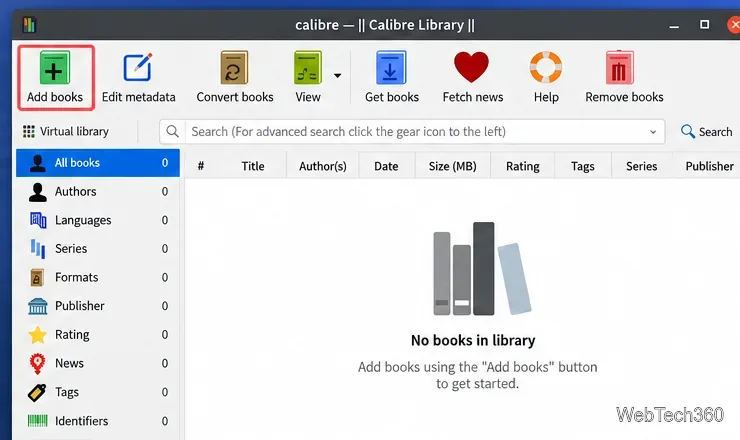
The Calibre library window provides an Add books button for importing a PDF.
2. Add the PDF eBook
Open Calibre and click Add books.
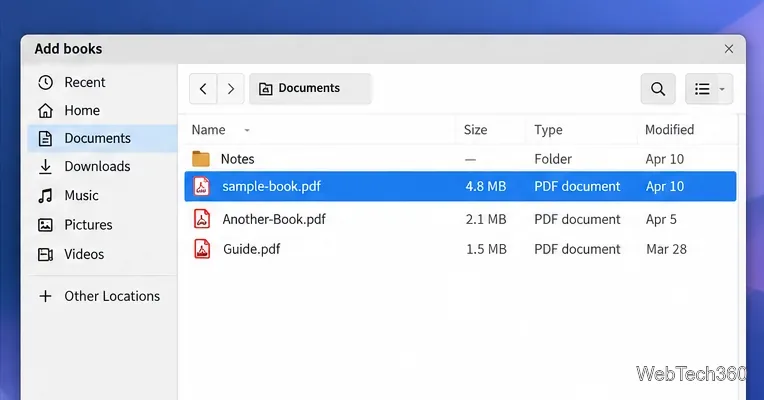
Browse to the PDF you want to convert.
Select the file and open it. For several PDFs, select multiple files in the file picker before opening them.
The book will appear in your Calibre library. If the title, author, or cover is wrong, you can correct the metadata before conversion, but this is optional.
Select the PDF file you want Calibre to import.
3. Convert the PDF to EPUB
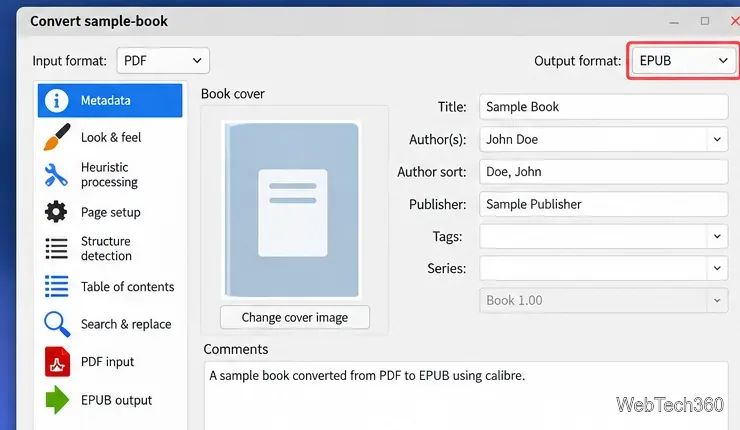
Select the imported book, then click Convert books. In the conversion window, confirm that the input format is PDF and set Output format to EPUB. You can also update the title, author, publisher, tags, and cover before starting the conversion.
For many books, the default settings are worth trying first. If the output has broken paragraphs or repeated headers and footers, open the PDF Input section and adjust the PDF-specific options. Calibre can change the line unwrapping behavior and can automatically detect or remove some headers and footers. Its official conversion guide explains these settings and the limits of PDF input in detail.
Set the output format to EPUB before starting the conversion.
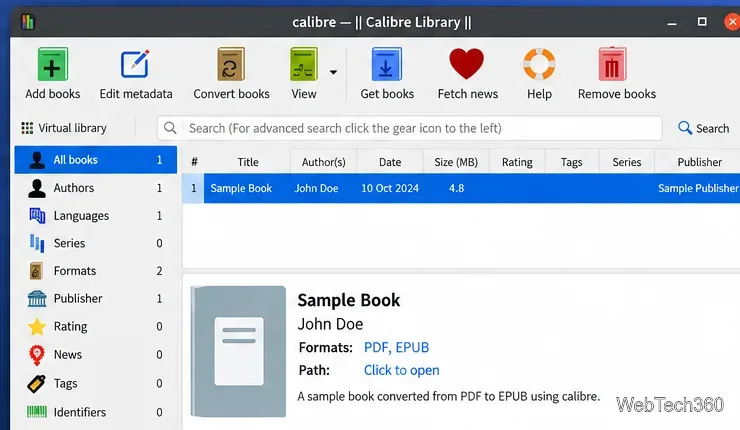
Click OK to start. Calibre runs the job in the background. When it finishes, the selected book can contain both the original PDF and the new EPUB format.
4. Review and save the EPUB file
Open the converted EPUB in Calibre's built-in viewer and check a few chapters before exporting it. Pay particular attention to paragraph breaks, chapter headings, images, special characters, and the table of contents. PDF conversion can lose structure because a PDF records where text appears on a page rather than how the document is logically organized.
After conversion, Calibre can keep the PDF and EPUB together in the same library entry.
To place the EPUB in a normal folder, select the book and use Save to disk. Calibre's Save to disk documentation describes options for saving all formats, only your preferred format, or a single chosen format.
When PDF-to-EPUB conversion does not work well
A clean, single-column PDF with selectable text usually has the best chance of producing a readable EPUB. Results are less reliable with scanned books, magazines, technical documents, or PDFs containing complex layouts. Calibre specifically notes limitations with multi-column documents, image-based PDFs, tables, vector graphics, links, existing PDF tables of contents, some non-Unicode fonts, right-to-left text, and mathematical typesetting.
If the PDF is only a scan, perform OCR first so the file contains usable text, then try the conversion again. If the source has heavy layout requirements, keeping it as PDF may be better than forcing it into a reflowable EPUB.
Optional: convert from the terminal
Calibre also installs the ebook-convert command-line tool. For a straightforward conversion, use:
ebook-convert "book.pdf" "book.epub"
The output format is determined by the destination file extension. You can view PDF-specific command-line options with ebook-convert book.pdf book.epub -h. If a commercial eBook is protected by DRM, Calibre does not support opening or converting that DRM-protected file; see the project's official DRM documentation.