Home
» LINUX
»
How to Convert PNG to JPG on Linux with ImageMagick
How to Convert PNG to JPG on Linux with ImageMagick
To convert PNG to JPG on Linux, the most flexible option is ImageMagick. With ImageMagick 7, a single file can be converted with magick input.png output.jpg, while an entire folder can be handled with magick mogrify -format jpg *.png. If the PNG has transparency, flatten it onto a solid background first because JPEG does not support an alpha channel.
Install ImageMagick on Linux
ImageMagick is available in the standard repositories of the major Linux distributions. Its current documentation recommends the magick program as the main command-line entry point. Package versions vary by distribution and release, so older systems may still provide ImageMagick 6 commands such as convert and mogrify without the magick prefix.
Distribution
Install command
Ubuntu / Debian
sudo apt update && sudo apt install imagemagick
Fedora
sudo dnf install ImageMagick
Arch Linux
sudo pacman -S imagemagick
openSUSE
sudo zypper install ImageMagick
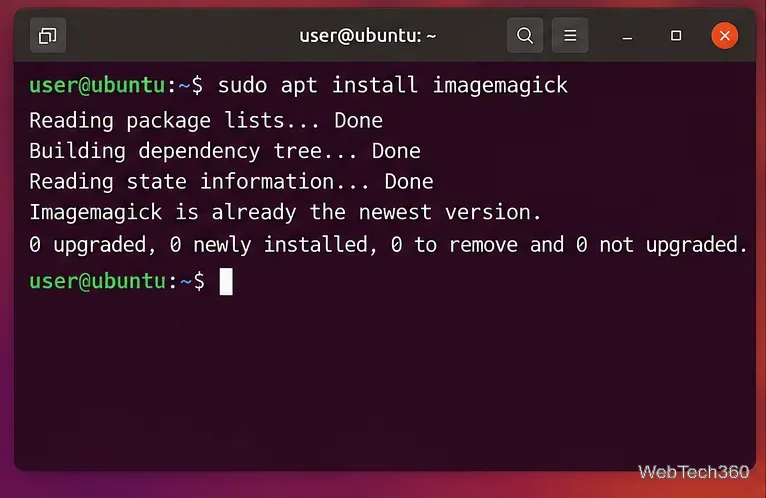
Install ImageMagick with your distribution’s package manager before starting the conversion.
Open a terminal and move to the folder containing the image. For example:
cd ~/Pictures
Then convert the file by giving the output a .jpg extension:
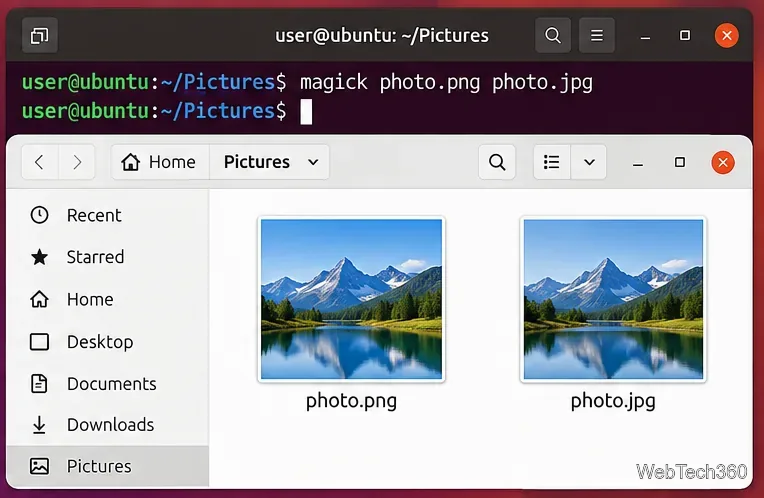
magick photo.png photo.jpg
A basic ImageMagick conversion keeps the original PNG and writes a new JPG file.
The original photo.png remains in place because the command writes to a different output filename. To choose JPEG compression quality explicitly, add -quality before the output file:
magick photo.png -quality 90 photo.jpg
ImageMagick accepts JPEG quality values from 1 to 100. Higher values generally preserve more detail but produce larger files. See the official -quality option reference for the format-specific behavior.
Convert a transparent PNG without getting an unwanted background
PNG can store transparent pixels; JPEG cannot. If the source contains transparency, flatten it onto the background color you want before saving as JPG. For a white background, run:
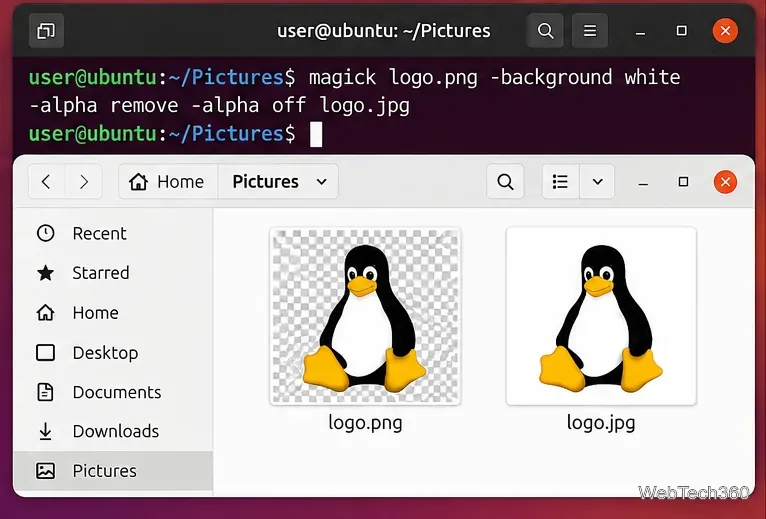
magick logo.png -background white -alpha remove -alpha off logo.jpg
Flatten transparent PNG pixels onto white before converting to JPEG, which has no alpha channel.
The -alpha remove operation composites the image over the selected background, while -alpha off disables the alpha channel for the output. ImageMagick documents these behaviors in its official alpha-channel options.
Convert multiple PNG files to JPG at once
To convert every lowercase .png file in the current directory, use mogrify:
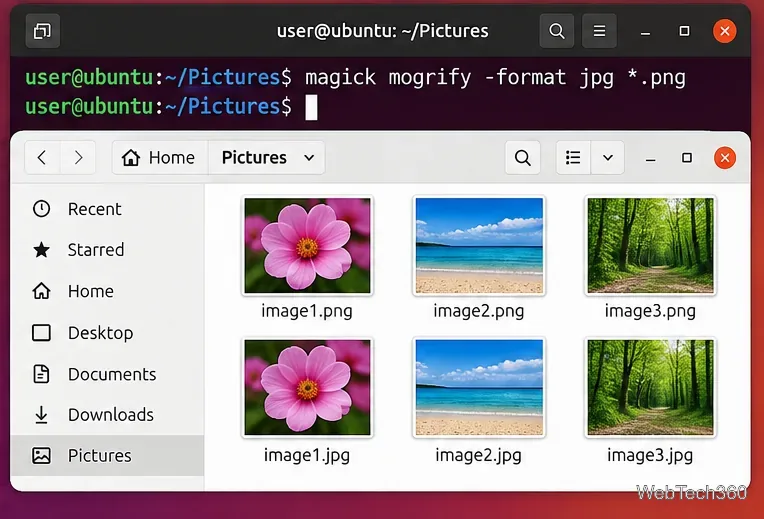
magick mogrify -format jpg *.png
The mogrify -format jpg command creates matching JPG files for all PNGs in the current folder.
According to ImageMagick’s official mogrify documentation, using -format jpg leaves the PNG files untouched and creates corresponding JPG files. If your PNGs may contain transparency, combine the options:
magick mogrify -background white -alpha remove -alpha off -quality 90 -format jpg *.png
Be careful if the folder already contains JPG files with the same base names, because the new outputs can replace those files. For a safer workflow, write the conversions into a separate directory:
mkdir -p jpg
for f in *.png; do
  magick "$f" -background white -alpha remove -alpha off -quality 90 "jpg/${f%.png}.jpg"
done
Small filename details that can trip up a batch
Linux filenames are usually case-sensitive, so the wildcard *.png does not normally match a file ending in .PNG. Run the batch again with *.PNG if needed. For a single filename containing spaces, quote it, for example magick "Summer Photo.png" "Summer Photo.jpg". These details prevent the shell from passing the wrong path to ImageMagick.
What if magick is not found?
Some older Linux releases still package ImageMagick 6. In that case, use convert photo.png photo.jpg for a single image and mogrify -format jpg *.png for a batch. If neither command exists, confirm that the ImageMagick package installed successfully and that its binaries are on your shell’s PATH.
For most users, the practical rule is simple: use magick on ImageMagick 7, flatten transparency before creating JPEGs, and use magick mogrify -format jpg when you need to process a whole folder quickly.