Home
» LINUX
»
How to Copy a File From One Directory to Another in Ubuntu Linux
How to Copy a File From One Directory to Another in Ubuntu Linux
To copy a file from one directory to another in Ubuntu, use the Files app for a graphical method or the cp command in Terminal. In Files, select the file, press Ctrl+C, open the destination folder, and press Ctrl+V. In Terminal, the basic pattern is cp SOURCE DESTINATION.
Copy a file with Ubuntu Files
Ubuntu's standard desktop uses GNOME Files. The official GNOME documentation confirms the normal copy-and-paste workflow: select a file, choose Copy or press Ctrl+C, open the destination, then choose Paste or press Ctrl+V. See the GNOME Files copy and move guide.
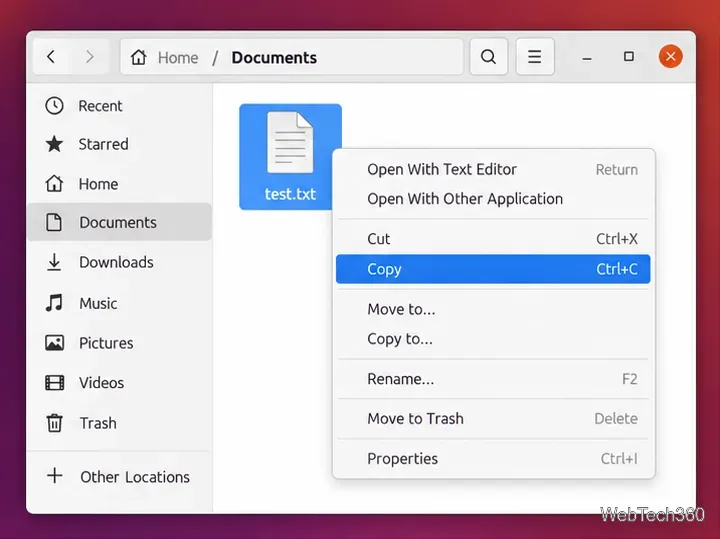
Open Files and find the source file. Open the application menu, launch Files, and browse to the folder that contains the file you want to duplicate. For example, open Documents and select test.txt.
Copy the file. Right-click the selected file and choose Copy. You can also press Ctrl+C.
Select the source file and choose Copy, or use Ctrl+C.
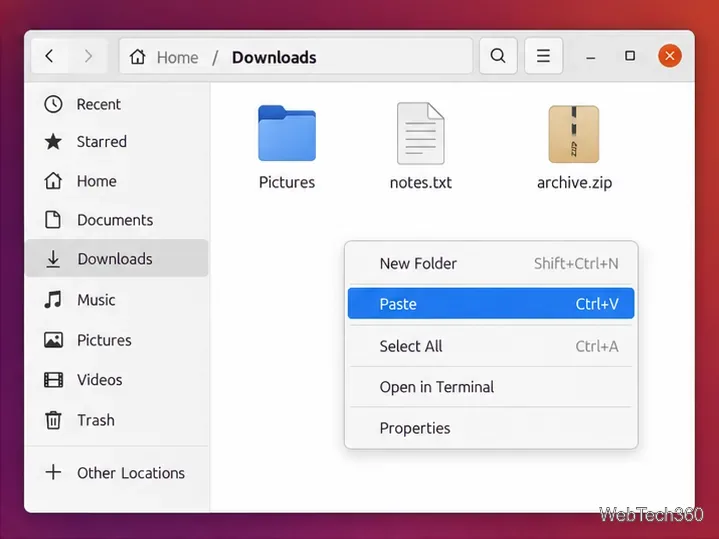
Open the destination folder. In this example, choose Downloads in the sidebar.
Paste the copy. Right-click an empty area and choose Paste, or press Ctrl+V. The original stays in its first directory while a separate copy is created in the destination.
Open the destination directory and paste the copied file.
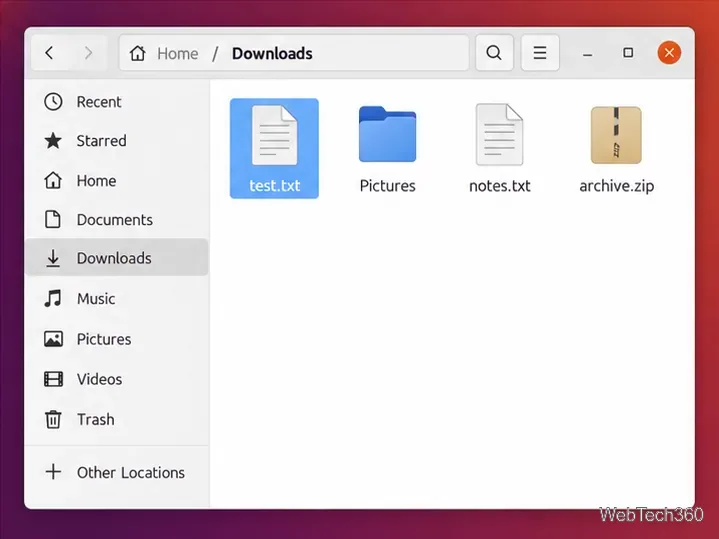
After the operation finishes, verify that the file appears in the new location before deleting or changing the original.
The copied file now appears in Downloads while the original remains in Documents.
Drag-and-drop behavior
You can also open two Files windows and drag an item between them. Be careful: GNOME Files normally moves a dragged file when the source and destination are on the same device, but copies it when they are on different devices. Hold Ctrl while dragging if you specifically want to force a copy.
Copy a file with the cp command
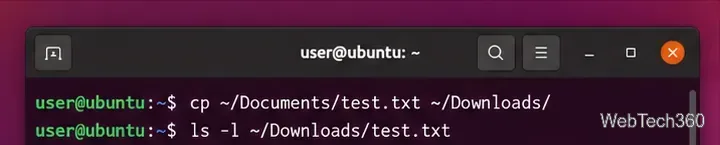
The terminal method is fast and works on Ubuntu Desktop, Ubuntu Server, and other Ubuntu flavors. Open Terminal and run:
cp ~/Documents/test.txt ~/Downloads/
The cp command copies test.txt from Documents to Downloads.
The first path is the source; the last path is the destination. A trailing slash makes it visually clear that the destination is a directory. GNU Coreutils documents the syntax as copying one source to a destination or multiple sources to a destination directory in its official cp manual.
Paths with spaces
Quote a path when a file or directory name contains spaces. Using $HOME inside quotes avoids a common mistake where quoting the tilde prevents shell expansion:
If the destination already contains a file with the same name, a normal cp command can replace it. Use -i when you want a confirmation prompt before overwriting:
cp -i ~/Documents/test.txt ~/Downloads/
For a directory rather than a single file, use recursive copying:
cp -R ~/Documents/ExampleFolder ~/Downloads/
GNU also provides -a (--archive) for copying directory trees while preserving more metadata, but it is usually unnecessary for a simple file copy.
Other Ubuntu file managers
The same basic idea applies to other Ubuntu flavors. Kubuntu uses Dolphin, Xubuntu uses Thunar, and Ubuntu MATE uses Caja. Their layouts differ, but selecting a file, using Copy, opening the target directory, and using Paste is the standard workflow. The Xubuntu file-management guide identifies Thunar as Xubuntu's file manager. KDE's current documentation lists Ctrl+C and Ctrl+V as the copy and paste shortcuts for Dolphin; see KDE Fundamentals. MATE identifies Caja as its official file manager on the MATE project site.
If the copy fails
Permission denied: confirm that you can write to the destination directory. System directories may require administrative access, but routine personal files should normally be copied inside your home directory without sudo.
No such file or directory: check the spelling and capitalization of every path. Linux paths are case-sensitive.
File already exists: use cp -i if you want a warning before replacement, or choose a different destination filename.
Read-only destination: choose a writable folder or correct the destination's permissions before copying.
For most Ubuntu users, Ctrl+C and Ctrl+V in Files are the simplest option. Use cp when you need a repeatable command, are working over SSH, or prefer the terminal.