How to Share Files Over Bluetooth on Linux with Blueman

Send and receive files over Bluetooth on Linux with Blueman. Install OBEX support, pair devices, choose a file, accept transfers, and fix common issues.
To customize keyboard shortcuts in Xfce, open Settings → Keyboard → Application Shortcuts. From there, you can change an existing app-launch shortcut, remove one, or add a command or script and assign it a key combination. Window actions such as closing, maximizing, or moving a window use a separate screen: Settings → Window Manager → Keyboard.
Xfce keeps these two shortcut groups separate. The Keyboard dialog handles commands that launch applications; Window Manager Preferences handles actions performed by Xfwm, the Xfce window manager. That distinction matters when a combination appears in the wrong list or conflicts with another action. The steps below follow the organization in the official Xfce 4.20 Keyboard documentation; menu names and visual styling can vary slightly by distribution.
xfce4-settings-manager.The other Keyboard tabs cover repeat behavior and keyboard layout. They do not manage application shortcuts. If your goal is to change a window action, go to Window Manager Preferences instead.
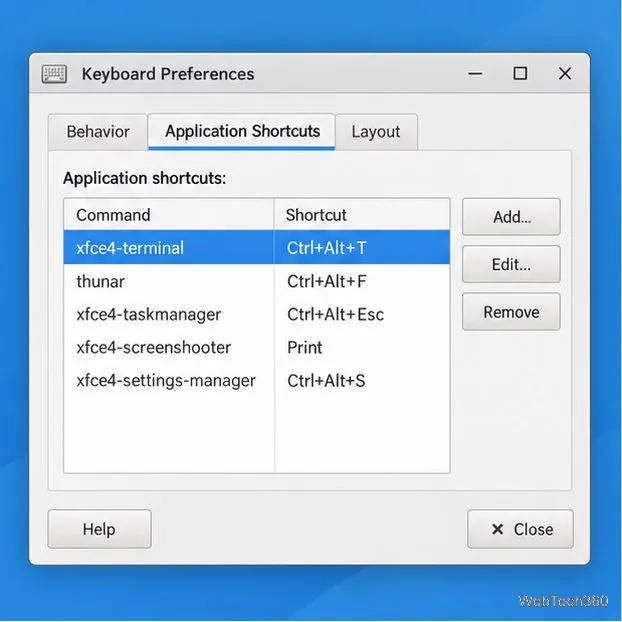
To reassign a key, find the command in the list and double-click its entry in the Shortcut column. When the capture dialog appears, press the new combination once. Avoid combinations already used by another application, Xfwm, or the desktop; a collision can make the wrong action run or prevent the new shortcut from working.
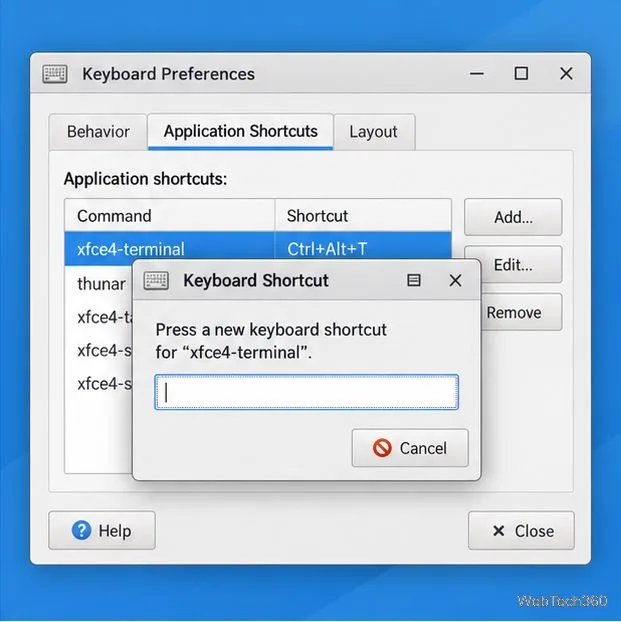
To delete an application shortcut, select its row and choose Remove. This removes the command-to-key binding from your user configuration; it does not uninstall the application or delete the command itself. If you later want the binding back, choose Add, enter the command again, and assign a key. Do not rely on the Window Manager screen’s reset control to restore entries from this list: it applies to Xfwm shortcuts.
xfce4-terminal launches Xfce Terminal on systems where that command is installed and available in your command path. If you are unsure of the command, use Open to browse for the application.sh /home/yourname/bin/task.sh. Replace the example path with the real location. If a path contains spaces, quote it, and test the command in a terminal first so you know it runs correctly.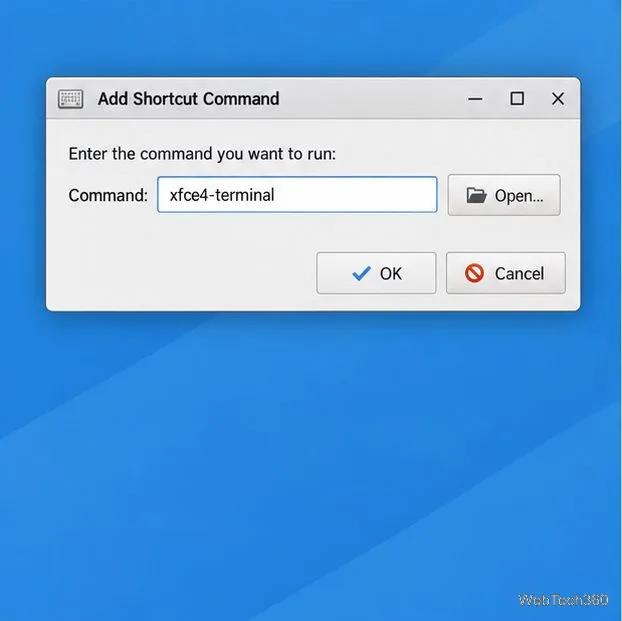
Choose a combination that is easy to remember and unlikely to overlap with a default. For instance, a four-key combination such as Ctrl+Alt+Shift+K can be easier to keep distinct than common combinations used by terminals, browsers, or window actions. The example is only a suggestion; check your own shortcut lists before assigning it.
For actions such as closing a window, switching windows, maximizing, moving, or resizing, open Settings → Window Manager → Keyboard. Select an action and double-click its key combination, or press Enter, then press the replacement keys. The Xfwm preferences documentation describes these as shortcuts managed by the window manager.
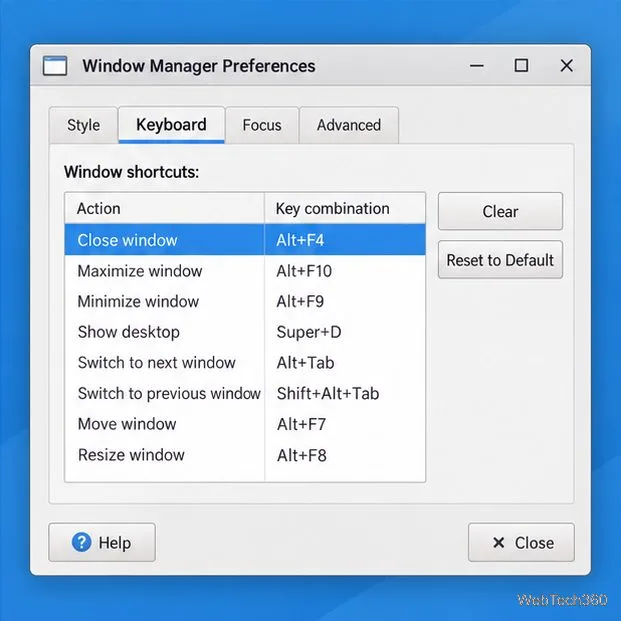
Use Clear to remove the key binding for the selected window action. Reset to Default restores the window-manager shortcut set, so review your changes before using it. This reset is separate from removing entries in Application Shortcuts.
xfce4-terminal, to distinguish a command problem from a key conflict.For more detail, see the official Xfce Settings Manager documentation, which identifies Keyboard as the dialog for keyboard settings and application shortcuts.
Send and receive files over Bluetooth on Linux with Blueman. Install OBEX support, pair devices, choose a file, accept transfers, and fix common issues.
Connect GNOME Files to SSH/SFTP, FTP, SMB, WebDAV, or NFS with the correct server URI, sign-in details, and fixes for common connection errors.
Open SFTP, SSH, SMB, FTP, NFS, and WebDAV locations in Dolphin, sign in safely, transfer files, and save network folders for later.
Connect a DualShock 4 to Linux by USB or Bluetooth, then check controller detection and configure Steam Input only when a game needs it.
Use DNF5 parallel downloads to reduce RPM install waits in GNOME Software, then tell when mirror or Flatpak delays need a different fix.
Access iCloud on Linux in a current browser. Learn how to sign in, use iCloud Drive and other web apps, and understand the limits of browser access.
Save GRUB settings, boot files, and UEFI entry details to removable storage, then use rescue media to repair the correct boot path safely.
Install Bitwarden on Linux with the right DEB, RPM, Snap, Flatpak, or AppImage package, then sign in and set a secure vault timeout.
Pick a screensaver theme in Xfce, preview it, choose when it starts, and configure automatic locking in the separate Lock Screen tab.
Stop GNOME Shell from blanking or locking your display automatically. Change Power and Screen Lock settings, or use Caffeine for a temporary keep-awake toggle.








