How to Share Files Over Bluetooth on Linux with Blueman

Send and receive files over Bluetooth on Linux with Blueman. Install OBEX support, pair devices, choose a file, accept transfers, and fix common issues.
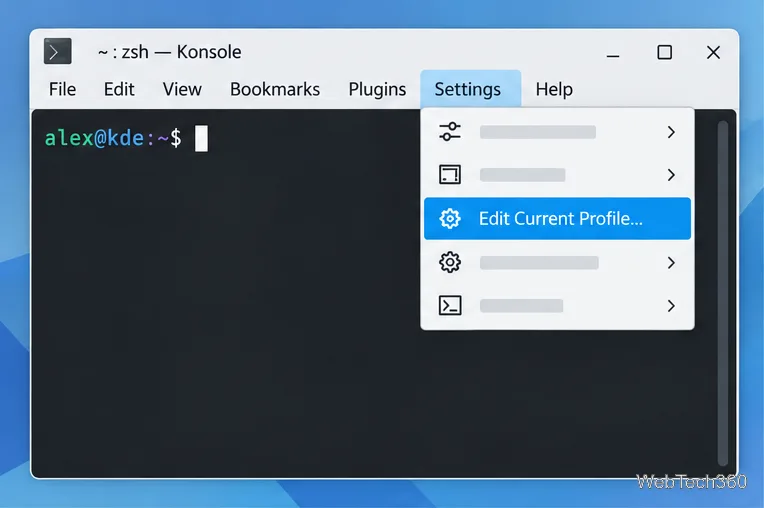
Konsole is KDE’s terminal emulator, and its profiles let you tailor what a terminal session runs and how it looks. Open Settings > Edit Current Profile to adjust the active profile, or create a separate profile for a different shell, project folder, or color scheme. The KDE handbook confirms that profiles can store commands and per-session appearance settings. The interface visuals below are illustrative; menu details can vary slightly by Konsole version and Linux distribution.
If Konsole is not installed, use your distribution’s software center or package manager. KDE’s Konsole page links to installation options, including Flathub.
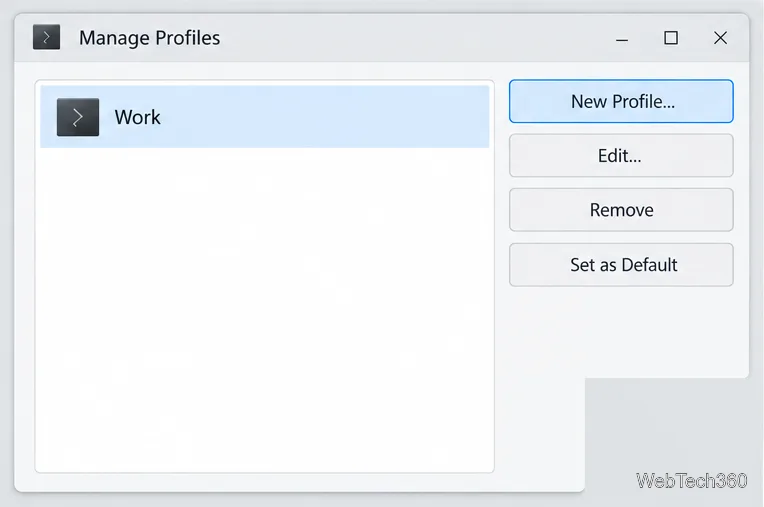
In Manage Profiles, you can choose whether a profile should be the default for new sessions. KDE saves profiles in your user data area, so these changes do not require editing system-wide files. Read KDE’s Konsole profile guide for the profile workflow.
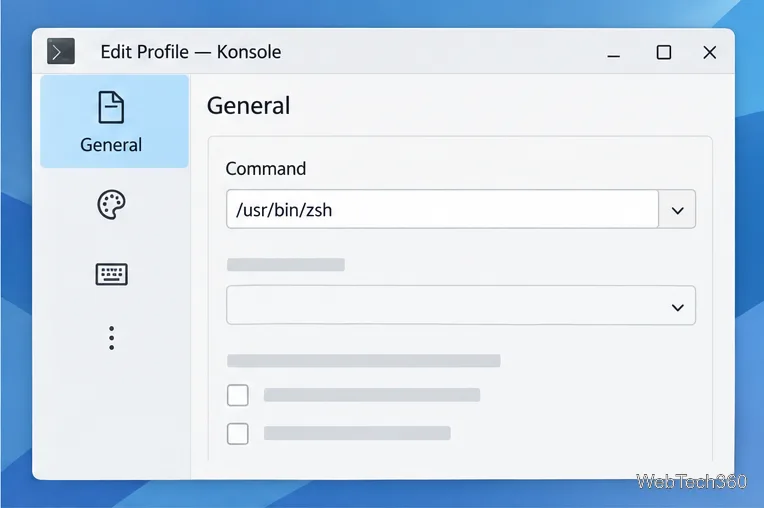
In the profile editor’s General page, find Command. Konsole normally starts the shell configured for your account; a profile can instead launch another installed shell. For example, to use Zsh, first check its path in a working terminal with command -v zsh. If the command returns /usr/bin/zsh, enter that path in the profile’s Command field. Install the shell through your distribution’s package manager first if it is missing. This setting only applies to sessions using this profile, so leave the default command unchanged if you do not need a different shell.
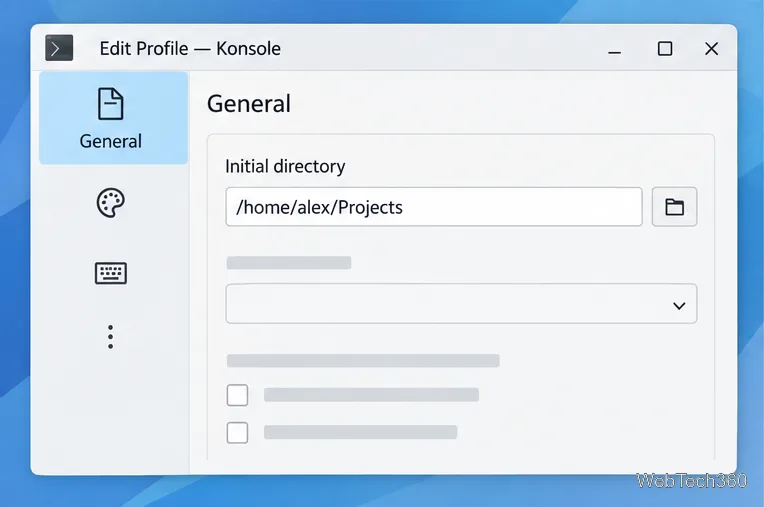
In the same General page, set Initial directory to the folder where you want new sessions to begin. Type a path or use the folder button to browse. Choose a directory that exists and that your account can access. For example, /home/alex/Projects starts the profile in a Projects folder under that user’s home directory. Use your own home-folder path rather than copying the example literally.
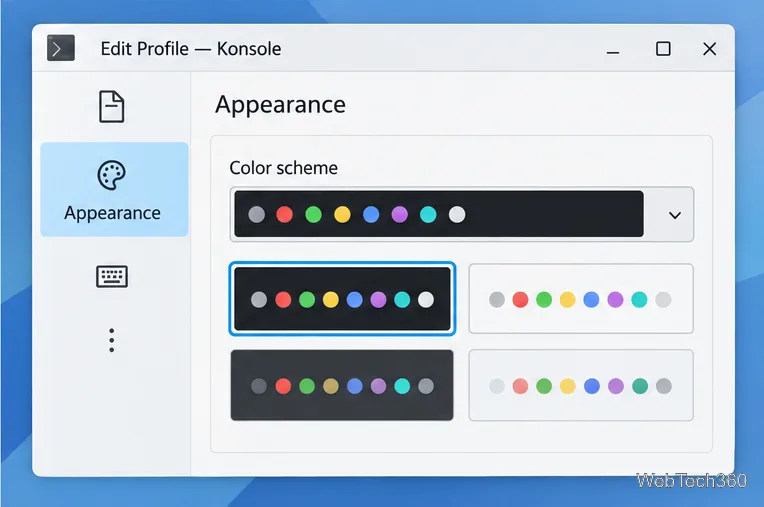
Open Appearance in the profile editor and choose a preset under Color scheme. This changes the terminal’s text, background, and ANSI colors for sessions using the profile. Pick a scheme with clear contrast, then check that colored prompts and command output remain readable. Konsole’s terminal color scheme is a profile setting; it is separate from the broader color theme used by KDE applications.
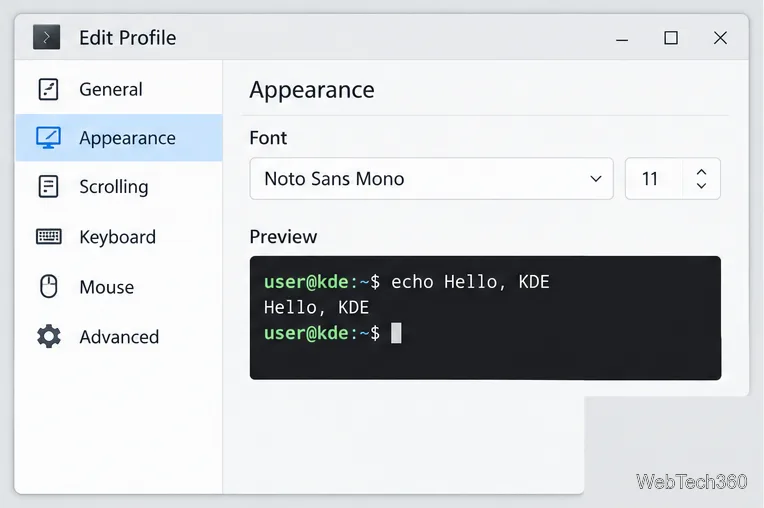
Still in Appearance, select a monospaced font and set a point size that works on your display. Use the preview to check punctuation and similar-looking characters such as 0 and O. Increasing the font can reduce how many columns fit in the window, so choose a size that balances legibility and workspace. For a temporary zoom in the current session, use View > Enlarge Font; Ctrl+0 resets the size to the profile default.
The Scrolling page controls how much previous terminal output remains available above the current screen. KDE documents a default history of 1,000 lines. Choose a larger fixed limit for routine sessions, or select Unlimited when you need to review long output. A fixed limit is a practical choice for everyday work; unlimited history is useful when you are following a lengthy build or log. Scrollback stores displayed output, not your shell’s command history. Use the scrollbar, mouse wheel, or Shift+Page Up to review earlier lines.
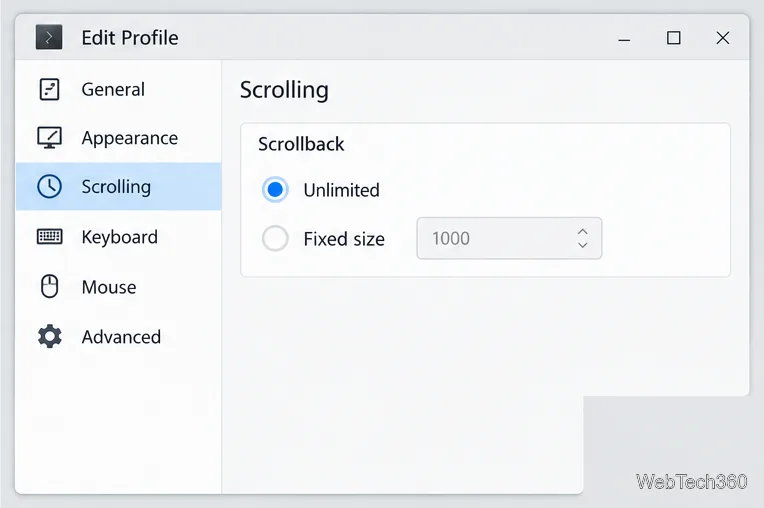
See KDE’s scrollback documentation for the default history size and navigation keys.
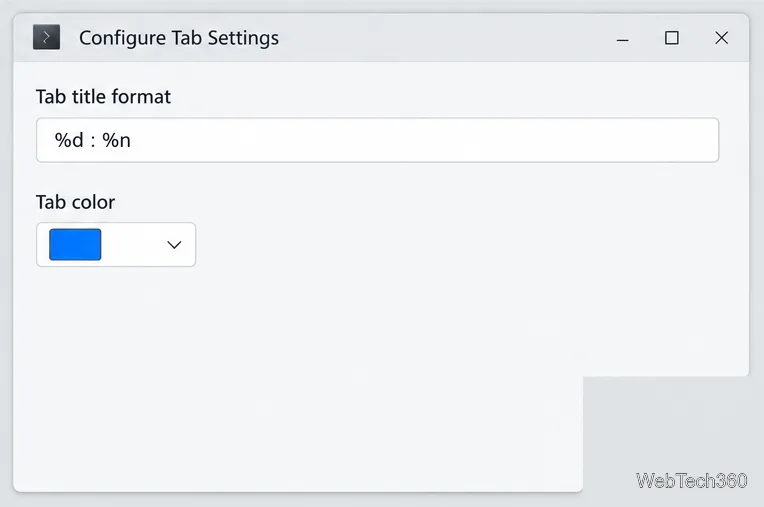
To adjust a tab’s label or color, open Edit > Configure Tab Settings, or double-click the tab. The dialog accepts title tokens. For example, %d : %n displays the short current directory followed by the program name, such as src : bash. Use a different color to distinguish an active tab at a glance. KDE notes that tab-setting changes can be temporary; save lasting profile behavior through the profile editor. The Konsole tab settings guide lists the available tokens.
When you finish, select OK to save the profile. Use Settings > Switch Profile to apply another profile to the current session, then open a new session to confirm its shell, directory, colors, font, and scrollback. If the shell does not start, verify that it is installed and that the Command field contains the correct path. If you cannot find a setting, check the Konsole version and look under Settings > Configure Konsole; tab bar visibility and placement are controlled separately from profile appearance.
Send and receive files over Bluetooth on Linux with Blueman. Install OBEX support, pair devices, choose a file, accept transfers, and fix common issues.
Connect GNOME Files to SSH/SFTP, FTP, SMB, WebDAV, or NFS with the correct server URI, sign-in details, and fixes for common connection errors.
Open SFTP, SSH, SMB, FTP, NFS, and WebDAV locations in Dolphin, sign in safely, transfer files, and save network folders for later.
Connect a DualShock 4 to Linux by USB or Bluetooth, then check controller detection and configure Steam Input only when a game needs it.
Use DNF5 parallel downloads to reduce RPM install waits in GNOME Software, then tell when mirror or Flatpak delays need a different fix.
Access iCloud on Linux in a current browser. Learn how to sign in, use iCloud Drive and other web apps, and understand the limits of browser access.
Save GRUB settings, boot files, and UEFI entry details to removable storage, then use rescue media to repair the correct boot path safely.
Install Bitwarden on Linux with the right DEB, RPM, Snap, Flatpak, or AppImage package, then sign in and set a secure vault timeout.
Pick a screensaver theme in Xfce, preview it, choose when it starts, and configure automatic locking in the separate Lock Screen tab.
Stop GNOME Shell from blanking or locking your display automatically. Change Power and Screen Lock settings, or use Caffeine for a temporary keep-awake toggle.








