Home
» LINUX
»
How to Customize Linux Folders With Folder Color
How to Customize Linux Folders With Folder Color
Folder Color adds folder color choices and emblems to the right-click menu in supported Linux file browsers. Install the extension that matches your file manager, restart that manager, then choose a color or emblem from the selected folder’s context menu. The project documents support for Nautilus, Nemo, and Caja; it is not a standalone application and does not add its menu to every Linux file manager.
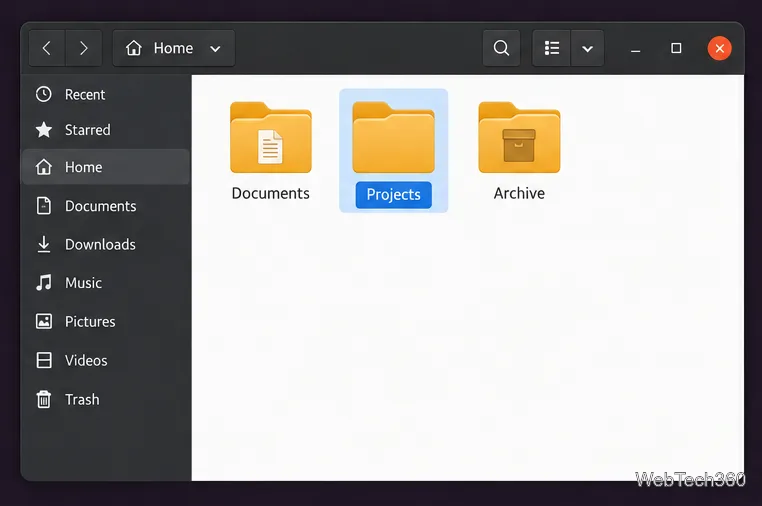
Select the folder you want to distinguish before opening its context menu.
Check your file manager and icon theme
GNOME Files is also called Nautilus. Cinnamon commonly uses Nemo, while MATE commonly uses Caja. Folder Color needs the integration package for the file browser you actually use. If your desktop uses Dolphin, Thunar, or another file manager, these steps will not add a Folder Color menu there.
The folder’s appearance also depends on the active icon theme. The project lists Numix, Papirus, Vibrancy Colors, and Vivacious Colors as compatible themes. A theme needs matching colored-folder icons for the corresponding choices to appear. The upstream project page says Yaru extras are installed automatically with Folder Color on Ubuntu 22.10 and later; on earlier Ubuntu releases it documents the optional folder-color-yaru package. See the maintainer’s Folder Color page for its current notes.
Install Folder Color on Ubuntu
The maintainer’s installation instructions use the costales/folder-color PPA. Add it and refresh Apt’s package list before installing the extension. On a standard Ubuntu desktop running Nautilus, open Terminal and run:
The final command quits Nautilus so it can load the new extension. It does not delete files or close your session; open Files again from the app launcher. If you use Nemo or Caja on Ubuntu, add the same PPA and update the package list, then install the matching integration instead:
These commands follow the upstream project’s current instructions. The package names and availability can vary by Ubuntu release, so stop if Apt says a package has no installation candidate and check the upstream repository for release-specific guidance. Do not use the old Debian 9 download command from earlier versions of this article on a current Debian system.
Install it on other Linux distributions
The Ubuntu PPA is not a generic Linux repository. On another distribution, search that distribution’s official repository or package service for the extension package that matches Nautilus, Nemo, or Caja, and confirm that it supports your release. For example, SUSE Package Hub lists Folder Color and its file-manager-specific subpackages. Fedora’s similarly named folder-color-switcher is packaged from the separate Linux Mint folder-color-switcher project, not the costales/folder-color project described here. Avoid copying old AUR or third-party repository instructions unless the package maintainer still documents them for your exact release.
Change a folder’s color
Reopen your file manager and browse to the folder you want to mark.
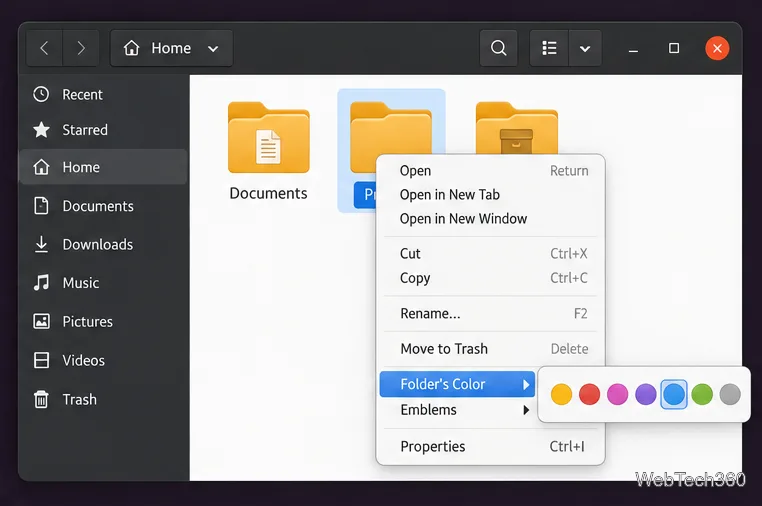
Right-click that folder. In the context menu, point to Folder’s Color to open its color choices.
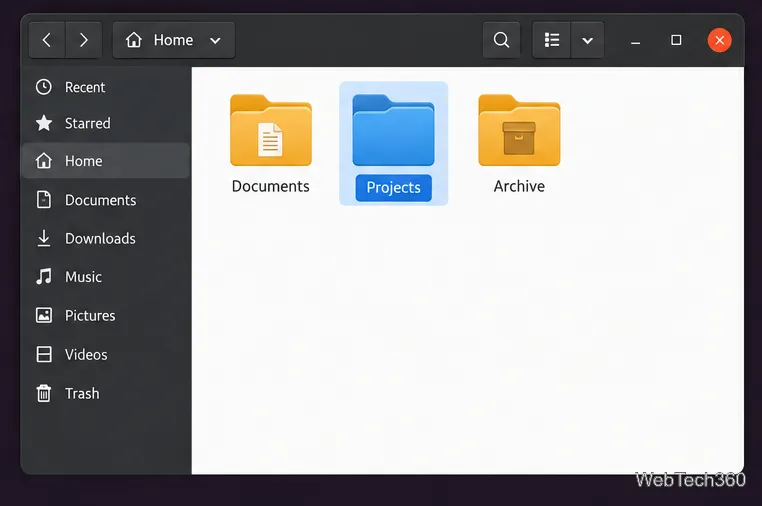
Click one of the available swatches. The folder icon updates in the file browser; the choices shown depend on the installed icon theme.
The Folder’s Color submenu shows the color options available in the active theme.The selected folder now uses a blue icon while the neighboring folders keep their existing appearance.
To change it again, repeat the same right-click steps and select another available color. If your build offers a reset or undo choice, use it to return to the theme’s default folder icon; menu labels can vary by package and translation.
Add an emblem to a folder or file
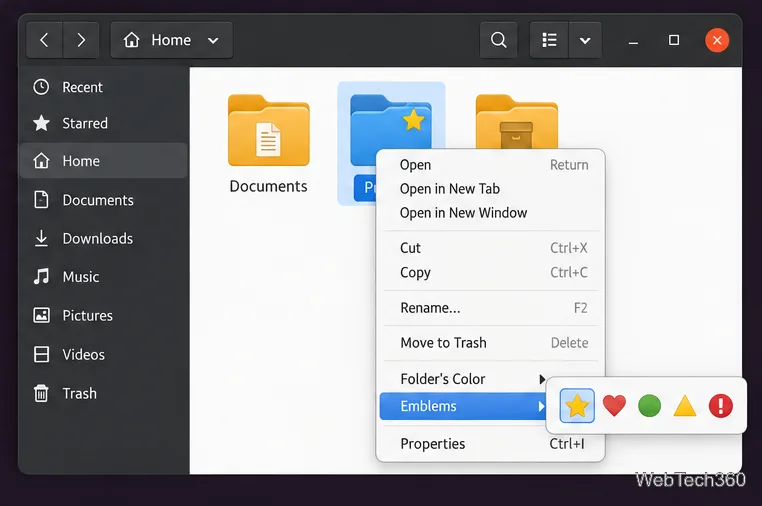
Folder Color can also apply small emblems, such as a favorite or important marker, to supported folders and files. Right-click the item, open Emblems in the Folder Color menu, and choose an emblem shown in the submenu. The emblem appears as a small overlay on the item’s icon, so it can add a second visual cue alongside the folder color.
The Emblems submenu applies a small marker, such as the star shown on the selected folder.
If the menu or colors are missing
No Folder’s Color item: Confirm that you installed the Nautilus, Nemo, or Caja integration for the file manager currently open. Quit and reopen that file manager after installation.
The submenu is present but a color is missing: The active icon theme may not include that colored-folder icon. Try a theme listed by the project or check whether your Ubuntu release needs its Yaru extras package.
Nothing changes after switching themes: Restart the file manager again so it reloads the new theme icons.
Your distribution cannot find the package: Do not force-install a package built for a different release. Check the distribution’s package source and the upstream project’s installation notes for a compatible build.
Folder Color is most reliable when the extension, file manager, and icon theme all match. Once those pieces are in place, its context menu provides a quick way to make frequently used folders easier to spot without changing their names or moving their contents.