Home
» LINUX
»
How to Cut Video Footage in Kdenlive on Linux
How to Cut Video Footage in Kdenlive on Linux
To cut video footage in Kdenlive on Linux, place the timeline playhead at an edit point and split the clip with the Razor Tool, or select the clip and use the cut-at-playhead shortcut. Select the unwanted section, delete it, close the gap if needed, then render the finished timeline to a video file. The steps below use Kdenlive’s current Linux workflow.
Install Kdenlive on Linux
Kdenlive’s official Linux packages are the AppImage and Flatpak. The version in a distribution’s package manager may follow that distribution’s release schedule. For an official build, use the Kdenlive download page or follow its Linux installation guide. If Flatpak and the Flathub remote are already set up, install with:
flatpak install flathub org.kde.kdenlive
Set up a project and add footage
Choose a project profile and save
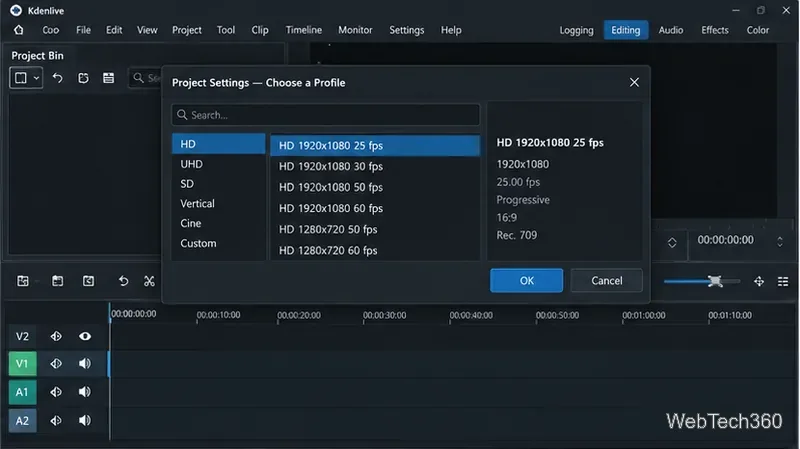
Open Kdenlive and create a new project. Choose a profile that matches the intended output, including its resolution and frame rate. If you are unsure, use the settings required by the place where you plan to publish the video. Save the project as a .kdenlive file before editing; it stores your timeline and edit decisions, while the rendered video is a separate file.
Choose a project profile that fits the resolution and frame rate you need for the finished video.
Import the source clip
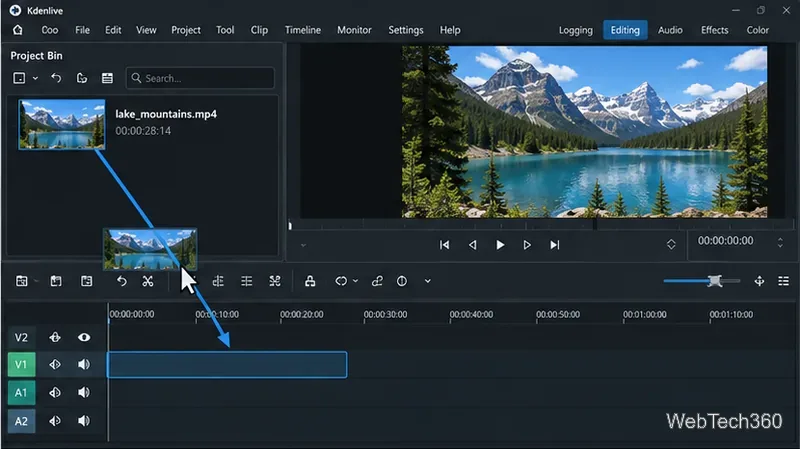
In the Project Bin, choose Add Clip or Folder and select your video file. Drag the imported clip from the bin onto the V1 video track. If the source includes audio, keep its audio portion aligned with the video. Avoid moving one independently unless you intend to change the synchronization.
Drag the imported clip from the Project Bin onto a video track such as V1.Check the video and its audio are aligned before making edits.
Make cuts at the points you want
Find and mark an edit point
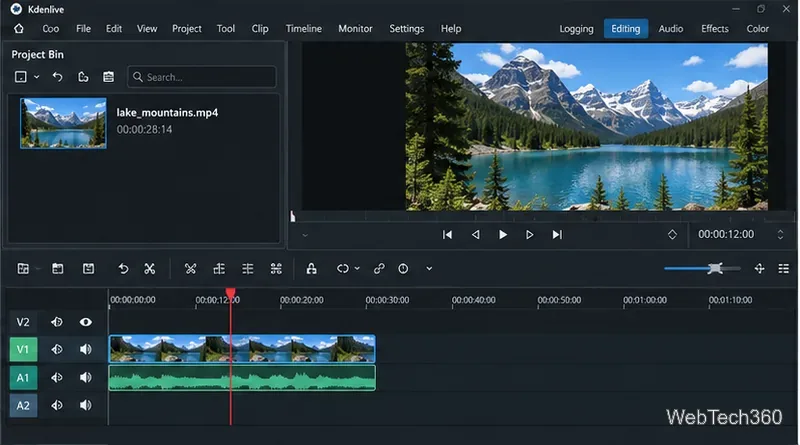
Click the clip on the timeline, then press Space to play or pause it in the Project Monitor. You can also click or drag on the timeline ruler to move the playhead. Pause near the point where the unwanted footage begins. Zoom in on the timeline when you need finer placement, then position the playhead on the exact frame you want to split.
Pause the preview and place the playhead at the frame where the cut should occur.
Split the clip
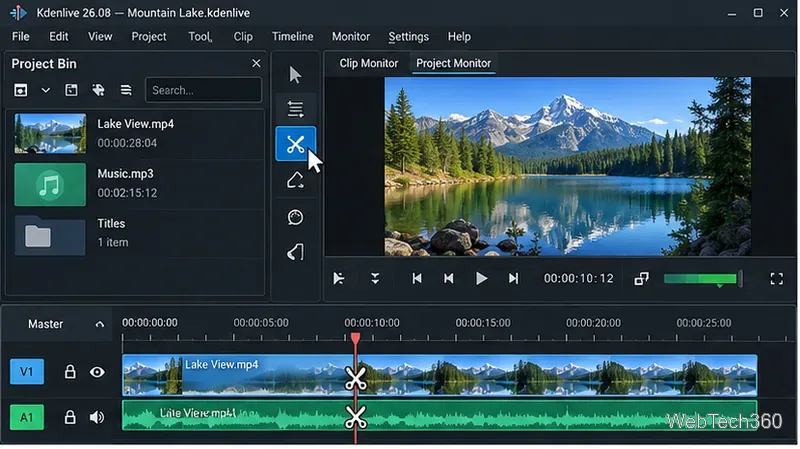
For a direct cut, press X to activate the Razor Tool, then click the clip at the playhead. Press Esc to return to the Selection Tool. Make another cut where the footage you want to remove ends; the unwanted portion will now be a separate timeline segment.
For a cut exactly at the playhead, select the clip on its active track and use Shift+R or choose Timeline > Current Clip > Cut Clip. This cuts the selected clip on the active track. To split all clips at the playhead on unlocked tracks, the current shortcut is Ctrl+Shift+R. Check the Kdenlive shortcut reference if your keyboard mapping differs.
The Razor Tool splits the video and aligned audio where you click.
Remove the unwanted section
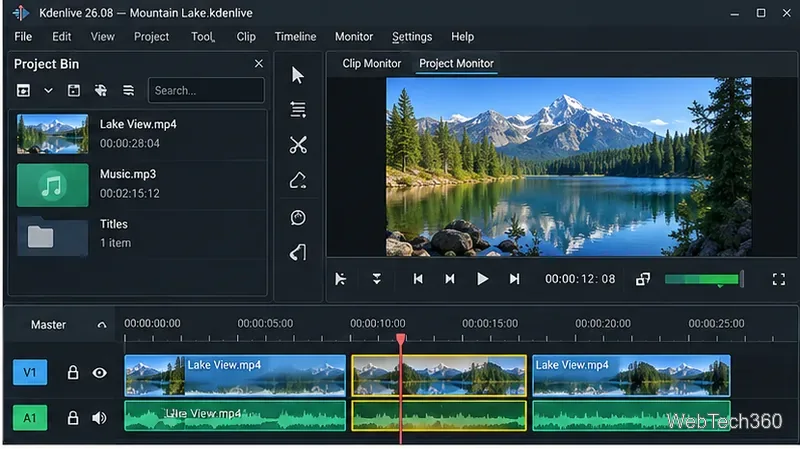
Press S to use the Selection Tool, click the segment between your two cuts, and press Delete. If audio is on a separate clip, select its matching segment too so it does not continue underneath the cut. Deleting a segment leaves empty space on the timeline until you remove or fill the gap.
Select the section between the two cuts before deleting the unwanted footage.
Close the gap and keep tracks in sync
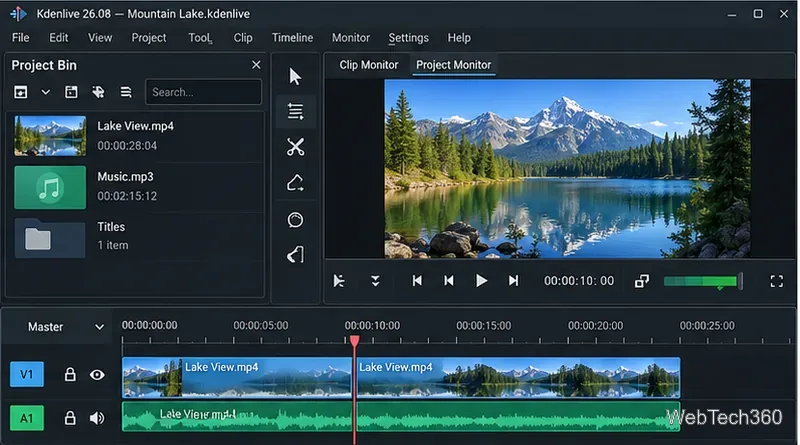
For a simple edit on one track, right-click the empty gap and choose Remove Space. This shifts later clips on that track to the left. On a multi-track edit, removing space from only one track can misalign other clips. To remove the same time range across tracks, mark the range and use Sequence > Removal > Extract Timeline Zone (Shift+X); locked tracks are left untouched. The Sequence menu documentation explains the operation.
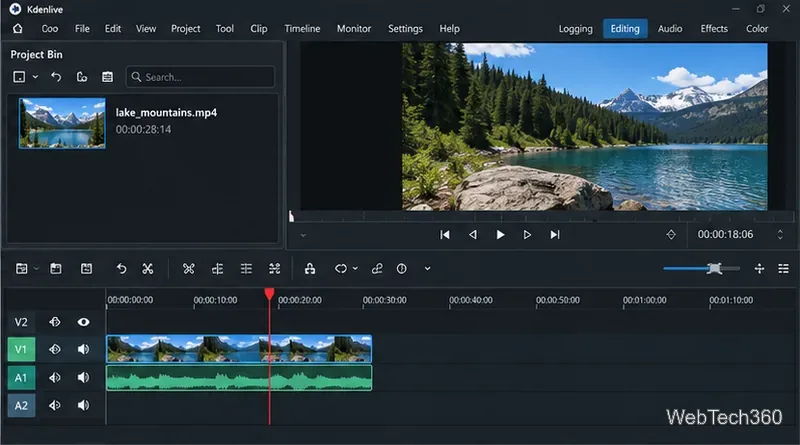
After removing the gap, verify that the remaining video and audio still line up.
Save and render the edited video
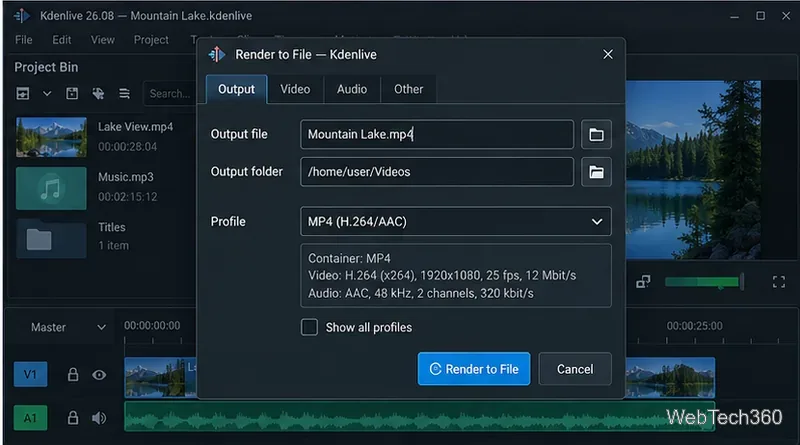
Press Ctrl+S to save the project. Open the render dialog with Ctrl+Enter or choose File > Render. Set the output filename and folder, then choose a preset that suits your delivery format. An MP4/H.264 preset is a common choice for general playback when it is available in your installation. Confirm that the render range covers the whole project if you want the entire timeline, rather than only a selected zone, and click Render to File. Kdenlive saves the result to the folder shown in the dialog; it does not always go to the Videos folder.
Choose the output path and a suitable render profile, then render the completed timeline.
For details about output profiles and render ranges, see the official Kdenlive rendering guide. If the result contains an unexpected gap or black frame, return to the timeline and check the edit point, clip alignment, and render range before exporting again.