Home
» LINUX
»
How to Disable Snaps in Ubuntu and Remove snapd
How to Disable Snaps in Ubuntu and Remove snapd
If you want an Ubuntu system without Snap packages, the clean approach is to remove installed snaps first, remove the snapd runtime, and then optionally block the snapd Debian package from being installed again. Do not start by force-unmounting /snap or deleting system folders while snaps are still installed.
This guide applies to regular Ubuntu Desktop and Ubuntu Server installations. It is not intended for Ubuntu Core, which is built around snaps. Canonical's current Snap decommissioning documentation also recommends removing installed snaps before removing the snapd package.
Before you disable Snap
Removing snaps can also remove applications you rely on, including software that Ubuntu distributes primarily as a snap. Back up anything important first. Snap application data can live under ~/snap/ for the current user and /var/snap/ for system-wide data, as documented in Canonical's Snap data locations reference.
Also note that some Ubuntu Debian packages are designed to install a snap. For example, Ubuntu's Firefox package in current releases is a package that installs the Firefox snap rather than a traditional Firefox DEB. If you permanently block snapd, packages that depend on it may no longer install normally.
1. List every installed snap
Open Terminal and run:
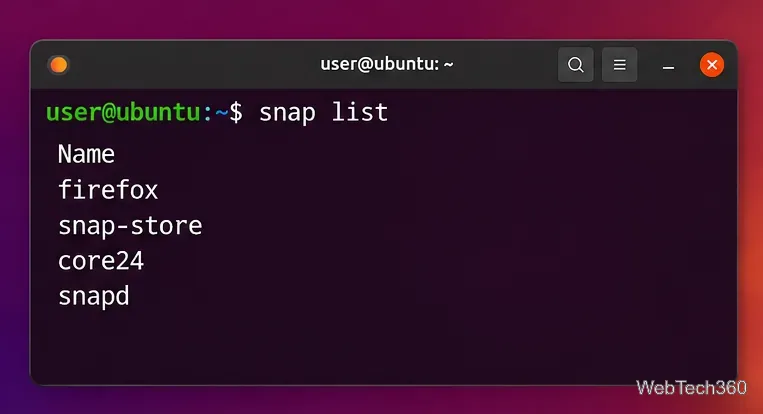
snap list
The exact list varies by Ubuntu release and by what you have installed. Start with user applications, then remove supporting content or base snaps afterward. If a base snap is still required by another snap, snapd will refuse to remove it until the dependent package is gone.
Use snap list to see what must be removed before uninstalling snapd. Package names on your system may differ.
2. Remove installed snaps
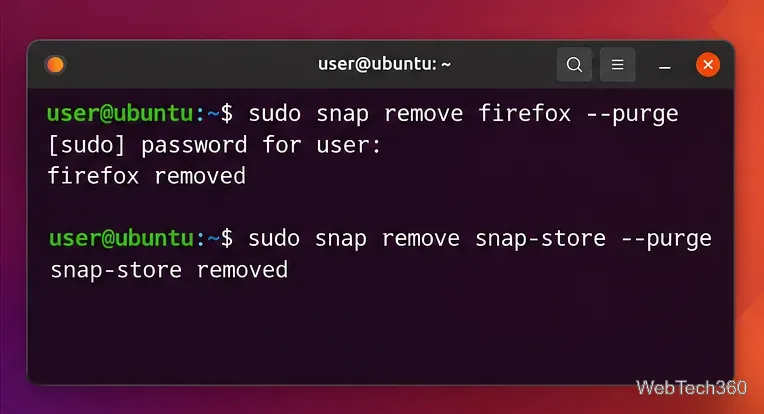
Remove each application snap by name. Using --purge skips the automatic removal snapshot and deletes that snap's data immediately, so only use it after you have backed up anything you need. Canonical documents this behavior in its Snap removal guide.
Those are examples; skip any name that is not installed. Repeat the command for your remaining application snaps, then for content and base snaps that are no longer needed. Run snap list again until only snapd remains, or until no snaps remain.
Remove application snaps before base snaps. The --purge option prevents snapd from creating an automatic snapshot during removal.
3. Remove the snapd snap and the snapd package
If snapd still appears in snap list, remove that snap after all other snaps are gone:
sudo snap remove snapd --purge
Then purge the Debian package that provides the Snap daemon and command-line tools:
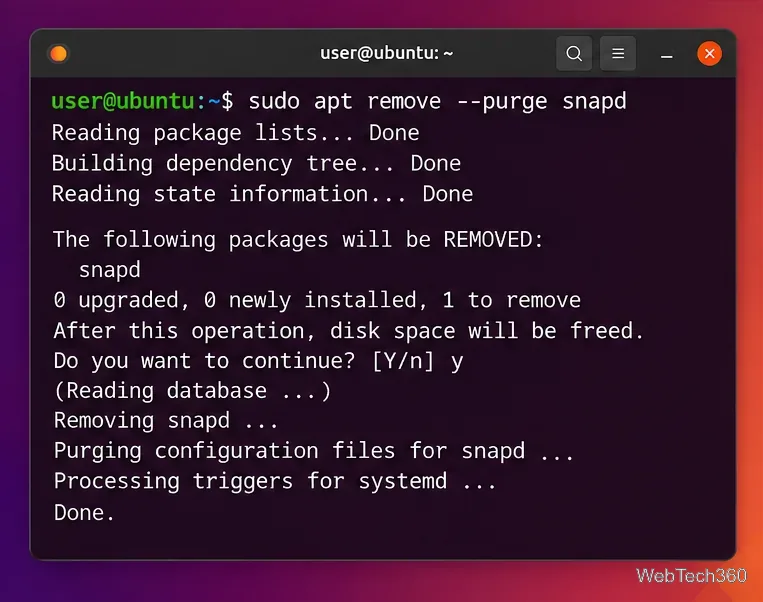
sudo apt remove --purge snapd
According to Canonical's decommissioning documentation, purging the snapd Debian package removes Snap's main system directories, including /var/snap, /var/lib/snapd, /var/cache/snapd, and /snap. That means the older advice to manually force-unmount core snaps or immediately run destructive rm -rf commands against those system paths is normally unnecessary.
Purging the snapd Debian package removes the Snap daemon and its main system-managed directories.
4. Remove leftover per-user Snap data
The package purge does not necessarily remove Snap data stored inside each user's home directory. After confirming you no longer need those files, remove the current user's Snap directories:
rm -rf "$HOME/snap" "$HOME/.snap"
If the computer has multiple user accounts, check each home directory separately rather than deleting user data blindly. Log out and back in, or reboot, after the cleanup so your session is refreshed.
5. Optional: prevent snapd from being installed again
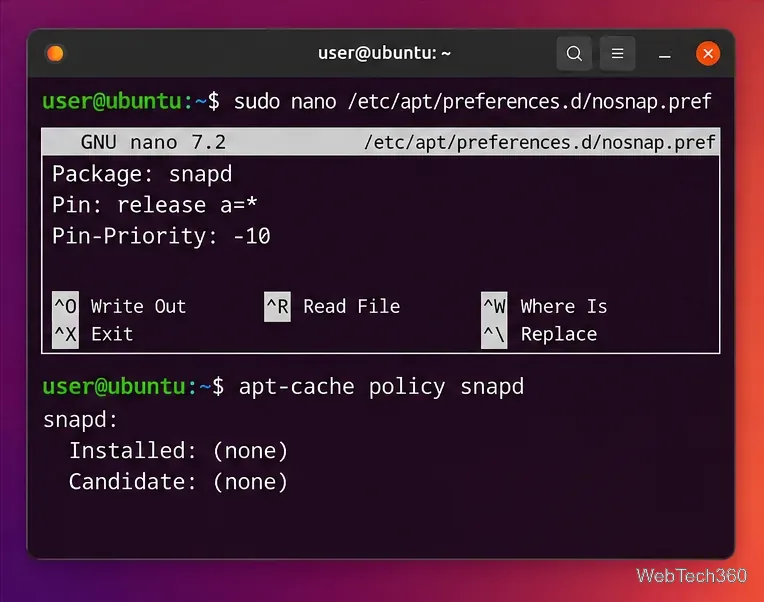
If you only wanted to remove Snap for now, you can stop after the previous step. If you want APT to refuse future snapd installs, create an APT preferences file:
sudo nano /etc/apt/preferences.d/nosnap.pref
Add these three lines:
Package: snapd
Pin: release a=*
Pin-Priority: -10
Save the file, then check the result:
apt-cache policy snapd
APT's official apt_preferences manual states that a priority below zero prevents a matching version from being installed. The tradeoff is deliberate: any package that requires snapd can fail to install until you remove this pin.
An optional negative APT pin keeps snapd from being reinstalled automatically. Use it only if you intend to keep the system Snap-free.
How to re-enable Snap later
To undo the block and restore Snap support, remove the preferences file and reinstall snapd:
Then log out and back in or reboot. Canonical's Ubuntu snapd installation guide confirms that installing the snapd package restores Snap support on Ubuntu.