How to Share Files Over Bluetooth on Linux with Blueman

Send and receive files over Bluetooth on Linux with Blueman. Install OBEX support, pair devices, choose a file, accept transfers, and fix common issues.
You can downgrade an APT-managed package on Ubuntu by installing a specific older version that is still available from one of your configured repositories. Check the version list, preview the dependency changes, and then confirm the exact version. This method applies to .deb packages managed by APT; Snap and Flatpak apps use different rollback methods.
An application name and its APT package name may differ. If you know part of the package name, list matching Debian packages with dpkg-query:
dpkg-query -W -f='${binary:Package}\t${Version}\n' | grep -i KEYWORDReplace KEYWORD with a distinctive part of the name. If the app appears in snap list or flatpak list --app instead, do not use the APT commands below.
Refresh the package index and inspect versions. Replace PACKAGE with the package name:
sudo apt update
apt-cache policy PACKAGE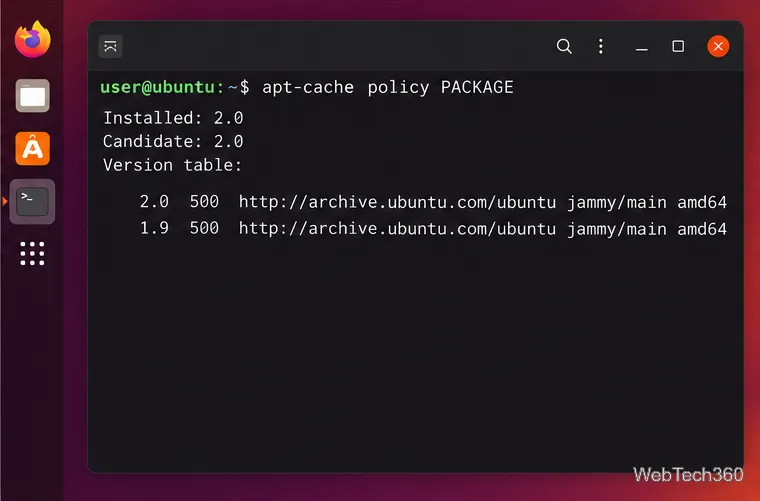
Read the Installed, Candidate, and Version table fields. Copy the complete older version string exactly, including any epoch, hyphen, or revision suffix. Check the source listed beside it; use a repository intended for your Ubuntu release. A version recorded only under /var/lib/dpkg/status is known as installed, but that does not mean APT can download it now. The apt-cache manual describes the version and policy information it displays.
Preview the downgrade. Use the exact version from the policy output:
sudo apt-get -s install PACKAGE=VERSION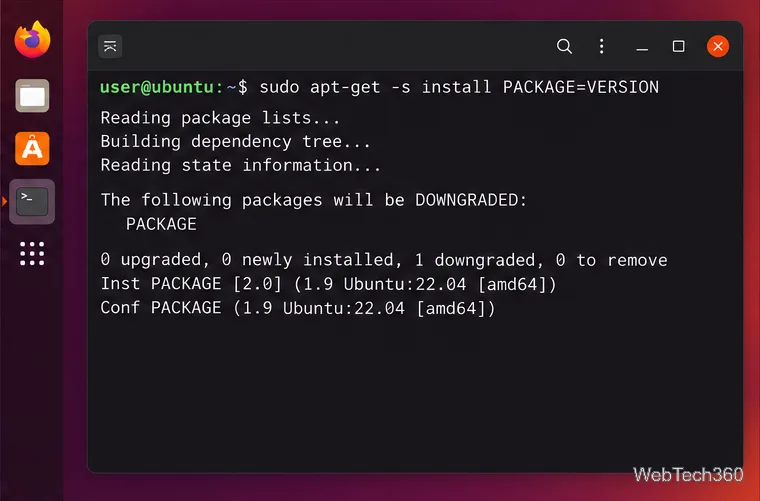
The -s option simulates the transaction. Read the whole proposed change, including packages to be downgraded or removed. Cancel if APT proposes removing essential software, changing unrelated packages, or pulling dependencies from a different Ubuntu release. APT’s apt-get manual documents simulation and exact-version installs.
Install the selected version. If the preview is acceptable, run:
sudo apt install PACKAGE=VERSION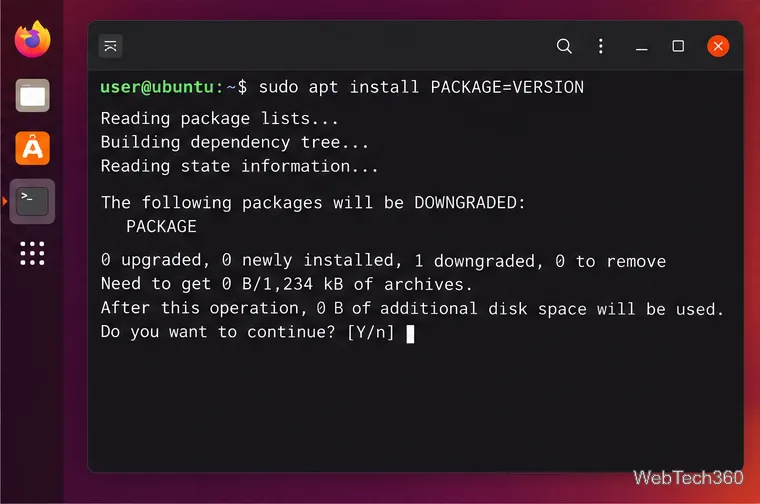
Review APT’s final confirmation summary and approve it only if it matches the plan. Leave out -y so you can stop at the prompt if the package list has changed. Do not add --allow-downgrades as a routine fix; it changes how APT handles downgrade confirmation and is intended for special cases.
Verify what was installed.
dpkg-query -W -f='${binary:Package} ${Version}\n' PACKAGE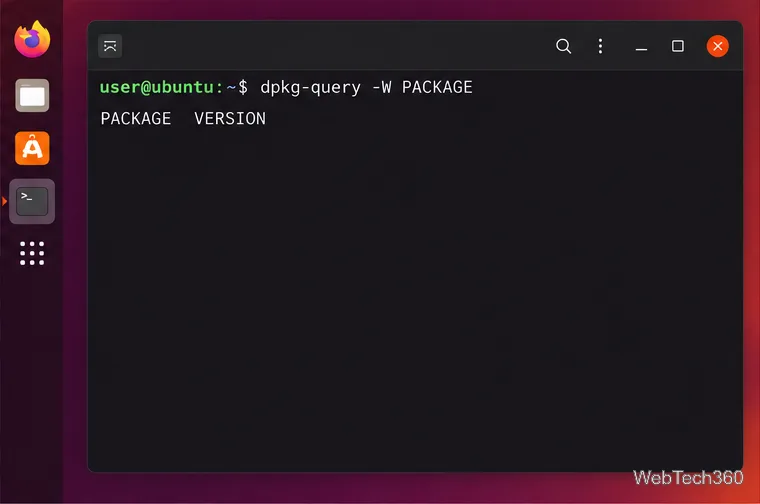
Compare the result with the version you selected, then reopen the app and check whether the issue is resolved. Save important work first: downgrading program files does not necessarily roll back documents, databases, or settings that a newer release has already changed.
Synaptic is a graphical front end for APT and is available in Ubuntu’s package archive, though it may not be installed by default. Install it with sudo apt install synaptic, open it, and click Reload so it refreshes the package lists. Ubuntu’s Synaptic help page covers installation.
Search for the package and select the installed package row.
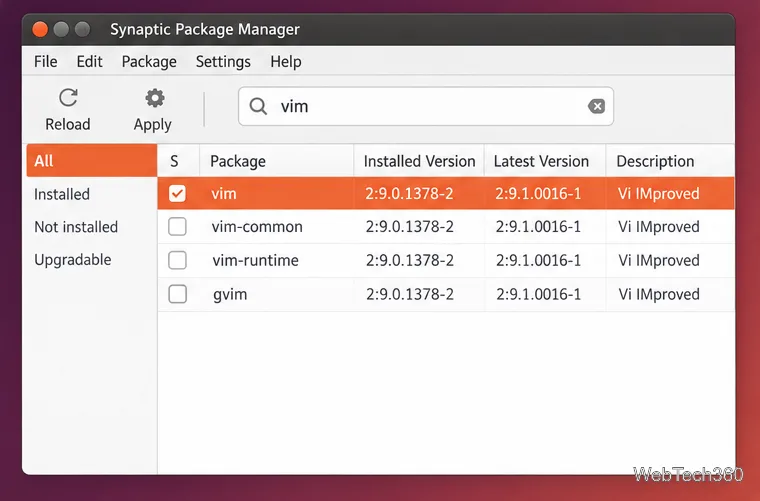
Open Package and choose Force Version.
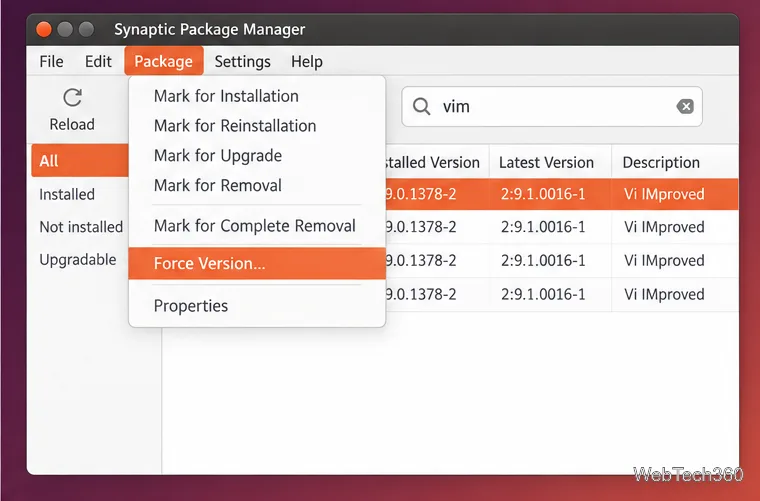
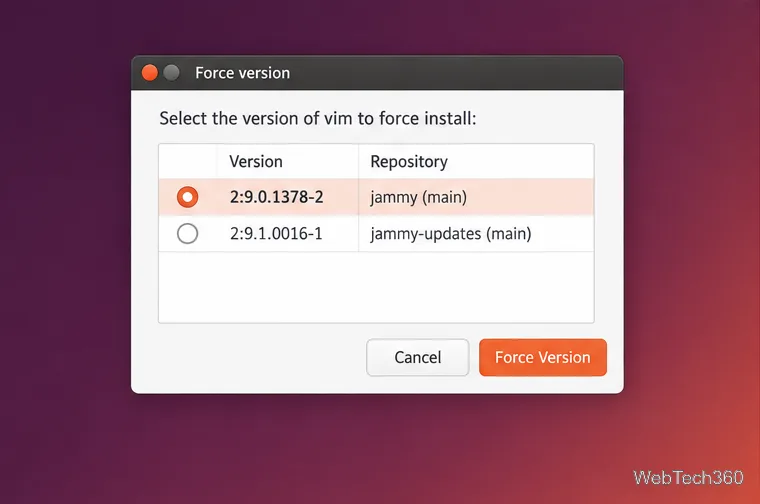
Select the older version in the dialog and choose Force Version. Synaptic can only select versions available through the package sources APT currently knows about; the package names and version numbers shown vary by system.
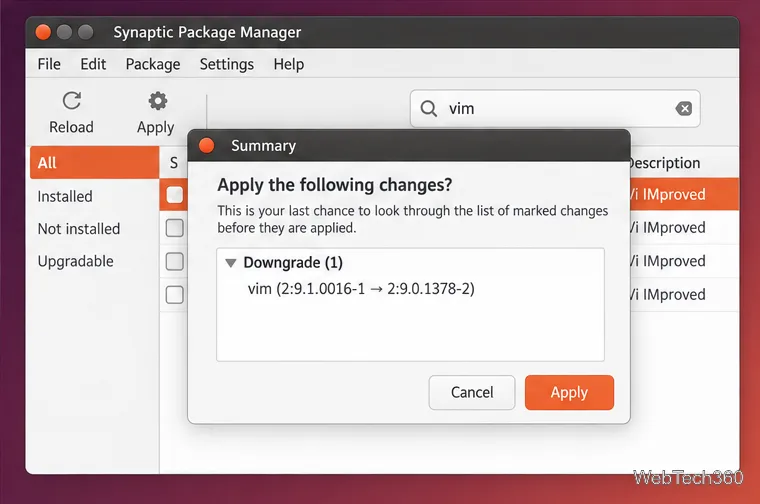
Click Apply, review the pending changes, and continue only if the summary shows the intended downgrade and no unexpected removals.
If you need time to test the older release, you can temporarily hold the package:
sudo apt-mark hold PACKAGE
apt-mark showhold
A hold prevents normal automatic package actions for that package. It also means security and bug-fix updates will not be applied to it while the hold remains, so remove the hold when you are ready to update:
sudo apt-mark unhold PACKAGESee the apt-mark manual for hold and unhold behavior.
APT gets downloadable versions from enabled package sources; its local download cache is separate and can be cleared. If your target version is absent from the version table, APT cannot fetch it from the sources currently configured. Avoid adding a repository for a different Ubuntu release just to obtain one old package, since its dependencies may not match your system.
To return an APT package to the current candidate, first remove any hold, refresh the package index, inspect apt-cache policy PACKAGE again, then run sudo apt install PACKAGE and review the proposed version before confirming. For a Snap app, the separate command sudo snap revert SNAP_NAME attempts to restore its previous revision; see the official Snap update and revert documentation. A Snap revert also affects revision-specific configuration data, so back up important app data first.
Send and receive files over Bluetooth on Linux with Blueman. Install OBEX support, pair devices, choose a file, accept transfers, and fix common issues.
Connect GNOME Files to SSH/SFTP, FTP, SMB, WebDAV, or NFS with the correct server URI, sign-in details, and fixes for common connection errors.
Open SFTP, SSH, SMB, FTP, NFS, and WebDAV locations in Dolphin, sign in safely, transfer files, and save network folders for later.
Connect a DualShock 4 to Linux by USB or Bluetooth, then check controller detection and configure Steam Input only when a game needs it.
Use DNF5 parallel downloads to reduce RPM install waits in GNOME Software, then tell when mirror or Flatpak delays need a different fix.
Access iCloud on Linux in a current browser. Learn how to sign in, use iCloud Drive and other web apps, and understand the limits of browser access.
Save GRUB settings, boot files, and UEFI entry details to removable storage, then use rescue media to repair the correct boot path safely.
Install Bitwarden on Linux with the right DEB, RPM, Snap, Flatpak, or AppImage package, then sign in and set a secure vault timeout.
Pick a screensaver theme in Xfce, preview it, choose when it starts, and configure automatic locking in the separate Lock Screen tab.
Stop GNOME Shell from blanking or locking your display automatically. Change Power and Screen Lock settings, or use Caffeine for a temporary keep-awake toggle.








