How to Share Files Over Bluetooth on Linux with Blueman

Send and receive files over Bluetooth on Linux with Blueman. Install OBEX support, pair devices, choose a file, accept transfers, and fix common issues.
To download a torrent from a Linux terminal, install aria2 and pass its aria2c command a magnet URI or a local .torrent file. This works over SSH as well as on a desktop. Use only torrents you are authorized to download and share: BitTorrent can upload pieces to other peers while it downloads.
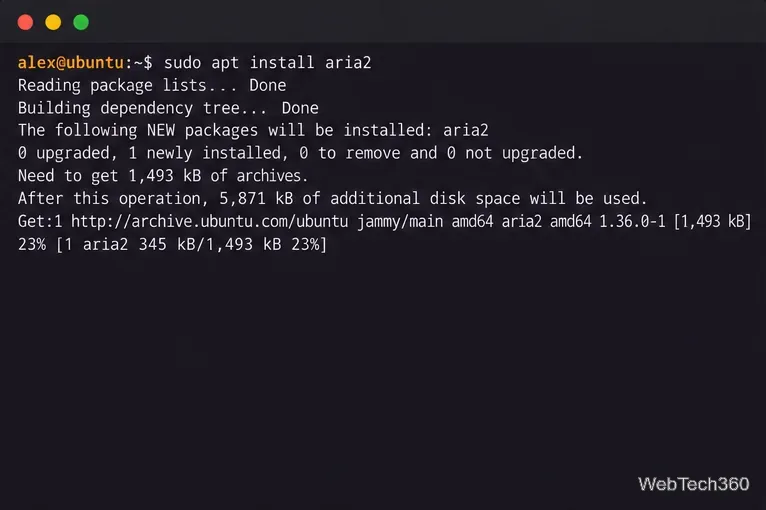
Install aria2 through your distribution’s package manager; versions vary by release.
| Distribution | Install command |
|---|---|
| Ubuntu or Debian | sudo apt update && sudo apt install aria2 |
| Fedora | sudo dnf install aria2 |
| Arch Linux | sudo pacman -S aria2 |
aria2 is packaged by Ubuntu, Debian, Fedora, and Arch Linux. For other systems, check the official repositories or the project’s release page and manual.
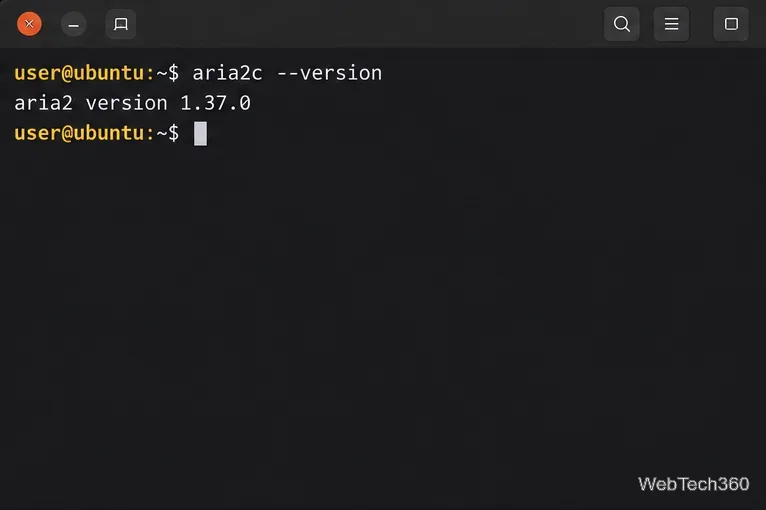
Run aria2c --version. The executable is aria2c even though the package is named aria2. If it is not found, confirm installation and check your PATH.
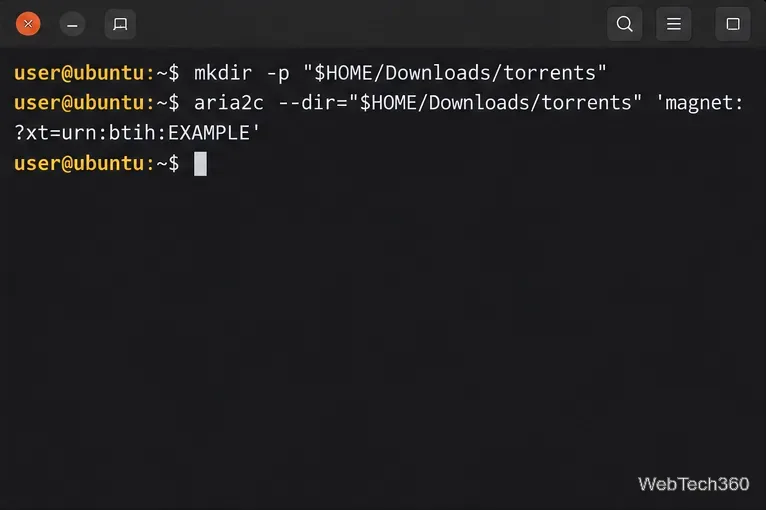
By default, aria2 saves to the current directory. Create a destination and pass it with --dir:
mkdir -p "$HOME/Downloads/torrents"
aria2c --dir="$HOME/Downloads/torrents" 'magnet:?xt=urn:btih:REPLACE_WITH_INFOHASH'
Replace the placeholder with a complete link from a legitimate source. --dir sets the destination without renaming the torrent’s files.
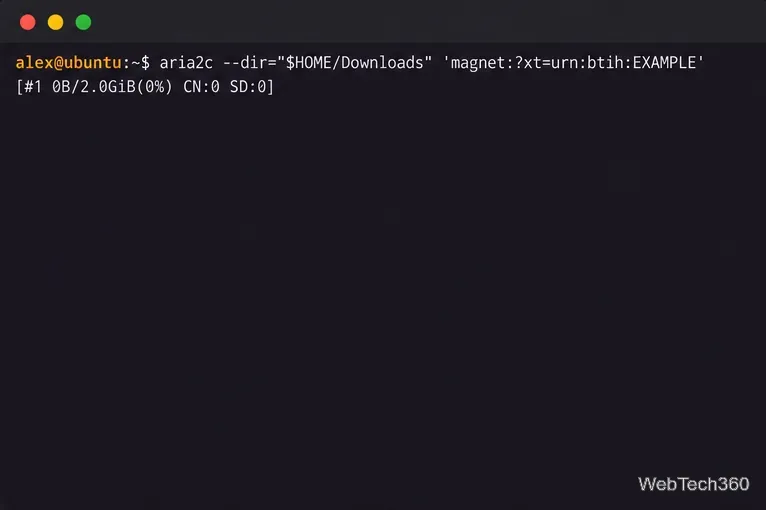
Copy the magnet URI and put it in single quotes so the shell does not interpret characters such as & as command separators. The example below is a template, not a working torrent link:
aria2c --dir="$HOME/Downloads/torrents" 'magnet:?xt=urn:btih:REPLACE_WITH_INFOHASH&dn=example'aria2 shows transfer status in the terminal. Metadata lookup and speed depend on the link and available peers; no connections can indicate an incomplete link or an inactive swarm.
If a site or project provides a .torrent file, download it from that authorized source first. Then pass its path to the torrent-file option:
aria2c --dir="$HOME/Downloads/torrents" --torrent-file="$HOME/Downloads/example.torrent"A local torrent file can also be a positional argument. Quote paths with spaces and verify the publisher and license before downloading.
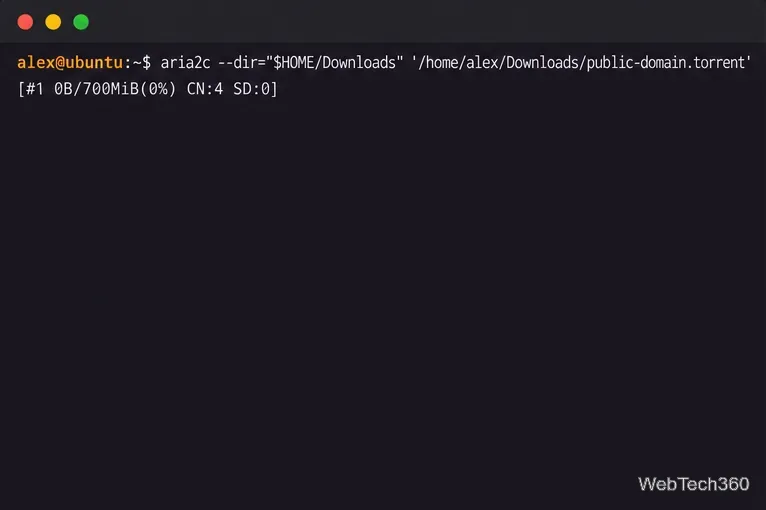
For several downloads, put one magnet URI per line in an input file. Replace the sample values with complete links from sources you are allowed to use:
cat > "$HOME/aria2-queue.txt" <<'EOF'
magnet:?xt=urn:btih:REPLACE_WITH_FIRST_INFOHASH
magnet:?xt=urn:btih:REPLACE_WITH_SECOND_INFOHASH
EOF

aria2c --input-file="$HOME/aria2-queue.txt" \
  --dir="$HOME/Downloads/torrents" \
  --max-concurrent-downloads=2
--input-file reads the queue, while --max-concurrent-downloads=2 runs two items at once. Keep one complete URI per line, without shell quotes.
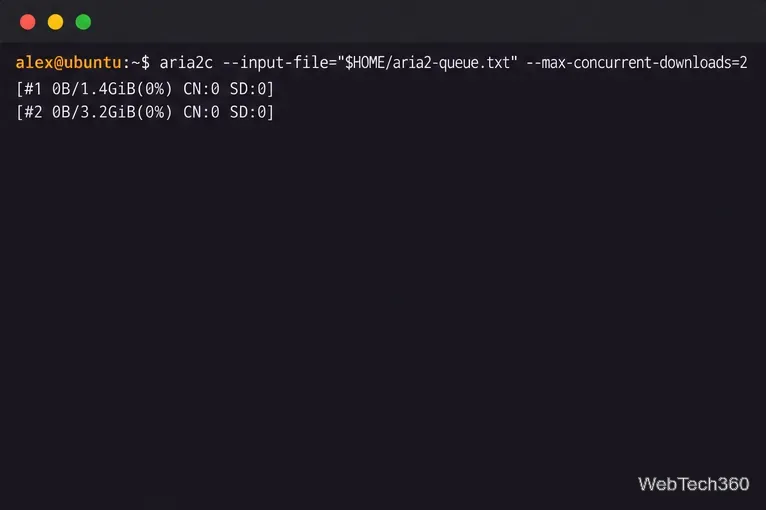
A torrent client can continue uploading after a download finishes. aria2’s default share ratio is 1.0, so the process may remain open while it seeds. To limit a session, add both options:
aria2c --seed-time=120 --seed-ratio=1.0 \
  --dir="$HOME/Downloads/torrents" "$HOME/Downloads/example.torrent"
Time is measured in minutes. aria2 stops seeding when either limit is reached; --seed-time=0 disables seeding after completion. Follow any project or tracker guidance on uploads.
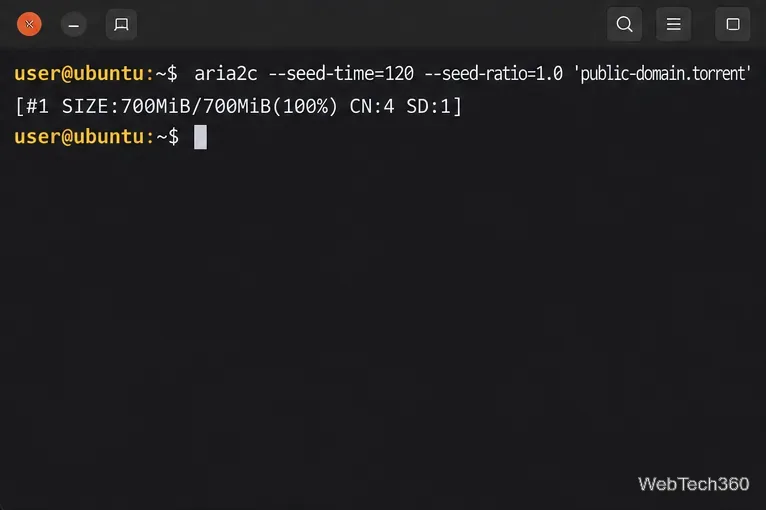
Press Ctrl+C to stop aria2. To resume later, rerun the same command and keep its .aria2 control file; aria2 usually resumes its own previous transfer. For long SSH jobs, use a persistent terminal such as tmux, since closing the terminal ends a foreground process.
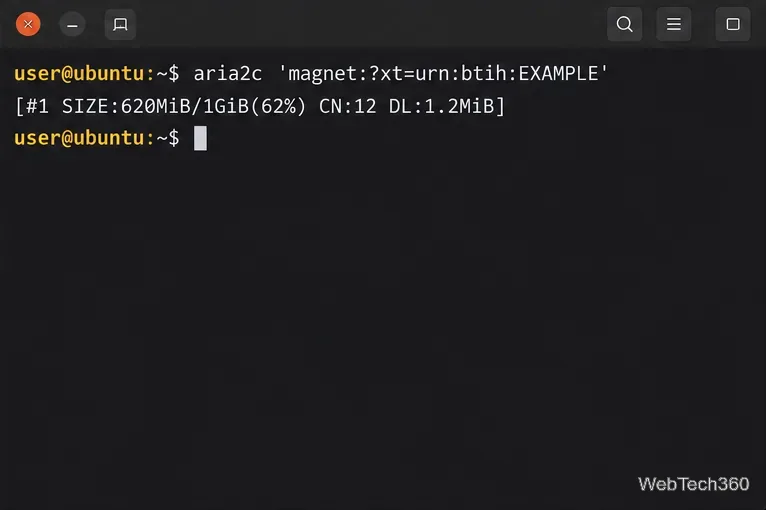
ls -ld "$HOME/Downloads/torrents".df -h "$HOME/Downloads/torrents" before large downloads.For option details, including magnet handling, input files, resume behavior, and seeding limits, consult the aria2c manual. The project’s release page lists current upstream versions.
Send and receive files over Bluetooth on Linux with Blueman. Install OBEX support, pair devices, choose a file, accept transfers, and fix common issues.
Connect GNOME Files to SSH/SFTP, FTP, SMB, WebDAV, or NFS with the correct server URI, sign-in details, and fixes for common connection errors.
Open SFTP, SSH, SMB, FTP, NFS, and WebDAV locations in Dolphin, sign in safely, transfer files, and save network folders for later.
Connect a DualShock 4 to Linux by USB or Bluetooth, then check controller detection and configure Steam Input only when a game needs it.
Use DNF5 parallel downloads to reduce RPM install waits in GNOME Software, then tell when mirror or Flatpak delays need a different fix.
Access iCloud on Linux in a current browser. Learn how to sign in, use iCloud Drive and other web apps, and understand the limits of browser access.
Save GRUB settings, boot files, and UEFI entry details to removable storage, then use rescue media to repair the correct boot path safely.
Install Bitwarden on Linux with the right DEB, RPM, Snap, Flatpak, or AppImage package, then sign in and set a secure vault timeout.
Pick a screensaver theme in Xfce, preview it, choose when it starts, and configure automatic locking in the separate Lock Screen tab.
Stop GNOME Shell from blanking or locking your display automatically. Change Power and Screen Lock settings, or use Caffeine for a temporary keep-awake toggle.








