How to Access a Windows BitLocker Partition in Linux

Use Dislocker to unlock a BitLocker volume in Linux, mount its virtual NTFS file read-only, and safely unmount it without exposing your password in a command.
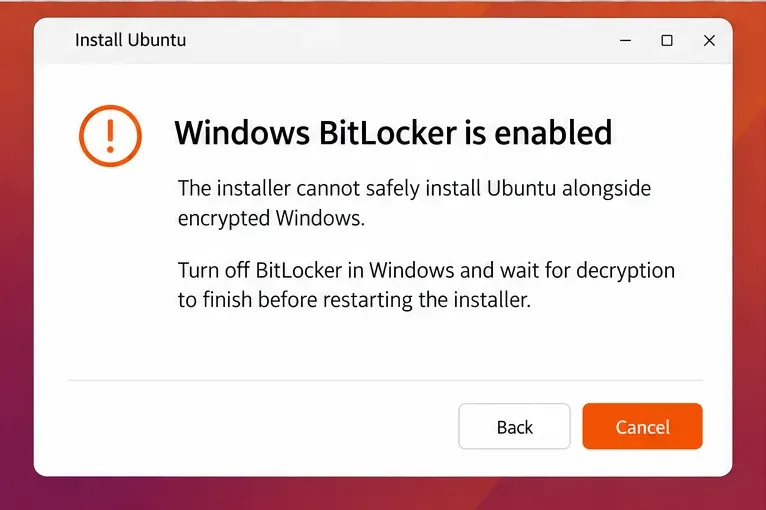
You boot the Ubuntu 24.04 USB, reach the disk setup screen, and find that the installer will not offer a safe “install alongside Windows” choice because BitLocker is enabled. That is expected: Ubuntu Desktop’s 24.04 BitLocker reference, last updated Jan. 7, 2026, says the installer cannot map an encrypted Windows drive well enough to install alongside it safely. Do not select “Erase disk,” and do not assume that temporarily suspending BitLocker makes the Windows partition readable to the installer.
There are two safe paths. To dual-boot from the same physical drive, back up your data and recovery key, turn BitLocker off in Windows, wait for decryption to finish, and then install Ubuntu into free space. To keep Windows encrypted, install Ubuntu on a separate, unencrypted physical drive. Ubuntu’s 24.04 BitLocker guidance describes this limitation and the separate-drive option. It also cautions that some Windows versions may not let you re-enable BitLocker after turning it off, so check that before taking the same-drive route.
Short answer: Ubuntu 24.04’s guided installer does not safely install alongside an encrypted Windows partition on the same disk while BitLocker remains enabled. Use another unencrypted drive if preserving active BitLocker is a requirement.
Back up important files to storage that is not on the Windows disk you plan to resize. Then find and verify the BitLocker recovery key while Windows still starts. Microsoft describes it as a 48-digit key and says it may be held in your Microsoft account, a work or school account, a printout, or a saved file. A work-managed computer may require IT to retrieve it. Keep a copy somewhere accessible if Windows asks for it during startup; do not leave the only copy on the encrypted drive.
Windows 11 Home can use Device Encryption, which enables BitLocker encryption behind the scenes, even when the BitLocker Control Panel looks different from a Pro system. Check Settings > Privacy & security > Device encryption, or search Start for Manage BitLocker. Microsoft explains the difference in its Device Encryption guide. If this is an organization-managed PC, ask the administrator before changing encryption or boot settings.
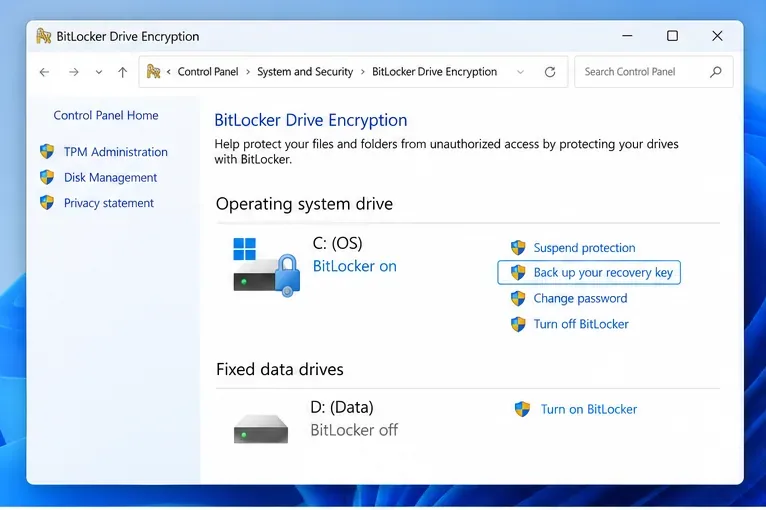
If the Windows partition and Ubuntu will share one physical SSD or hard drive, plan to fully turn off BitLocker before installing. In Windows, “Turn off BitLocker” starts decryption; it is different from “Suspend protection,” which temporarily suspends protectors but leaves the volume encrypted. Since the installer still cannot map an encrypted partition safely, suspension is not a substitute.
If Windows must remain encrypted, use a second internal SSD that is blank or contains data you are willing to erase, and install Ubuntu only on that drive. Ubuntu’s installation guide says an unencrypted separate disk can be used while the encrypted Windows disk remains in place. Confirm the model and capacity of the target drive in the installer before committing; an “Erase disk” choice erases the selected drive.
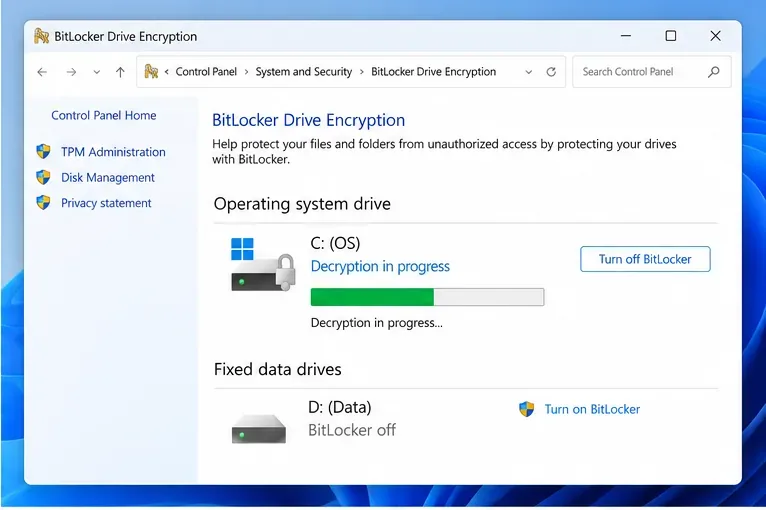
In Windows, search Start for Manage BitLocker, open the BitLocker Drive Encryption Control Panel, and select Turn off BitLocker for the Windows operating-system drive. If your PC exposes only Device Encryption, use its Windows Settings control and verify the resulting encryption status. The Ubuntu 24.04 instructions recommend backing up first, allowing decryption to finish, restarting, and checking Windows and your files before returning to the installer.
Wait until Windows reports that decryption is complete. Do not interrupt the process by booting into the USB installer. If the status says BitLocker waiting for activation, Ubuntu’s instructions explain that the disk can be in an enabled-but-not-yet-encrypted state; follow the documented Windows turn-off procedure rather than guessing at partitions. If you cannot confirm the state, stop and ask your device administrator or manufacturer for help.
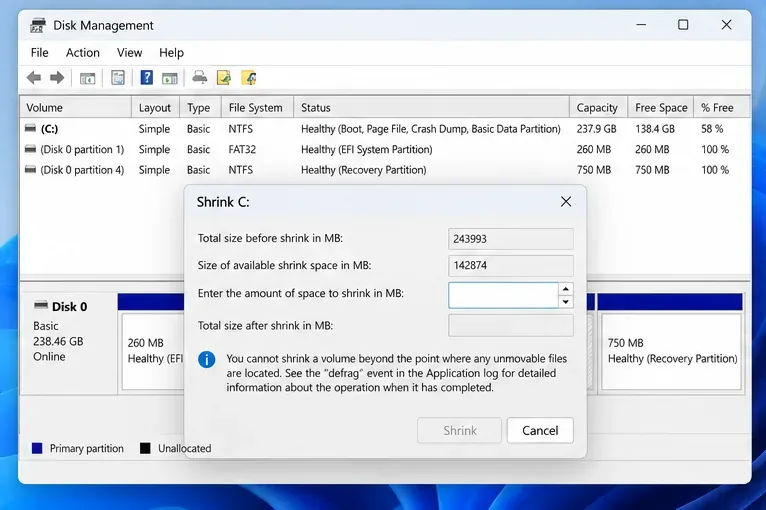
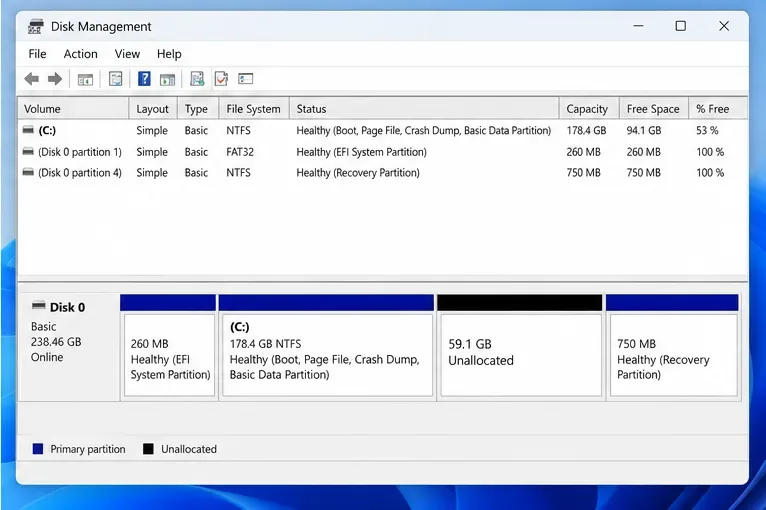
After decryption is complete, open Disk Management by right-clicking Start and choosing it, or by pressing Windows+R, entering diskmgmt.msc, and pressing Enter. Right-click the Windows C: volume and choose Shrink Volume. Enter the amount to remove from C: and confirm. Windows creates a black-bar section labeled Unallocated.
Ubuntu Desktop 24.04 lists 25 GB as a minimum storage requirement; allow more if you expect to install applications, keep files, or download updates. Your usable shrink amount depends on free space and files Windows cannot move, so do not copy a number from an example screen. If Disk Management offers less space than you need, free up Windows storage or choose a separate drive. Leave the new area unallocated: do not create an NTFS volume, assign it a drive letter, or format it in Windows. Microsoft’s volume-shrinking instructions explain the built-in operation and its limits.
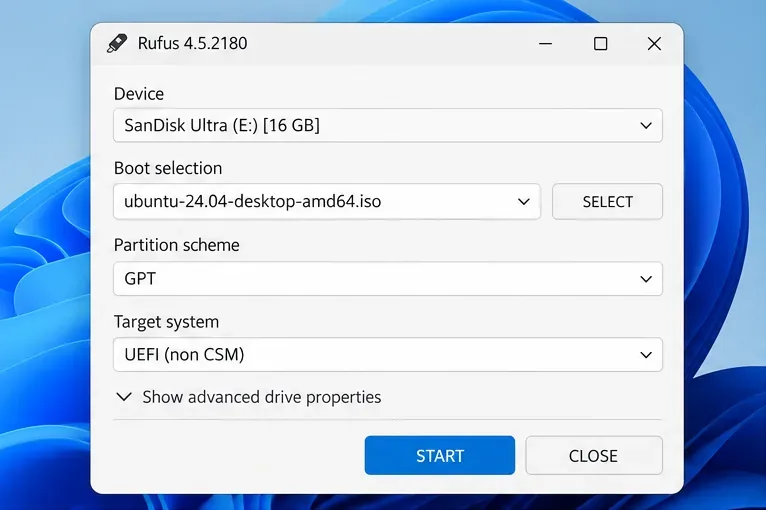
Download the Ubuntu 24.04 LTS Desktop image from Ubuntu’s official site and write it to a USB drive. On Windows, Ubuntu documents using Rufus: select the correct removable USB, select the Ubuntu ISO, and start writing. Writing the image erases the selected USB, so check the Device field carefully. For a modern Windows 11 PC, use UEFI/GPT settings as described in the Ubuntu USB creation guide.
Restart and use your computer’s one-time boot menu to choose the USB entry that begins with UEFI. Leave Secure Boot enabled unless your manufacturer’s instructions or a specific hardware issue requires a change: Ubuntu provides signed boot components for Secure Boot on supported 64-bit PCs. Changing firmware settings can change what BitLocker measures at startup, so keep the recovery key at hand even after you have turned encryption off for the same-drive route.
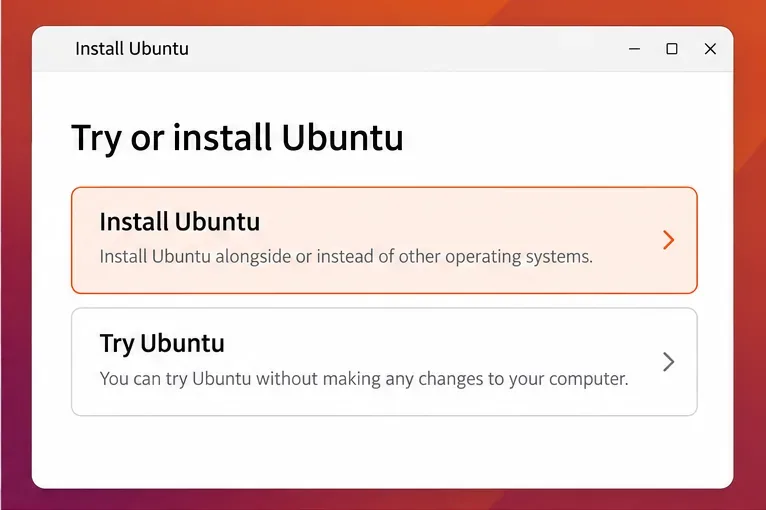
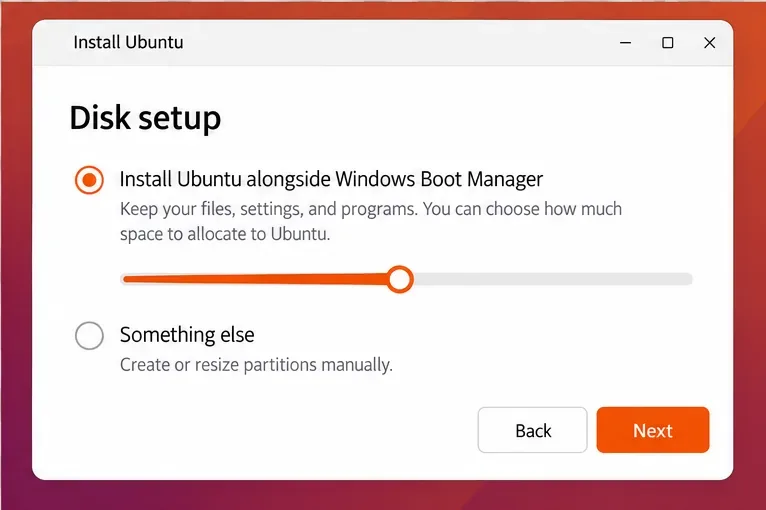
Continue through the installer until Disk setup or the installation-type screen. On a same-drive installation after complete decryption, select Install Ubuntu alongside Windows Boot Manager if it appears. Review the drive and space allocation before proceeding. The installer’s “alongside” option is intended to preserve the existing Windows installation while assigning free disk space to Ubuntu, but a backup is still essential before any partition change.
If the installer still says Windows BitLocker is enabled, stop and cancel out. Boot back into Windows and verify that decryption has actually completed; do not continue by choosing Erase disk and install Ubuntu. If you are using a separate drive to keep Windows encrypted, choose only the blank unencrypted Ubuntu target. The Ubuntu guide notes that choosing erase on a selected disk uses that disk’s entire space, so identifying the correct physical drive is critical.
Choose Something else only if you understand EFI System Partitions, Linux filesystems, and which physical disk will receive the bootloader. Manual partitioning is not a workaround for BitLocker: Ubuntu warns that it cannot safely map the encrypted Windows layout. On a self-built PC, the installer may also report Intel RST. Do not casually switch the storage controller from RST to AHCI; Ubuntu documents that Windows may stop booting after such a change unless Windows is prepared first.
After installation, remove the USB when prompted and restart. Depending on the PC, you may see an Ubuntu boot menu or need to open the firmware’s one-time boot menu to choose Ubuntu or Windows Boot Manager. The exact menu and labels vary by manufacturer. Start Ubuntu once, then restart and start Windows. Confirm that your Windows files and Ubuntu installation both open before changing encryption settings again.
Keep the recovery key nearby during these first boots. A changed boot path or firmware measurement can cause BitLocker to ask for the recovery key. If Windows enters recovery, use the key that matches the displayed recovery-key ID; Microsoft’s recovery-key instructions explain where to look. Do not clear the TPM or format partitions as an improvised response.
If you turned BitLocker off on the same drive, only turn encryption back on after checking that your Windows edition or Device Encryption setup supports it and both operating systems boot reliably. Ubuntu 24.04 documentation warns that some Windows versions may not allow re-enabling BitLocker after it has been disabled. Re-encryption can also change startup measurements, so preserve the key and follow your organization’s procedure on managed devices. If the recovery prompt repeats or you cannot verify the key, pause and contact your administrator or device vendor before making further boot changes.
This process depends on the PC’s firmware, Windows edition, disk layout, and organization policies. If Windows cannot restore encryption after it is disabled, the installer cannot see the encrypted partition, or you are unsure which disk is selected, stop before accepting any partition changes. A separate Ubuntu drive or a virtual machine may be the safer choice.
Interface images are illustrative examples; controls and wording can vary with Ubuntu point releases, Windows editions, Rufus versions, and PC firmware.
Use Dislocker to unlock a BitLocker volume in Linux, mount its virtual NTFS file read-only, and safely unmount it without exposing your password in a command.
Learn how to reduce RAM usage on Linux by finding memory-hungry apps, trimming browser and startup load, and testing a lighter desktop safely.
Compare four WhatsApp alternatives for Linux by privacy defaults, desktop support, setup requirements, and the people each app suits.
Troubleshoot a VirtualBox VM that will not start on Linux by checking vboxdrv, kernel headers, Secure Boot, Extension Pack versions, and VM logs.
Transfer your Ubuntu user data with a tar archive and external drive, then restore personal files and selected settings without overwriting the new setup.
Install gThumb on Linux, browse and make simple photo edits, then set it as the default app for the image types you choose in GNOME.
Create an organized playlist in Rhythmbox or save a reusable XSPF playlist in VLC. Learn how to add tracks, name a list, and reopen it on Linux.
Install Dino on Linux with Flatpak or your distribution’s package manager. Get current Ubuntu, Debian, Fedora, and Arch commands, plus first-launch tips.
Install Arch Linux’s linux-lts kernel, add it to GRUB or systemd-boot, select it at startup, and verify it while keeping a fallback kernel.
Download the right Pi 4 image, write it to a microSD card, and complete LibreELEC’s first-run setup with Raspberry Pi Imager.








