Home
» LINUX
»
How to Easily Clip Video Files on Linux with Video Trimmer
How to Easily Clip Video Files on Linux with Video Trimmer
Video Trimmer is one of the simplest ways to clip a video on Linux when you only need to keep one section of a file. Instead of opening a full nonlinear editor, you choose a start point, choose an end point, and save the selected segment. The official GNOME app page says Video Trimmer does not re-encode the video, so trimming is fast and does not reduce video quality.
The current GNOME listing identifies Video Trimmer 26.03.1 as the latest release, published May 26, 2026. That matters because recent releases changed where trimming options appear in the interface and fixed cases where some players could show frames from before the selected start point.
Install Video Trimmer on Linux
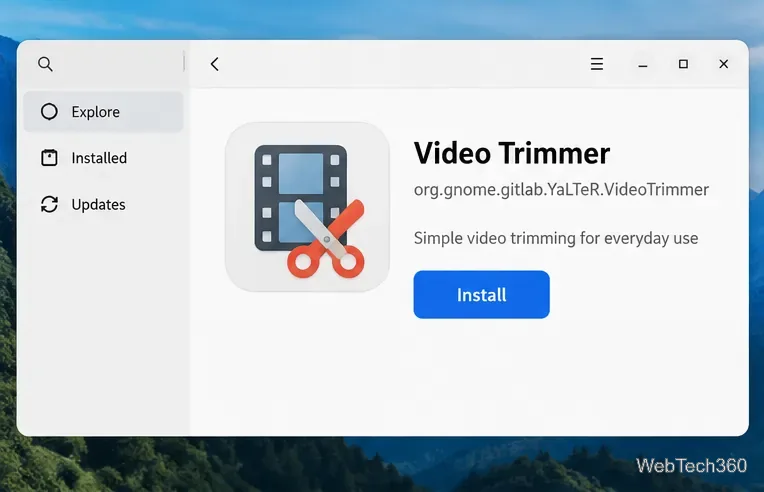
The recommended distribution channel is Flathub. If your distribution already has Flatpak and Flathub configured, open a terminal and run:
You can also search for Video Trimmer in a software center that is configured to use Flathub. If Flatpak or Flathub is not set up yet, follow the official Flathub setup instructions for your Linux distribution instead of relying on old distro-specific AUR-helper or third-party package instructions.
Install Video Trimmer from Flathub through your software center, or use the Flatpak command above.
After installation, launch Video Trimmer from your application menu. You can also start the Flatpak directly with:
flatpak run org.gnome.gitlab.YaLTeR.VideoTrimmer
How to clip a video with Video Trimmer
1. Open the video you want to trim
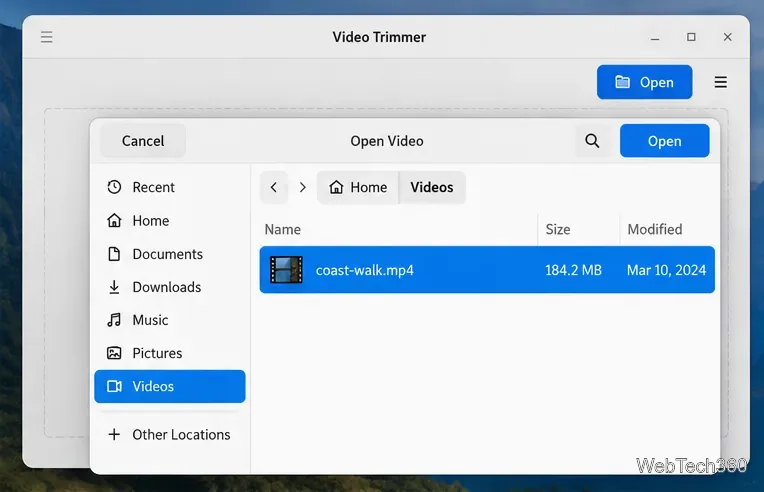
Launch Video Trimmer and select Open. In the file picker, browse to the source video, select it, and open it. For a simple trim, work from the original file rather than repeatedly trimming an already trimmed copy.
Select the source video you want to shorten.
2. Set the start and end of the clip
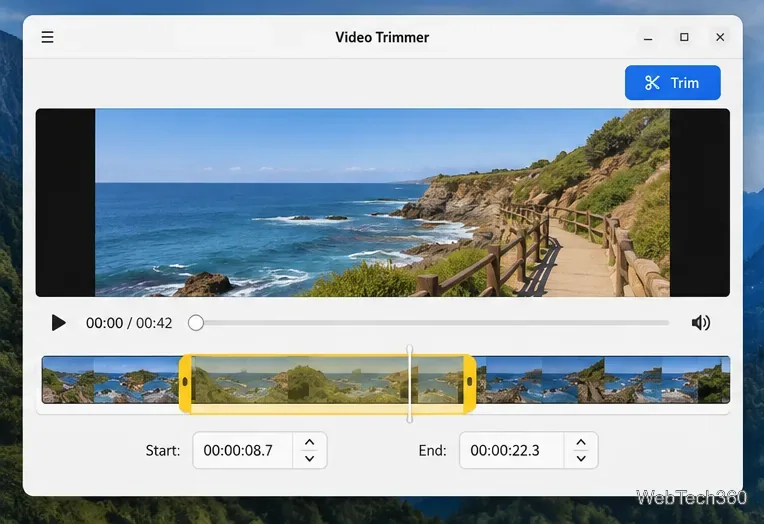
Once the video loads, use playback and the timeline to find the section you want to keep. Adjust the highlighted selection so its left edge matches the desired start and its right edge matches the desired end. Current releases also expose the trim timing controls in the main interface, making the start and end values easier to review before saving.
For longer footage, first scrub close to the right part of the video, then refine the two boundaries. Play across each boundary once before trimming so you can catch an unwanted word, camera movement, or extra second.
Use the timeline and time controls to define the exact portion you want to keep.
3. Trim the selected section
When the selection looks right, click Trim. Video Trimmer is designed for cutting a fragment between two timestamps without re-encoding the media. That makes it a good choice for quick lossless-style cuts where you do not need transitions, filters, titles, or format conversion.
Because the media is not being fully re-encoded, behavior at a cut boundary can depend on the source stream and player. The 26.03.1 release specifically fixed known cases where earlier frames could appear in VLC or Firefox, so update the app if you are using an older build.
4. Choose a filename and save the clip
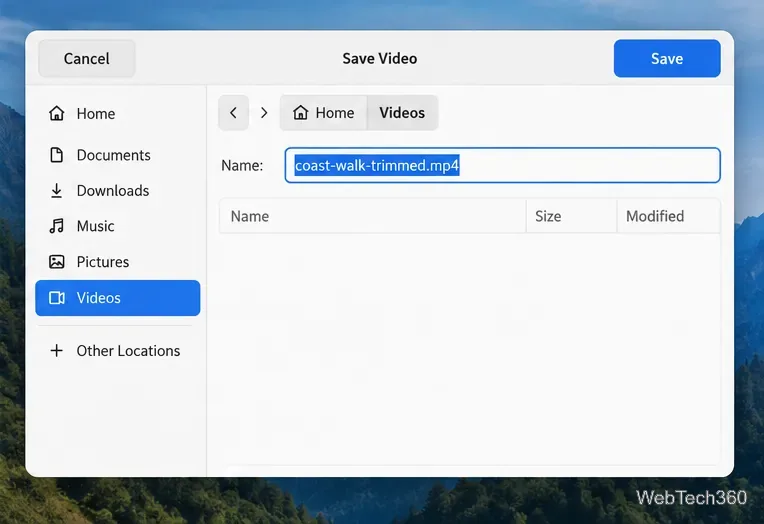
In the save dialog, choose the destination folder and give the trimmed file a clear name, such as interview-short.mp4 or vacation-highlight.mp4. Keep an appropriate filename extension for the source container, then select Save.
Save the trimmed segment with a descriptive filename in the folder you want.
Open the result in your normal video player and check the first and last few seconds. If either boundary is wrong, reopen the original source file and make a new trim with adjusted timestamps.
When Video Trimmer is the right tool
Video Trimmer is best for one job: extracting a section from an existing video quickly. It is much lighter than a full video editor when you only need to remove material before and after a useful segment.
Use it for: cutting a lecture excerpt, removing dead time from a screen recording, saving a short gameplay moment, or extracting one section of camera footage.
Use a full editor instead for: joining multiple clips, adding transitions, changing resolution or codec, adding text, mixing audio, color work, or arranging several shots on a timeline.
Quick troubleshooting
Flathub is not found: configure Flatpak and the Flathub remote using Flathub's official setup page, then retry the install command.
The app looks different from an old tutorial: newer releases moved trimming options into the main interface, so older screenshots and menu descriptions may no longer match.
The saved clip starts too early in a player: update Video Trimmer and its Flatpak runtimes with flatpak update, then trim again from the original file. Version 26.03.1 includes a fix for known earlier-frame playback cases.
For a straightforward Linux video clipper, Video Trimmer keeps the workflow focused: install from Flathub, open a file, mark the section, trim it, and save the result.