Home
» LINUX
»
How to Edit PPAs in Linux Mint (GUI and Terminal)
How to Edit PPAs in Linux Mint (GUI and Terminal)
The easiest way to edit PPAs in Linux Mint is to use the built-in Software Sources tool. On current Linux Mint, the PPAs page lets you add, remove, enable, disable, and browse PPA contents. If you need to change the repository line itself, use the terminal and edit the matching APT source file.
This guide reflects the current Linux Mint tooling. Linux Mint 22.3 “Zena” uses the Ubuntu Noble package base, while LMDE is Debian-based and should not be treated as an Ubuntu PPA target. Linux Mint’s own mintsources project can hide the PPAs page when PPA support is disabled.
Manage PPAs in Linux Mint with Software Sources
1. Open Software Sources
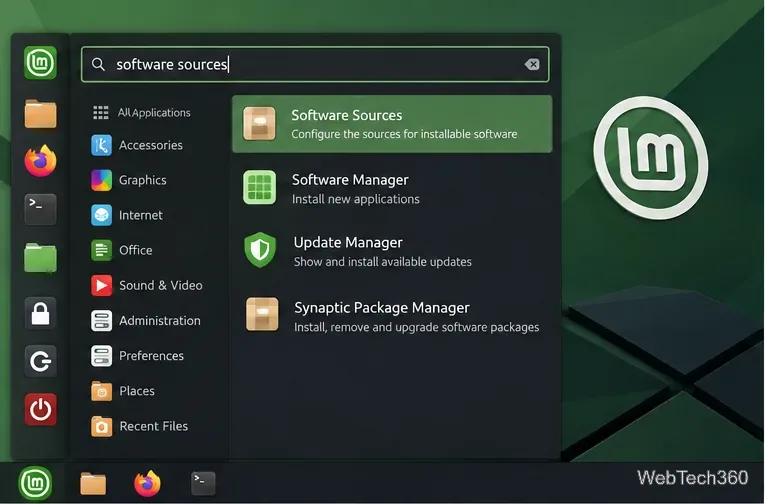
Open the application menu, search for Software Sources, and launch it. Administrator authentication may be required because repository settings affect the whole system.
Search for Software Sources from the Linux Mint application menu.
2. Open the PPAs page
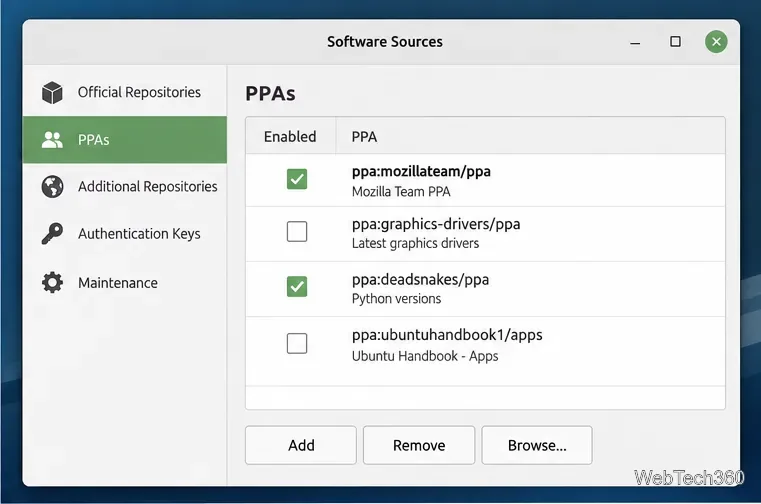
Select PPAs in the left sidebar. The current interface shows an Enabled column and three main buttons: Add, Remove, and Browse. Older tutorials may mention an Edit button, but the current Linux Mint UI does not provide one for PPAs.
The current PPAs page focuses on enabling, adding, removing, and browsing PPA entries.
3. Enable or disable an existing PPA
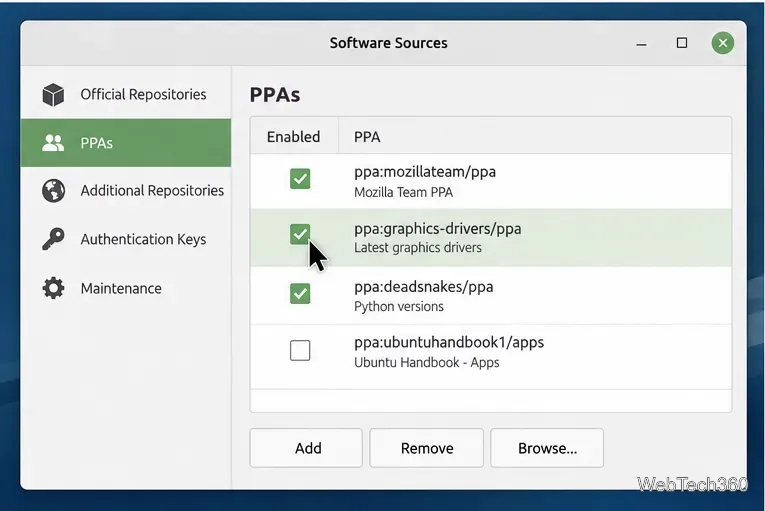
Use the checkbox beside a PPA to enable or disable it. Disabling is useful when troubleshooting because it keeps the source configured without letting APT fetch packages from it. After changing repository state, click the prompt to update the APT cache when Software Sources offers it.
Toggle the Enabled checkbox to temporarily disable or re-enable a PPA.
4. Add a new PPA
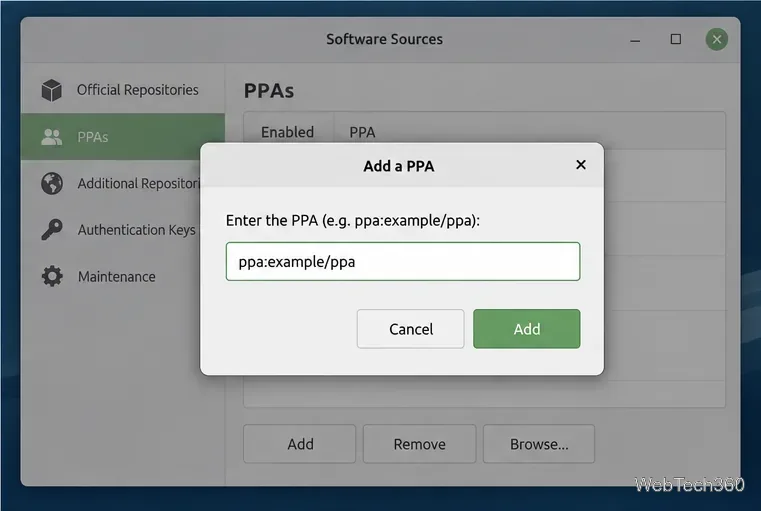
Click Add, then enter the PPA in the usual ppa:owner/name format. Copy that identifier from the project’s official PPA page rather than guessing it. Linux Mint’s current mintsources code checks whether the PPA supports the system’s Ubuntu base release before adding it.
Enter the PPA identifier in ppa:owner/name format, then confirm the addition.
5. Remove a PPA
Select the PPA and click Remove, then refresh the APT cache. Removing a repository does not automatically downgrade packages that were previously installed from it, so do not assume the system has reverted to Linux Mint’s package versions just because the PPA entry is gone.
Edit PPAs from the terminal
The terminal is better when you want repeatable commands or need to inspect the actual APT files.
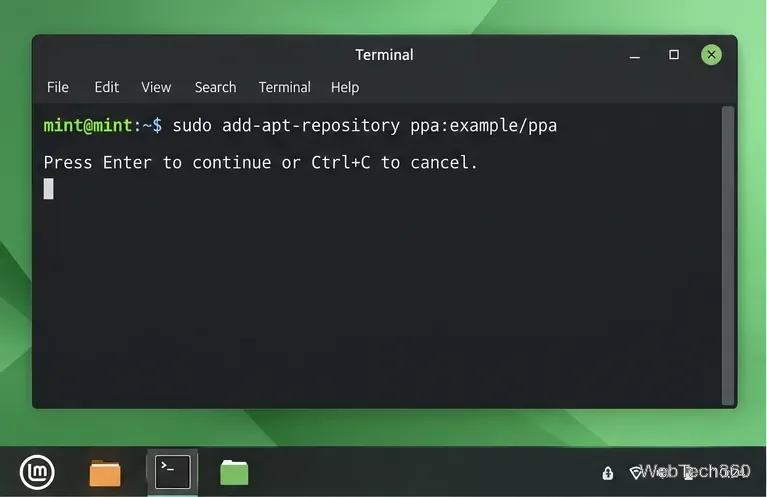
Replace owner/name with the PPA you actually want. The add-apt-repository workflow handles the source entry and signing key for you, which is safer than manually pasting key commands from old tutorials.
Use add-apt-repository with the PPA identifier, then refresh package metadata.
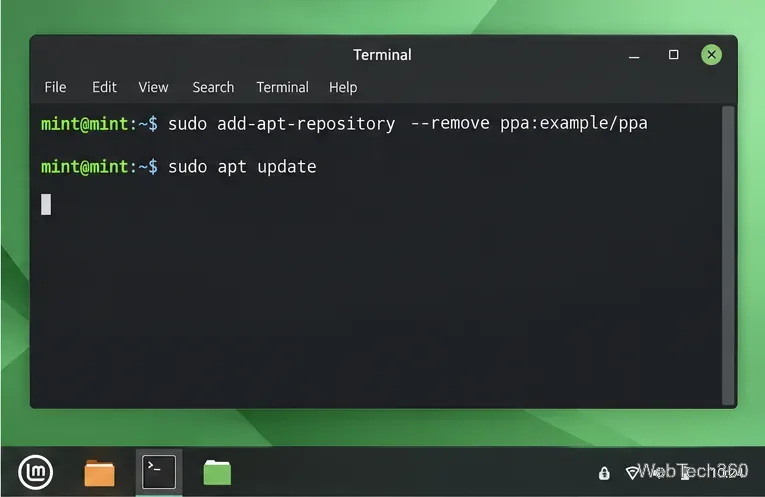
This is preferable to deleting only the source file because current Linux Mint keeps a dedicated signing key for a PPA as well.
Remove the PPA with add-apt-repository, then run apt update.
Find the PPA source file and key
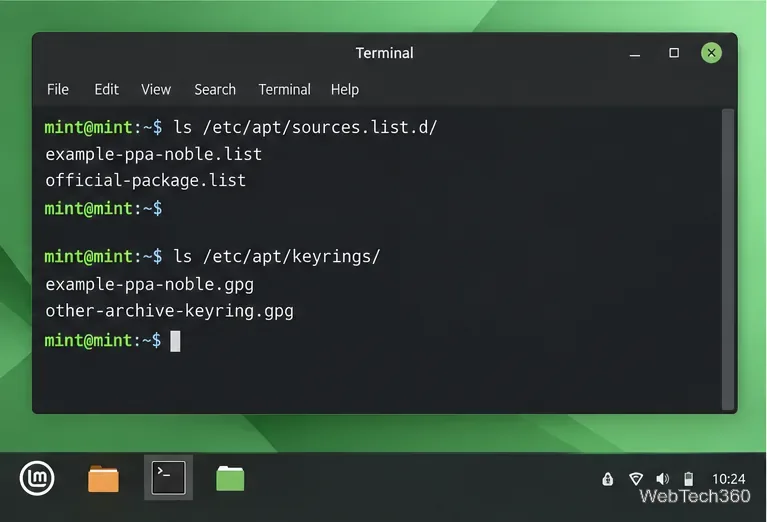
APT reads extra repositories from /etc/apt/sources.list.d/. Current Linux Mint mintsources writes a PPA as a .list file and stores its key under /etc/apt/keyrings/ with a signed-by= reference. You can inspect both locations with:
ls /etc/apt/sources.list.d/
ls /etc/apt/keyrings/
APT also supports the newer .sources format, as documented in Ubuntu’s sources.list manual, so do not assume every third-party repository will use a .list file.
Repository definitions and their signing keys live in separate APT configuration locations.
Edit a PPA source line manually
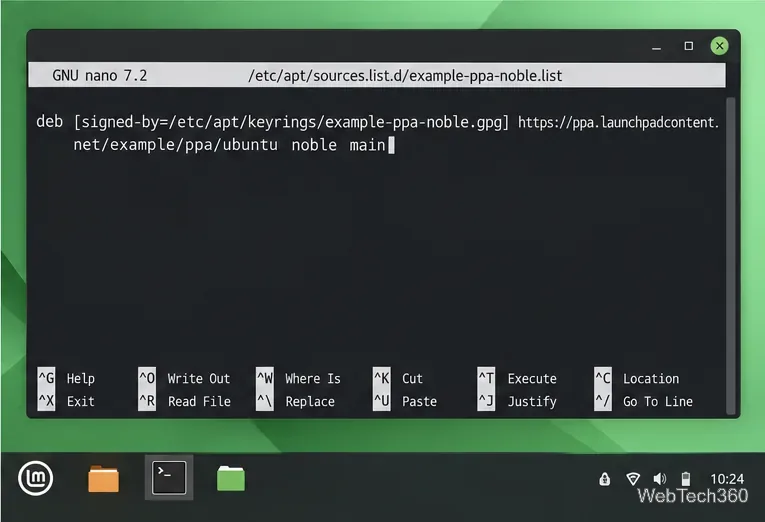
If you truly need to alter the URI, suite, or options, back up the file first and edit it as root:
Do not change an Ubuntu codename just to force an unsupported PPA to work. Linux Mint 22.3 uses the Noble base, and the current Software Sources implementation verifies PPA support against the base codename. Bypassing that check can create dependency conflicts or make future updates fail. See the Linux Mint 22.3 release information for its package base.
Manual editing is best reserved for cases where you understand the repository URI, suite, and signing-key reference.
What to do if apt update fails after a PPA change
404 or “does not have a Release file”: the PPA probably does not publish packages for your Ubuntu base release. Disable or remove it instead of changing the suite to a random codename.
Signature or NO_PUBKEY error: remove and re-add the PPA from its official source. Avoid legacy instructions that rely on apt-key add; current Mint uses per-repository keyring files.
Duplicate repository warning: check Software Sources and /etc/apt/sources.list.d/ for duplicate entries, then keep only the intended source.