How to Share Files Over Bluetooth on Linux with Blueman

Send and receive files over Bluetooth on Linux with Blueman. Install OBEX support, pair devices, choose a file, accept transfers, and fix common issues.
In GNOME Shell, a “program shortcut” usually means an application launcher in the Applications grid. Change its displayed name, description, or launch command with Alacarte, or edit a per-user copy of its .desktop file. This is different from a keyboard shortcut; change key combinations in Settings under Keyboard.
Alacarte is the simpler graphical option. The terminal method below creates a user-level override, so you do not have to edit a package-owned system file.
Install the alacarte package with your distribution’s package manager:
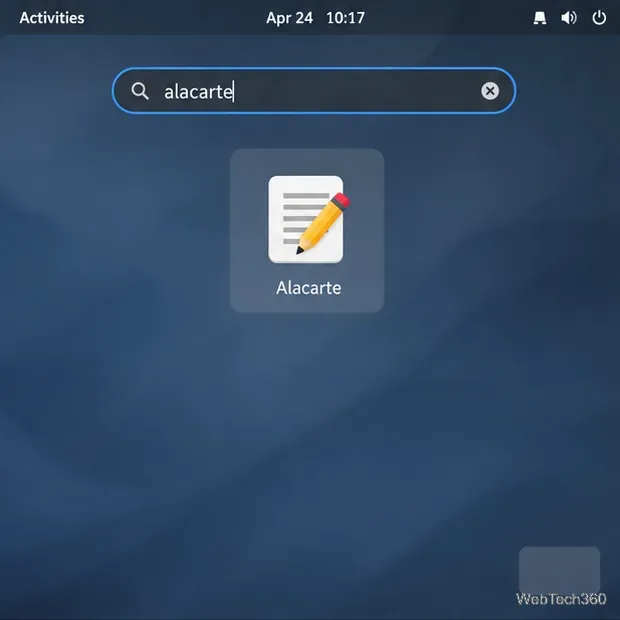
sudo apt install alacarte (Ubuntu package; Debian package).sudo dnf install alacarte (Fedora package).sudo pacman -S alacarte (Arch package).Open Activities or Applications, search for Alacarte, and launch it. Some distributions call it Main Menu. Alacarte is a GNOME menu editor, as described on its official project page.
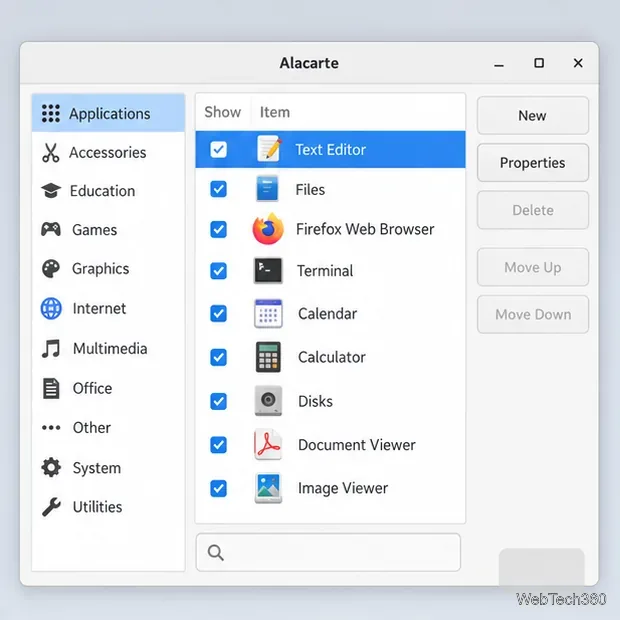
Select a category on the left, locate the app in the list, and click its row. The category may vary by distribution. This changes the launcher entry in the menu; it does not rename or reinstall the program.
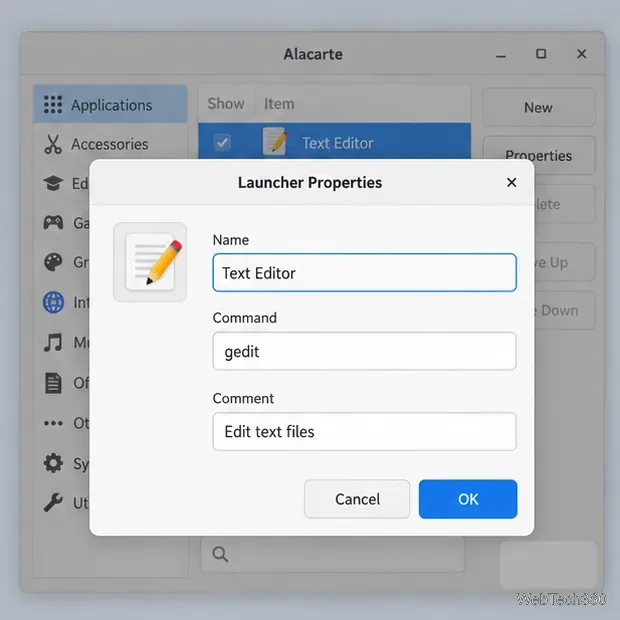
Choose Properties and edit the fields you need:
Use the app’s actual executable and valid arguments. Do not paste shell syntax such as pipes or && into the command field. Click OK to save.
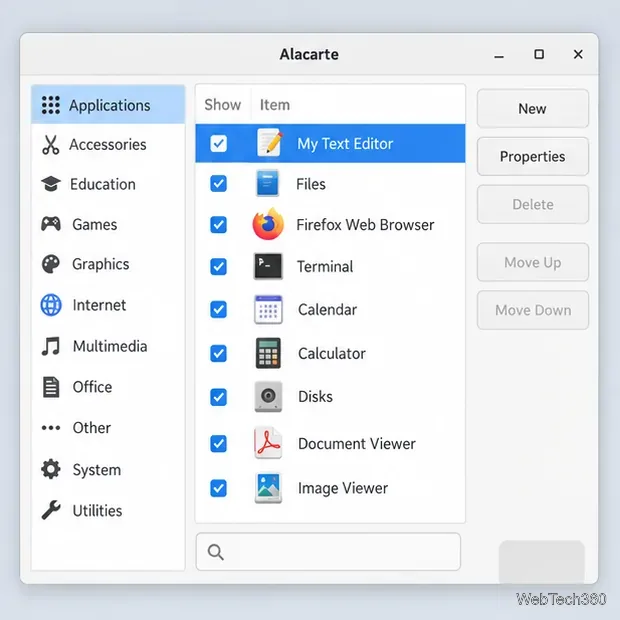
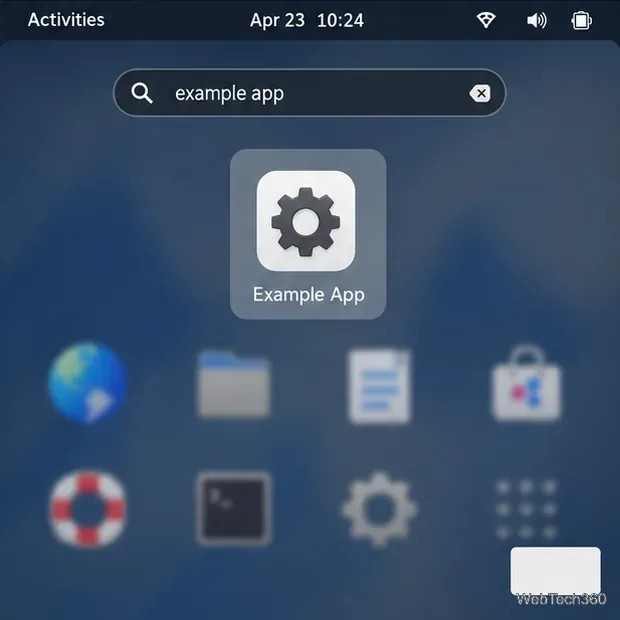
Confirm the edited name appears in Alacarte, then search for and launch it from the GNOME overview. If GNOME still shows the old label, sign out and back in to refresh the application index.
Use the terminal when you need to change a specific launcher field. GNOME documents /usr/share/applications for system entries and ~/.local/share/applications for user entries. Alacarte’s manual says it saves edited and new app entries in the user applications directory by default. A local copy is easier to undo and avoids overwriting a package-managed file.
Find the app’s actual .desktop file in /usr/share/applications or the directory used by its installer. The example below uses example.desktop; replace it with the real filename. If the file is already in your local applications folder, edit that copy directly.
mkdir -p ~/.local/share/applications
cp /usr/share/applications/example.desktop ~/.local/share/applications/
Keep the same filename so the per-user entry takes precedence. You do not need sudo to copy it into your home directory.
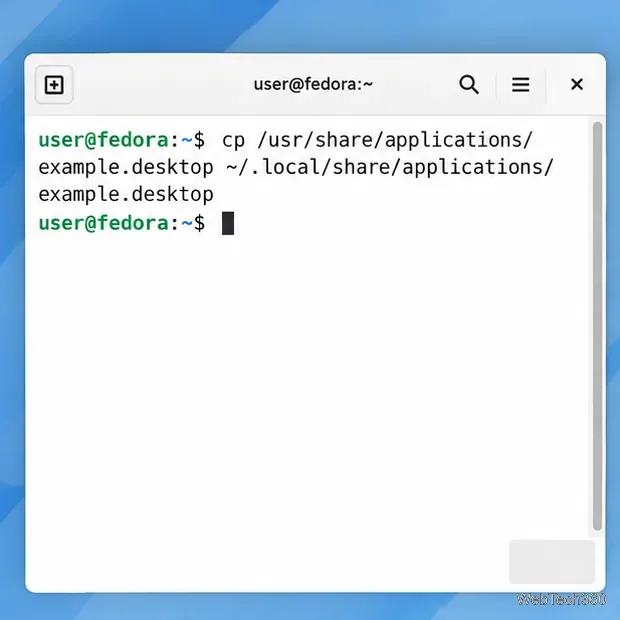
Open the copied entry with Nano:
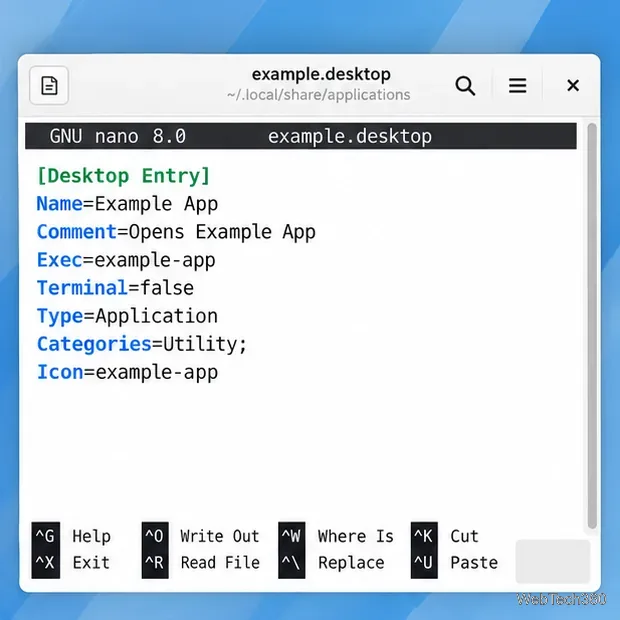
nano ~/.local/share/applications/example.desktopDesktop entries include a [Desktop Entry] group. For example:
[Desktop Entry]
Name=Example App
Comment=Opens Example App
Exec=example-app
Terminal=false
Change the existing Name, Comment, or Exec value, preserving other lines. Exec is a desktop-entry command line, not a shell script; follow the Desktop Entry Specification when quoting arguments with spaces. If the file has DBusActivatable=true, GNOME may use D-Bus activation and ignore Exec. A TryExec value pointing to a missing program may also hide the entry. Save with Ctrl+O, press Enter, then exit with Ctrl+X.
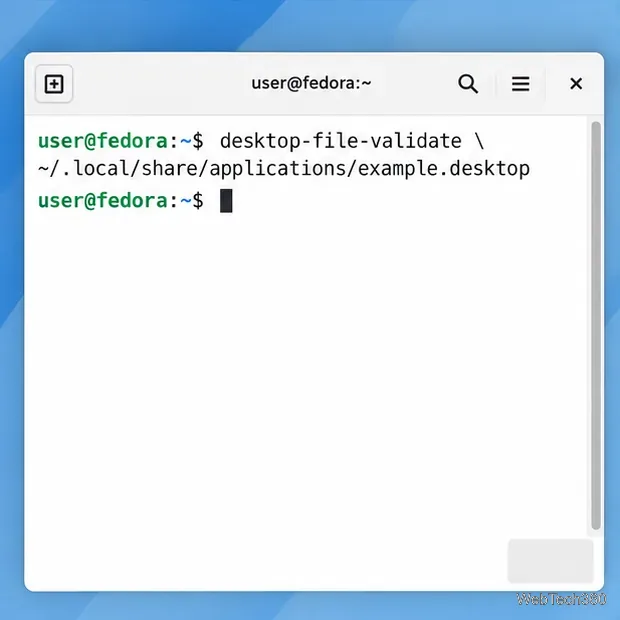
If desktop-file-utils is installed, check the entry with:
desktop-file-validate ~/.local/share/applications/example.desktopA return to the prompt without an error means the file passed this syntax check. GNOME’s integration guide recommends this validator. It does not verify that the app command itself works.
Search for the updated name in the Applications overview and launch it. If the old entry remains, sign out and back in. If it opens incorrectly, recheck the executable and arguments in Exec, any TryExec line, and whether DBusActivatable is enabled.
| Goal | Method |
|---|---|
| Change a displayed name or description | Alacarte |
| Change a command or a specific desktop-entry field | Per-user .desktop copy |
| Change a key combination | GNOME Settings > Keyboard |
GNOME’s desktop-file guide explains launcher fields and file locations. The freedesktop.org key reference documents Exec, TryExec, and DBusActivatable.
Send and receive files over Bluetooth on Linux with Blueman. Install OBEX support, pair devices, choose a file, accept transfers, and fix common issues.
Connect GNOME Files to SSH/SFTP, FTP, SMB, WebDAV, or NFS with the correct server URI, sign-in details, and fixes for common connection errors.
Open SFTP, SSH, SMB, FTP, NFS, and WebDAV locations in Dolphin, sign in safely, transfer files, and save network folders for later.
Connect a DualShock 4 to Linux by USB or Bluetooth, then check controller detection and configure Steam Input only when a game needs it.
Use DNF5 parallel downloads to reduce RPM install waits in GNOME Software, then tell when mirror or Flatpak delays need a different fix.
Access iCloud on Linux in a current browser. Learn how to sign in, use iCloud Drive and other web apps, and understand the limits of browser access.
Save GRUB settings, boot files, and UEFI entry details to removable storage, then use rescue media to repair the correct boot path safely.
Install Bitwarden on Linux with the right DEB, RPM, Snap, Flatpak, or AppImage package, then sign in and set a secure vault timeout.
Pick a screensaver theme in Xfce, preview it, choose when it starts, and configure automatic locking in the separate Lock Screen tab.
Stop GNOME Shell from blanking or locking your display automatically. Change Power and Screen Lock settings, or use Caffeine for a temporary keep-awake toggle.








