Home
» LINUX
»
How to Edit the Ubuntu Bootloader With Grub Customizer
How to Edit the Ubuntu Bootloader With Grub Customizer
If you want to edit the Ubuntu bootloader without hand-editing GRUB configuration files, Grub Customizer provides a graphical interface for the most common changes. You can choose the default operating system, reorder visible entries, change the menu timeout, keep the last-selected entry, and adjust kernel parameters. The important part is to treat GRUB as boot-critical configuration: make a backup first, change only what you understand, and verify the generated configuration before rebooting.
GRUB normally builds /boot/grub/grub.cfg from settings in /etc/default/grub and scripts under /etc/grub.d/. The GNU GRUB manual documents this generation model, so you generally should not edit grub.cfg directly.
1. Back up GRUB and install Grub Customizer
Create a backup of the editable GRUB settings before changing anything:
backup_dir="$HOME/grub-backup-$(date +%F-%H%M%S)"
mkdir -p "$backup_dir"
sudo cp -a /etc/default/grub "$backup_dir/default-grub"
sudo cp -a /etc/grub.d "$backup_dir/grub.d"
Next, check whether your Ubuntu release already has an install candidate:
apt-cache policy grub-customizer
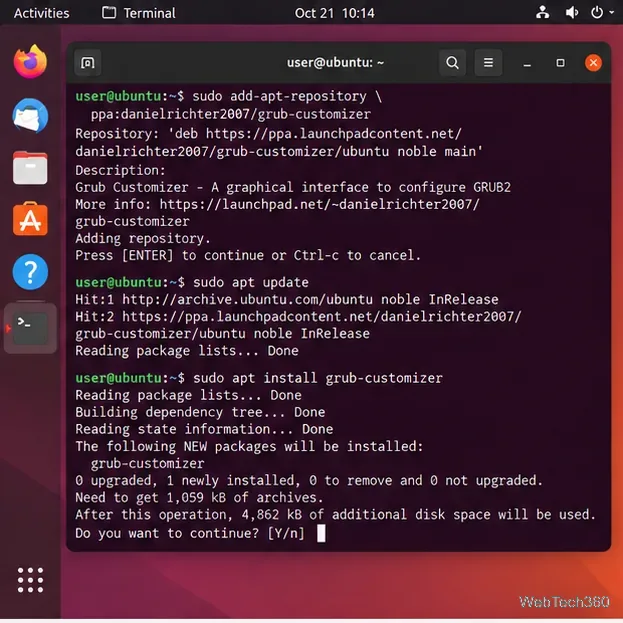
If a candidate is available, install it with sudo apt install grub-customizer. If no candidate is available, recent Ubuntu releases can use the maintainer’s third-party Grub Customizer Launchpad PPA:
A PPA is an additional software source, so review it before enabling it on a machine where boot reliability is especially important.
Install Grub Customizer from APT, adding the maintainer’s PPA only when your Ubuntu release does not provide a candidate.
2. Open Grub Customizer and review the boot entries
Open the application menu, search for Grub Customizer, and launch it. Ubuntu will ask for administrator authentication because the program changes system boot configuration.
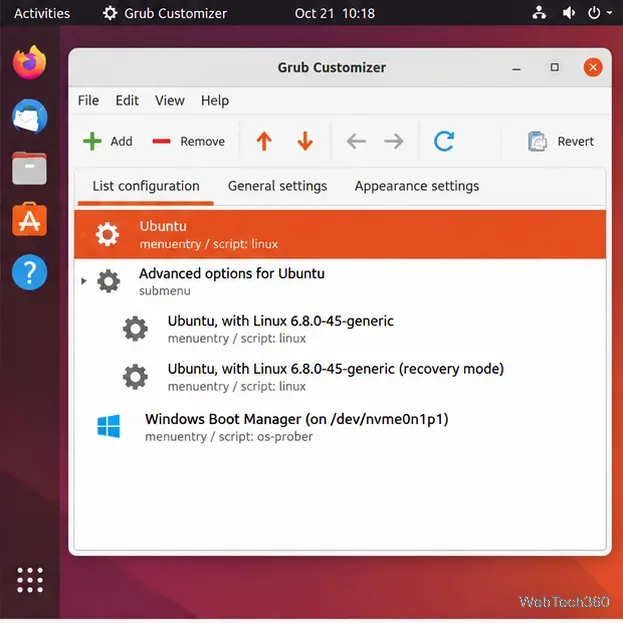
The List configuration tab shows the entries that GRUB can present at startup. Depending on the machine, you may see Ubuntu, Advanced options for Ubuntu, recovery entries, and another operating system such as Windows Boot Manager.
Select an entry and use the up or down arrows to change its position. Avoid deleting recovery entries or older kernels just to make the list shorter; those entries can be useful if a new kernel fails to boot. Also avoid making broad list changes when all you really need is a different default entry.
The List configuration tab is where you can inspect and reorder GRUB menu entries.
3. Change the default entry, timeout, and menu behavior
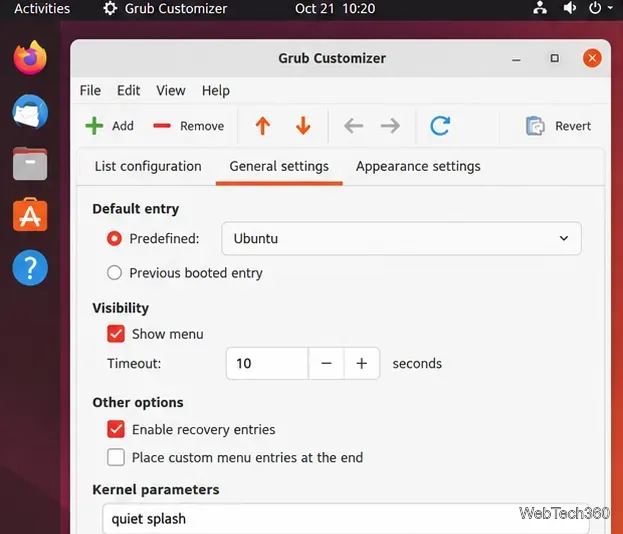
Open General settings. This is the safest place for the changes most Ubuntu users actually need.
Default entry: choose the operating system or menu entry you want selected automatically.
Previous booted entry: makes GRUB try to remember the entry selected on the previous boot. GNU GRUB notes that this behavior relies on its saved-entry environment block, so it may not be available in every storage setup.
Show menu: keep this enabled on dual-boot systems or machines you may need to troubleshoot.
Timeout: set how many seconds GRUB waits before starting the default entry. A short delay such as 5–10 seconds usually leaves enough time to choose another OS or recovery option.
Kernel parameters: leave existing values such as quiet splash alone unless you know exactly why you are changing them.
The GRUB documentation describes the corresponding settings, including GRUB_DEFAULT, GRUB_SAVEDEFAULT, GRUB_TIMEOUT, and GRUB_TIMEOUT_STYLE, in its simple configuration reference.
General settings covers the default boot entry, menu visibility, timeout, and kernel command-line options.
4. Save the changes and verify the generated GRUB configuration
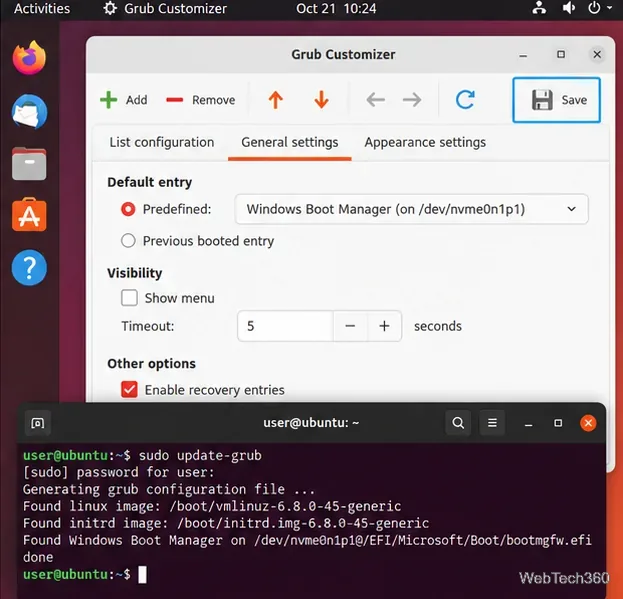
Click Save in Grub Customizer after making your changes. Saving causes the program to regenerate the GRUB configuration. You do not need to use an “Install to MBR” command simply to apply menu settings; reinstalling the bootloader is a different operation and should only be done when you intentionally need to repair or reinstall GRUB.
For an extra verification step, open Terminal and run:
sudo update-grub
On Ubuntu, update-grub is a wrapper that runs grub-mkconfig -o /boot/grub/grub.cfg, as documented in the Ubuntu update-grub man page. Read the output before restarting. If it reports an error, fix that problem first rather than rebooting with an unverified configuration.
Save the graphical changes, then optionally run update-grub to confirm that Ubuntu can regenerate the boot menu without errors.
What to do if a change causes problems
If Ubuntu still boots, reopen Grub Customizer and undo the last change, or restore the relevant setting from the backup you created. Do not blindly replace a newer /etc/grub.d directory with an old copy after kernel or GRUB package updates; use the backup as a reference and restore only what you understand. If the machine no longer boots normally, use Ubuntu recovery or live installation media to inspect the GRUB configuration before attempting a bootloader reinstall.
For most users, the best approach is simple: use Grub Customizer for the default entry, timeout, and menu visibility, save the configuration, verify it with update-grub, and avoid unrelated bootloader installation options.