How to Share Files Over Bluetooth on Linux with Blueman

Send and receive files over Bluetooth on Linux with Blueman. Install OBEX support, pair devices, choose a file, accept transfers, and fix common issues.
EPEL (Extra Packages for Enterprise Linux) adds community-maintained software to Enterprise Linux systems. To enable it, install the EPEL release package that matches your system’s major version, then enable the related CRB repository so packages can find common dependencies. The steps below cover Red Hat Enterprise Linux (RHEL) 8, 9, and 10, plus CentOS Stream 9 and 10.
EPEL is maintained by the Fedora community, not a Red Hat product repository. Match its major release to the EL host; do not install EPEL 9 on EL 8 or 10. This guide covers current RHEL 8–10 and CentOS Stream 9–10. CentOS Linux 6, 7, and 8, plus CentOS Stream 8, are retired and are not covered.
Use an account with sudo access and make sure the machine can reach Fedora’s package servers. On RHEL, register the system and confirm that its standard repositories are available first. On a desktop or server, the terminal steps are the same.
Check the installed operating system and the Enterprise Linux major version:
cat /etc/os-release
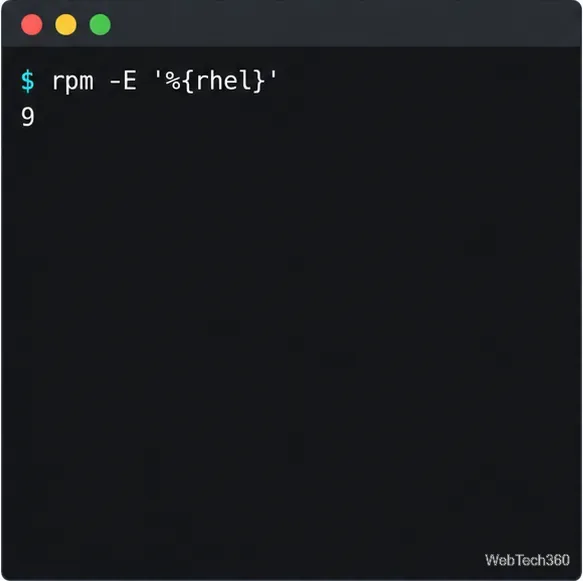
rpm -E '%{rhel}'
The second command prints a number such as 8, 9, or 10. If it prints the literal %{rhel} instead, verify that the system is an EL distribution and inspect /etc/os-release before continuing.
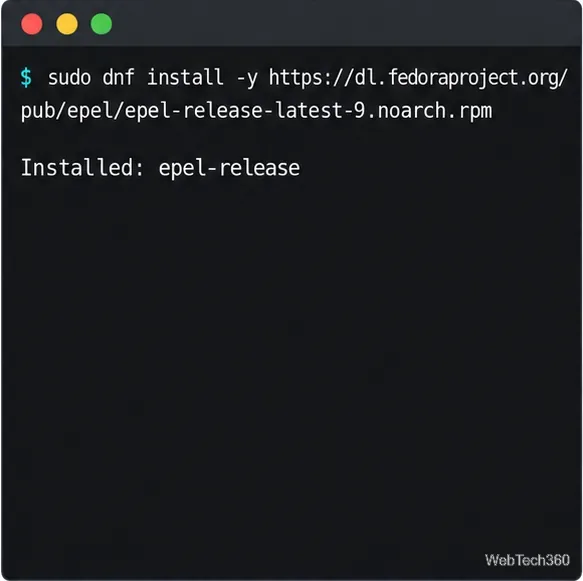
Use DNF to install Fedora’s current epel-release RPM. The command below reads the EL major version from RPM and inserts it into the official Fedora download address:
EL_VERSION=$(rpm -E '%{rhel}')
sudo dnf install -y "https://dl.fedoraproject.org/pub/epel/epel-release-latest-${EL_VERSION}.noarch.rpm"
The release package is architecture independent. For a manual URL, use epel-release-latest-8.noarch.rpm, epel-release-latest-9.noarch.rpm, or epel-release-latest-10.noarch.rpm to match the host. Read Fedora’s EPEL documentation for derivative-specific instructions.
Many EPEL packages depend on libraries and development components supplied by the Enterprise Linux build repository. On CentOS Stream, that repository is called CRB. On RHEL, it is called CodeReady Linux Builder. The EPEL release package installs a helper that can enable the appropriate repository:
sudo crb enableRun the helper after installing epel-release. It handles the repository name for supported systems; on RHEL, the repository must also be available through the system’s subscription or cloud content service. If the helper is unavailable on a registered RHEL host, enable the matching CodeReady Builder repository directly:
EL_VERSION=$(rpm -E '%{rhel}')
sudo subscription-manager repos --enable="codeready-builder-for-rhel-${EL_VERSION}-$(arch)-rpms"
On RHEL cloud images using Red Hat Update Infrastructure, repository IDs can differ; use crb or the provider’s instructions. On CentOS Stream, if crb is unavailable, install the DNF config-manager plugin and enable CRB:
sudo dnf install -y dnf-plugins-core
sudo dnf config-manager --set-enabled crb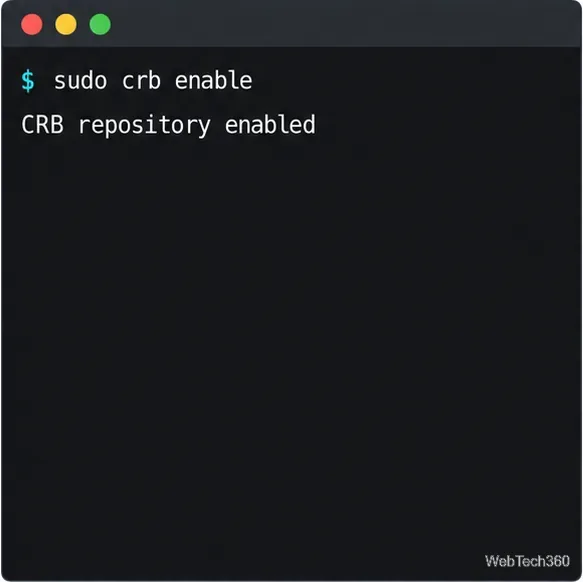
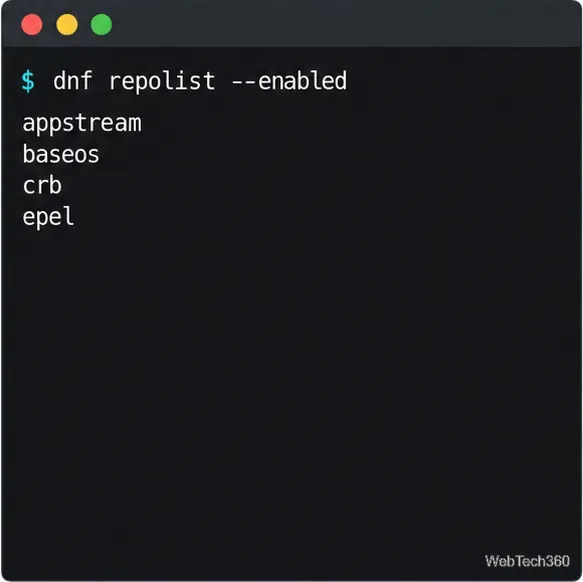
List enabled repositories:
sudo dnf repolist --enabledLook for an entry named epel. You should also see your normal base repositories, such as BaseOS and AppStream, and the CRB or CodeReady Builder repository. Seeing epel confirms that DNF has the repository configured; it does not guarantee that every package is available for every EL version.
Install a package by its actual name with DNF, for example:
sudo dnf install <package-name>Check Fedora’s EPEL package listings for your release before relying on a package. Availability can vary because EPEL maintainers choose which packages to build for each major release, and package versions can differ between EPEL 8, 9, and 10.
epel appears in the enabled repository list.rpm -E '%{rhel}'.epel-release installed. Use sudo crb enable, or install dnf-plugins-core before running dnf config-manager on CentOS Stream.sudo dnf clean all followed by sudo dnf makecache. Keep the base repositories enabled as well.EPEL is maintained by Fedora contributors and supported by its community. Red Hat does not include EPEL in RHEL’s standard support coverage, and Red Hat Support cannot debug problems in EPEL packages. For production systems, check your organization’s third-party software policy, test updates in a representative environment, and avoid combining repositories that provide conflicting packages.
For current setup details, read the Fedora EPEL documentation, Red Hat’s EPEL support guidance, and the Red Hat instructions for managing subscribed repositories. CentOS Stream 10’s release notes describe the CRB repository and its purpose.
Send and receive files over Bluetooth on Linux with Blueman. Install OBEX support, pair devices, choose a file, accept transfers, and fix common issues.
Connect GNOME Files to SSH/SFTP, FTP, SMB, WebDAV, or NFS with the correct server URI, sign-in details, and fixes for common connection errors.
Open SFTP, SSH, SMB, FTP, NFS, and WebDAV locations in Dolphin, sign in safely, transfer files, and save network folders for later.
Connect a DualShock 4 to Linux by USB or Bluetooth, then check controller detection and configure Steam Input only when a game needs it.
Use DNF5 parallel downloads to reduce RPM install waits in GNOME Software, then tell when mirror or Flatpak delays need a different fix.
Access iCloud on Linux in a current browser. Learn how to sign in, use iCloud Drive and other web apps, and understand the limits of browser access.
Save GRUB settings, boot files, and UEFI entry details to removable storage, then use rescue media to repair the correct boot path safely.
Install Bitwarden on Linux with the right DEB, RPM, Snap, Flatpak, or AppImage package, then sign in and set a secure vault timeout.
Pick a screensaver theme in Xfce, preview it, choose when it starts, and configure automatic locking in the separate Lock Screen tab.
Stop GNOME Shell from blanking or locking your display automatically. Change Power and Screen Lock settings, or use Caffeine for a temporary keep-awake toggle.








