Home
» LINUX
»
How to Encrypt a Hard Drive Partition on Linux with LUKS
How to Encrypt a Hard Drive Partition on Linux with LUKS
Use GNOME Disks to create a LUKS-encrypted Linux partition, then unlock and test it before storing files. The process formats the selected partition, so back up anything on it first. This GNOME Disks workflow is not an in-place conversion or a way to encrypt an active system partition; use your distribution’s installer for full-system encryption.
What LUKS protects
LUKS encrypts data at the storage layer. A locked volume is unreadable without an authorized key; after it is unlocked and mounted, your account and apps can access its files. Encryption at rest therefore does not protect an already-unlocked computer. Ubuntu’s security documentation explains LUKS protection for data at rest.
This guide covers a data partition or secondary drive. To encrypt the disk containing Linux, use the installer’s boot-time encryption setup and follow its recovery-key instructions; do not reformat the active system disk in Disks.
Before you start
Keep the passphrase. Store a strong, unique passphrase securely. If every valid unlock method is lost, the data cannot be recovered. Encrypted drives can also fail, so keep a separate backup.
Check compatibility. LUKS is intended for Linux storage. Windows or macOS may need extra software to open it; test your intended setup before relying on cross-platform access.
Encrypt a partition with GNOME Disks
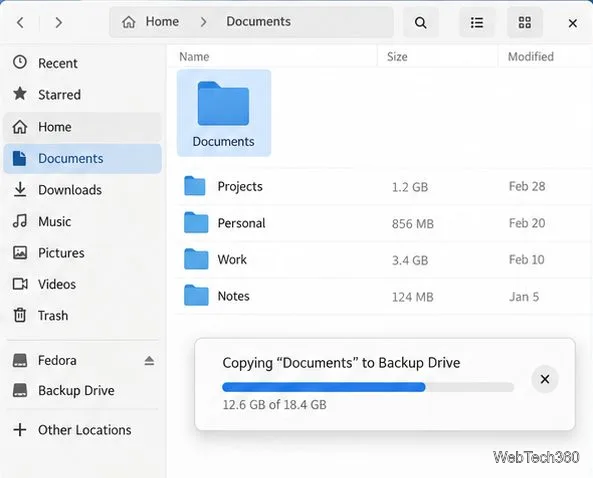
Back up the target. Copy its files to another drive, verify the copy, then unmount the target in Files.
Keep a verified copy on a different drive before formatting.
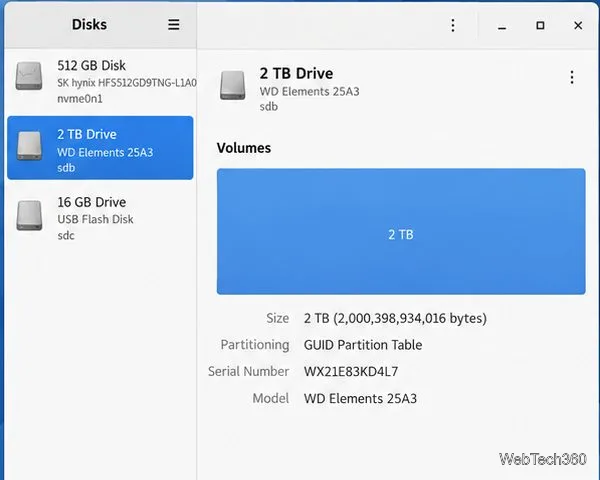
Open Disks and identify the data drive. Search your applications for “Disks.” If it is missing, install GNOME Disks from your distribution’s software manager or official repository; the package is commonly named gnome-disk-utility. Select the intended device and check its model, capacity, and volume map; GNOME’s partition guide explains this view and warns that disk tools can erase data. See the GNOME Disks project page.
Confirm the model and capacity; leave the drive running Linux untouched.
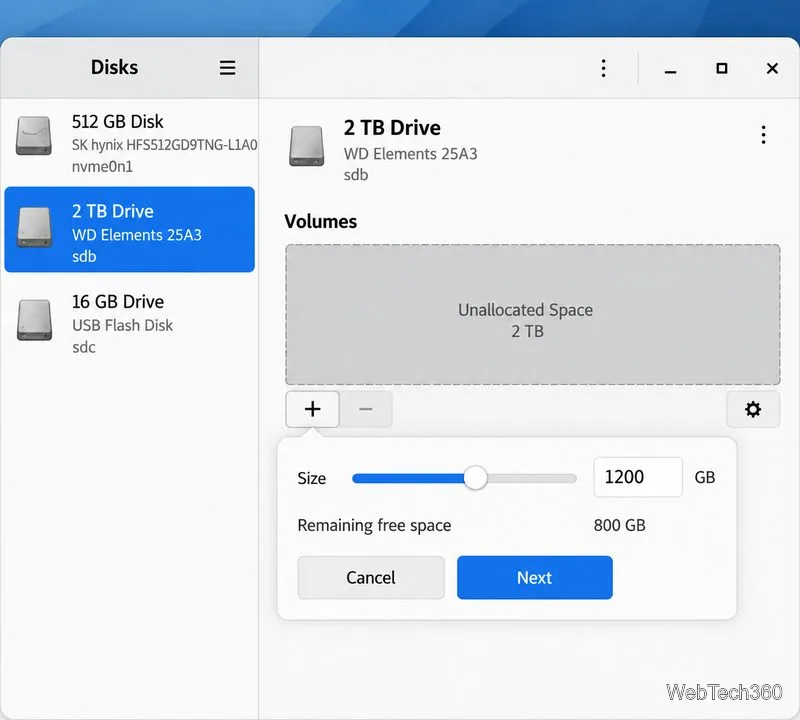
Select the space to encrypt. Select unallocated space and click + to create a partition. Set its size and click Next. Use all available space for one encrypted data partition, or leave some for a separate unencrypted area. Formatting an existing partition erases that partition.
Choose the partition size; the example leaves room for another partition.
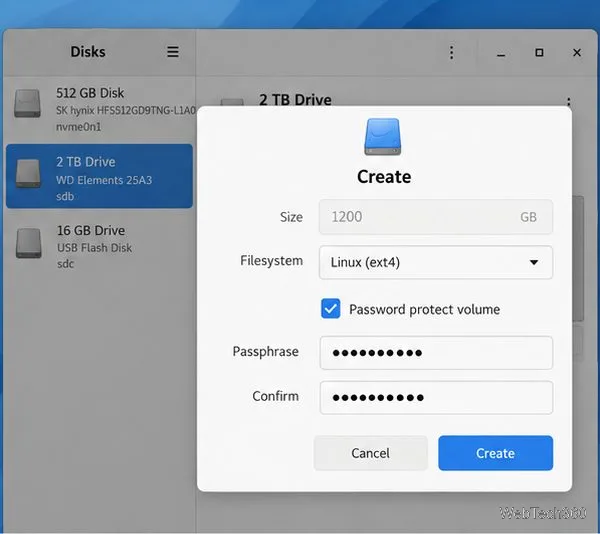
Choose a Linux filesystem and enable encryption. Name the volume, choose the Linux filesystem option (usually Linux (ext4)), and turn on Password protect volume. Some versions label this as an encrypted Linux or LUKS option. Do not choose Format Disk unless you intend to erase the partition table and every volume.
Enable password protection; wording can vary between Disks versions.
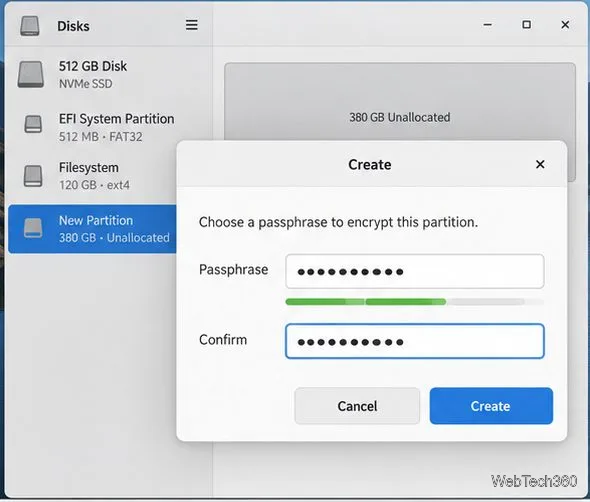
Set and confirm the passphrase. Continue to the password prompt and enter a strong, unique passphrase twice. Depending on your version, these fields may appear in the same dialog or a separate window. Check your keyboard layout and save the passphrase before proceeding.
Enter the same passphrase twice and store it securely.
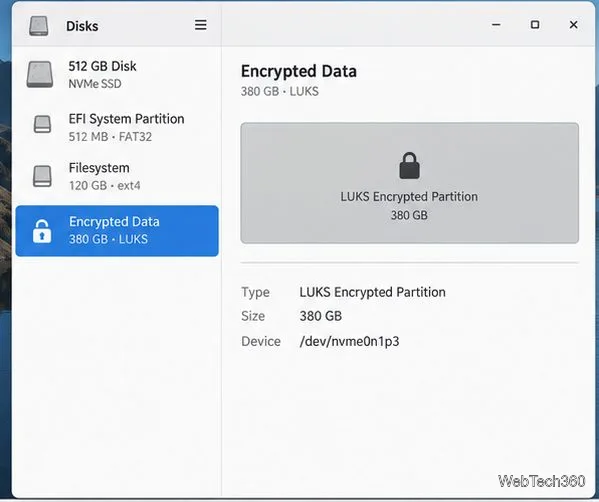
Review and create the volume. Click Create or Format only after checking the drive, size, and encryption choice. Wait for completion. The partition should appear in Disks as a locked LUKS volume. If encryption is not shown, stop before copying sensitive files.
A locked LUKS entry has not been opened yet.
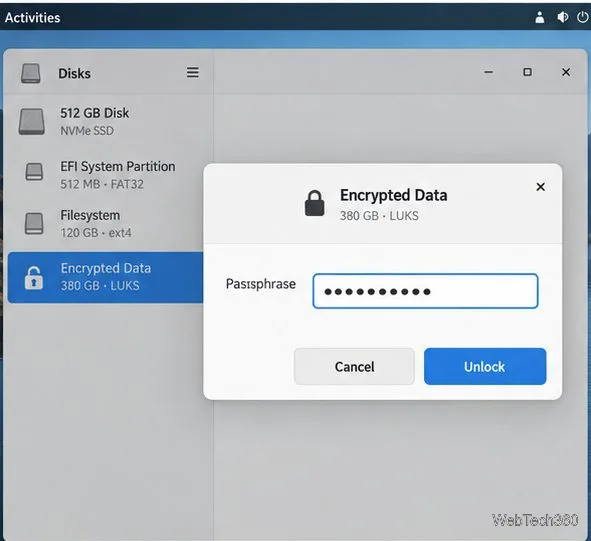
Unlock and mount it. Select the LUKS volume and choose its unlock or open control. Enter the passphrase. If the filesystem does not mount automatically, use the mount control for the unlocked filesystem.
Enter the saved passphrase to make the filesystem available.
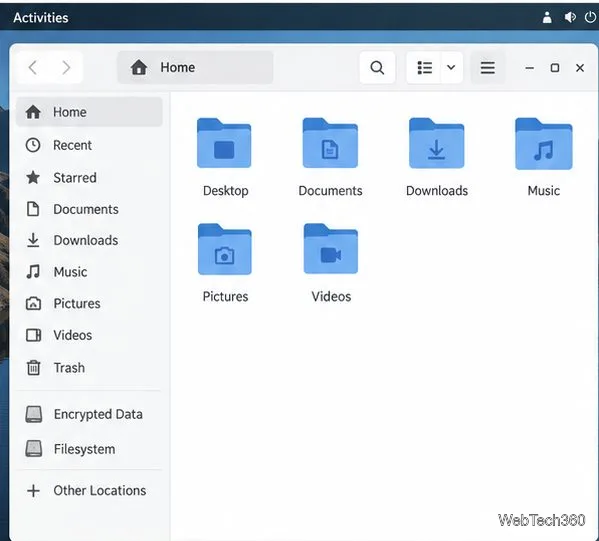
Verify access and unmount safely. Open the volume in Files, create a small test file, and confirm you can read it. Unmount or eject the volume before disconnecting. Linux will ask for the passphrase the next time you connect it.
The mounted encrypted volume appears in Files like other storage.
Encrypting a whole secondary drive
For a blank secondary drive, create one LUKS partition using all available space. This encrypts the data partition; basic partition-table information remains visible. To encrypt only part of the disk, make a smaller LUKS partition and leave the rest as a separate filesystem. Files in that other area are not protected by the encrypted volume.
Common problems
The encryption option is missing: That device or filesystem choice may not support this route in your version. Cancel without formatting and check your distribution’s LUKS instructions.
The passphrase is rejected: Check capitalization and keyboard layout. Do not initialize or reformat the volume to troubleshoot; that can destroy access to encrypted data. Read the upstream cryptsetup/LUKS FAQ before attempting recovery.