Home
» LINUX
»
How to Encrypt a USB Flash Drive on Linux With VeraCrypt
How to Encrypt a USB Flash Drive on Linux With VeraCrypt
You can encrypt a USB flash drive on Linux with VeraCrypt by creating a device-hosted VeraCrypt volume on the USB device or one of its partitions. The process is straightforward, but it is destructive: the selected device or partition is formatted and the files already stored there are lost.
Important: Back up anything you need before continuing. You do not have to manually delete every partition first, but you must be certain you select the correct USB device in VeraCrypt. This guide assumes you are creating a new encrypted volume rather than preserving data in place.
Before you encrypt the USB drive
Install VeraCrypt from the official VeraCrypt Downloads page. The project currently lists VeraCrypt 1.26.29 as its stable release and provides Linux AppImages, generic installers, Debian/Ubuntu packages, RPM packages, and ARM64 builds. Using the official download page also helps you avoid old package links and lets you check the published signatures or checksums.
Before opening the wizard, connect the USB flash drive and identify it. On Linux, a command such as lsblk -o NAME,SIZE,FSTYPE,MODEL,MOUNTPOINTS can help you compare the device path, capacity, model, and mounted partitions. Do not rely on a device name such as /dev/sdb alone because those names can change between boots or when other drives are connected.
Encrypt the USB flash drive in VeraCrypt
1. Open VeraCrypt and start the volume wizard
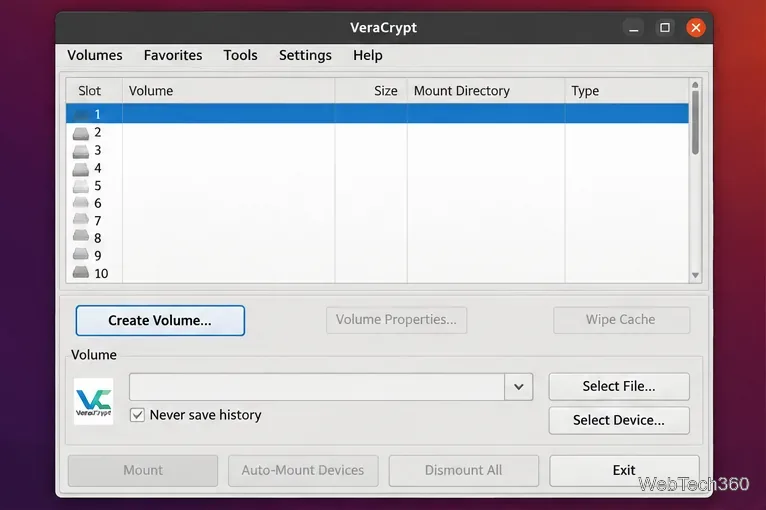
Launch VeraCrypt and click Create Volume. VeraCrypt supports both file-hosted containers and partition/device-hosted volumes; for an encrypted USB drive, you want the latter.
Start from VeraCrypt's main window and open the volume creation wizard.
2. Choose the partition or drive option
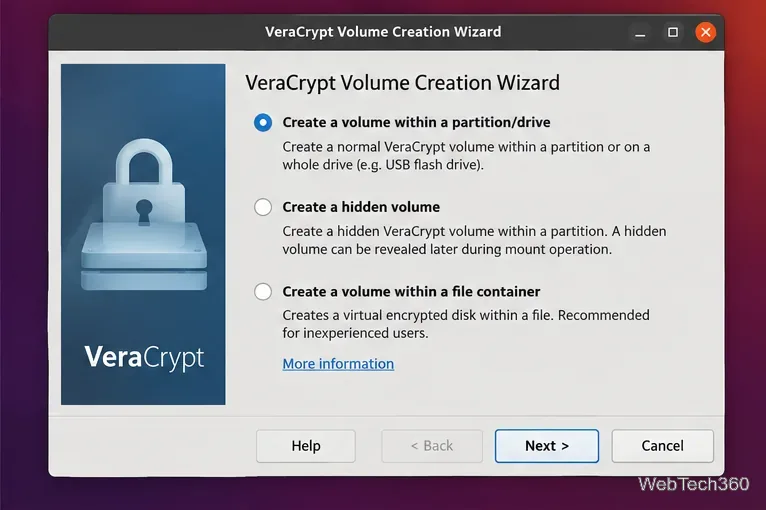
Select the option for creating a volume within a partition or drive. The wording can vary by platform or build; VeraCrypt documentation refers to this as a device-hosted volume. Continue with Next.
Choose the device-hosted option rather than a file container.
3. Create a standard VeraCrypt volume
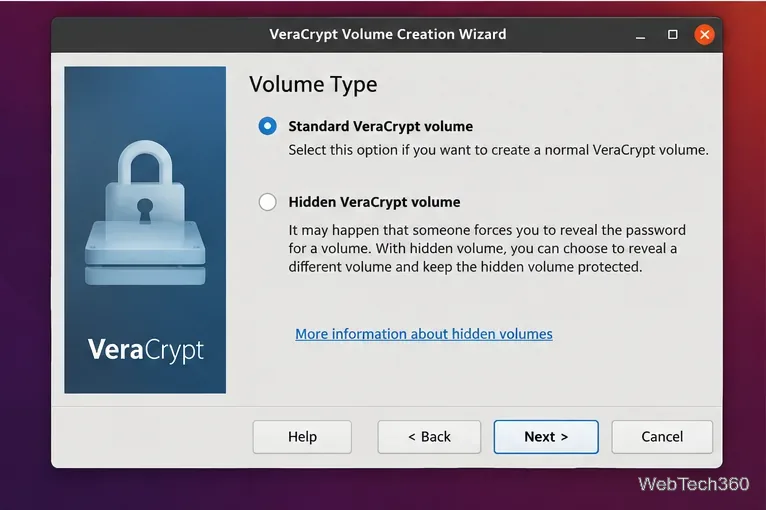
Select Standard VeraCrypt volume unless you specifically need a hidden volume and understand its additional requirements. For a normal encrypted flash drive, the standard option is the simpler choice.
A standard volume is the usual choice for an encrypted USB drive.
4. Select the correct USB device
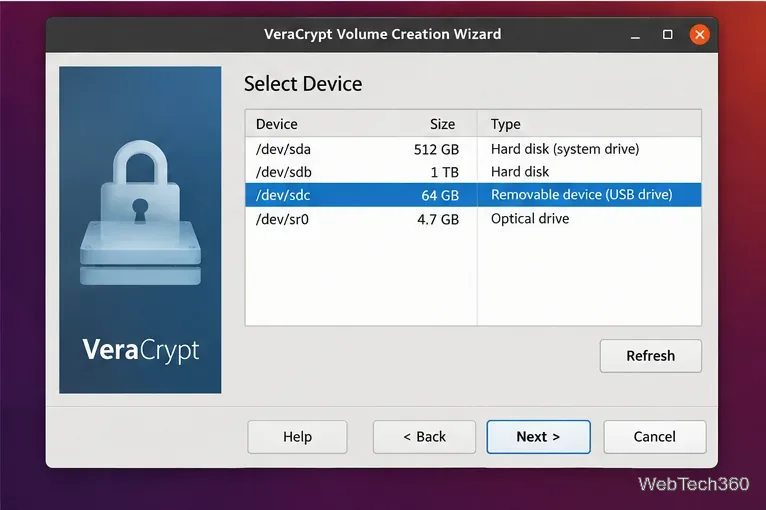
Click Select Device, then choose the intended USB device or partition. Match its size and identity with what you saw in lsblk. Double-check this screen: formatting the wrong entry can destroy data on another disk.
Confirm the USB device by path and capacity before continuing.
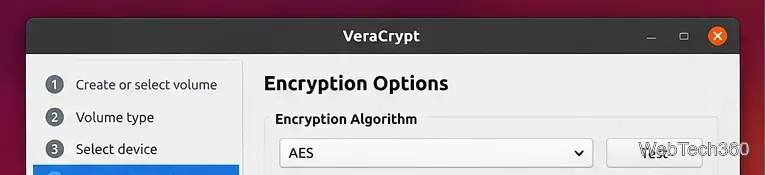
5. Review the encryption options
For most users, leaving VeraCrypt's default encryption settings is reasonable. The program supports several encryption algorithms, and newer releases also offer additional key-derivation choices for non-system volumes. Change these settings only when you have a specific compatibility or policy requirement. The official volume-creation documentation explains the available options.
Review the encryption settings and keep the defaults unless you have a specific reason to change them.
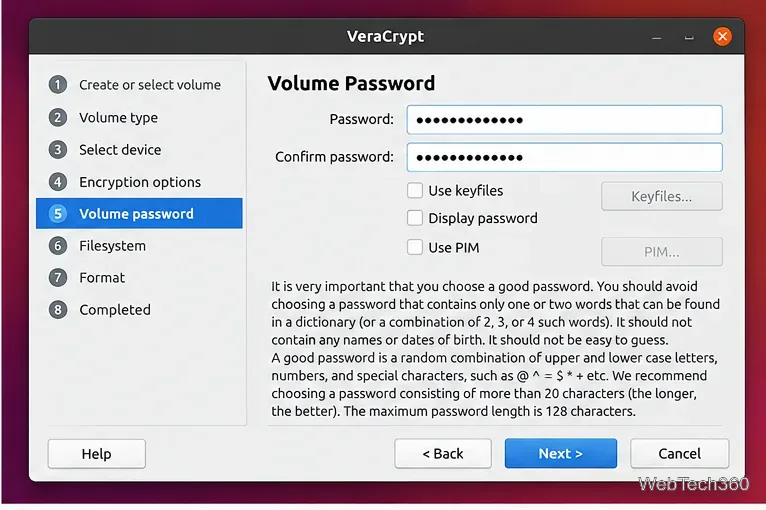
6. Set a strong volume password
Enter a long, unique password and confirm it. Do not reuse a login password or something easy to guess. Store the password securely if you cannot reliably remember it; without the correct credentials, the encrypted data will not be practically recoverable.
Create and confirm a strong password for the encrypted USB volume.
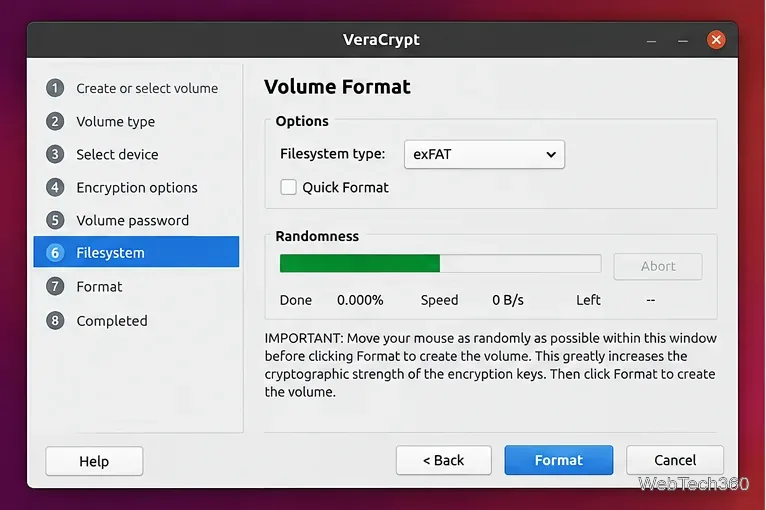
7. Choose the filesystem and format the volume
Select a filesystem based on where you need to use the drive. exFAT is a practical choice when the USB drive must move between Linux, Windows, and macOS. For Linux-only use, Ext4 is a common choice. VeraCrypt's Linux build can create FAT, Ext2, Ext3, Ext4, NTFS, exFAT, and Btrfs volumes when the required system formatter is available. FAT is less suitable when you need individual files larger than 4 GiB.
If you are unsure about Quick Format, leave it unchecked; VeraCrypt's documentation recommends the non-quick format when in doubt. Move the pointer around the wizard when prompted to contribute randomness, then click Format. Creation time depends on the drive size and whether Quick Format is disabled.
Select the filesystem, leave Quick Format off when unsure, and create the encrypted volume.
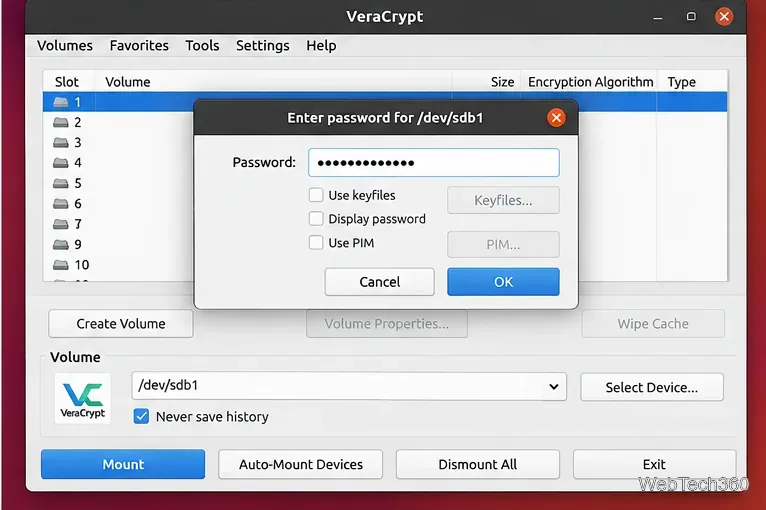
8. Mount the encrypted USB when you need it
After the volume is created, return to VeraCrypt. Use Select Device to choose the encrypted USB volume, select an available slot, and click Mount; you can also use Auto-Mount Devices. Enter the volume password when prompted. The official mounting guide documents the available mount options.
Mount the encrypted USB through VeraCrypt and enter the volume password.
Use the encrypted USB safely
Unmount the VeraCrypt volume before unplugging the drive. Finish file transfers first, unmount it in VeraCrypt, and then safely remove the USB device from Linux.
Do not reformat the encrypted partition while it is unmounted. VeraCrypt warns that formatting a device-hosted volume outside its mounted state destroys the VeraCrypt volume.
Keep a separate backup of important files. Encryption protects confidentiality; it does not protect against flash-drive failure, accidental deletion, or physical damage.
Use VeraCrypt on other computers that need access. VeraCrypt volumes are cross-platform, but the filesystem inside the encrypted volume must also be supported by the operating system.
For command-line workflows on Linux, VeraCrypt also provides a text interface, including interactive volume creation with veracrypt -t -c. See the official Linux and macOS command-line documentation for supported options and security notes.