Home
» LINUX
»
How to Extract Individual Frames from Videos on Linux with Kdenlive
How to Extract Individual Frames from Videos on Linux with Kdenlive
If you need a still image from a video on Linux, you do not have to rely on a desktop screenshot. Kdenlive can extract the exact video frame shown in its monitor and save it as an image file. For a frame from the original source clip, the Clip Monitor is the simplest route; for a frame after timeline edits or effects, use the Project Monitor instead.
The current Kdenlive documentation confirms that both monitors include Extract Frame, which opens a Save Image dialog and uses PNG by default. The workflow below keeps the process simple and avoids an unnecessary step in the older method: you do not need to put a clip on the timeline just to grab a frame from the source video.
What you need
Install Kdenlive from your Linux distribution or use one of the official Linux builds. Kdenlive's official download page provides AppImage and Flatpak options. Distribution repositories can also provide Kdenlive, but their version may differ from the current upstream release.
Once Kdenlive is installed, open it and create a new project or open an existing one. You can extract a frame without saving the project first, although saving is a good idea if you are doing other editing work.
How to extract an individual frame in Kdenlive
1. Open Kdenlive and locate the Project Bin
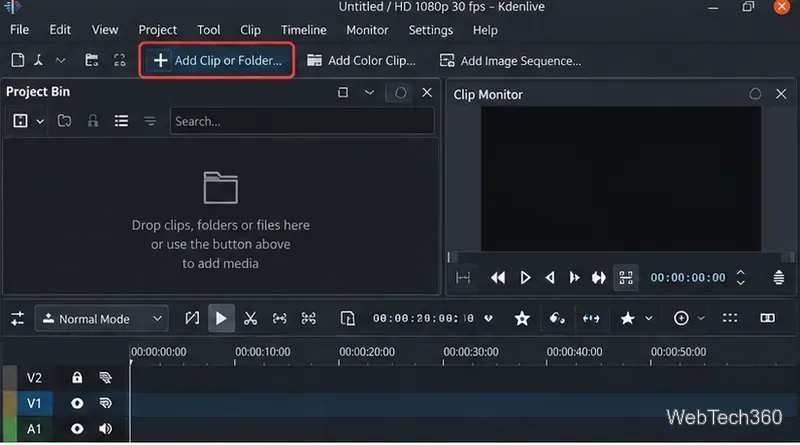
The Project Bin is where Kdenlive keeps video, audio, images, and other media used by a project. If the panel is visible, you are ready to import the video. Kdenlive's current manual describes the Project Bin as the place for project assets and provides an Add Clip or Folder control for importing media.
Kdenlive with the Project Bin ready to receive a source video.
2. Add the video file
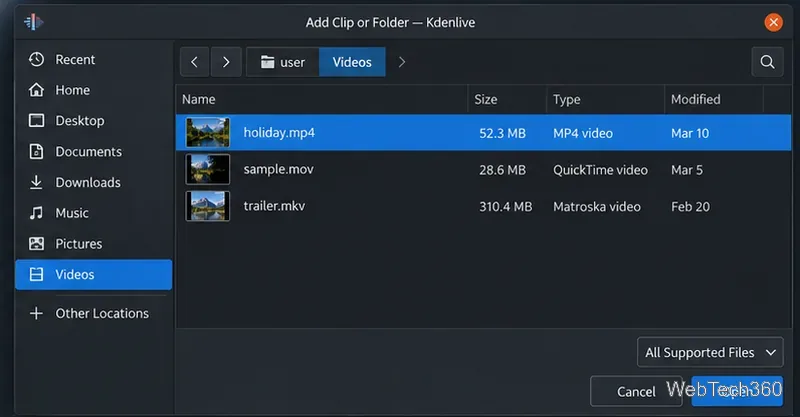
Use Add Clip or Folder in the Project Bin, or double-click an empty area inside the bin. Select the video you want and open it. Drag-and-drop from your Linux file manager also works. These import methods are documented in Kdenlive's Add Clip or Folder guide.
Select the video file you want to inspect and add it to the Project Bin.
3. Open the source clip in the Clip Monitor
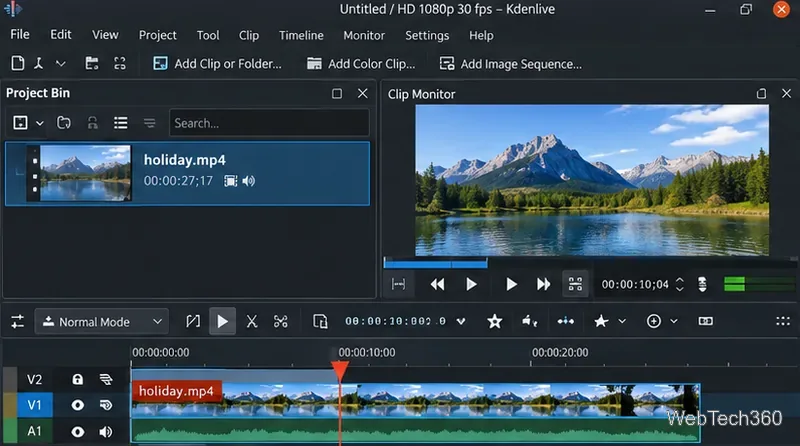
Click the imported video in the Project Bin. Kdenlive displays the selected source clip in the Clip Monitor. This is the best monitor to use when you want a still from the original video before timeline effects, scaling, titles, or other edits are applied.
If you instead need a frame from your edited sequence, place the clip on the timeline and use the Project Monitor. Kdenlive's Clip Monitor and Project Monitor documentation confirms that both monitors provide frame extraction.
4. Move to the exact frame you want
Play the clip with the monitor controls or the Spacebar, then pause near the moment you want. For finer positioning, use the monitor's timecode and frame navigation controls. The left and right arrow keys can be used for frame-by-frame movement when the relevant monitor or timeline has focus, making it easier to stop on the exact image instead of guessing from playback.
Pause near the target moment, then move frame by frame until the desired image is displayed.
5. Choose Extract Frame and save the image
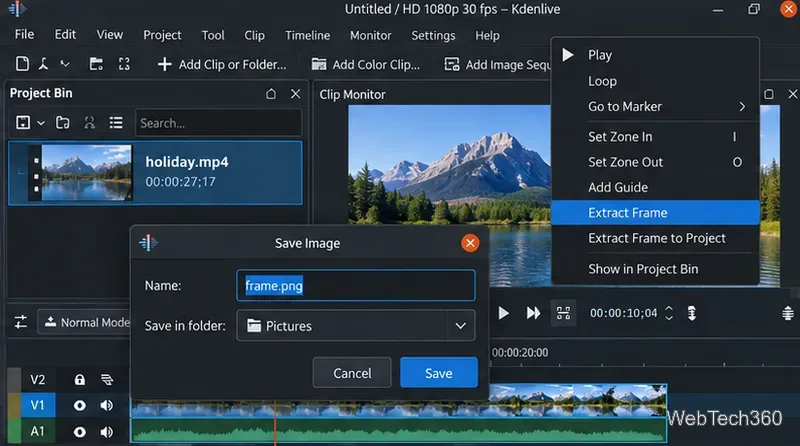
Right-click inside the active Clip Monitor or Project Monitor and choose Extract Frame. In the Save Image dialog, choose a folder and filename, then save the image. Kdenlive uses PNG as the default image format for this action.
You may also see Extract Frame to Project. Use that option when you want the still image added to the Kdenlive project as well as extracted, which is useful when the frame will become part of the edit.
Choose Extract Frame, name the still image, and save it to your Linux file system.
Important: Kdenlive may use the project resolution
There is one quality detail worth checking. According to Kdenlive's frame extraction documentation, extracted frames are based on the project's settings. If your source video is 4K but the project profile is 1080p, the extracted image can follow the project frame size rather than the source video's full resolution.
If you need a single frame directly from the source file at its native decoded resolution, FFmpeg is a useful command-line alternative. For example:
Change the timestamp and filenames as needed. FFmpeg's official documentation defines -ss for seeking and -frames:v 1 for limiting video output to one frame. Its image output documentation also supports writing single image files.
Which method should you use?
Kdenlive Clip Monitor: best when you want to visually find and save a frame from the original clip.
Kdenlive Project Monitor: best when the still should include timeline edits, effects, compositing, or titles.
FFmpeg: best when you already know the timestamp or need a source-oriented command-line workflow.
For most desktop users, the Kdenlive Clip Monitor is the fastest option: import the video, seek to the frame, right-click, choose Extract Frame, and save the PNG.