How to Share Files Over Bluetooth on Linux with Blueman

Send and receive files over Bluetooth on Linux with Blueman. Install OBEX support, pair devices, choose a file, accept transfers, and fix common issues.
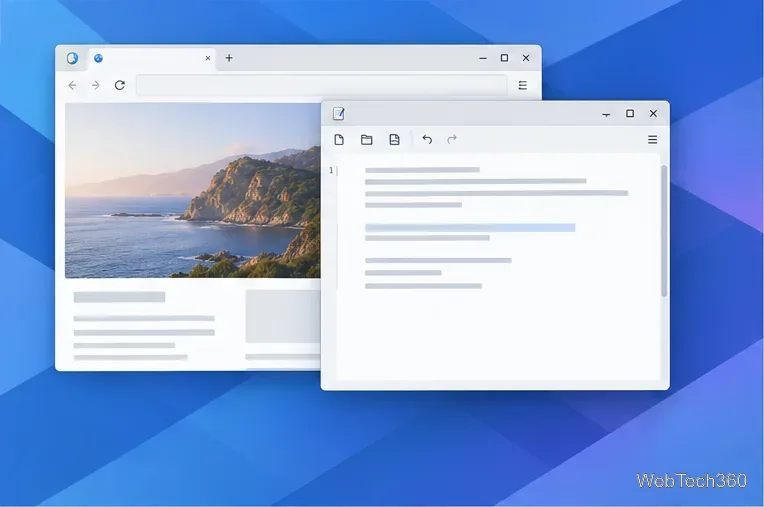
If the KDE Plasma panel freezes, disappears, or stops responding while your application windows remain open, restart plasmashell. In Plasma 6 and many Plasma 5 installations, KDE documents plasmashell --replace as the quick recovery command. This reloads the desktop shell, including panels and widgets, without requiring a full reboot.
Use the steps below to restore the panel first, then investigate a recurring crash. The exact service setup and update schedule vary by Linux distribution, so start with the command that matches your session.
Check whether open windows still respond and whether you can switch between them. If windows remain visible but the panel or desktop widgets are gone, the problem is likely in plasmashell. If the whole display is frozen, black, or unusable, restarting the panel may not help; save work if possible and use your normal sign-out or reboot recovery instead. Avoid restarting KWin for a panel-only failure because it manages windows and compositing separately.
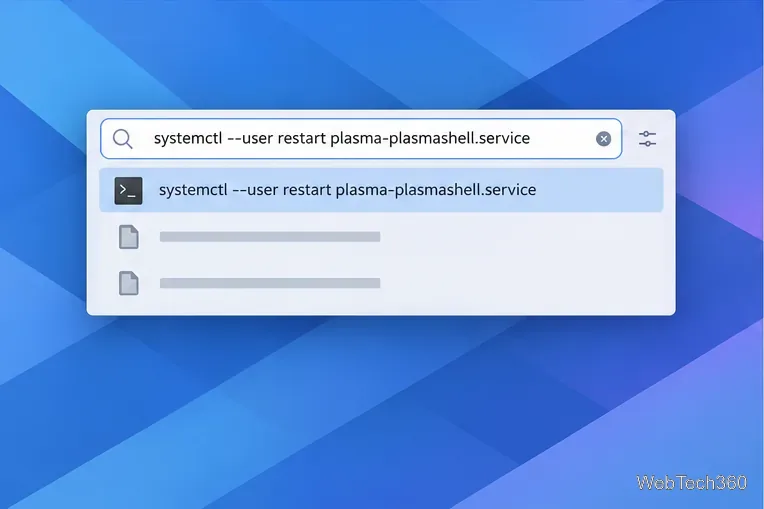
Press Alt+Space or Alt+F2 to open KRunner; the KRunner manual documents both shortcuts. Then type plasmashell --replace, and press Enter. KDE documents both shortcuts for KRunner, which can launch commands even when the panel is missing. On many setups, Ctrl+Alt+T opens Konsole; otherwise use your configured terminal shortcut and run the same command there. KDE’s recovery guidance uses this command when the shell needs restarting. Do not add sudo; this is your desktop shell, so it should restart as your logged-in user.
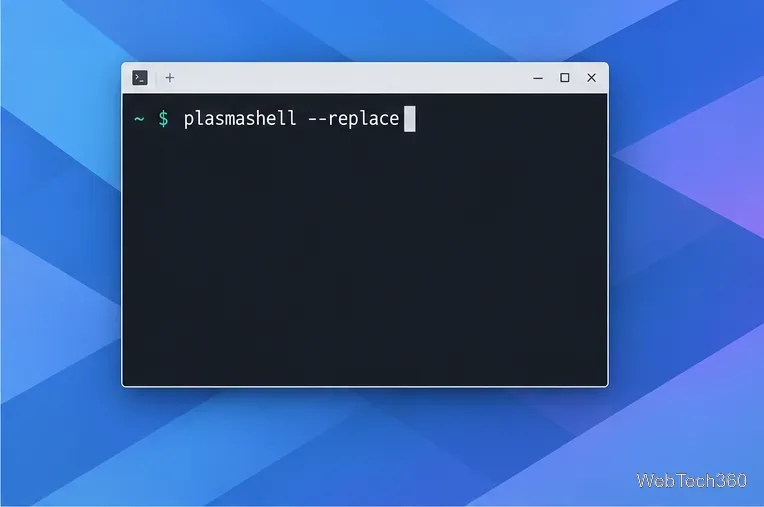
Give Plasma a few seconds to rebuild the panel. Your open application windows should remain on screen. If you use Konsole, leave it open until the shell has returned; the command is meant to replace the current shell rather than kill it and leave it stopped.
Some Plasma sessions are started and supervised as a systemd user service. In KRunner or Konsole, you can try systemctl --user restart plasma-plasmashell.service. KDE’s debugging guidance lists the corresponding service restart for sessions that enable systemd initialization. If your system reports that the unit cannot be found, skip this option and use plasmashell --replace instead; service names and session integration are distribution-dependent.
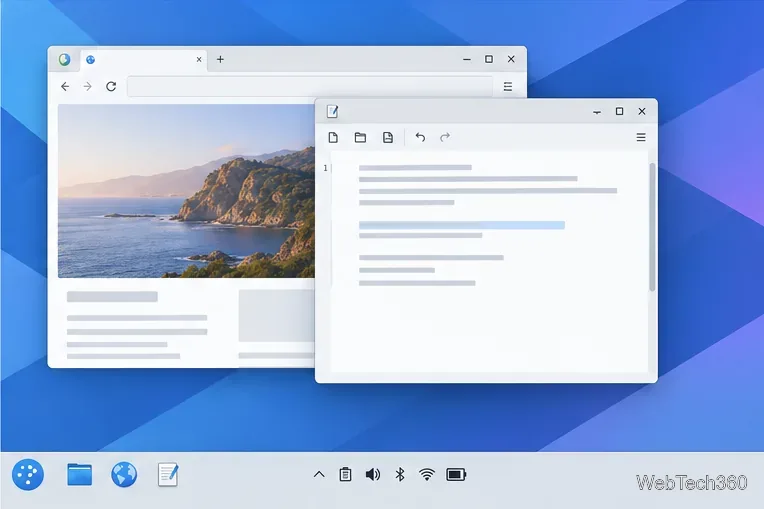
Confirm that the application launcher, task manager, system tray, and any other panel widgets have reappeared. If the panel returns but still ignores clicks, wait briefly for Plasma to finish loading. If it remains missing, sign out of the Plasma session and sign back in. This is a broader reset and can close applications, so save documents first.
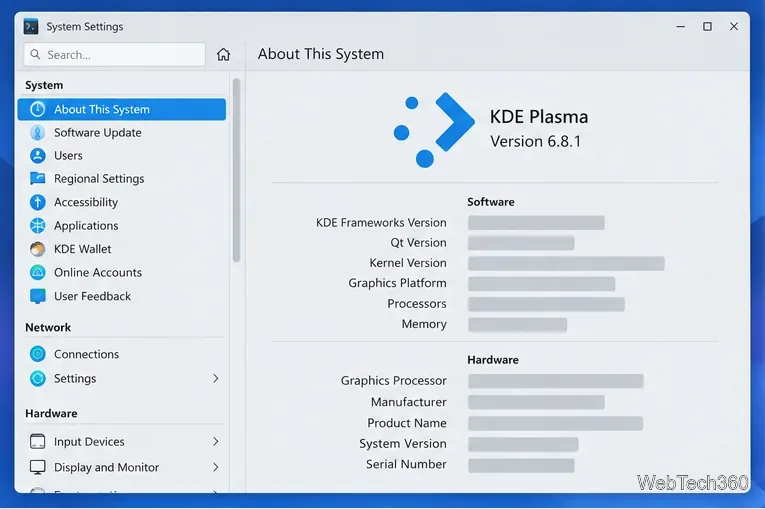
Open System Settings → About This System and note the Plasma version and Graphics Platform, such as Wayland or X11. If Settings is unavailable, run plasmashell --version in Konsole. Then install pending updates using your distribution’s normal updater or package manager. Plasma fixes are shipped on different schedules by different distributions; use the supported packages for your release, and restart the session if the updater replaces Plasma components.
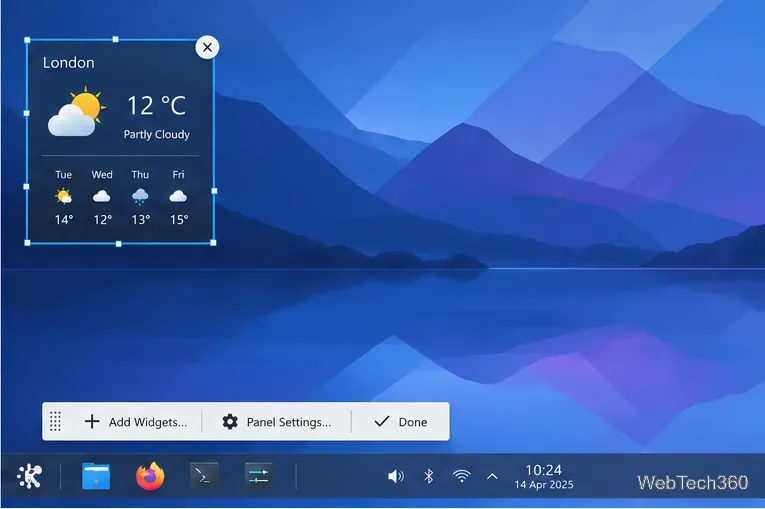
If the crash began after you installed a widget, changed a theme, or edited the panel, test that change first. When the panel is usable, right-click it and enter its edit mode. Remove a recently added third-party widget, apply the change, and watch whether the problem returns. Change one item at a time so you can identify the trigger. KDE’s debugging notes explain that Plasma widgets run within plasmashell, so a faulty applet can affect the shell. Avoid deleting the entire Plasma layout configuration as an early fix; that can discard customized panels and desktop widgets.
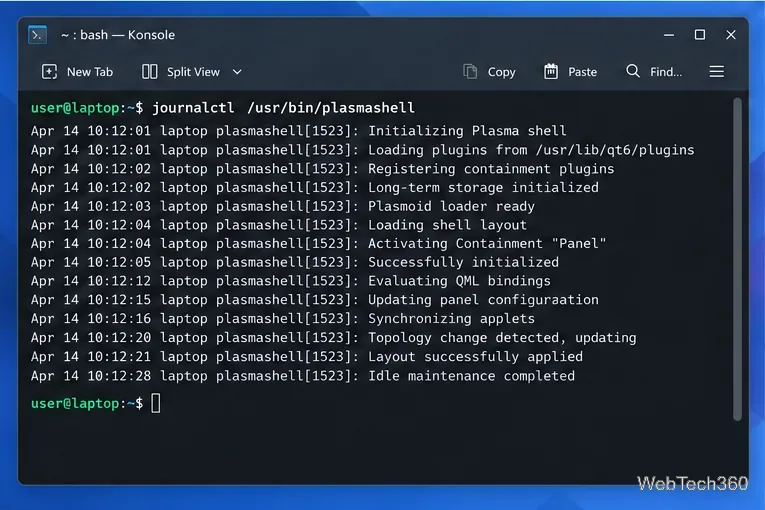
Open Konsole and run journalctl /usr/bin/plasmashell. Review messages around the time the panel disappeared and look for repeated warnings or errors. The output may include ordinary startup details, so a line by itself does not prove what caused the crash. If the problem happens again, note the time and compare the new messages. KDE’s Plasma debugging guide uses this command when checking shell and widget behavior.
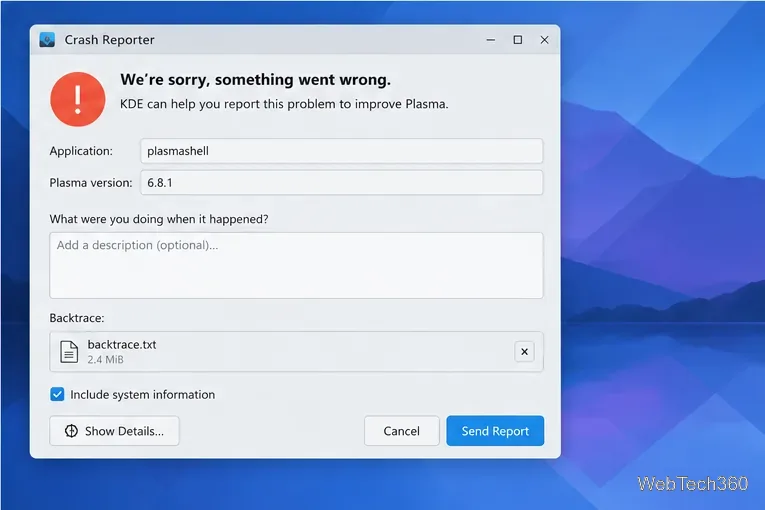
If KDE’s Crash Reporter appears, include the steps that led to the failure and let it collect a backtrace. Also note your distribution and version, Plasma version, Wayland or X11 session, monitor setup, and any recently installed widgets or themes. A precise reproduction description and a useful backtrace help developers investigate; KDE’s crash-reporting guide explains what to include. For a Plasma shell issue, submit the report through the reporter or file it in the plasmashell section of KDE Bugzilla.
Send and receive files over Bluetooth on Linux with Blueman. Install OBEX support, pair devices, choose a file, accept transfers, and fix common issues.
Connect GNOME Files to SSH/SFTP, FTP, SMB, WebDAV, or NFS with the correct server URI, sign-in details, and fixes for common connection errors.
Open SFTP, SSH, SMB, FTP, NFS, and WebDAV locations in Dolphin, sign in safely, transfer files, and save network folders for later.
Connect a DualShock 4 to Linux by USB or Bluetooth, then check controller detection and configure Steam Input only when a game needs it.
Use DNF5 parallel downloads to reduce RPM install waits in GNOME Software, then tell when mirror or Flatpak delays need a different fix.
Access iCloud on Linux in a current browser. Learn how to sign in, use iCloud Drive and other web apps, and understand the limits of browser access.
Save GRUB settings, boot files, and UEFI entry details to removable storage, then use rescue media to repair the correct boot path safely.
Install Bitwarden on Linux with the right DEB, RPM, Snap, Flatpak, or AppImage package, then sign in and set a secure vault timeout.
Pick a screensaver theme in Xfce, preview it, choose when it starts, and configure automatic locking in the separate Lock Screen tab.
Stop GNOME Shell from blanking or locking your display automatically. Change Power and Screen Lock settings, or use Caffeine for a temporary keep-awake toggle.








