How to Share Files Over Bluetooth on Linux with Blueman

Send and receive files over Bluetooth on Linux with Blueman. Install OBEX support, pair devices, choose a file, accept transfers, and fix common issues.
If only one application is frozen, close that window if it still responds. If the whole GNOME desktop session has stopped responding, try the Xorg shell restart first. It works only in an Xorg session. On Wayland, or when GNOME is completely unresponsive, switch to a text console (TTY) and restart the graphical display manager. That last step logs you out of the graphical session, so unsaved work can be lost.
Before you restart: If the desktop briefly responds, save open documents. Restarting the display manager closes graphical applications and may end other users’ graphical sessions on a shared computer.
Look for signs that GNOME still accepts keyboard input: can you switch windows, open the Activities overview, or bring up the command runner? If one app alone is unresponsive, close that app if possible and leave the desktop session running. Use the recovery steps below when the panel, pointer, keyboard shortcuts, or multiple windows are stuck together.
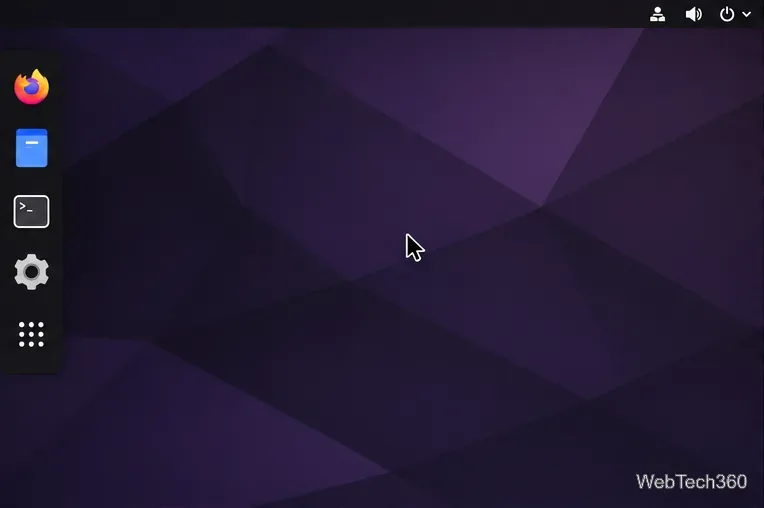
GNOME’s keyboard shortcut guide lists Alt+F2 as the command runner. If that dialog still opens, enter the single letter r and press Enter. This asks GNOME Shell to restart without restarting the computer.
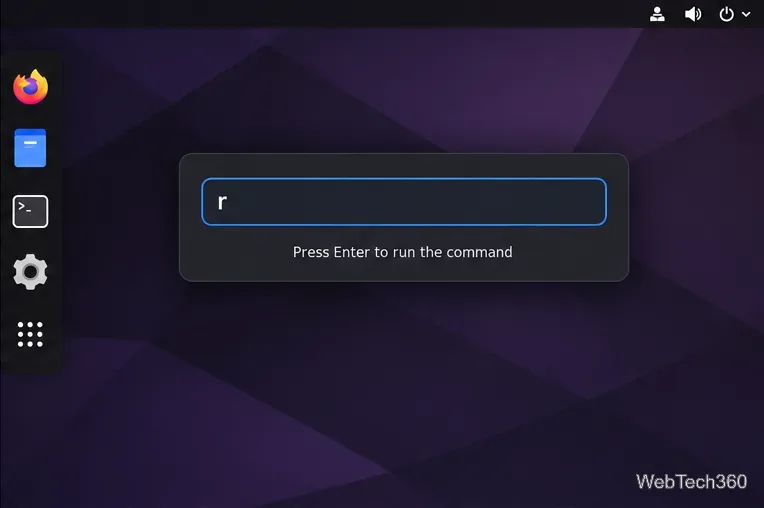
r in the command runner only when your session uses Xorg.This shortcut is not available for restarting Shell under Wayland; Red Hat’s GNOME and Wayland documentation lists that as a Wayland limitation. If the command dialog does not appear, or the session is Wayland, skip to the TTY method. Do not repeatedly enter r or try gnome-shell --replace as a universal fix.
Press Ctrl+Alt+F3. On some laptops, hold Fn as well. A black login prompt should appear. If it does not, try another function key such as F4 or F5; the available console numbers vary by distribution. The GNOME Boxes keyboard guide notes that Ctrl+Alt+F3 opens a virtual console and Ctrl+Alt+F1 returns to the desktop on many Linux distributions.
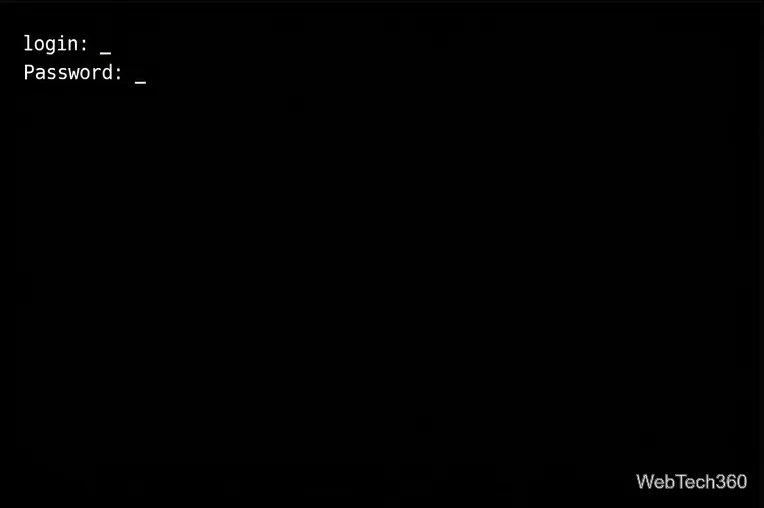
Type your Linux username and press Enter, then type your password and press Enter. The password field stays blank as you type; that is normal. If no TTY responds, see the last-resort section below.
Once logged in, run this command on a system that uses systemd and has the standard display-manager unit:
sudo systemctl restart display-managerEnter your account password if asked. The systemctl manual defines restart as stopping and then starting the named unit. For a display manager, this ends the current graphical session and starts the login service again. It does not reboot Linux, but it closes the applications in that session.
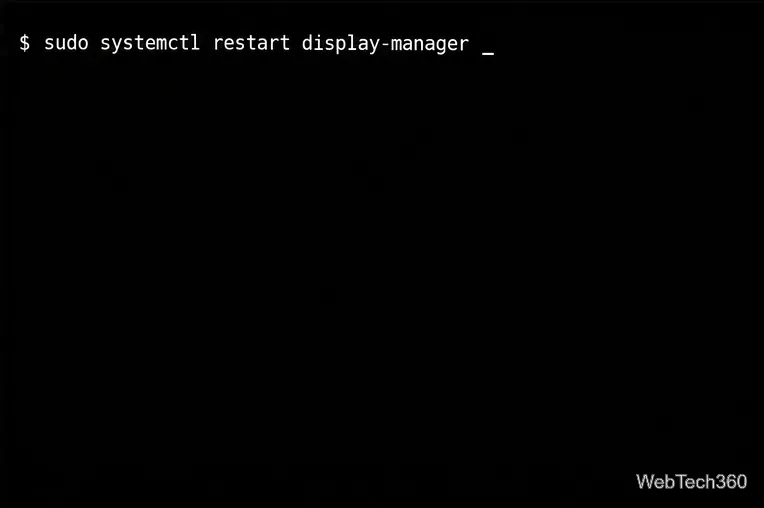
If systemd reports that display-manager.service does not exist, do not guess at a service name or run separate stop and start commands. Check your distribution’s documentation for the unit name used by its installed display manager. On a non-systemd distribution, use that distribution’s supported service controls instead.
After the command finishes, press Ctrl+Alt+F1 or Ctrl+Alt+F2. If you still see a text console, try the other key or cycle through the first few function keys until the graphical login screen appears. Sign in normally. The console mapping differs between distributions and versions, so there is no single return key that works everywhere.
If keyboard input works nowhere, the machine may be frozen below the desktop layer. If remote access such as SSH was already enabled and you know how to use it, you can run the same display-manager command from a trusted connection. Otherwise, a forced power-off may be the only remaining option. Hold the power button only as a last resort: it can discard unsaved work and interrupt disk writes. After restarting, let the system complete its normal startup and use your distribution’s recovery guidance if it reports filesystem or boot errors.
If the problem started after installing or updating a Shell extension, disable that extension after you can log in. Red Hat’s extension management guide documents the gnome-extensions command. You can list extension IDs, then disable a suspected one:
gnome-extensions list
gnome-extensions disable EXTENSION-UUID
Replace EXTENSION-UUID with the exact ID shown by the first command. Disable one extension at a time so you can identify a cause. Also install operating-system and graphics-driver updates through your distribution’s normal update tools. If freezes continue, note what was happening just before each one and check your distribution’s support documentation or logs; repeated session restarts can restore the screen, but they do not fix an underlying driver, hardware, or extension problem.
Send and receive files over Bluetooth on Linux with Blueman. Install OBEX support, pair devices, choose a file, accept transfers, and fix common issues.
Connect GNOME Files to SSH/SFTP, FTP, SMB, WebDAV, or NFS with the correct server URI, sign-in details, and fixes for common connection errors.
Open SFTP, SSH, SMB, FTP, NFS, and WebDAV locations in Dolphin, sign in safely, transfer files, and save network folders for later.
Connect a DualShock 4 to Linux by USB or Bluetooth, then check controller detection and configure Steam Input only when a game needs it.
Use DNF5 parallel downloads to reduce RPM install waits in GNOME Software, then tell when mirror or Flatpak delays need a different fix.
Access iCloud on Linux in a current browser. Learn how to sign in, use iCloud Drive and other web apps, and understand the limits of browser access.
Save GRUB settings, boot files, and UEFI entry details to removable storage, then use rescue media to repair the correct boot path safely.
Install Bitwarden on Linux with the right DEB, RPM, Snap, Flatpak, or AppImage package, then sign in and set a secure vault timeout.
Pick a screensaver theme in Xfce, preview it, choose when it starts, and configure automatic locking in the separate Lock Screen tab.
Stop GNOME Shell from blanking or locking your display automatically. Change Power and Screen Lock settings, or use Caffeine for a temporary keep-awake toggle.








