How to Share Files Over Bluetooth on Linux with Blueman

Send and receive files over Bluetooth on Linux with Blueman. Install OBEX support, pair devices, choose a file, accept transfers, and fix common issues.
When an XFCE Linux desktop freezes, first work out whether one app is stuck, the panel stopped responding, or window controls broke. Restart only the affected part: xfce4-panel -r restarts the panel, and xfwm4 --replace replaces the window manager. If the whole graphical session is unresponsive, switch to a virtual console before logging out or rebooting.
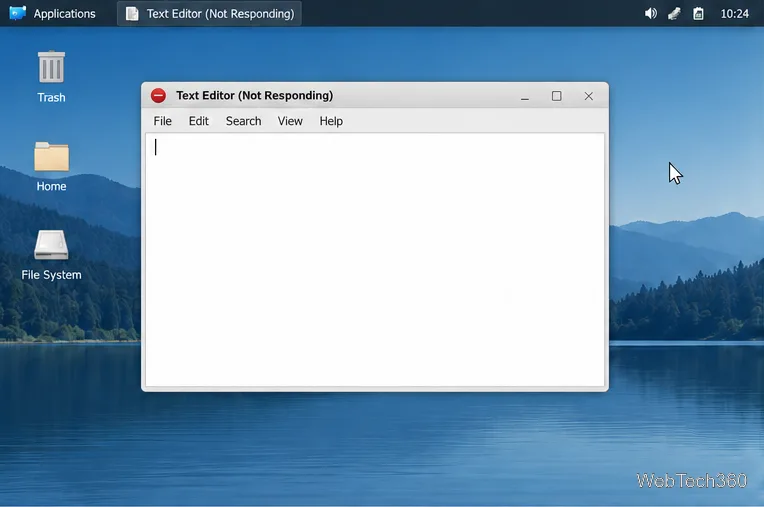
Move the pointer and try switching windows. If only one app is stuck, close it normally with its own close command or Alt+F4. Wait briefly in case it is finishing disk or network work. If asked to save, do so before closing.
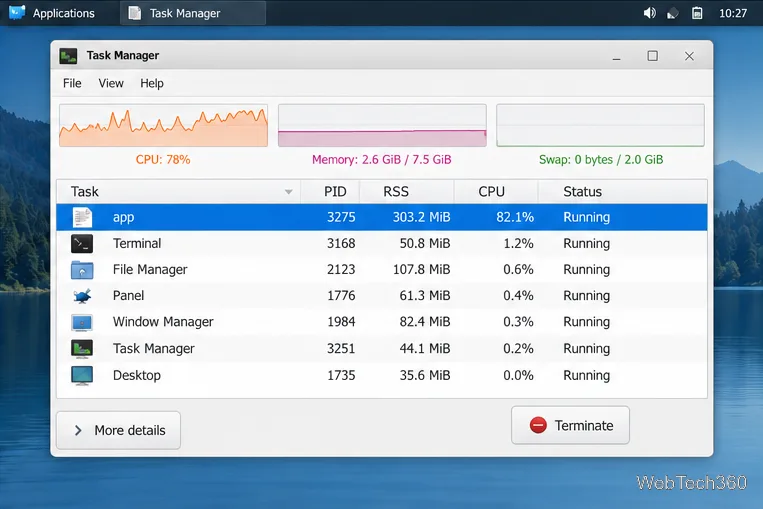
If the app will not close, open Applications > System > Task Manager (the label can vary by Linux distribution). Select only the stuck application and choose its terminate or end-process control; unsaved work may be lost. Do not end processes named xfce4-session, xfwm4, or xfce4-panel from the task list; use the targeted restart commands below for those Xfce components.
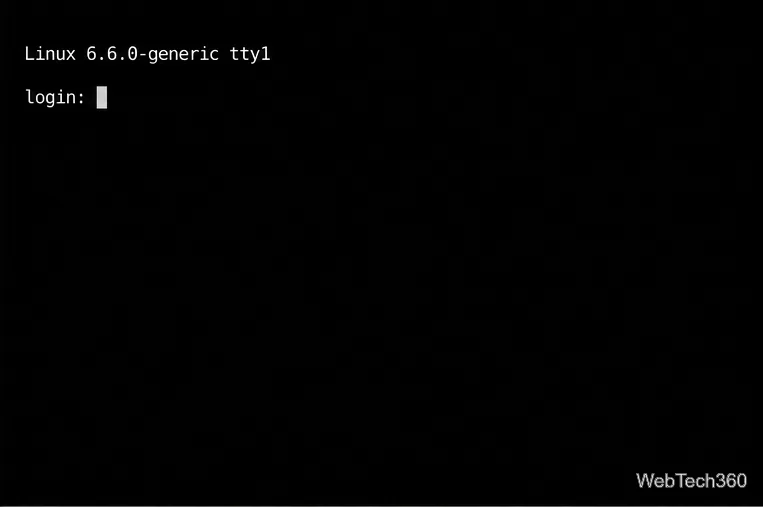
Press Ctrl+Alt+F3 to try a text login screen. On some laptops, hold Fn; key mappings vary. The Linux chvt manual describes the usual Ctrl+Alt+Fn shortcut. A login prompt means the system still responds outside the graphical desktop. Sign in with your account; typed passwords do not appear on screen.
If you switched away from XFCE, try Ctrl+Alt+F1 or Ctrl+Alt+F2 to return; the graphical session’s key varies by distribution. From the graphical session, open a terminal and run the component-specific command below. Commands that relaunch panel or window-manager windows need the active graphical session; typing them in a separate text console may not connect to that display.
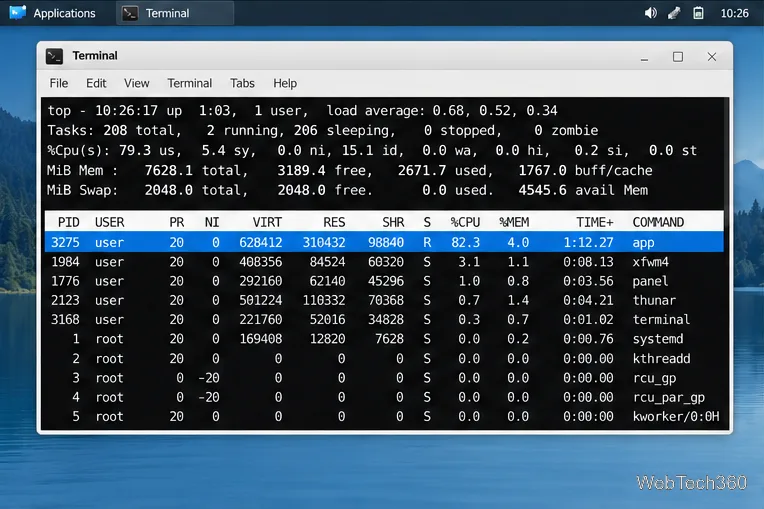
When logged into a text console, top can show whether the machine is under heavy load. Treat a high CPU reading as a clue, not proof that a process is broken. If neither the desktop nor a virtual console responds, the problem may be below XFCE. A hardware restart is a last resort because open files and unsaved changes can be lost.
If the taskbar, application menu, clock, or panel plugins are the only parts that are frozen or missing, open a terminal in your XFCE session and run:
xfce4-panel -r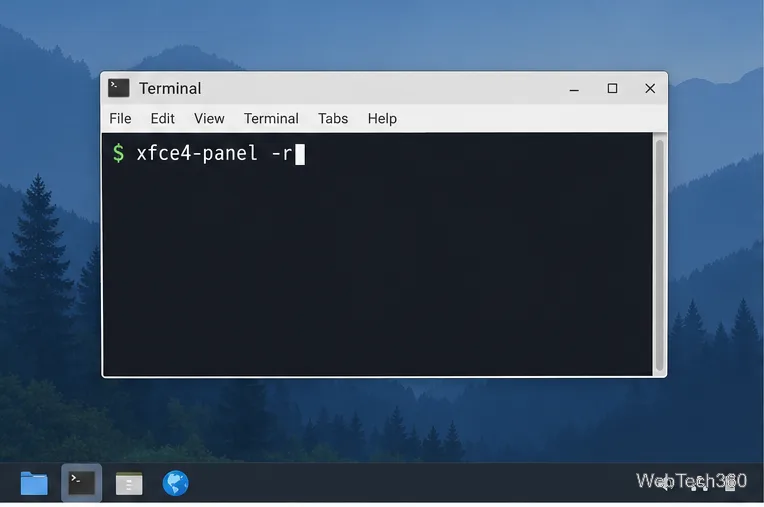
The -r option restarts the running panel; it does not wipe the panel layout. The panel may briefly disappear and return. Xfce’s panel documentation and the xfce4-panel manual describe this restart option. If the fault returns after adding an item, open Settings Manager > Panel > Items and remove or adjust that plugin; the Xfce Items tab documentation explains how to manage panel plugins.
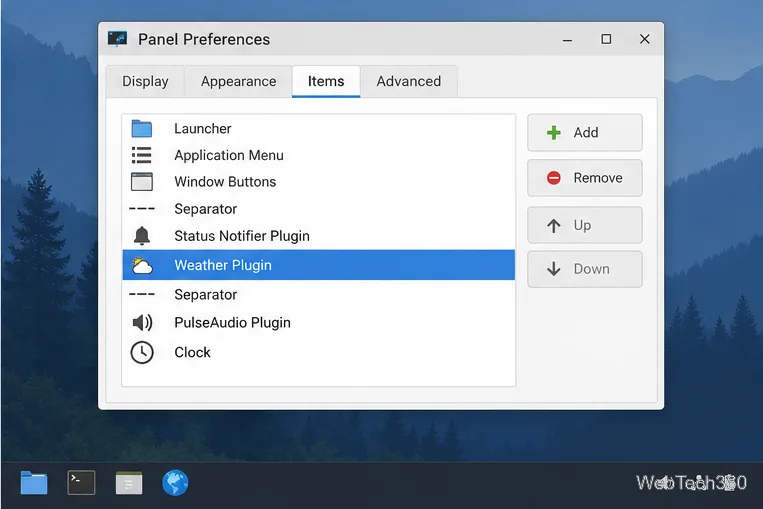
If applications still open but their title bars, minimize and maximize buttons, window movement, or workspace switching have stopped working, refresh xfwm4 from a terminal in the graphical session:
xfwm4 --replace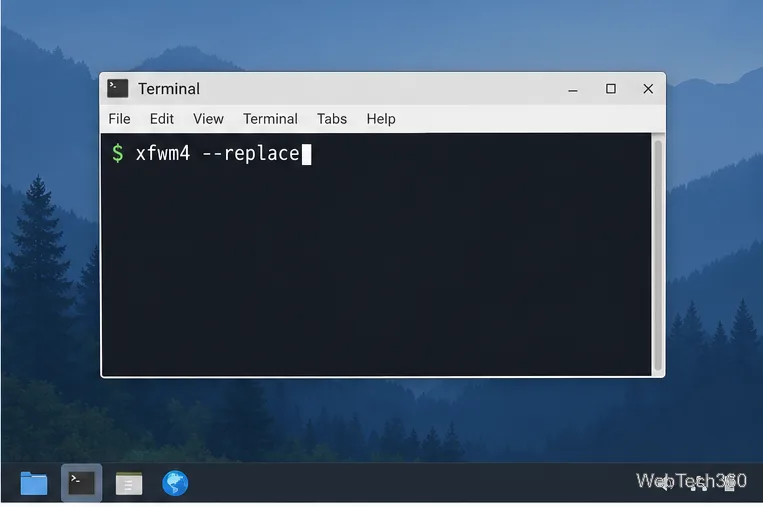
The screen may flicker briefly while the window manager changes over. That is expected; wait a few seconds and test moving or resizing a window. The xfwm4 manual defines --replace as replacing the existing window manager. Avoid using killall xfwm4 as the first fix: replacing the instance is the narrower, documented action. This step is for an X11 session: the Xfce 4.20 tour says xfwm4 does not run on Wayland. If your session uses a Wayland compositor, use that compositor’s recovery controls instead.
If the panel and window-manager restarts do not restore the desktop, save any work that is still accessible, then use XFCE’s session logout action and sign in again. Logging out closes applications, so unsaved changes may be lost. The Xfce session manager can save and restore application state; if the same problematic app opens again, review Settings Manager > Session and Startup and the session-saving option before the next logout.
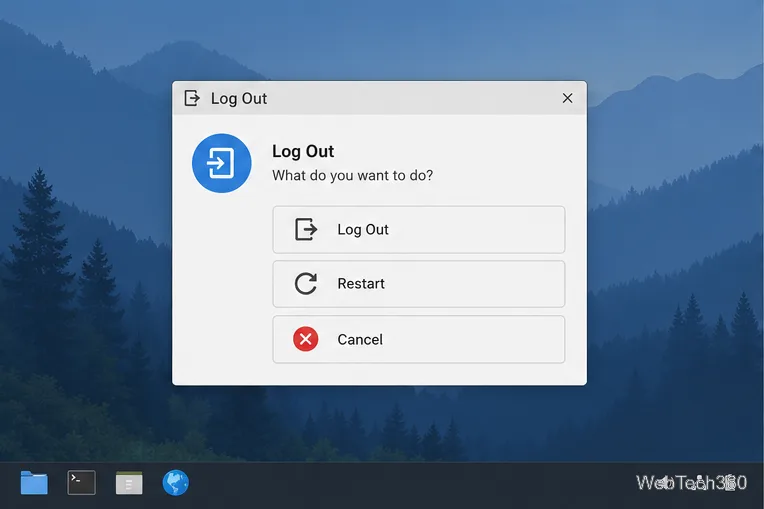
The Xfce logout documentation explains the session actions, and session preferences cover saved-session behavior. Try returning from the virtual console first; reboot only as a last resort.
Note what happened before the freeze: a panel plugin, graphics-heavy app, resume from sleep, or high CPU and memory use. Update Xfce and its graphics driver through your distribution’s update tools, then test without any recently added plugin. If it repeats, record your distribution and Xfce versions, graphics hardware and driver, whether a virtual console responded, and any error output. These details help narrow down an app, panel, window-manager, graphics, or system issue.
Send and receive files over Bluetooth on Linux with Blueman. Install OBEX support, pair devices, choose a file, accept transfers, and fix common issues.
Connect GNOME Files to SSH/SFTP, FTP, SMB, WebDAV, or NFS with the correct server URI, sign-in details, and fixes for common connection errors.
Open SFTP, SSH, SMB, FTP, NFS, and WebDAV locations in Dolphin, sign in safely, transfer files, and save network folders for later.
Connect a DualShock 4 to Linux by USB or Bluetooth, then check controller detection and configure Steam Input only when a game needs it.
Use DNF5 parallel downloads to reduce RPM install waits in GNOME Software, then tell when mirror or Flatpak delays need a different fix.
Access iCloud on Linux in a current browser. Learn how to sign in, use iCloud Drive and other web apps, and understand the limits of browser access.
Save GRUB settings, boot files, and UEFI entry details to removable storage, then use rescue media to repair the correct boot path safely.
Install Bitwarden on Linux with the right DEB, RPM, Snap, Flatpak, or AppImage package, then sign in and set a secure vault timeout.
Pick a screensaver theme in Xfce, preview it, choose when it starts, and configure automatic locking in the separate Lock Screen tab.
Stop GNOME Shell from blanking or locking your display automatically. Change Power and Screen Lock settings, or use Caffeine for a temporary keep-awake toggle.








