How to Share Files Over Bluetooth on Linux with Blueman

Send and receive files over Bluetooth on Linux with Blueman. Install OBEX support, pair devices, choose a file, accept transfers, and fix common issues.
If Linux will not open a Windows-formatted hard drive, first confirm it is an NTFS partition and that the device itself is healthy. For some NTFS metadata problems, Linux’s ntfsfix utility can make limited repairs and request a fuller check the next time Windows starts. It is not a Linux version of CHKDSK, and it cannot repair failing hardware or recover lost files. Back up any readable data before making changes; if the drive clicks, disconnects, or reports I/O errors, stop and prioritize copying or imaging the data.
ntfsfix comes with the NTFS utilities. Package names vary across Linux distributions, and some distributions split the driver and utilities into separate packages. Install from your release’s official repositories:
| Linux distribution | Install command |
|---|---|
| Ubuntu or Debian | sudo apt install ntfs-3g |
| Fedora | sudo dnf install ntfsprogs |
| Arch Linux | sudo pacman -S ntfsprogs |
| openSUSE Tumbleweed | sudo zypper install ntfsprogs |
Package availability can differ by release, especially on openSUSE Leap. If your package manager cannot find the utility, check your distribution’s package index before adding another repository. The ntfsfix manual documents the utility, while the Ubuntu ntfs-3g package, Fedora ntfsprogs package, and Arch ntfsprogs package show how packaging is organized.
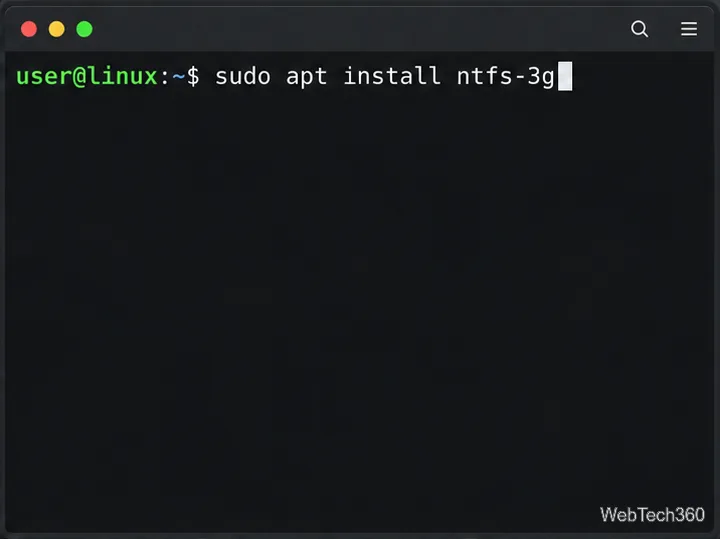
ntfsfix for your distribution.Connect the drive, open a terminal, and run:
lsblk -fLook at the FSTYPE, LABEL, and MOUNTPOINTS columns. Choose the partition whose filesystem is listed as ntfs. A disk may appear as /dev/sdb with a partition such as /dev/sdb1; NVMe partitions use names such as /dev/nvme0n1p3. The repair command must target the NTFS partition, not the whole disk. Never copy the example device name below without checking your own output.
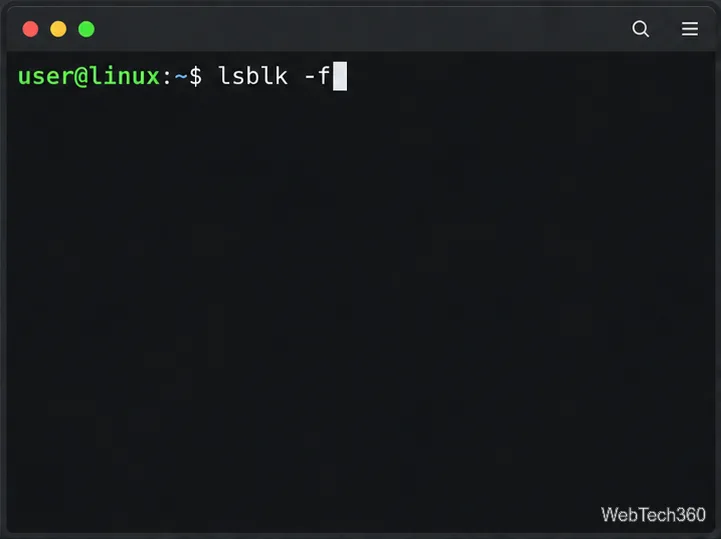
lsblk -f to find the NTFS partition instead of guessing its device name.Replace /dev/sdX1 in the commands with the exact NTFS partition you identified. Check whether Linux has mounted it:
findmnt --source /dev/sdX1If it is mounted, close files and windows using the drive, then unmount it:
sudo umount /dev/sdX1If the command says the target is busy, close the programs using it and try again. Do not continue while the partition is mounted. You can then ask ntfsfix to report what it would do without writing changes:
sudo ntfsfix --no-action /dev/sdX1This is a useful preview, not a full diagnostic or a guarantee that repair will succeed. If the selected partition is not NTFS, stop and recheck the device list.
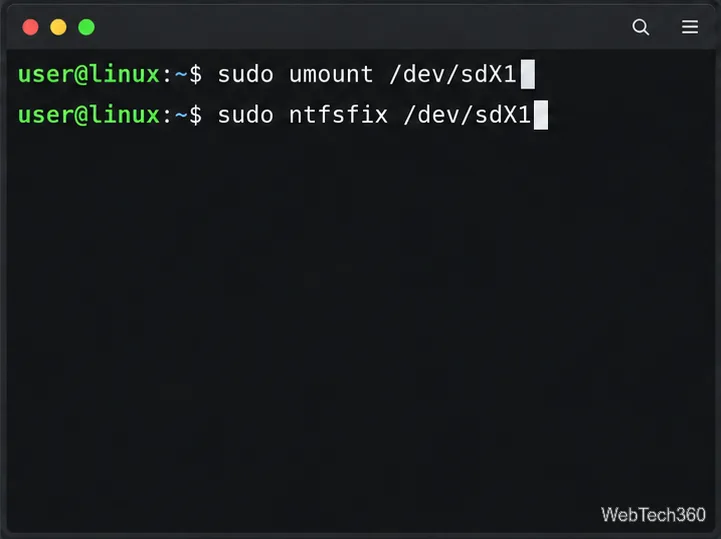
After confirming the device and unmounting it, run:
sudo ntfsfix /dev/sdX1Read the output and wait for the command to finish. ntfsfix addresses a limited set of common NTFS inconsistencies, resets the NTFS journal, and schedules an NTFS consistency check for the first Windows boot. A message that the Linux command completed does not mean every filesystem problem has been repaired.
Safely disconnect the drive if needed, reconnect it to a Windows computer, and let any scheduled file-system check run. If Windows still reports errors, open Command Prompt as an administrator and run chkdsk X: /f, replacing X: with the drive letter shown in Windows. Microsoft documents that /f fixes logical file-system errors; if the volume is in use, Windows may ask to schedule the check for the next restart. Back up important files first, because repairs change filesystem metadata.
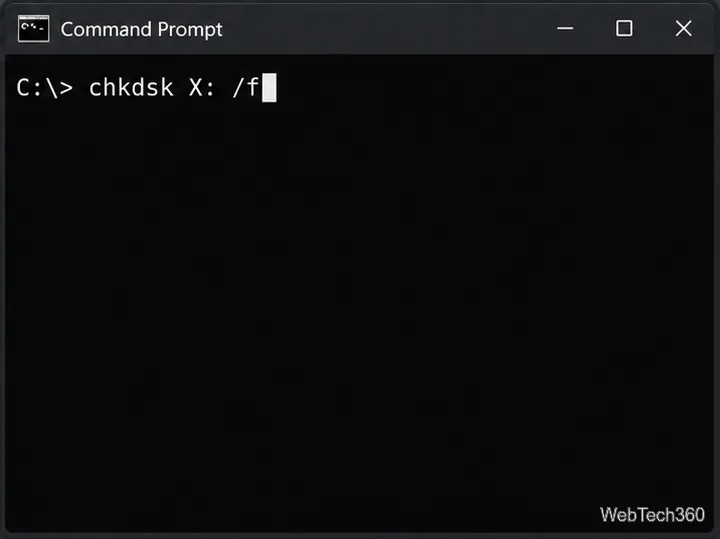
If the volume is read-only after Windows use, it may still be hibernated or affected by Fast Startup. The NTFS-3G manual explains that this can leave internal NTFS partitions read-only or inconsistent. Boot Windows and perform a full shutdown before trying again; do not force a writable mount of a hibernated volume.
The old --clear-bad-sectors advice is easy to misread: it clears NTFS’s recorded bad-sector list, which the manual describes as useful after cloning an older disk onto a new one. It does not repair physically damaged sectors or a failing drive. Likewise, --clear-dirty changes the volume’s dirty flag; it is not a substitute for checking the filesystem. Avoid these options unless you understand why the metadata needs to change.
If the disk is missing from lsblk, repeatedly drops offline, or produces read errors, ntfsfix is not the right tool. Check the cable, port, or enclosure only if doing so is safe, and protect the data before attempting further repairs. For normal filesystem errors, use ntfsfix only as a first aid step and complete the check in Windows with CHKDSK.
Send and receive files over Bluetooth on Linux with Blueman. Install OBEX support, pair devices, choose a file, accept transfers, and fix common issues.
Connect GNOME Files to SSH/SFTP, FTP, SMB, WebDAV, or NFS with the correct server URI, sign-in details, and fixes for common connection errors.
Open SFTP, SSH, SMB, FTP, NFS, and WebDAV locations in Dolphin, sign in safely, transfer files, and save network folders for later.
Connect a DualShock 4 to Linux by USB or Bluetooth, then check controller detection and configure Steam Input only when a game needs it.
Use DNF5 parallel downloads to reduce RPM install waits in GNOME Software, then tell when mirror or Flatpak delays need a different fix.
Access iCloud on Linux in a current browser. Learn how to sign in, use iCloud Drive and other web apps, and understand the limits of browser access.
Save GRUB settings, boot files, and UEFI entry details to removable storage, then use rescue media to repair the correct boot path safely.
Install Bitwarden on Linux with the right DEB, RPM, Snap, Flatpak, or AppImage package, then sign in and set a secure vault timeout.
Pick a screensaver theme in Xfce, preview it, choose when it starts, and configure automatic locking in the separate Lock Screen tab.
Stop GNOME Shell from blanking or locking your display automatically. Change Power and Screen Lock settings, or use Caffeine for a temporary keep-awake toggle.








