How to Share Files Over Bluetooth on Linux with Blueman

Send and receive files over Bluetooth on Linux with Blueman. Install OBEX support, pair devices, choose a file, accept transfers, and fix common issues.
An Ubuntu live USB that will not boot usually fails at one of two points: the computer does not detect the drive, or Ubuntu starts and then shows a black screen or freezes. If the USB is missing from the boot menu, verify and rewrite the ISO. If Ubuntu reaches its menu but the display fails, try a safe-graphics entry if offered or boot once with nomodeset.
Use the one-time boot menu first. Rewriting erases the USB, so back up its files; the other steps below do not change your installed system.
A bootable USB must be written from the ISO; copying the ISO file is not enough. Download it from Ubuntu’s official download page. If the download might be incomplete, compare its SHA-256 checksum with Ubuntu’s published value using its verification instructions.
Use a USB drive with at least 8 GB and an imaging tool for your computer: Disks or Startup Disk Creator on Ubuntu, Rufus on Windows, or balenaEtcher on macOS. Select the ISO as the source and USB as the destination. Check the drive label and capacity carefully because writing erases that device. Wait for completion and eject it safely.
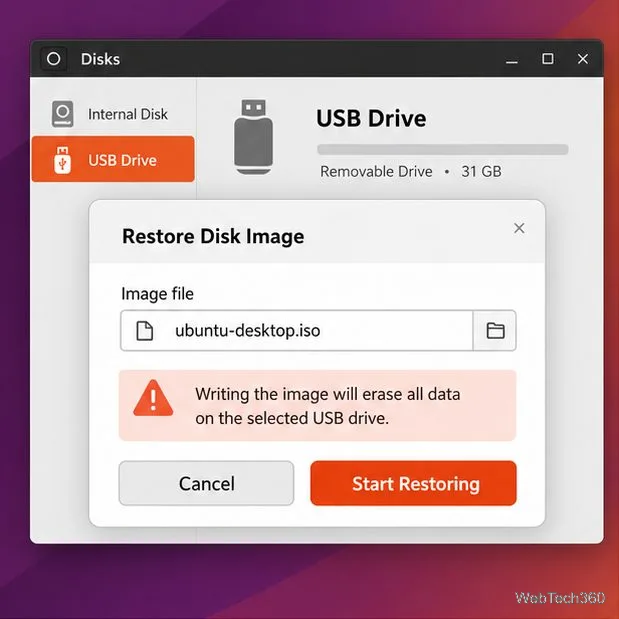
If Rufus made a USB that will not boot on a modern Windows PC, Ubuntu recommends GPT with “UEFI (non CSM)” as the target system. Keep the other defaults. Try a direct USB port without a hub or a different stick if it remains undetected. See the official guide for platform-specific steps.
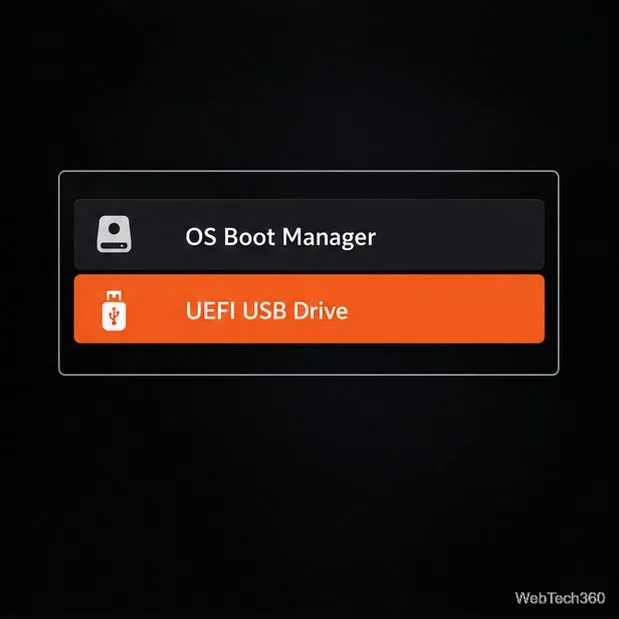
Restart with the USB connected and tap the one-time boot-menu key. F12 is common on PCs; Esc, F2, or F10 are other possibilities. Check the startup prompt or manual because the key varies by model.
Select the USB entry. On a UEFI system, choose its UEFI entry when available. Use the one-time picker instead of changing the persistent boot order. If the computer returns to your usual OS, retry the menu or recreate the drive. When the Ubuntu installer starts, choose Try Ubuntu to preview the live desktop rather than installing. The official guide shows the current boot process.
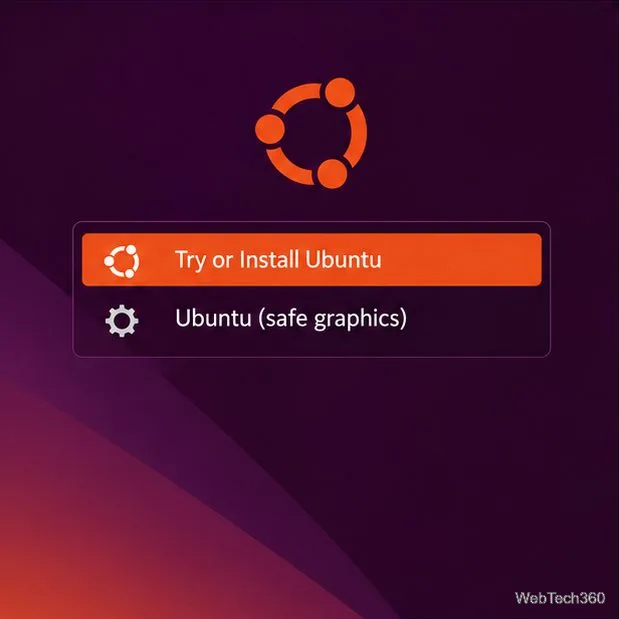
If Ubuntu’s menu appears but the screen goes black or startup freezes, try an entry labeled Ubuntu (safe graphics) if present. Its name and availability vary by release and hardware.
If there is no safe-graphics entry, or it does not help, test nomodeset for one boot. At GRUB, highlight the try/install entry and press E. Find the line beginning with linux; add nomodeset before ---, or at the line’s end if the marker is absent. Keep the other parameters. Press Ctrl+X to boot; some GRUB menus indicate F10 instead.
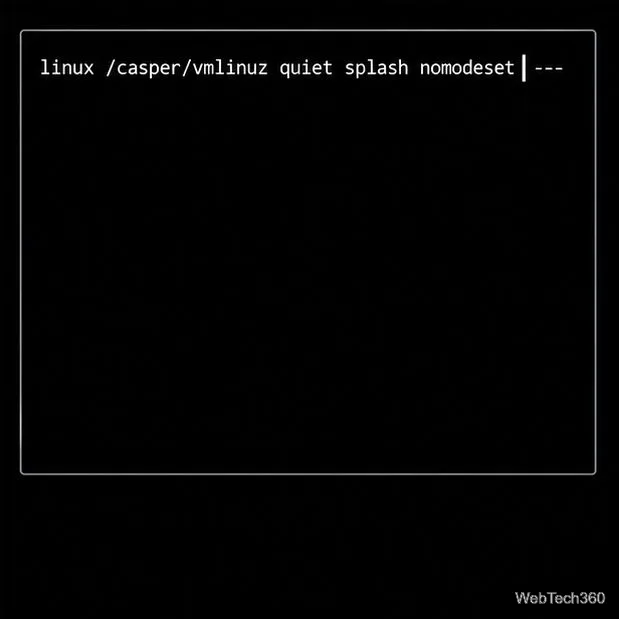
nomodeset to the Linux command line for this boot only.nomodeset stops kernel display-mode changes for this startup. It is a testing fallback and can leave a basic resolution without graphics acceleration. The edit lasts only for this boot; restart normally if it does not help. See the Linux kernel parameter documentation.
After choosing Ubuntu, give a slower flash drive a few minutes to load. If startup repeatedly stops at the same point, note the last message on screen before testing another port, drive, or graphics option.
nomodeset. Disconnect other external devices while troubleshooting.If none of these checks works, verify the ISO again and test the stick on another computer if possible. If it boots there, investigate the original computer’s firmware or graphics compatibility; if not, check the ISO and USB drive.
Send and receive files over Bluetooth on Linux with Blueman. Install OBEX support, pair devices, choose a file, accept transfers, and fix common issues.
Connect GNOME Files to SSH/SFTP, FTP, SMB, WebDAV, or NFS with the correct server URI, sign-in details, and fixes for common connection errors.
Open SFTP, SSH, SMB, FTP, NFS, and WebDAV locations in Dolphin, sign in safely, transfer files, and save network folders for later.
Connect a DualShock 4 to Linux by USB or Bluetooth, then check controller detection and configure Steam Input only when a game needs it.
Use DNF5 parallel downloads to reduce RPM install waits in GNOME Software, then tell when mirror or Flatpak delays need a different fix.
Access iCloud on Linux in a current browser. Learn how to sign in, use iCloud Drive and other web apps, and understand the limits of browser access.
Save GRUB settings, boot files, and UEFI entry details to removable storage, then use rescue media to repair the correct boot path safely.
Install Bitwarden on Linux with the right DEB, RPM, Snap, Flatpak, or AppImage package, then sign in and set a secure vault timeout.
Pick a screensaver theme in Xfce, preview it, choose when it starts, and configure automatic locking in the separate Lock Screen tab.
Stop GNOME Shell from blanking or locking your display automatically. Change Power and Screen Lock settings, or use Caffeine for a temporary keep-awake toggle.








