Home
» LINUX
»
How to Fix NVIDIA Drivers Not Loading After a Kernel Update on Ubuntu
How to Fix NVIDIA Drivers Not Loading After a Kernel Update on Ubuntu
An Ubuntu kernel update can leave an NVIDIA system booting normally while the proprietary driver no longer loads. The visible symptoms vary: nvidia-smi may say it cannot communicate with the driver, CUDA applications may stop seeing the GPU, the desktop may fall back to software rendering, or modprobe nvidia may fail. The practical fix is to identify which layer broke instead of reinstalling everything at once.
This reference focuses on Ubuntu-packaged NVIDIA drivers and current Canonical guidance. As of October 2026, Ubuntu recommends the ubuntu-drivers tool or the Additional Drivers application for most systems and recommends precompiled, signed kernel modules when available. NVIDIA's own Ubuntu documentation also supports Ubuntu 22.04, 24.04, and 26.04, but its package naming differs in newer branches, so do not copy a branch number from an example unless it is actually offered for your machine.
Quick diagnosis checklist
Check
Command
What it tells you
Running kernel
uname -r
The exact kernel ABI that needs a matching NVIDIA module.
Driver status
nvidia-smi
Whether userspace can communicate with the loaded NVIDIA kernel module.
Loaded modules
lsmod | grep -E 'nvidia|nouveau'
Whether NVIDIA or Nouveau currently owns the GPU.
Recommended package
sudo ubuntu-drivers list
Driver branches Ubuntu considers appropriate for the hardware.
Secure Boot
mokutil --sb-state
Whether unsigned third-party kernel modules may be rejected.
Useful clues for API mismatch, signature rejection, or probe failures.
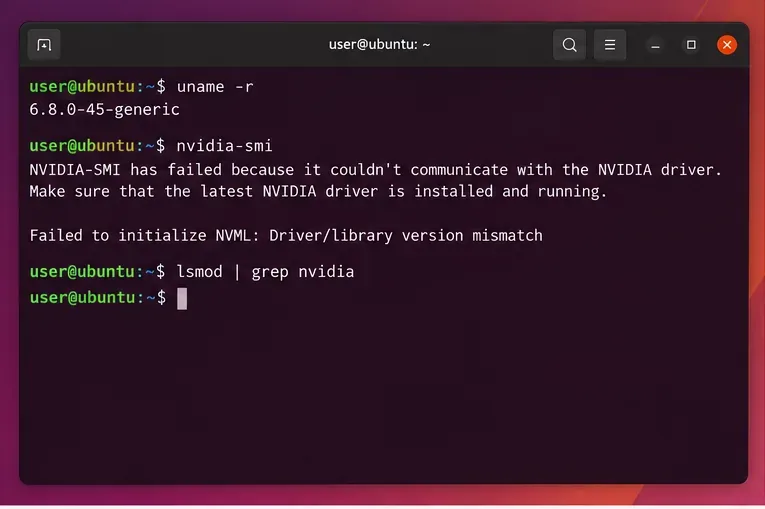
A typical post-update failure pattern: the new kernel is running, but the NVIDIA module is not loaded. The exact kernel and driver versions on your system may differ.
1. Confirm that the problem started with the current kernel
First record the running kernel and the current NVIDIA state:
If nvidia-smi fails and no nvidia modules appear in lsmod, the failure is below the CUDA or desktop application layer. If nvidia-smi reports Failed to initialize NVML: Driver/library version mismatch, Canonical documents this as a userspace/kernel-module mismatch that often follows a driver update; a reboot may be sufficient if the new module is already installed.
If you can still choose an older kernel from GRUB and the driver works there, that is strong evidence that the new kernel lacks a usable NVIDIA module. An older kernel is a useful temporary fallback, but it is not the final repair because you still need the current kernel and driver stack to agree.
2. Ask Ubuntu which driver branch it recommends
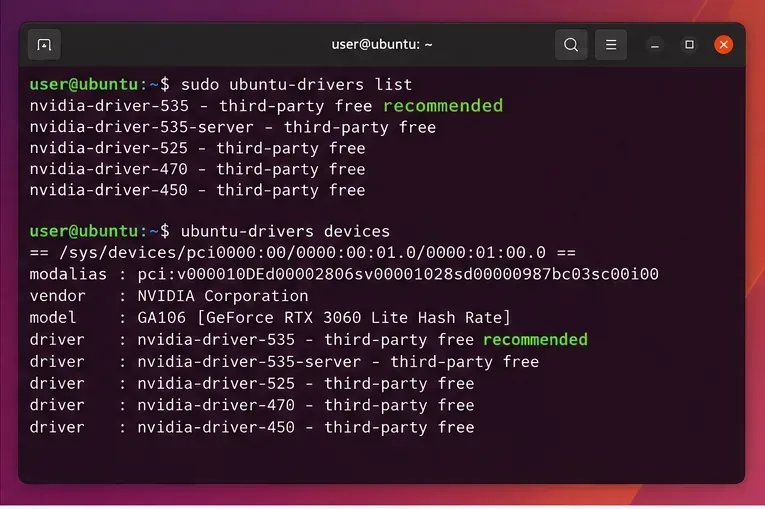
On a standard Ubuntu desktop or workstation, use Ubuntu's own driver selection logic rather than guessing a branch:
sudo apt update
sudo ubuntu-drivers list
For most desktop and gaming systems, Canonical recommends the normal UDA driver rather than a -server package. On compute servers, use the server guidance and ubuntu-drivers list --gpgpu when appropriate. If your system was previously installed with NVIDIA's standalone .run installer or a third-party repository, mixing package sources can make diagnosis harder. Canonical explicitly warns that drivers installed outside its documented methods can overwrite Ubuntu-provided components and can interfere with Secure Boot.
Use Ubuntu driver discovery to identify an appropriate branch for the installed GPU instead of hard-coding a version from another machine.
3. Check Secure Boot before rebuilding anything
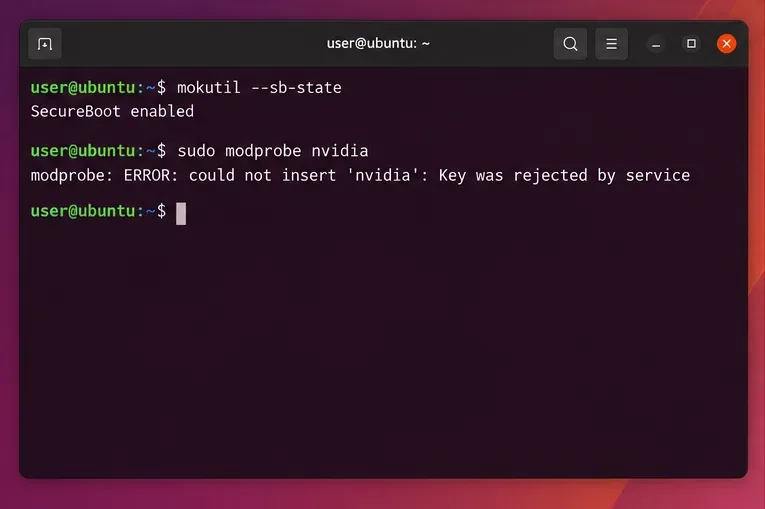
Secure Boot is a frequent reason an NVIDIA module exists on disk but will not load. Check its state:
mokutil --sb-state
sudo modprobe nvidia
If Secure Boot is enabled and modprobe returns a message such as Key was rejected by service, the kernel is enforcing module trust. Ubuntu has enforced validation of kernel modules under Secure Boot on supported amd64 releases for years. Canonical's preferred path is to use signed, precompiled NVIDIA modules when available. If you intentionally use DKMS, Ubuntu may require a Machine Owner Key (MOK) to be created and enrolled at reboot.
Do not disable Secure Boot as the first troubleshooting step. It can be a short diagnostic experiment in a controlled environment, but the better repair is usually to install a signed module or correctly enroll the MOK. Canonical documents the enrollment flow in its UEFI Secure Boot documentation.
A signature rejection points to Secure Boot trust rather than a missing GPU. Resolve module signing or MOK enrollment instead of repeatedly reinstalling userspace libraries.
4. Check whether the matching NVIDIA module exists for the running kernel
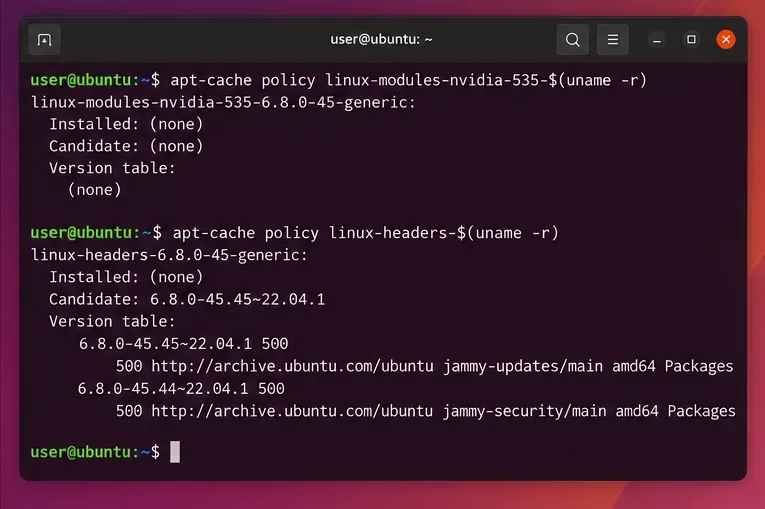
Ubuntu's precompiled NVIDIA packages are tied to a kernel ABI. Replace DRIVER_BRANCH with the branch shown by ubuntu-drivers list:
If the package is installed for the current kernel, continue to the Secure Boot, Nouveau, and log checks below. If it is missing, install the exact matching module package:
Canonical also supports installing the flavor metapackage, for example linux-modules-nvidia-${DRIVER_BRANCH}-generic, which helps future kernel upgrades pull the corresponding NVIDIA modules. The exact package name depends on your Ubuntu release, kernel flavor, driver branch, and whether you use a server variant, so verify the candidate shown by APT before confirming.
Checking package policy helps distinguish a missing kernel-specific NVIDIA module from a userspace driver problem.
5. If you use DKMS, make sure the current kernel headers are present
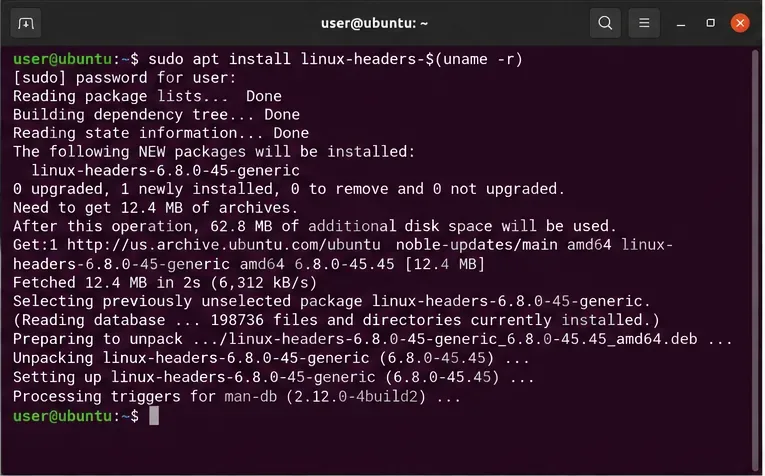
DKMS builds a module for the exact kernel you are running. It therefore needs matching kernel headers. Canonical recommends DKMS mainly when precompiled modules are unavailable, such as with some custom kernels.
sudo apt install linux-headers-$(uname -r)
dkms status
If the NVIDIA DKMS entry does not show a successful build for the current kernel, inspect the build log under /var/lib/dkms/ before trying random package removals. Typical failures include missing headers, unsupported compiler/kernel combinations, or a module-signing problem. After correcting the prerequisite, reinstall the appropriate DKMS package or use Ubuntu's automated path:
sudo ubuntu-drivers install --include-dkms
Use that command only when DKMS is actually required. Canonical's current desktop documentation says precompiled modules are the preferred choice for most users, especially with Secure Boot.
Matching kernel headers are required when DKMS must compile an NVIDIA module for the current kernel.
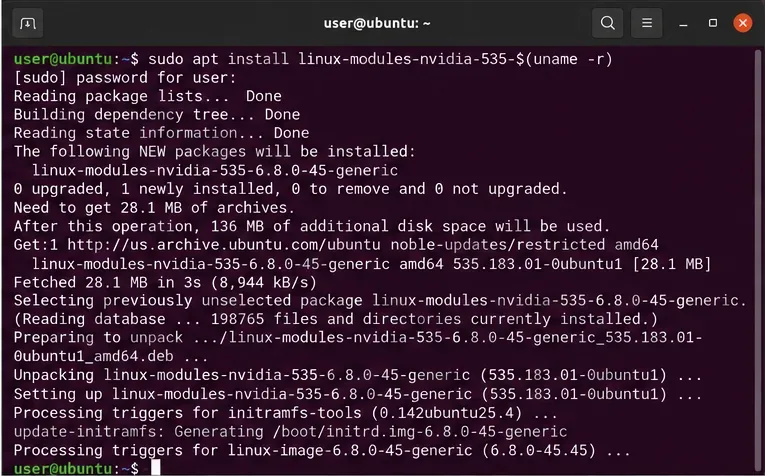
6. Install the missing precompiled module when available
If step 4 showed that the current kernel lacks the precompiled NVIDIA module, install it explicitly and let APT rebuild the initramfs:
Then verify that APT completed without dependency errors. Avoid forcing package installation with dpkg --force-*; that can leave the kernel module, userspace libraries, and metapackage at incompatible versions.
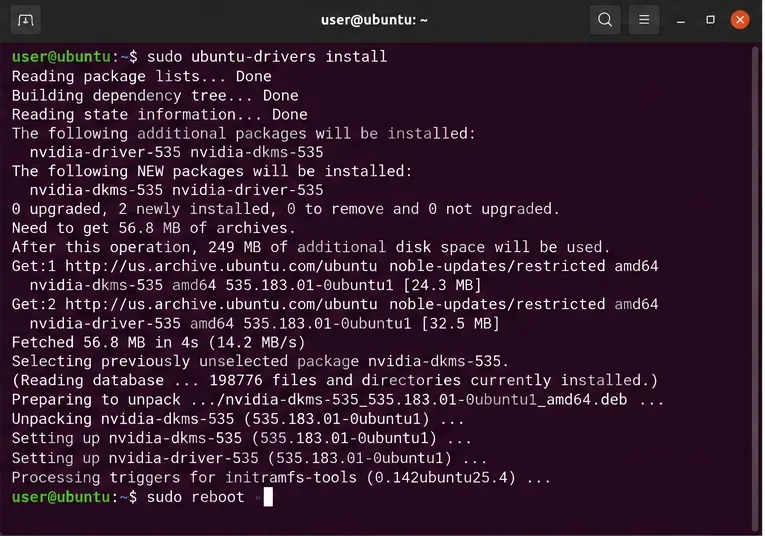
If you are not sure which branch to use, the safer general repair is:
sudo ubuntu-drivers install
Canonical states that ubuntu-drivers uses the same logic as the Additional Drivers application and, by default, chooses prebuilt signed drivers known to work with Secure Boot.
Installing the kernel-specific module package repairs the common case where the driver branch is present but the new kernel lacks its matching NVIDIA module.
7. Reboot after package changes
A reboot is not merely ceremonial here. The running kernel can keep an older NVIDIA module in memory while APT has already upgraded the userspace libraries on disk. Canonical specifically documents this as the cause of an NVML driver/library version mismatch after updates.
sudo reboot
After rebooting, do not immediately reinstall again. First verify the result with the commands in the next section.
After driver or kernel-module changes, reboot so the kernel loads the newly installed NVIDIA module and userspace components return to the same version.
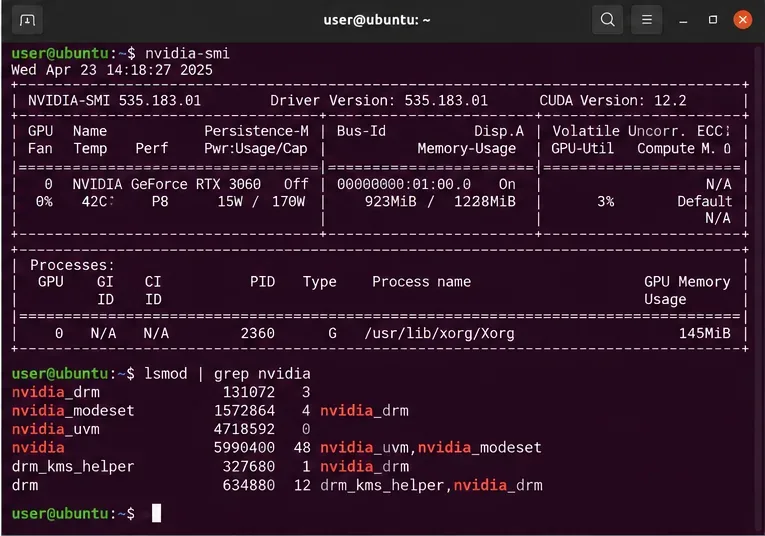
A successful repair has three useful signs: nvidia-smi lists the GPU, lsmod shows NVIDIA modules, and /proc/driver/nvidia/version reports the running module version. For CUDA workloads, also rerun the actual application or framework that failed before; nvidia-smi alone proves driver communication, not that every CUDA library in your environment is compatible.
A healthy end state: nvidia-smi can communicate with the GPU and the NVIDIA kernel modules are loaded. Values shown are an example, not a required version.
If it still fails: use the symptom to choose the next action
“Driver/library version mismatch”
Reboot first. Then compare the running kernel module version with installed packages. Canonical notes that updated userspace components can temporarily disagree with an older module still loaded in memory. If the mismatch persists after reboot, check for mixed package sources and multiple driver branches.
“No devices were found” and Nouveau is loaded
Check:
lsmod | grep nouveau
Ubuntu's server documentation says Nouveau can conflict with the proprietary NVIDIA driver in this situation. If Nouveau is loaded and you intend to use the proprietary driver, Canonical documents blocklisting it and rebuilding the initramfs:
echo "blacklist nouveau" | sudo tee /etc/modprobe.d/disable-nouveau.conf
echo "options nouveau modeset=0" | sudo tee -a /etc/modprobe.d/disable-nouveau.conf
sudo update-initramfs -u
sudo reboot
Do not blocklist Nouveau merely because it exists on disk; first confirm it is actually loaded and relevant to the failure.
modprobe nvidia says the key was rejected
Return to the Secure Boot path. Use signed Ubuntu modules when possible, or complete MOK enrollment for a DKMS module. Repeatedly reinstalling the same unsigned module will not change the trust decision.
The new kernel has no compatible module package
Boot a known-working older kernel temporarily, keep the system updated, and check whether Ubuntu provides a matching precompiled module for the newer kernel. If you are deliberately running a custom kernel, DKMS may be appropriate, but read its build log and confirm Secure Boot signing. Avoid pinning an old kernel indefinitely unless you have a maintenance plan for security updates.
Commands to collect before asking for help
These commands provide a compact diagnostic bundle without changing the system:
Include the Ubuntu release from lsb_release -a or /etc/os-release, the exact kernel from uname -r, and whether the driver was originally installed through Ubuntu packages, NVIDIA's repository, a PPA, or the standalone installer. Those details usually matter more than the generic statement that “the driver broke after an update.”
Practical prevention
Prefer Ubuntu's ubuntu-drivers or Additional Drivers workflow for normal desktop systems.
Keep the kernel flavor metapackage installed so future kernel updates can bring matching NVIDIA modules.
Reboot after kernel or NVIDIA driver upgrades instead of continuing with a mixed in-memory/on-disk stack.
Keep at least one known-working kernel available until you have confirmed the new one boots with the GPU driver.
Avoid mixing Ubuntu packages, PPAs, NVIDIA's standalone installer, and multiple repositories unless you intentionally manage the consequences.
The exact driver branch, kernel ABI, and package names are release-dependent. Always substitute values reported by your system and APT rather than treating example versions as universal.