How to Access a Windows BitLocker Partition in Linux

Use Dislocker to unlock a BitLocker volume in Linux, mount its virtual NTFS file read-only, and safely unmount it without exposing your password in a command.
Update note — October 6, 2026: Ubuntu 24.04.5 LTS was released on September 10, 2026, and its release notes include accumulated package and security updates. They do not list a general fix for Wi-Fi disconnects after suspend. Install current Ubuntu updates first, then diagnose the connection on your laptop; the correct fix depends on its wireless adapter and driver.
“Suspend” is the low-power sleep state that pauses most laptop activity until you open the lid or press a key. A Wi-Fi failure after resume can mean the wireless radio is blocked, the saved network connection did not reconnect, the access point is unavailable, or the kernel driver failed to restore the adapter. Work through those layers in order so you can tell whether the change actually improved reliability.
Save your work, connect by Ethernet if available, and install the updates offered for Ubuntu 24.04:
sudo apt update
sudo apt upgrade
Restart when package updates request it. Check which Ubuntu point release and kernel are running:
lsb_release -ds
uname -r
Ubuntu point releases bundle updates for the LTS release, but a newer point release is not a promise that every suspend issue is fixed. If updates do not resolve the fault, note your Wi-Fi chipset so later driver advice can be specific. For a PCI or built-in adapter, run:
lspci -nnk | grep -A3 -Ei 'network|wireless'For a USB Wi-Fi adapter, use lsusb. The chipset and the “Kernel driver in use” line are useful evidence; copy them along with the kernel version if you need support.
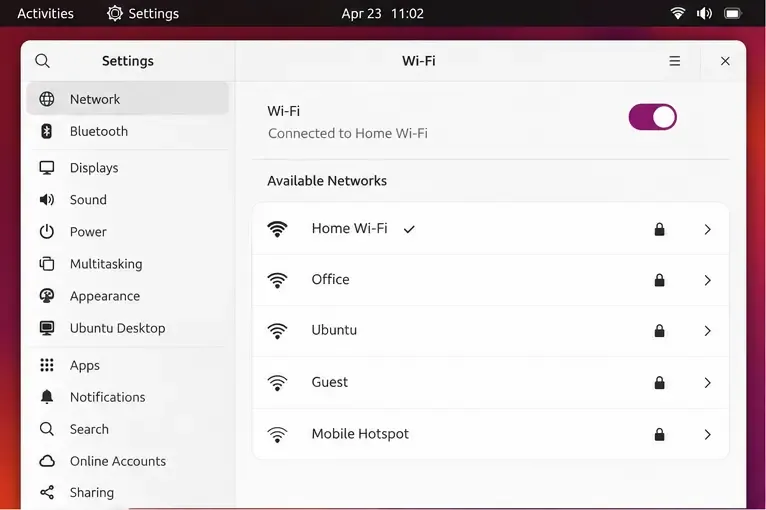
After the next failed resume, open Settings > Wi-Fi and make sure the Wi-Fi switch is on. Try selecting your network again. Test another trusted network or a phone hotspot if available: if only one access point fails, investigate its signal, router, or saved password before changing Ubuntu.
NetworkManager is the Ubuntu service that manages network connections. Its command-line tool, nmcli, shows whether the wireless device and saved connection are active:
nmcli device status
nmcli connection show --active
Read the Wi-Fi device row. If it says connected, Wi-Fi association is up, and the problem may be internet access, DNS, or the access point rather than a disconnected radio. If it says disconnected or unavailable, continue below.
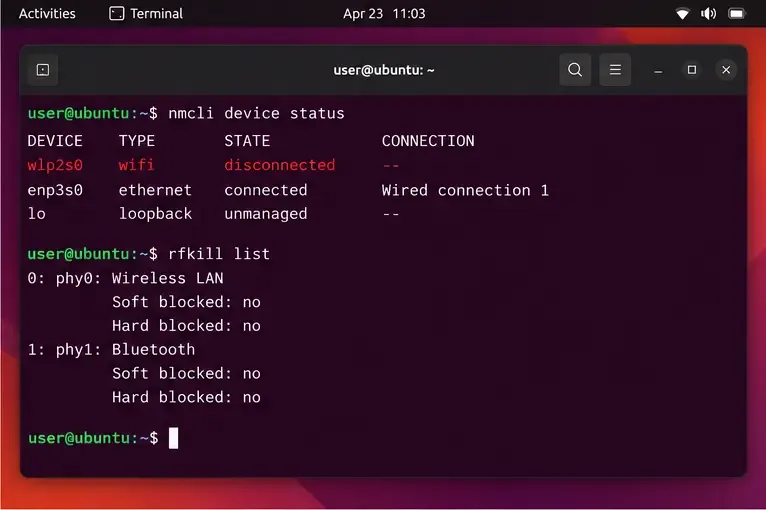
rfkill reports whether a wireless radio is disabled by software or by a hardware control:
rfkill listIf the Wi-Fi entry says Soft blocked: yes, try:
sudo rfkill unblock wifiThen turn Wi-Fi off and on in Settings or retry the connection. If it says Hard blocked: yes, a software command cannot clear the hardware block. Check the laptop’s wireless switch or function key, airplane-mode control, and firmware setup. Do not assume the Bluetooth entry is the Wi-Fi adapter; identify the wireless LAN entry.
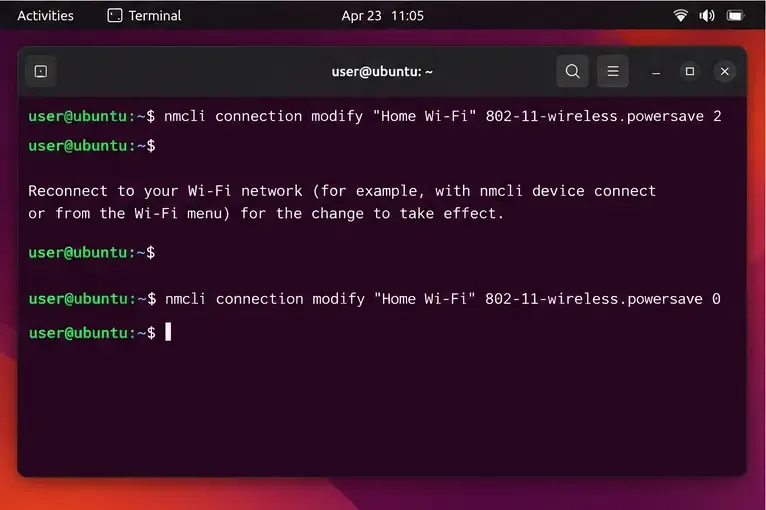
Some adapter and driver combinations behave differently when the radio enters a low-power state. NetworkManager exposes a per-connection wireless power-saving setting. Testing it on one saved profile is easy to reverse and does not disable power saving for every network on the computer.
List saved connections and copy the exact Wi-Fi profile name, including spaces:
nmcli -f NAME,TYPE connection showReplace Home Wi-Fi with that name. The value 2 disables Wi-Fi power saving for that profile:
sudo nmcli connection modify "Home Wi-Fi" 802-11-wireless.powersave 2Reconnect to the profile for the change to take effect. You can use the Wi-Fi menu, or run:
nmcli connection down "Home Wi-Fi"
nmcli connection up "Home Wi-Fi"
The brief disconnect is expected. Test several suspend-and-resume cycles in the places where the failure usually occurs. If the drops stop, keep the setting and watch battery life: preventing Wi-Fi power saving can use more energy. If there is no clear improvement, restore the profile default with:
sudo nmcli connection modify "Home Wi-Fi" 802-11-wireless.powersave 0In NetworkManager’s setting reference, 0 means “use the default,” while 2 means “disable.” Restoring the default does not force power saving on; it returns control to the system’s default behavior.
The kernel is the core of Linux, and its log often records whether a wireless driver resumed successfully. Right after reproducing the problem, inspect recent kernel messages:
journalctl -b -k --since "10 minutes ago"To narrow the output, you can filter common wireless terms:
journalctl -b -k --since "10 minutes ago" | grep -Ei 'wifi|wlan|firmware|iwlwifi|ath|rtw|mt76|brcm|resume|suspend'Driver names vary by vendor; for example, an Intel adapter may use a driver with iwlwifi in its name, while other adapters use different modules. Do not treat any single log line as proof of a failure. Look for repeated firmware-load errors, device resets, or disconnects at the time you woke the laptop. You can also check NetworkManager’s log for the same interval:
journalctl -b -u NetworkManager --since "10 minutes ago"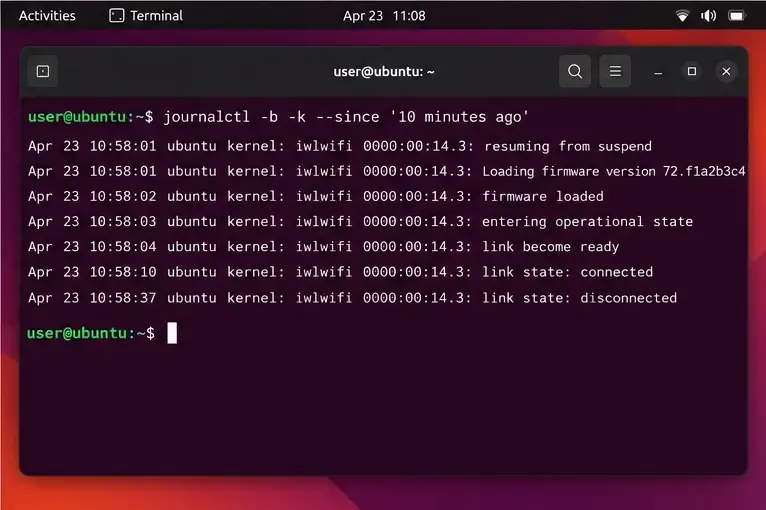
A useful fix should survive more than one wake event. After each test, confirm the Wi-Fi device returns to connected in nmcli device status, reconnects to the intended network without repeated manual toggling, and can reach the internet. The Wi-Fi icon alone is not enough to prove internet access. If you can, compare behavior on a second access point and note whether the problem happens on battery, on AC power, or both.
If the issue began immediately after a kernel update, you can use the “Advanced options for Ubuntu” entry in the GRUB boot menu to test an already installed older kernel, if one is available. This is a comparison test, not a permanent downgrade. If the older kernel resumes Wi-Fi reliably and the current one does not, include both kernel versions and the wireless chipset in an Ubuntu bug report or support request. Do not remove the newer kernel until you have a recovery path.
802-11-wireless.powersave.Use Dislocker to unlock a BitLocker volume in Linux, mount its virtual NTFS file read-only, and safely unmount it without exposing your password in a command.
Learn how to reduce RAM usage on Linux by finding memory-hungry apps, trimming browser and startup load, and testing a lighter desktop safely.
Compare four WhatsApp alternatives for Linux by privacy defaults, desktop support, setup requirements, and the people each app suits.
Troubleshoot a VirtualBox VM that will not start on Linux by checking vboxdrv, kernel headers, Secure Boot, Extension Pack versions, and VM logs.
Transfer your Ubuntu user data with a tar archive and external drive, then restore personal files and selected settings without overwriting the new setup.
Install gThumb on Linux, browse and make simple photo edits, then set it as the default app for the image types you choose in GNOME.
Create an organized playlist in Rhythmbox or save a reusable XSPF playlist in VLC. Learn how to add tracks, name a list, and reopen it on Linux.
Install Dino on Linux with Flatpak or your distribution’s package manager. Get current Ubuntu, Debian, Fedora, and Arch commands, plus first-launch tips.
Install Arch Linux’s linux-lts kernel, add it to GRUB or systemd-boot, select it at startup, and verify it while keeping a fallback kernel.
Download the right Pi 4 image, write it to a microSD card, and complete LibreELEC’s first-run setup with Raspberry Pi Imager.








