Home
» LINUX
»
How to Format a USB Drive to FAT32 on Linux
How to Format a USB Drive to FAT32 on Linux
To format a USB drive to FAT32 on Linux, you can use GNOME Disks for a graphical workflow or mkfs.fat in a terminal. Both methods erase the selected partition, so copy off anything you need before you begin and double-check the device name before confirming the format.
FAT32 is useful when a USB drive must work with a wide range of computers, TVs, game consoles, cameras, and other devices. Its main drawback is the 4 GiB maximum size for a single file. If you routinely move larger files, exFAT is usually a better choice. Microsoft documents the FAT32 file-size limit in its file-system comparison.
Method 1: Format a USB drive to FAT32 with GNOME Disks
GNOME calls the application Disks. It is preinstalled on many desktop Linux distributions; if it is missing, install GNOME Disks from your distribution's software center or package repositories. The current GNOME help workflow uses Format Partition… rather than the older “Format Disk” sequence. See the official GNOME removable-disk formatting guide.
1. Select the USB drive
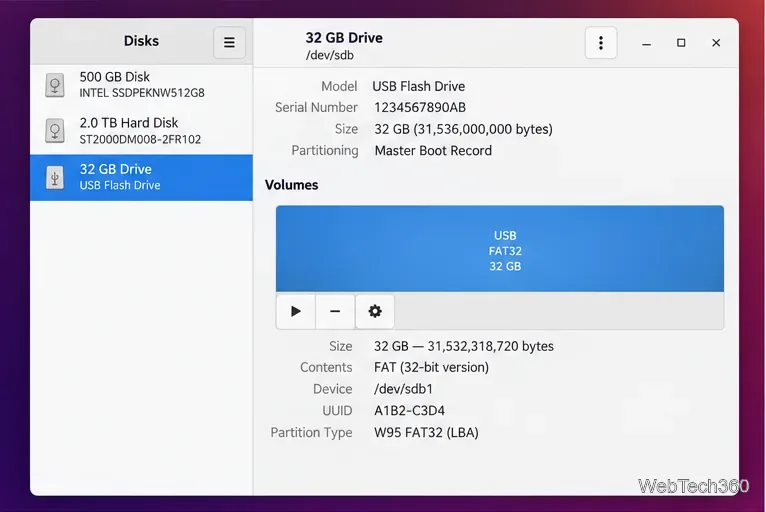
Plug in the USB drive, open Disks, and select the removable drive in the left sidebar. Match its capacity and model so you do not accidentally choose your system disk.
Select the removable USB drive and verify its size before formatting.
2. Open Format Partition
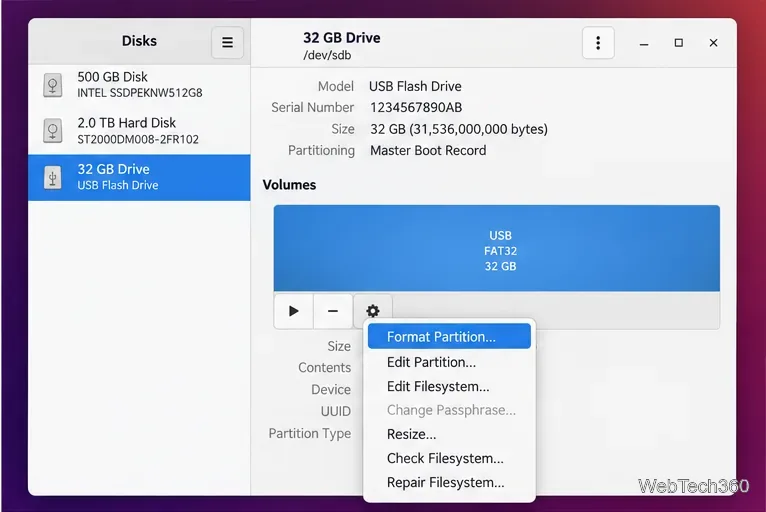
Under Volumes, select the partition you want to reformat. Open the gear menu below the volume map and choose Format Partition…. Formatting the partition deletes its files; it is not a secure-erasure procedure.
Use the volume menu and choose Format Partition.
3. Choose FAT and set a volume name
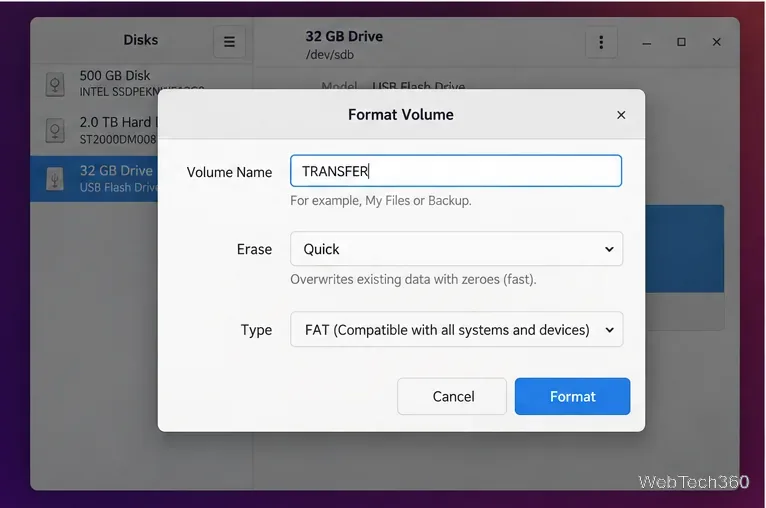
Enter a short volume name such as TRANSFER. For the file-system type, choose the FAT option described as compatible with common systems and devices. GNOME presents this as FAT; for a normal modern USB partition of suitable size, the result is FAT32. Leave the erase mode at the normal quick option unless you have a specific reason to overwrite existing data.
Choose FAT, optionally set a volume name, and review the options before formatting.
4. Confirm the format and eject safely
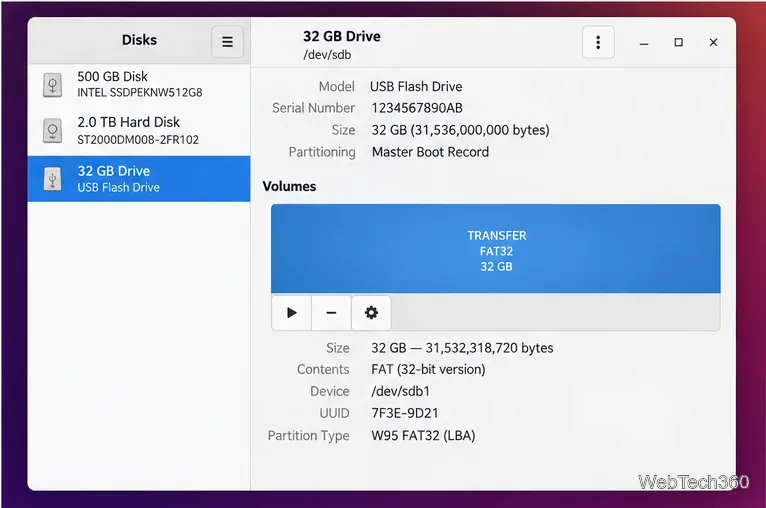
Click Next or Format as shown by your GNOME version, review the confirmation carefully, authenticate if prompted, and wait for the operation to finish. The volume details should then report a FAT 32-bit filesystem. Eject the USB drive before unplugging it.
After formatting, GNOME Disks shows the new FAT32 volume and label.
Method 2: Format a USB drive to FAT32 from the terminal
The terminal method uses lsblk, umount, and mkfs.fat. The mkfs.fat program is part of dosfstools; the upstream project lists it as the utility used to create FAT-family filesystems. If the command is missing, install the dosfstools package from your distribution repositories. See the dosfstools upstream repository.
1. Identify the correct partition
Run:
lsblk -f
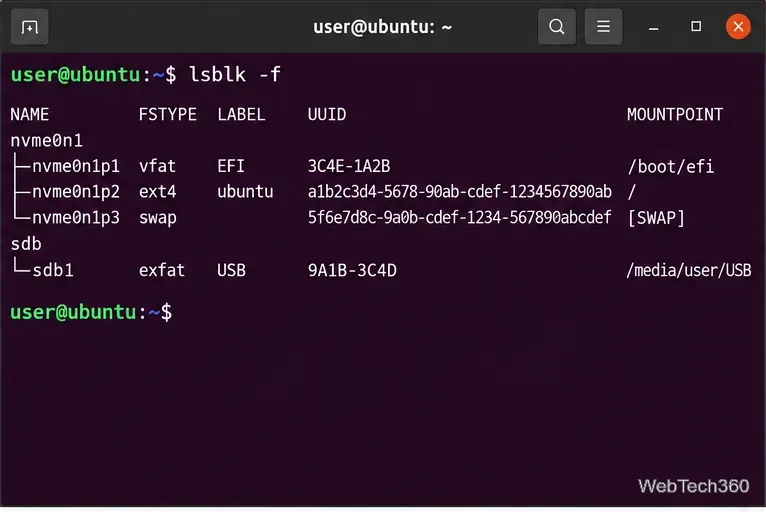
Find the USB device by its size, filesystem, label, and mount point. In the example below, the USB partition is /dev/sdb1. Your device name will probably be different. Do not copy the example blindly.
Use lsblk -f to identify the USB partition before running any destructive command.
2. Unmount the USB partition
Unmount the partition before creating a new filesystem:
sudo umount /dev/sdb1
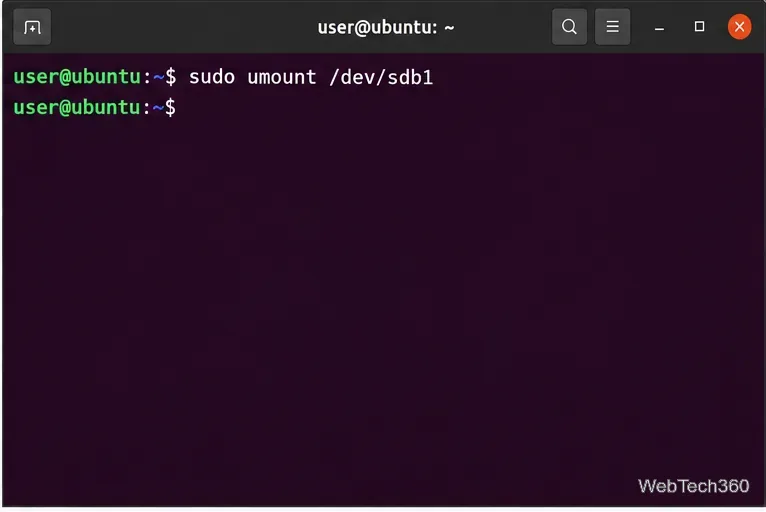
Replace /dev/sdb1 with the partition you identified. If the command says the target is busy, close any file-manager windows, terminals, or applications using files on the USB drive and try again.
Unmount the target partition before formatting it.
3. Create the FAT32 filesystem
Run mkfs.fat with -F 32 to explicitly request FAT32. The optional -n flag sets the volume label:
sudo mkfs.fat -F 32 -n TRANSFER /dev/sdb1
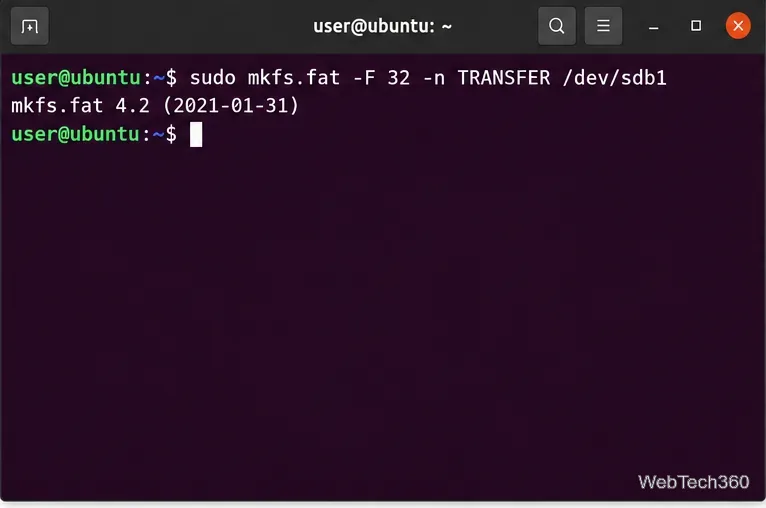
The upstream utility documents -F 32 for selecting FAT32 and limits traditional FAT labels to 11 characters. Again, target the partition such as /dev/sdb1, not your internal system drive.
The mkfs.fat command creates a FAT32 filesystem and assigns the TRANSFER label.
4. Verify the result
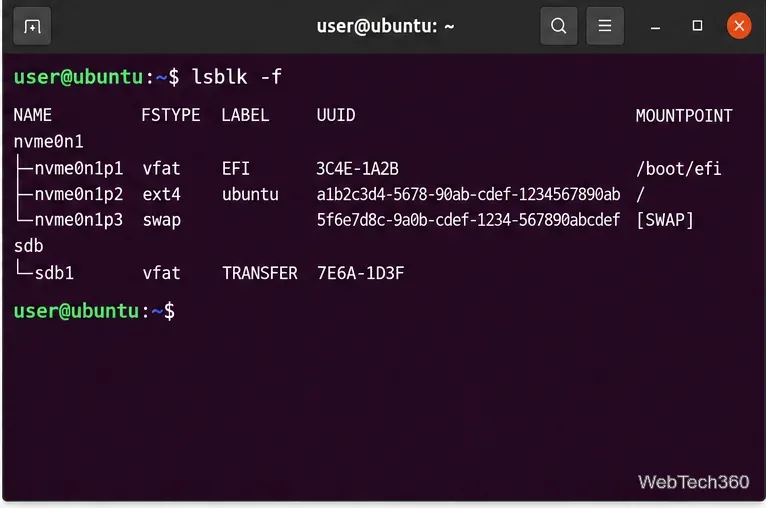
Run lsblk -f again. Linux commonly reports a FAT32 filesystem as vfat; you should also see the new label if you set one. After verification, mount the drive normally from your desktop or unplug it only after it has been safely ejected.
A final lsblk -f check confirms the USB partition is now a vfat FAT32 volume.
Common problems
mkfs.fat: command not found: install the dosfstools package for your distribution.
Device or resource busy: unmount the partition and close programs that are using it.
“File too large” after formatting: FAT32 cannot store a single file larger than 4 GiB. Reformat to exFAT if the destination device supports it.
No partition exists: in GNOME Disks, create a partition first, then format that partition as FAT.
For most users, GNOME Disks is the safer choice because it makes the target device easier to recognize. The terminal method is faster for experienced users and scripts, but only after the correct partition has been positively identified.