Home
» LINUX
»
How to Get GOG Galaxy Working on Linux: Best Current Options
How to Get GOG Galaxy Working on Linux: Best Current Options
GOG Galaxy still does not have a native Linux version. GOG’s current system requirements list Windows and macOS for GOG GALAXY, not Linux. For most Linux users, the best way to access a GOG library is to use Heroic Games Launcher, a native open-source launcher that supports GOG. If you specifically need the Windows GOG Galaxy interface, you can try it through Lutris, but that setup is unofficial and can break after Galaxy or Wine updates.
Best option: use Heroic Games Launcher for GOG on Linux
Heroic is a native Linux launcher for GOG, Epic Games, and Amazon Games. Its Linux documentation recommends Flatpak for the simplest cross-distribution installation, and it includes a Wine/Proton manager for Windows-only games. The project’s Linux Quick Start Guide covers the same basic workflow.
1. Install Heroic
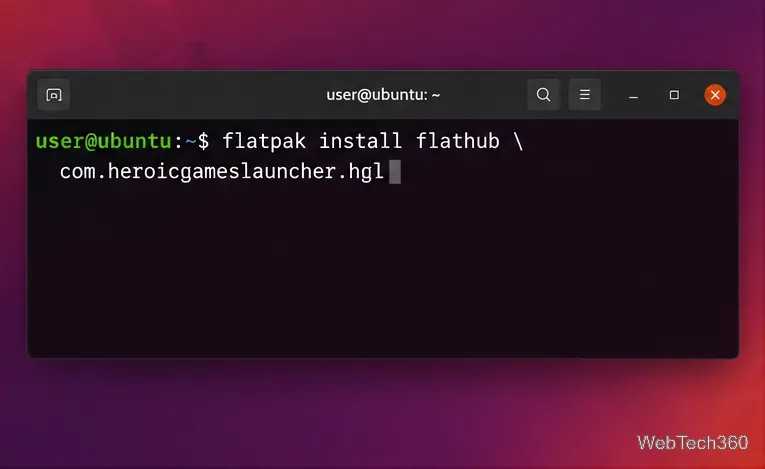
If Flatpak is already configured, open a terminal and run:
Install the Heroic Flatpak, the recommended Linux package for most distributions.
2. Connect your GOG account
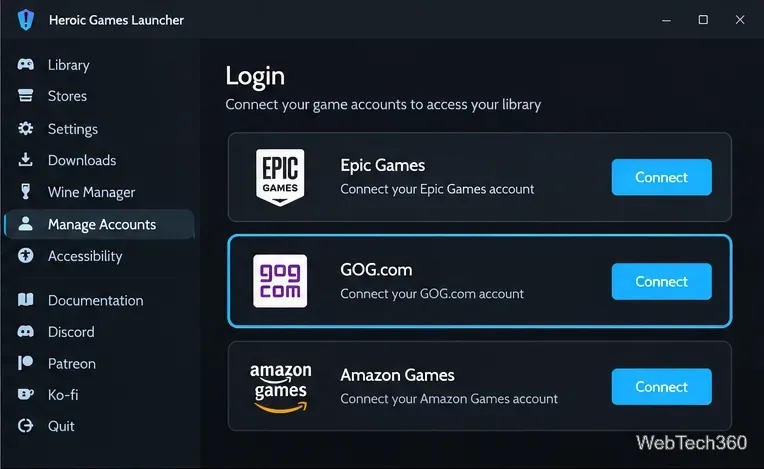
Launch Heroic, open the account sign-in area, and choose GOG. Complete the GOG sign-in flow that Heroic opens. After authentication, your GOG purchases should appear inside Heroic’s library alongside any other stores you have connected.
Choose GOG in Heroic’s account screen to connect your library.
3. Find the GOG game you want to install
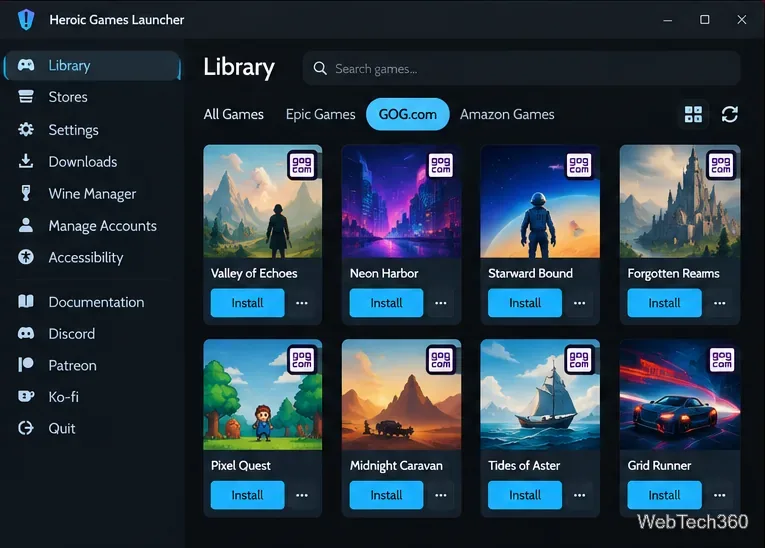
Open Library and use the GOG filter to show only your GOG purchases. Select a game and choose Install. Linux-native releases do not need a Windows compatibility layer. For Windows-only titles, Heroic can use Wine or Proton through its built-in Wine Manager.
Filtering the library to GOG makes it easy to find the title you want to install.
4. Choose the install path and compatibility runner
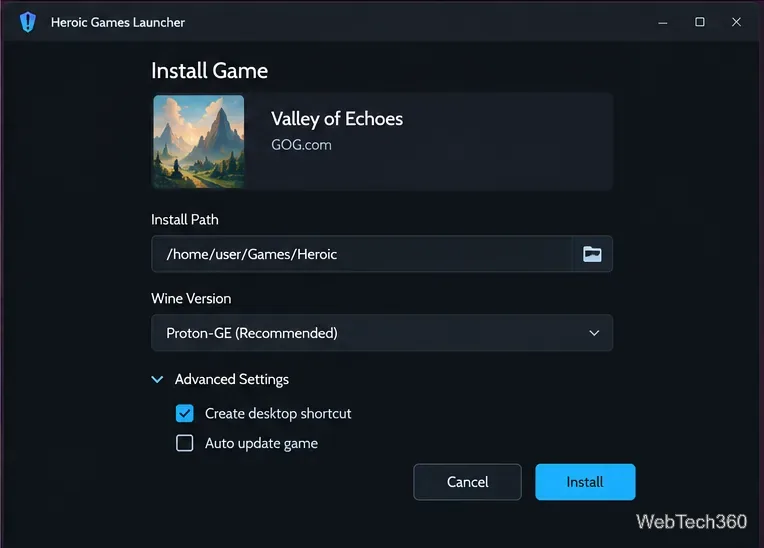
Review the install directory before starting the download. For a Windows game, select a suitable Wine/Proton runner; Heroic’s current Linux guidance recommends keeping a recent Proton-GE option available. If you install to an external or unusual folder while using the Flatpak build, you may need to grant Heroic filesystem access first, as described in the project’s Linux guide.
Windows-only GOG games can be installed with a compatible Wine or Proton runner.
Lightweight alternative: Minigalaxy
If you only care about GOG and want a simpler native client, Minigalaxy is still a useful option. It can sign in to GOG, download and update games, manage DLC, and launch Linux games; it also has Wine support for Windows titles. The project warns that GOG changed API behavior in mid-2026, so versions older than 1.4.2 may fail to show or install some games correctly. Check the Minigalaxy project page before installing.
Minigalaxy is also packaged by several distributions, including Debian/Ubuntu, Fedora, and openSUSE, according to the project’s current installation documentation.
If you need the actual Windows GOG Galaxy client
Use Lutris instead of manually running a random Galaxy EXE with a bare Wine prefix. Lutris maintains a GOG Galaxy installer that creates the Wine environment and installs the Windows components Galaxy expects. At the time of this update, its script targets GOG Galaxy 2.1.6.29 and a Proton-GE runner.
This remains an unsupported Linux configuration: GOG does not provide Linux support for Galaxy itself, and a future client update can stop working under Wine. If your goal is simply to download and play GOG games, Heroic or Minigalaxy is usually less fragile.
You can also skip a launcher entirely
GOG still lets customers download offline installers from their account. GOG’s official download instructions explain how to open a purchased game and use its offline backup installers. This is a good fallback when you do not need launcher features and a suitable installer is available for your game.