How to Share Files Over Bluetooth on Linux with Blueman

Send and receive files over Bluetooth on Linux with Blueman. Install OBEX support, pair devices, choose a file, accept transfers, and fix common issues.
The simplest way to get Google Photos on Linux is to use the service in a web browser. Open photos.google.com, sign in to your Google Account, and use your library there. If you want an app-like launcher, Chrome can install a supported web app or create a website shortcut on Linux. You do not need an old Snap package or an Electron wrapper to view, upload, or download photos.
Google’s current computer instructions are browser-based. The optional Chrome app keeps the service connected to Google Photos online; it is not a separate local photo manager. The interface illustrations below show the general workflow and are not captured screenshots.
For basic access, open an up-to-date browser on Linux and visit photos.google.com. Select the option to go to Google Photos, then sign in with the Google Account that contains your library. Google’s getting-started guide documents this same computer workflow.
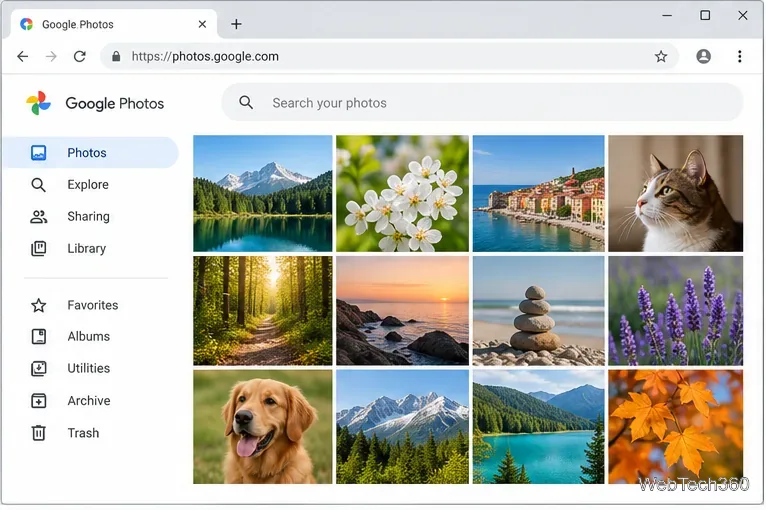
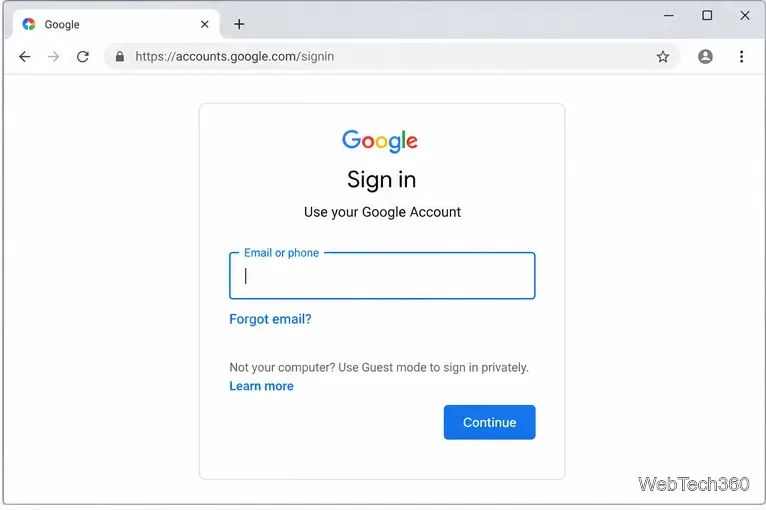
When the library loads, use the left navigation to browse Photos, albums, or other sections, or use search to find a picture. Your backed-up library is associated with the account you sign in to, so check the profile icon if the page looks empty or shows the wrong collection.
Chrome can open a supported web app from your Linux desktop launcher. The app-style window remains connected to Google Photos online; it does not create a separate local photo catalog.
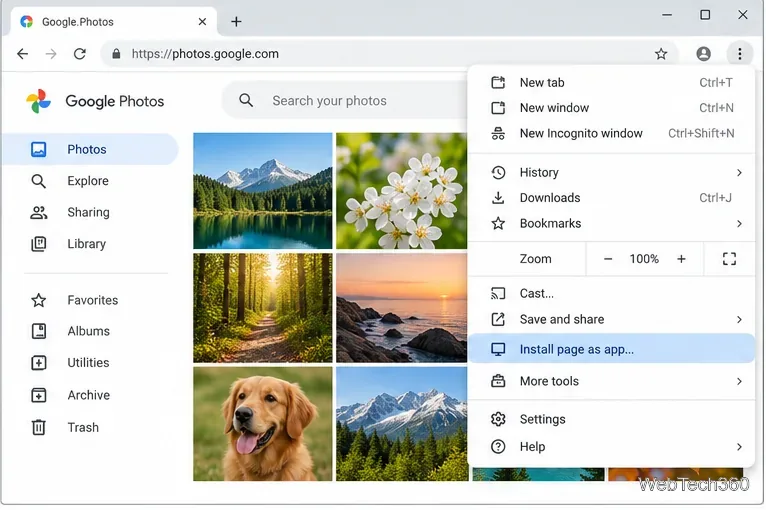
chrome://apps, right-click the app, choose Create shortcut, select a location, and confirm.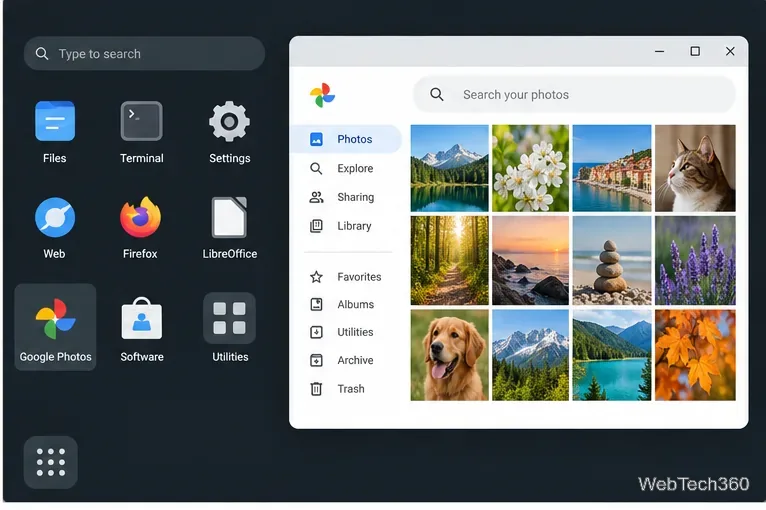
If Install page as app is missing, choose Chrome’s Cast, save, and share > Create shortcut… option instead. Name it “Google Photos.” A website shortcut is a quick launcher entry; depending on Chrome and the desktop environment, it may open in a regular browser window rather than a separate app-style window. Google describes website shortcuts and web apps in its shortcut guide.
To upload a few files, open Google Photos in the browser and select Create and add photos > Import photos. Choose the pictures on your Linux drive and select Open. You can also drag photos from the file manager into an album. For Google’s current steps, see Back up photos and videos on a computer.
If Photos offers Back up folders in your browser, you can select a folder and grant the requested access. Keep the Photos tab open or the Photos web app running while it uploads; Google says closing the tab stops that browser-based folder backup. If the folder option is unavailable or the browser is reported as unsupported, update the browser or try another supported browser.
To save an item locally, open the photo or video, select More > Download. This creates a local copy on Linux; it does not remove the item from your Google Photos library. Google lists the same steps in its download guide.
chrome://apps and create a shortcut there, or use the browser bookmark as a fallback. Desktop environments place shortcuts in different menus.The web app uses the same online Google Photos account as other devices, so your backed-up pictures remain available when you sign in. It does not turn a Linux folder into an always-running sync service unless you explicitly set up browser-based folder backup and leave Photos running. Some editing features also differ between the web experience and the Android or iOS apps; Google notes that certain editing tools are not available on the web. For most Linux users who want to browse, organize, upload, and download photos, the browser plus an optional Chrome launcher shortcut is the simplest current setup.
Send and receive files over Bluetooth on Linux with Blueman. Install OBEX support, pair devices, choose a file, accept transfers, and fix common issues.
Connect GNOME Files to SSH/SFTP, FTP, SMB, WebDAV, or NFS with the correct server URI, sign-in details, and fixes for common connection errors.
Open SFTP, SSH, SMB, FTP, NFS, and WebDAV locations in Dolphin, sign in safely, transfer files, and save network folders for later.
Connect a DualShock 4 to Linux by USB or Bluetooth, then check controller detection and configure Steam Input only when a game needs it.
Use DNF5 parallel downloads to reduce RPM install waits in GNOME Software, then tell when mirror or Flatpak delays need a different fix.
Access iCloud on Linux in a current browser. Learn how to sign in, use iCloud Drive and other web apps, and understand the limits of browser access.
Save GRUB settings, boot files, and UEFI entry details to removable storage, then use rescue media to repair the correct boot path safely.
Install Bitwarden on Linux with the right DEB, RPM, Snap, Flatpak, or AppImage package, then sign in and set a secure vault timeout.
Pick a screensaver theme in Xfce, preview it, choose when it starts, and configure automatic locking in the separate Lock Screen tab.
Stop GNOME Shell from blanking or locking your display automatically. Change Power and Screen Lock settings, or use Caffeine for a temporary keep-awake toggle.








