How to Share Files Over Bluetooth on Linux with Blueman

Send and receive files over Bluetooth on Linux with Blueman. Install OBEX support, pair devices, choose a file, accept transfers, and fix common issues.
For most Linux desktops, the simplest way to get the current stable release of Mozilla Thunderbird is to install its Flatpak from Flathub. Thunderbird’s own Linux documentation says the Thunderbird team maintains this Flatpak and that it tends to receive new stable releases quickly. If you use Ubuntu or Debian and prefer a native package, Mozilla now recommends its own signed APT repository. Choose one installation method so you do not end up with duplicate launchers or confusing versions.
The steps below install Thunderbird’s regular Release channel. ESR is a separate long-term-support channel; Beta and Daily are intended for people who want to test work in progress. If you are unsure which one you need, use the regular Release.
Check for Flatpak and Flathub. Open a terminal and run flatpak --version. If Linux says the command is not found, install Flatpak using your distribution’s package manager, then follow Flathub’s installation instructions for your distro. Those instructions also explain how to add the Flathub repository. If you prefer a graphical store, use the verified Thunderbird listing on Flathub and confirm Flathub is the selected source in your store.
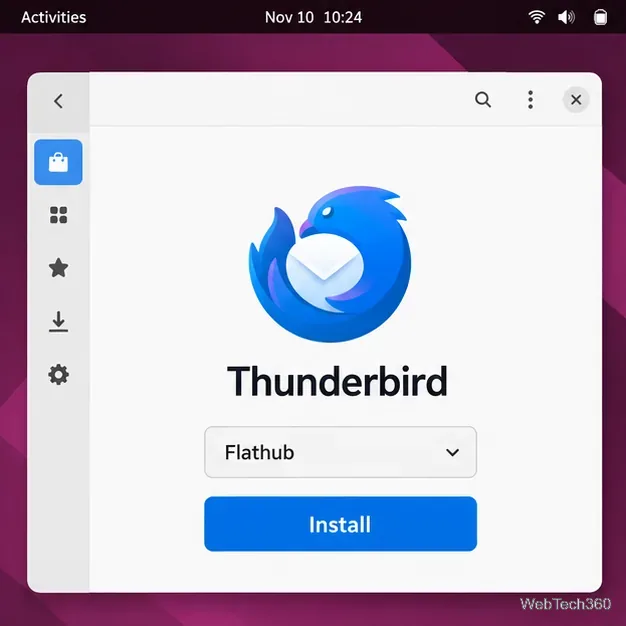
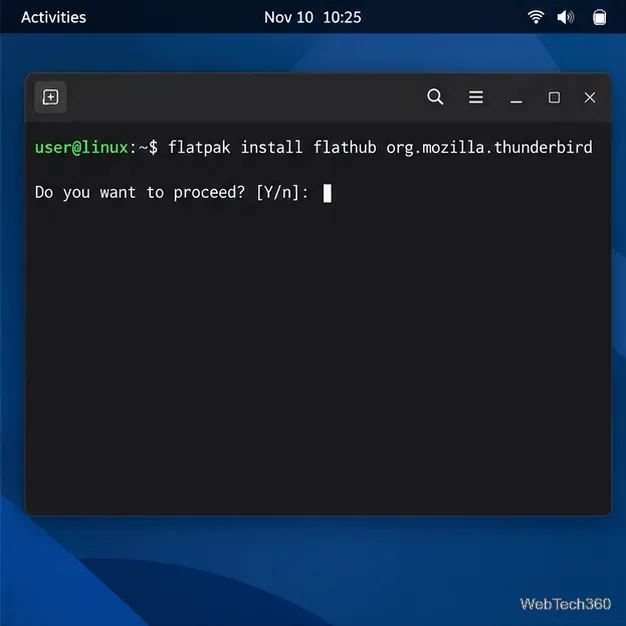
Install Thunderbird. In the terminal, enter:
flatpak install flathub org.mozilla.thunderbirdRead the package and runtime details shown by Flatpak. Type y if it asks you to confirm. The command uses Thunderbird’s stable Flathub app ID, org.mozilla.thunderbird.
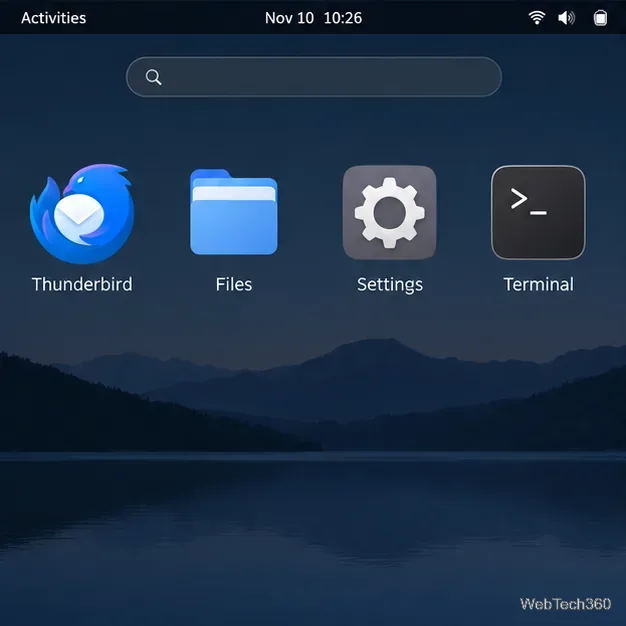
Launch the app. When installation finishes, open the applications menu and choose Thunderbird. Add your email account in the setup window. If Thunderbird does not appear in the launcher, you can start it from a terminal with flatpak run org.mozilla.thunderbird.
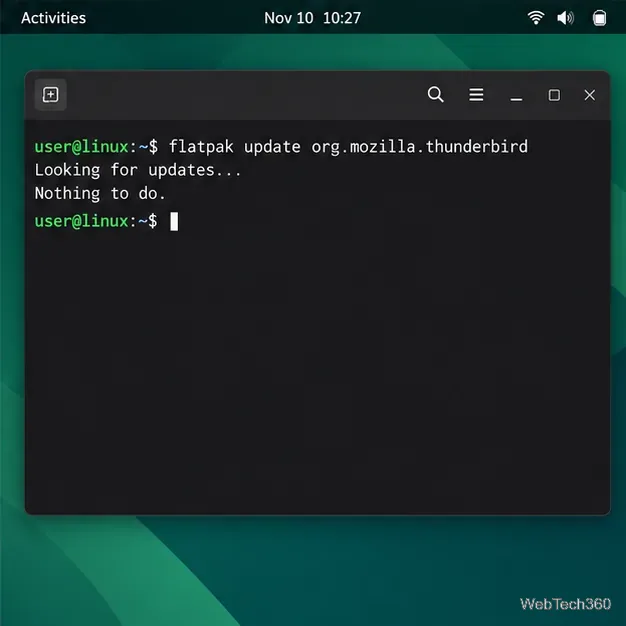
Install future updates. Flatpak packages are updated through Flatpak or your desktop’s software store. To check for Thunderbird updates from a terminal, run:
flatpak update org.mozilla.thunderbirdFlatpak checks the configured remote and installs an update when one is available. If it reports that there is nothing to do, the installed copy is already current in that remote.
For a native DEB package, Mozilla’s current Linux guide lists its signed APT repository as the recommended option for Ubuntu-based and Debian-based systems. The setup has a few more steps than Flatpak because you must add Mozilla’s signing key and repository, and configure APT to prefer that source. Once configured, install Thunderbird through APT and receive later updates through your normal system update process.
Follow the official Thunderbird Linux installation guide for the exact commands. It gives different repository-file formats for Debian Bookworm/Ubuntu Noble and older releases versus Debian Trixie/Ubuntu Resolute and newer ones, and includes the signing-key fingerprint to verify. Use the branch matching your installed distribution version. The older Mozilla Team PPA instructions found in some Linux tutorials are not the method recommended in Mozilla’s current guide.
You can use Thunderbird from your distribution’s package manager if you value the integration it provides. The tradeoff is update timing: distribution maintainers decide when a new Thunderbird build reaches their repositories, so it can trail the version available from Thunderbird or Flathub. For a cross-distro package with faster stable updates, use the Flatpak steps above.
Thunderbird also publishes Linux downloads on its official download page. Mozilla documents manual channel installation for advanced users, so a downloaded archive is best when you specifically need a direct build or know how to manage the installation location and profile. Avoid unpacking a second copy over an existing installation unless you understand which launcher and profile it will use.
To see which version is running, open Thunderbird’s Help menu and choose About Thunderbird. Update behavior depends on how you installed it: Flatpak and distribution packages are updated by their package tools, while a manual install has Thunderbird’s built-in updater. Mozilla explains the manual update process and notes that distro-packaged builds may wait for their maintainer’s next repository update.
Your account settings, local messages, passwords, and preferences live in a Thunderbird profile separate from the application files. Before changing package formats or release channels, close Thunderbird and make a backup of the profile. On Linux, the default profile directory is usually under ~/.thunderbird/; use Help > Troubleshooting Information to open the active profile folder and confirm its location. See Mozilla’s instructions for finding and backing up a Thunderbird profile.
In short, choose one source, install the stable Release, and update it through that same source. For most Linux distributions that means Flathub; for Ubuntu and Debian users who want a native package, use Mozilla’s official APT repository.
Send and receive files over Bluetooth on Linux with Blueman. Install OBEX support, pair devices, choose a file, accept transfers, and fix common issues.
Connect GNOME Files to SSH/SFTP, FTP, SMB, WebDAV, or NFS with the correct server URI, sign-in details, and fixes for common connection errors.
Open SFTP, SSH, SMB, FTP, NFS, and WebDAV locations in Dolphin, sign in safely, transfer files, and save network folders for later.
Connect a DualShock 4 to Linux by USB or Bluetooth, then check controller detection and configure Steam Input only when a game needs it.
Use DNF5 parallel downloads to reduce RPM install waits in GNOME Software, then tell when mirror or Flatpak delays need a different fix.
Access iCloud on Linux in a current browser. Learn how to sign in, use iCloud Drive and other web apps, and understand the limits of browser access.
Save GRUB settings, boot files, and UEFI entry details to removable storage, then use rescue media to repair the correct boot path safely.
Install Bitwarden on Linux with the right DEB, RPM, Snap, Flatpak, or AppImage package, then sign in and set a secure vault timeout.
Pick a screensaver theme in Xfce, preview it, choose when it starts, and configure automatic locking in the separate Lock Screen tab.
Stop GNOME Shell from blanking or locking your display automatically. Change Power and Screen Lock settings, or use Caffeine for a temporary keep-awake toggle.








