How to Access a Windows BitLocker Partition in Linux

Use Dislocker to unlock a BitLocker volume in Linux, mount its virtual NTFS file read-only, and safely unmount it without exposing your password in a command.
Hardening SUSE Linux Enterprise Server 15 (SLES 15) for Security Technical Implementation Guide (STIG) compliance takes more than running a scanner. Start by matching the installed service pack to the current DISA checklist and SCAP content, baseline the host, review each finding for service impact, remediate in a test environment, and rescan. Keep the machine-readable scan results and the human-reviewed STIG checklist together as evidence.
Current release note, checked October 6, 2026: SUSE’s DISA listing shows the SLES 15 STIG as V2R8, dated July 10, 2026. The separately listed SLES 15 SCAP Benchmark is V2R9, also dated July 10, 2026. Those revision labels belong to separate artifacts, so check both before you scan. Use the current DISA checklist for formal review and the matching SUSE SCAP content for automated checks.
The interface images below are conceptual software illustrations. They show the kinds of information and command examples discussed here; they are not screenshots of a system that was scanned or changed.
Use the SLES 15 STIG when that benchmark is the applicable baseline for your organization or contract. DISA states that STIGs are required for systems connecting to DoD networks; other organizations may adopt them through policy, customer requirements, or risk decisions. Confirm the scope with your security authority before changing a host.
A web server, database node, SAP host, and hardened appliance may have different operational constraints. The platform baseline is the same reference point, but each rule still needs to be assessed for applicability, dependencies, and service impact. A finding that requires disabling a service or changing authentication can interrupt an application or remote administration if applied without testing.
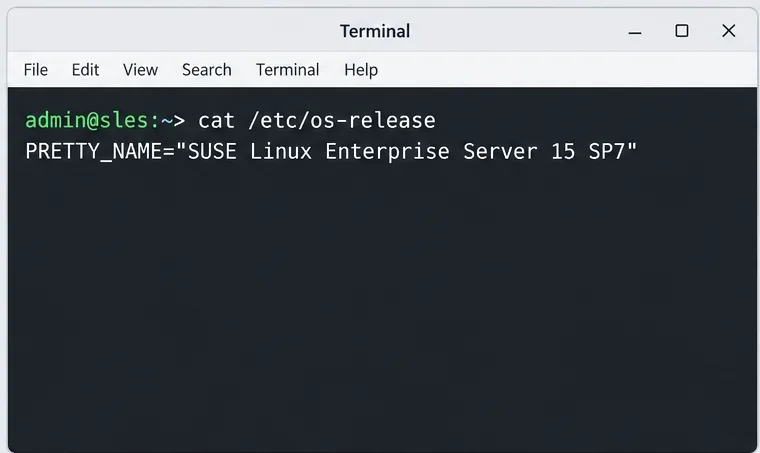
Confirm the exact product and service pack first. On the SLES host, inspect /etc/os-release and record the SLES 15 service pack, system role, and patch level. SUSE’s current Security and Hardening Guide is for SLES 15 SP7; the STIG profile itself is for SLES 15. Verify that the policy content you have is intended for your target and record its package and benchmark revision.
Use the SUSE DISA STIG release listing to check current revisions. Download the matching checklist from DISA’s STIG downloads page. In particular, do not assume a SCAP benchmark revision number equals the checklist revision number. Store the downloaded files with your change record so a later reviewer can see exactly what content was used.
Build a host inventory and a test plan before installing a profile or applying fixes. Record each host’s service pack, business role, owner, reachable console or recovery method, maintenance window, critical services, and backup or snapshot reference. Group systems that share the same build and workload, then test a representative host from each group.
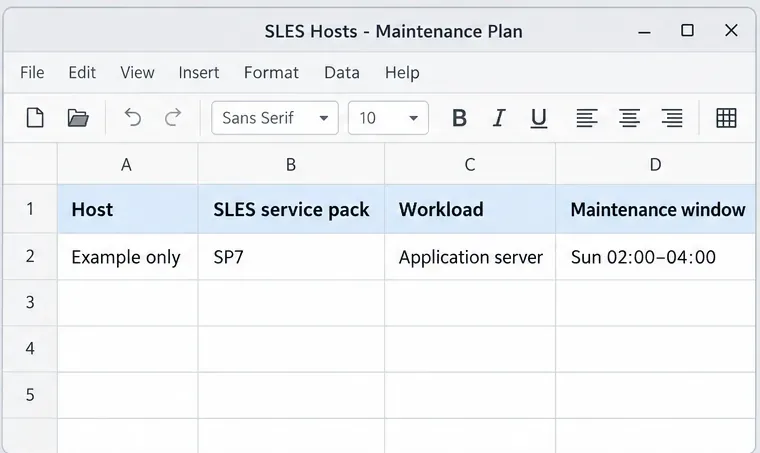
Take a verified backup and make sure you can recover access if SSH, PAM, firewall, bootloader, or filesystem settings change. SUSE specifically recommends a non-operational test environment before implementing STIG settings. Treat OpenSCAP remediation as a configuration change: review what a rule will alter, test the change, and confirm application health before repeating it across a fleet.
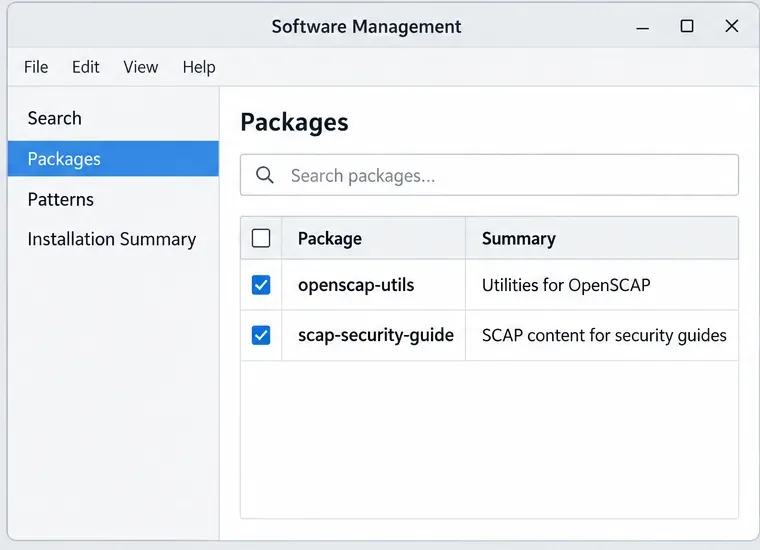
On a registered SLES system with the required repositories enabled, SUSE documents these core packages:
sudo zypper install openscap-utils scap-security-guidePackage availability depends on your registration, enabled modules, and repository access. If the packages are not available, check the host’s SUSE subscription and repository configuration rather than installing an unverified package from another source. SCAP Workbench is an optional graphical front end; SUSE recommends running it from a separate administration workstation where practical, while keeping the target system limited to the tools it needs.
Before evaluating, inspect the available content and profile on the target:
ls -1 /usr/share/xml/scap/ssg/content/ssg-*-ds.xml
oscap info /usr/share/xml/scap/ssg/content/ssg-sle15-ds.xml
The file path shown is the one used in SUSE’s SLES 15 STIG example. Confirm it exists and that oscap info lists the intended STIG profile. If your package supplies a different file or profile identifier, use the installed content’s documented value instead of copying an old command unchanged.
Run an evaluation without the --remediate option first. SUSE documents this local scan pattern for SLES 15:
sudo oscap xccdf eval \
  --profile stig \
  --results /tmp/results.xml \
  --report /tmp/report.html \
  /usr/share/xml/scap/ssg/content/ssg-sle15-ds.xml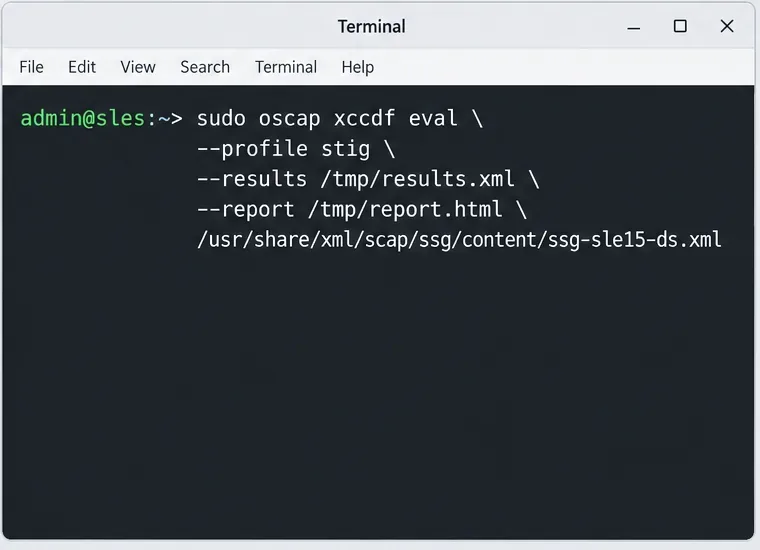
Save the result XML and report in the approved evidence location after the scan, rather than relying on temporary files in /tmp for long-term records. In segmented or offline environments, review the scanner’s output for skipped external OVAL resources. Decide whether to provide approved local resources or an authorized remote fetch; a scan that skipped required content is not a complete assessment.
For an interactive review, SUSE supports SCAP Workbench with the SLES 15 profile. For formal rule-by-rule work, import the matching DISA checklist or scan results into DISA STIG Viewer. The scanner is useful for rules that have automated checks; retain manual verification for requirements that need human inspection or evidence.
Use the result state to decide what to do next. A pass means the evaluated check passed; fail means it did not. notapplicable means the rule did not apply to the assessed target, while notchecked means the checking engine did not evaluate that rule. error and unknown indicate an uncertain or incomplete check and need investigation. NIST’s XCCDF specification defines these states; they are not interchangeable.
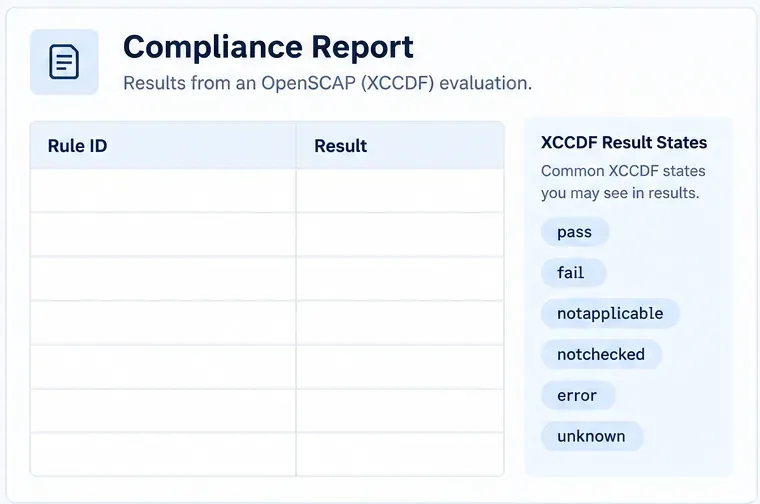
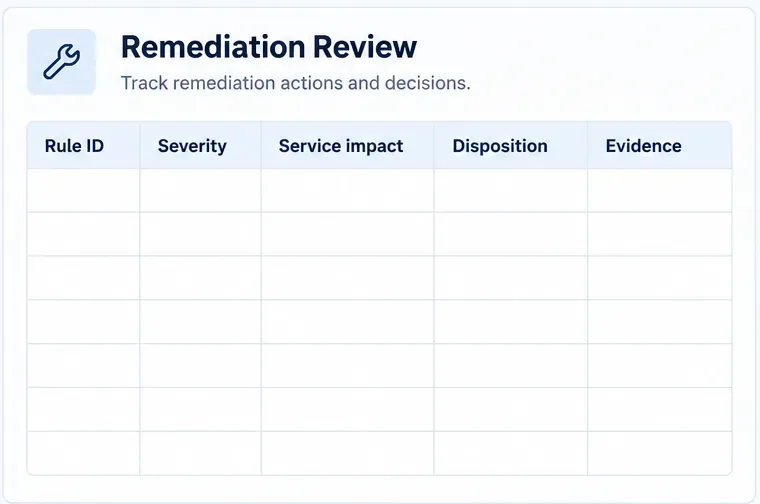
For each failed or unresolved rule, record the rule identifier, severity from the current checklist, affected service, required state, current state, remediation method, owner, and evidence needed for closure. Check that a rule is actually in scope before classifying it as not applicable. An automated report alone may not capture a manual check, a system-specific exception, or the compensating control approved by your security authority.
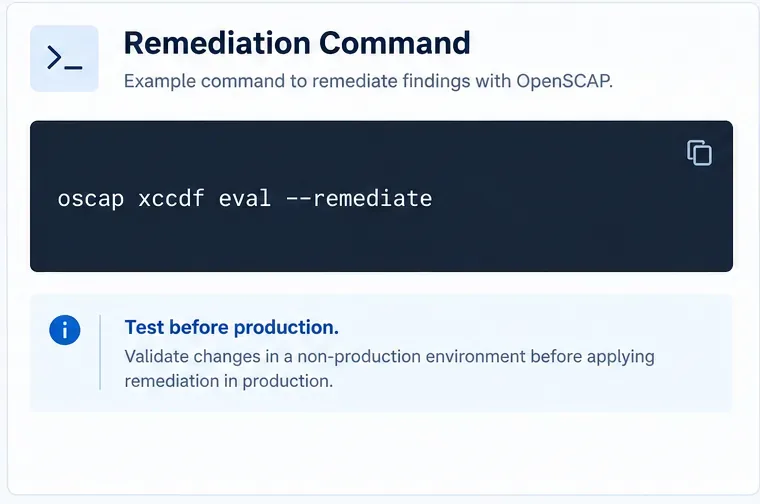
Remediate in the test environment first. The SLES 15 STIG content can apply fixes through OpenSCAP; SUSE documents --remediate for this purpose. The following is the command shape from SUSE’s guide:
sudo oscap xccdf eval --remediate \
  --profile stig \
  --results /tmp/results.xml \
  /usr/share/xml/scap/ssg/content/ssg-sle15-ds.xml
This command changes system configuration. Do not run it on a production server as a first step. Review the selected rules, confirm the backup and recovery path, test the remediation, then check required application services, authentication, network access, logging, and scheduled jobs. Some rules may need manual remediation or tailored treatment; document the reason and compensating control through your organization’s exception process.
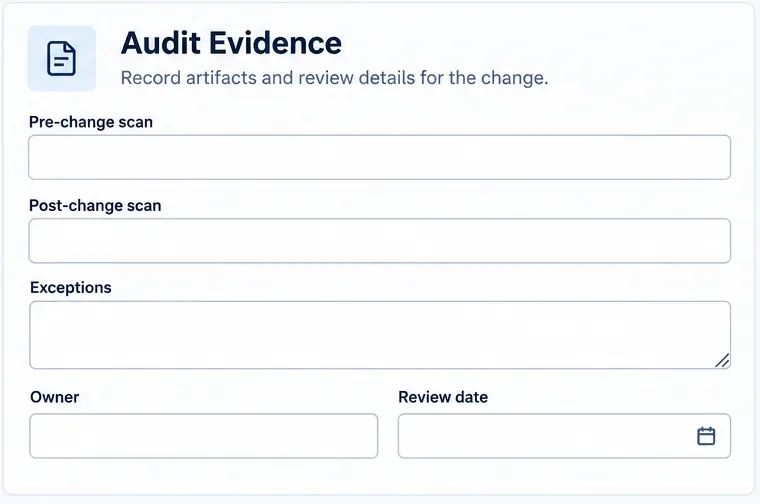
After the approved changes, run the same scan again with the same benchmark revision and preserve both before-and-after results. Review remaining failures, errors, unknowns, and unchecked rules. Confirm manual checklist items separately. A higher score alone does not prove that every applicable requirement was assessed or that the workload still operates correctly.
SLES 15 STIG compliance is an ongoing configuration and evidence process. The strongest result combines a current DISA checklist, SUSE-supported SCAP content, tested remediation, manual review where automation does not apply, and a documented exception process.
Use Dislocker to unlock a BitLocker volume in Linux, mount its virtual NTFS file read-only, and safely unmount it without exposing your password in a command.
Learn how to reduce RAM usage on Linux by finding memory-hungry apps, trimming browser and startup load, and testing a lighter desktop safely.
Compare four WhatsApp alternatives for Linux by privacy defaults, desktop support, setup requirements, and the people each app suits.
Troubleshoot a VirtualBox VM that will not start on Linux by checking vboxdrv, kernel headers, Secure Boot, Extension Pack versions, and VM logs.
Transfer your Ubuntu user data with a tar archive and external drive, then restore personal files and selected settings without overwriting the new setup.
Install gThumb on Linux, browse and make simple photo edits, then set it as the default app for the image types you choose in GNOME.
Create an organized playlist in Rhythmbox or save a reusable XSPF playlist in VLC. Learn how to add tracks, name a list, and reopen it on Linux.
Install Dino on Linux with Flatpak or your distribution’s package manager. Get current Ubuntu, Debian, Fedora, and Arch commands, plus first-launch tips.
Install Arch Linux’s linux-lts kernel, add it to GRUB or systemd-boot, select it at startup, and verify it while keeping a fallback kernel.
Download the right Pi 4 image, write it to a microSD card, and complete LibreELEC’s first-run setup with Raspberry Pi Imager.








