If you want a cleaner Linux desktop, you can usually hide desktop icons without deleting any files. The exact switch depends on your desktop environment. On current GNOME systems, icons are normally provided by an extension; KDE Plasma can switch away from Folder View; Xfce and Cinnamon have dedicated desktop settings; and MATE and LXQt also provide straightforward controls.
Important: hiding desktop icons does not remove files from your ~/Desktop folder. You can still reach those files through your file manager.
Quick guide: where to hide desktop icons
Desktop
Current method
GNOME
Disable Desktop Icons NG (DING) or another desktop-icons extension
KDE Plasma
Change the desktop layout from Folder View to Desktop
Xfce
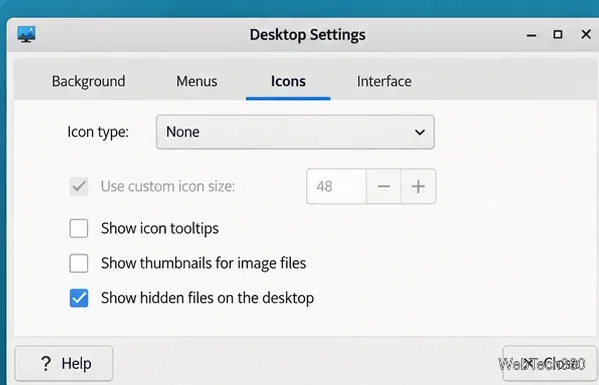
Set Icon type to None
Cinnamon
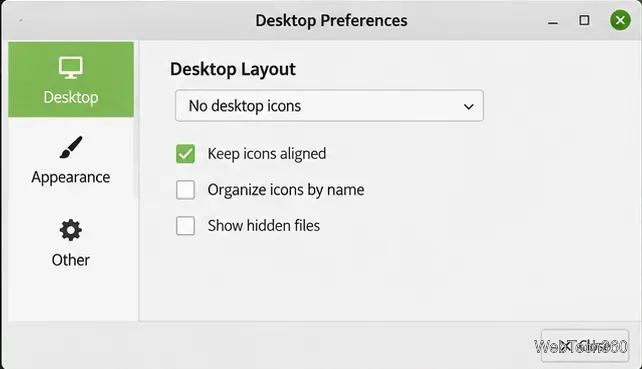
Set Desktop Layout to No desktop icons
MATE
Turn off the show-desktop-icons GSettings key
LXQt
Use Hide Desktop Items from the desktop context menu
Hide desktop icons in GNOME
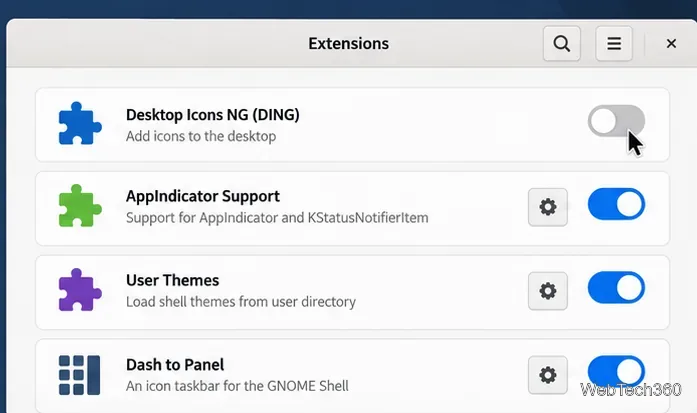
Stock GNOME does not normally place files and launchers on the desktop. If you see desktop icons, your distribution is probably using a GNOME Shell extension such as Desktop Icons NG (DING).
Open the Extensions app.
Find Desktop Icons NG (DING) or another extension that manages desktop icons.
Turn that extension off.
In GNOME, disable the extension that provides desktop icons.
GNOME’s official Extensions app is designed to enable, disable, update, and configure installed Shell extensions. If no desktop-icons extension appears in the list and your desktop is already empty, there is nothing else to disable.
Hide desktop icons in KDE Plasma
Older advice sometimes recommends shrinking Plasma desktop icons because they supposedly cannot be hidden. That is no longer necessary. Plasma’s Folder View is what displays the contents of a folder, usually ~/Desktop, across the desktop. Switching the layout to Desktop removes that folder view while leaving normal Plasma widgets available.
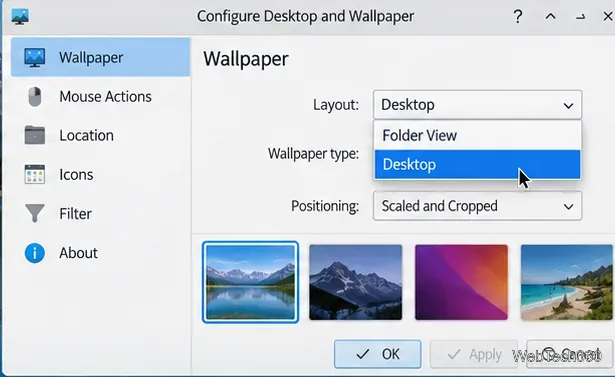
Right-click an empty area of the desktop.
Select Configure Desktop and Wallpaper.
On the Wallpaper page, open the Layout menu.
Choose Desktop instead of Folder View, then apply the change.
Set the Plasma layout to Desktop to stop showing a folder as desktop icons.
Cinnamon uses Nemo to manage desktop items. Open the desktop preferences panel and set Desktop Layout to No desktop icons. The exact route to that panel can vary slightly by distribution, so searching the application menu for Desktop or Desktop Settings is often the quickest way to reach it.
Cinnamon’s desktop preferences include a No desktop icons layout.
That setting is defined in the current Nemo desktop preferences source. Advanced users can make the same change from a terminal with:
gsettings set org.nemo.desktop desktop-layout 'false::false'
To return to Nemo’s default primary-monitor layout, use 'true::false'.
Hide desktop icons in MATE
MATE’s Caja file manager draws desktop icons when the org.mate.background show-desktop-icons setting is enabled. To disable them, open a terminal and run:
gsettings set org.mate.background show-desktop-icons false
Do not use sudo; this is a per-user desktop preference. To restore the icons later, replace false with true. The setting is defined in the official MATE desktop schema.
Hide desktop icons in LXQt
LXQt uses PCManFM-Qt to manage the desktop. Right-click an empty part of the desktop and enable Hide Desktop Items. On current LXQt releases, this setting is also handled consistently across multi-monitor Wayland desktops.
If you need additional desktop options, open Desktop Preferences; the official PCManFM-Qt documentation confirms that PCManFM-Qt is LXQt’s desktop icon manager and that Desktop Preferences is available from the desktop context menu.
If the icons do not disappear
Check which desktop environment you are actually using. A distribution name alone does not tell you whether the session is GNOME, KDE Plasma, Xfce, Cinnamon, MATE, or LXQt.
Look for a desktop-management extension or file manager. GNOME distributions in particular may add DING even though stock GNOME does not manage desktop icons.
Log out and back in if a setting appears stuck. Most changes are immediate, but a desktop component can occasionally need a session restart.
Remember that hidden is not deleted. Files remain in ~/Desktop unless you move or delete them separately.