Home
» LINUX
»
How to Import Email from Evolution to Thunderbird on Linux
How to Import Email from Evolution to Thunderbird on Linux
If you are switching from Evolution to Thunderbird on Linux, the safest current method is to export each Evolution mail folder as an MBOX file, then import those files into Thunderbird with ImportExportTools NG. Thunderbird does not provide a direct Evolution importer, and current MBOX imports should go into Local Folders rather than directly into an IMAP account.
Before you start
Keep Evolution installed until you have checked the migrated mail. Make sure the folders you plan to export are fully available in Evolution, especially if the account normally downloads messages from a server. This guide covers email only; contacts and calendars use different export formats.
GNOME's official Evolution documentation confirms that a complete folder can be exported by selecting all of its messages and choosing Save as mbox. You can review the original instructions in the Evolution mail export documentation.
1. Export each Evolution folder as an MBOX file
Open Evolution and work through the folders you want to keep, such as Inbox, Sent, Archive, and any custom folders. Exporting one folder at a time makes it easier to rebuild the same organization in Thunderbird.
Open the first folder in Evolution.
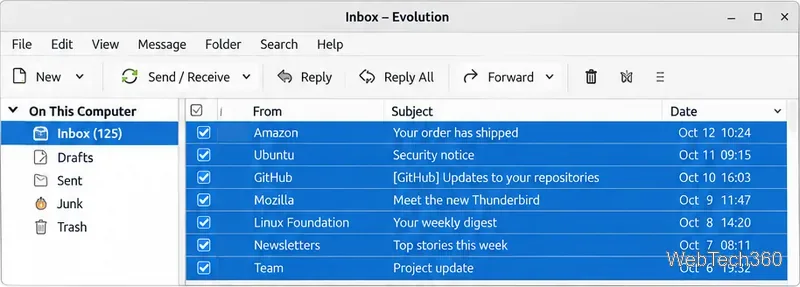
Press Ctrl + A to select every message in that folder. If the folder is large, confirm the message list has finished loading before you continue.
select all messages in an Evolution folder before exporting it.
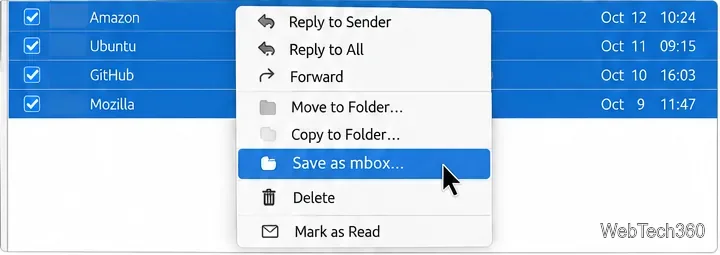
Right-click one of the selected messages and choose Save as mbox.... You can also use Evolution's File menu if that option is easier to reach.
The Save as mbox command exports the selected messages into one mailbox file.
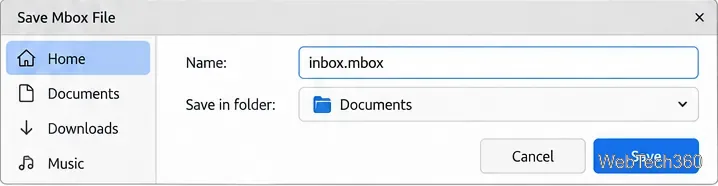
Give the file a descriptive name such as inbox.mbox, sent.mbox, or archive.mbox, then save it somewhere easy to find.
Repeat the process for every Evolution folder you want to migrate. If you use nested folders, export each one separately so you can recreate the hierarchy later.
Clear filenames make multiple exported mailboxes easier to identify during import.
2. Install ImportExportTools NG in Thunderbird
Thunderbird's built-in import tools do not provide a direct Evolution-to-Thunderbird path, so use the ImportExportTools NG extension for MBOX files. In Thunderbird, open the menu, choose Add-ons and Themes, open Extensions, and search for ImportExportTools NG. Install the extension and restart Thunderbird if prompted.
3. Import the MBOX files into Thunderbird Local Folders
The important change from many older tutorials is the destination: MBOX import is intended for Local Folders, not an IMAP folder. You do not need to convert your mail account to POP3.
In Thunderbird's folder pane, find Local Folders. You can create a subfolder such as Evolution Import first if you want to keep the migration isolated.
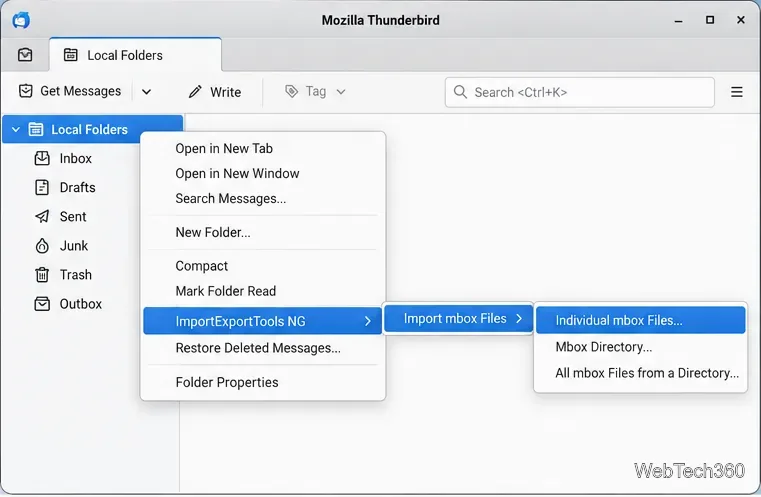
Select one or more of the MBOX files you exported from Evolution and confirm the import.
Repeat as needed, then open the imported folders and check several old and recent messages before deleting or changing anything in Evolution.
Current ImportExportTools NG MBOX imports are started from Local Folders or one of its subfolders.
What if your Thunderbird account uses IMAP?
That is fine. Import the MBOX files into Local Folders first. If you want the old messages stored on your mail provider's server, copy the imported messages from Local Folders into the appropriate folder under your IMAP account afterward. Thunderbird will then synchronize those copied messages with the server. Large archives can take time to upload and may be limited by your provider's storage quota.
Troubleshooting common migration problems
The MBOX import command is missing: make sure ImportExportTools NG is enabled and right-click Local Folders or a Local Folders subfolder, not the IMAP account name.
The exported folder looks incomplete: return to Evolution, let the folder finish loading, press Ctrl + A again, and create a new MBOX export.
You are worried about duplicates: import into a temporary subfolder such as Evolution Import first, verify the contents, and only then reorganize the messages.
You have a folder named Inbox: importing into a dedicated subfolder helps avoid confusion with Thunderbird's special Inbox folders.
Once the message counts and sample emails look correct, you can keep the imported mail in Local Folders or copy it into the Thunderbird account structure you prefer.