Home
» LINUX
»
How to Import Photos on Linux Using Shotwell
How to Import Photos on Linux Using Shotwell
Shotwell can import pictures from a USB camera, a memory card, or a folder already on your Linux computer. For a camera, connect it and choose Import Selected or Import All. For files on disk, choose whether Shotwell should copy them into its library or catalog them in their current location.
The steps below cover both routes, including how to check that the import finished and where your photos went.
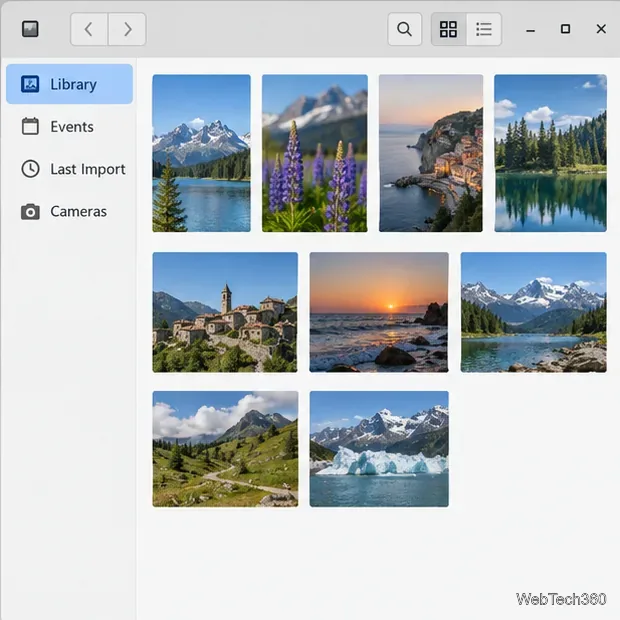
Shotwell organizes the library as a browsable thumbnail grid with navigation in the left sidebar.
Install Shotwell
Look for Shotwell in your desktop’s software app first; it may already be installed. If you prefer a terminal, use your distribution’s package manager. Package versions and availability vary by release, so check the linked package page if a command cannot find Shotwell.
Linux distribution
Install command
Ubuntu or Debian
sudo apt install shotwell
Fedora
sudo dnf install shotwell
Arch Linux
sudo pacman -S shotwell
openSUSE Tumbleweed
sudo zypper install shotwell
Check the official Ubuntu, Debian, Fedora, Arch, or openSUSE listing for your exact release. On other distributions, or when the native package is unavailable, install the Flatpak from Flathub. If Flathub is not set up yet, follow its official setup guide, then run:
flatpak install flathub org.gnome.Shotwell
Once installed, open Shotwell from the Applications menu, usually under Graphics or Photography.
Import photos from a USB camera
Connect the camera with a USB data cable, turn it on, and select its photo-transfer mode if the camera asks. Wait for Linux to recognize it. Shotwell should list a detected camera in the sidebar.
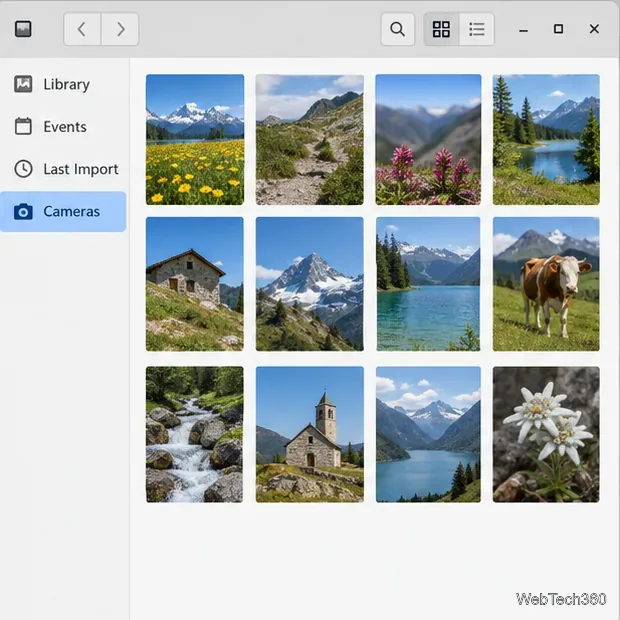
After Linux detects a connected camera, select its entry in Shotwell to view available photos.
Select the camera in the sidebar. Shotwell displays previews of the photos it can read from the device.
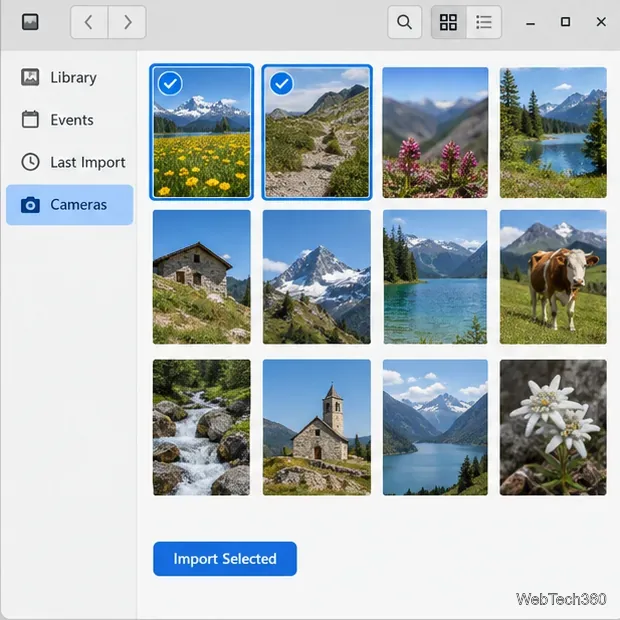
To bring in only some pictures, hold Ctrl while clicking individual thumbnails. To select a continuous range, click the first photo, hold Shift, and click the last. Then choose Import Selected.
Choose individual thumbnails with Ctrl-click, then use Import Selected to copy only those photos.
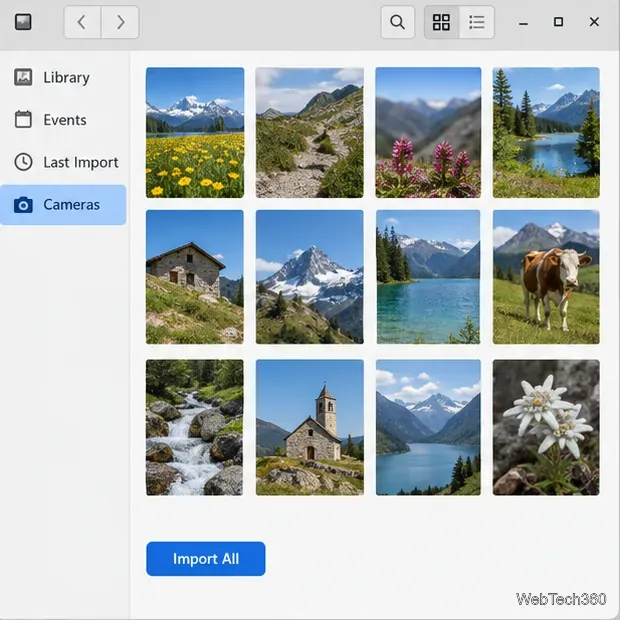
If you want every photo on the camera, choose Import All instead. Shotwell copies camera imports onto the computer; keep the camera connected until the transfer completes.
Import All copies the camera’s available photos into your Shotwell library.
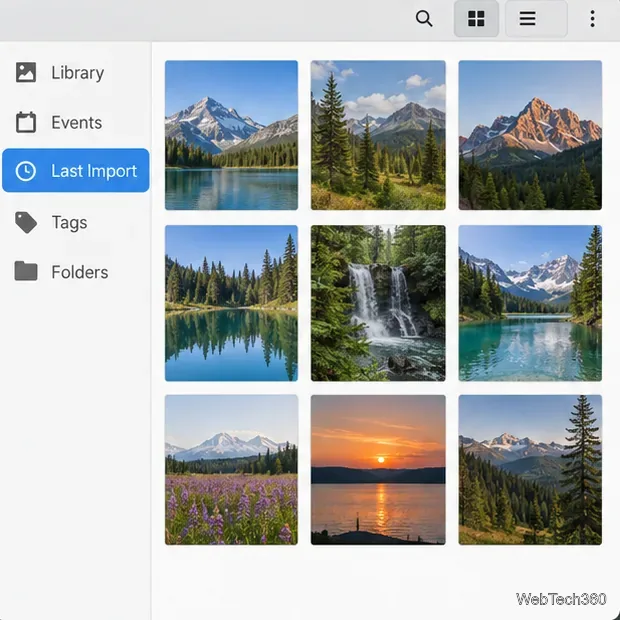
To confirm the transfer, open Last Import in the sidebar. Shotwell also groups imported items under Events by their photo dates.
Import photos from a folder or memory card
Use this method for pictures already on a hard drive, a mounted phone, or an SD card in a reader. Shotwell’s manual says a compatible card reader should appear automatically; if it does not, reconnect the reader or use the camera’s USB connection instead.
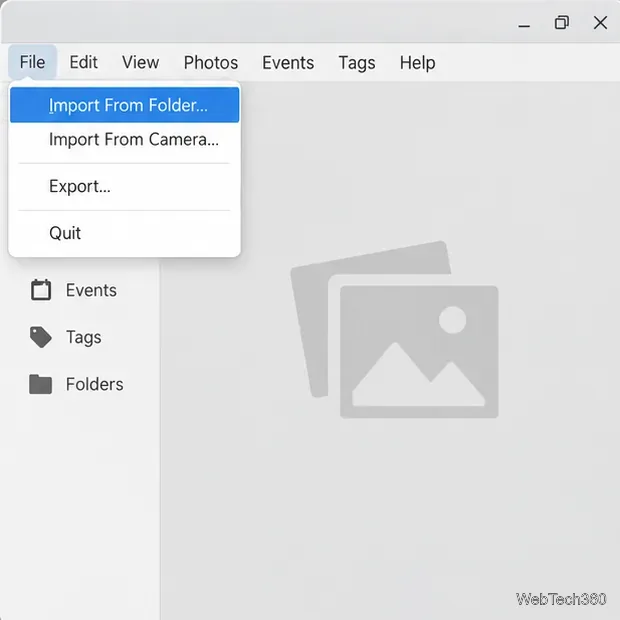
In Shotwell, choose File → Import From Folder….
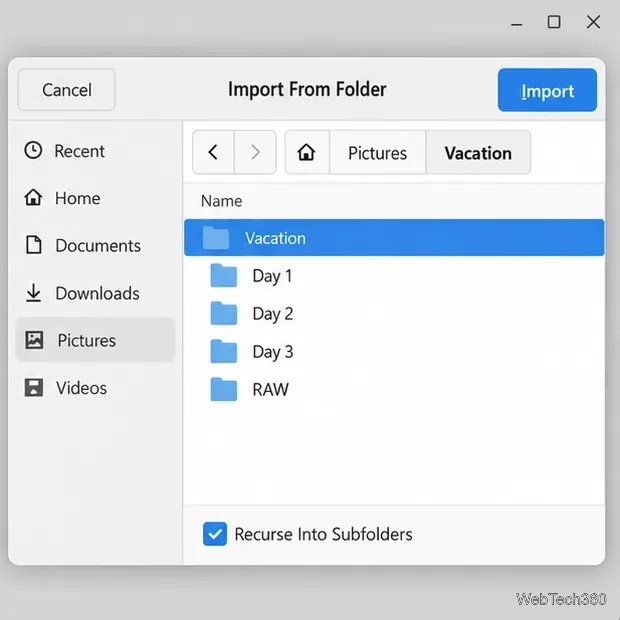
In the file chooser, open the folder that contains the photos. Leave Recurse Into Subfolders checked if you want Shotwell to include nested folders. Turn it off when you want to import only from the selected folder.
Choose File → Import From Folder to browse to photos stored on disk.Select the parent folder and decide whether to include its subfolders.
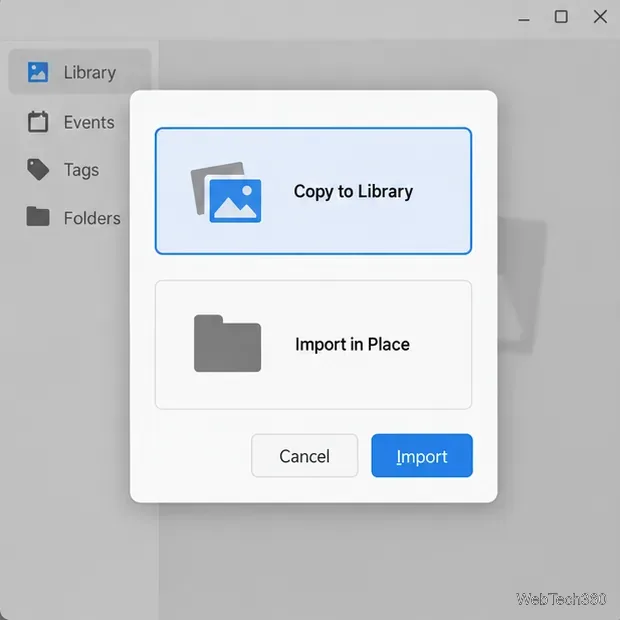
Choose how Shotwell should handle the files. Copy to Library makes a managed copy in your Shotwell library, usually under Pictures. Import in Place leaves the originals where they are and adds them to the library without copying them.
Copy to Library stores another copy in the library; Import in Place keeps the current file location.
Use Copy to Library for removable media or when you want one central collection. Choose Import in Place when you already maintain your folders and want to avoid duplicate files. If you import in place, do not move or rename those source files later unless you are ready to relink them in Shotwell.
You can also drag photo files from your file manager into the Shotwell window. The app asks whether to copy them or import them in place. For a large folder tree, the folder command is clearer because it exposes the subfolder option.
Check the result and fix common problems
After importing, select Last Import to review the new photos. If the view is empty, check whether the source folder actually contains supported image files and whether the transfer finished before disconnecting the device.
Last Import is the quickest way to review the pictures added in the latest session.
If a camera does not appear in Shotwell, make sure it is powered on and that its USB cable supports data, not just charging. Try reconnecting it. If the file manager can browse the device but Shotwell does not list it as a camera, use File → Import From Folder and select its mounted photo directory. For a card reader, reseat the card and reconnect the reader. Shotwell’s camera guide, memory-card guide, and hard-disk guide describe the supported import routes.