How to Share Files Over Bluetooth on Linux with Blueman

Send and receive files over Bluetooth on Linux with Blueman. Install OBEX support, pair devices, choose a file, accept transfers, and fix common issues.
To improve Linux performance in a VirtualBox VM, first make sure the host computer is not overloaded, then install the matching Guest Additions and adjust the VM’s RAM, CPU, and display settings. More resources do not always mean a faster VM: VirtualBox reserves assigned memory from the host, and too many virtual CPUs can leave less time for the host and other tasks.
Shut the VM down fully before changing its hardware settings.
Guest Additions provide guest drivers and services that improve integration, resizing, and video support. Keep their version aligned with the VirtualBox version on the host. Start the Linux VM, choose Devices > Insert Guest Additions CD Image in its window, then prepare the guest to build external kernel modules. That means installing the development tools and kernel headers that match the kernel currently running in the guest; package names differ by Linux distribution.
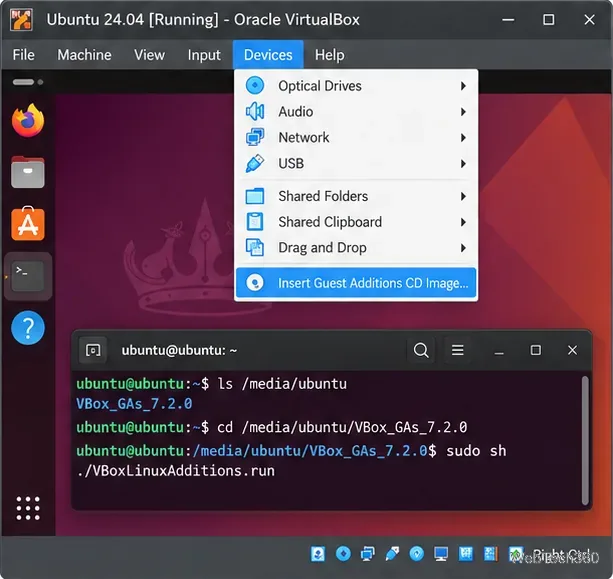
Open the mounted CD in the guest and run the installer from that directory:
sudo sh ./VBoxLinuxAdditions.runReboot Linux when installation finishes. The CD mount path varies between distributions, so use the mounted disc shown in the guest’s file manager rather than copying an old hard-coded path. If installation fails, check that the kernel headers match uname -r and consult the Oracle VirtualBox 7.2 User Guide for the Linux Guest Additions prerequisites and recovery checks. Take a VM snapshot before replacing a distribution’s preinstalled Guest Additions.
With the VM powered off, open Settings > System > Motherboard and adjust Base Memory. Choose enough for the guest desktop and its applications, but leave ample memory for the host operating system and any other open programs. For example, 4 GB can be a reasonable first test for one desktop VM on a 16 GB host; it is not a universal requirement. A smaller host or a lightweight Linux installation may need less, while development tools or many browser tabs may need more.
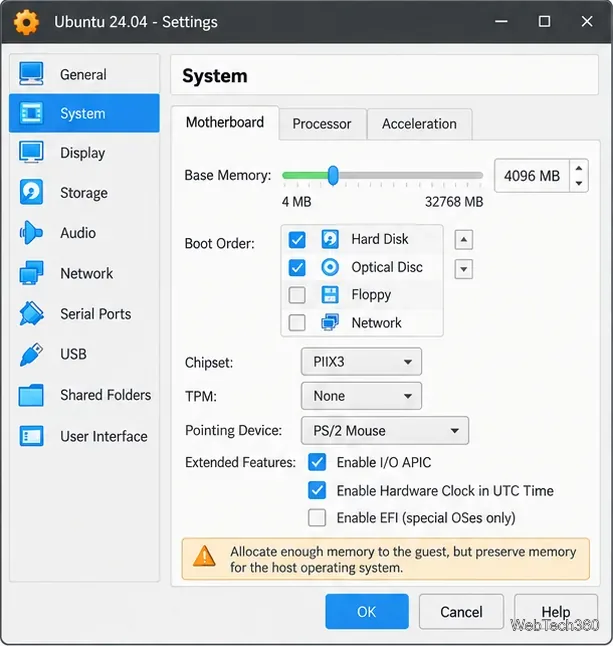
VirtualBox requests this memory from the host while the VM runs. If the host begins swapping to disk, both systems can become sluggish. In Linux, use free -h or the system monitor while reproducing the slowdown. Increase memory only when the guest is under pressure and the host still has room.
Open Settings > System > Processor while the VM is off. Two virtual CPUs are a useful test for a desktop guest when the host has spare processing capacity; begin with one on a small host, then add a CPU only if the guest is CPU-bound. Oracle advises against assigning more virtual CPUs than the host has physical cores, and its new-VM guidance recommends keeping the allocation conservative. Leave processing capacity for the host instead of assigning every available thread to one VM.
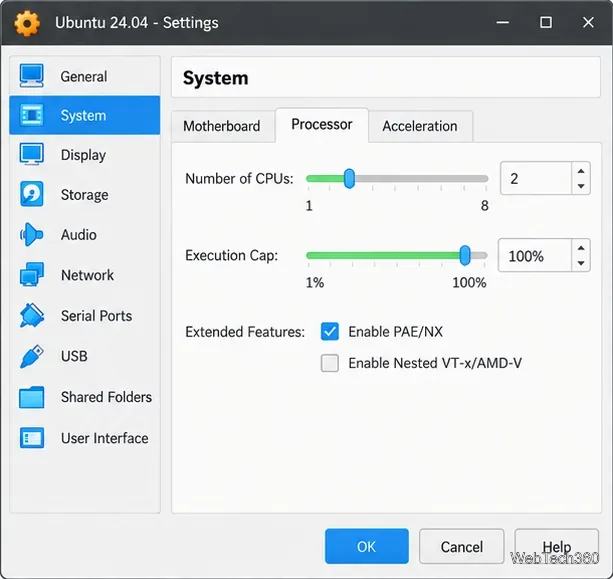
More vCPUs can help parallel workloads, but they will not fix slow disk access, low memory, or a graphics bottleneck. Avoid lowering the execution cap as a performance tweak: it deliberately limits CPU time and can cause timing problems.
In Settings > Display > Screen, keep VMSVGA selected for a Linux guest unless your distribution’s documentation calls for another controller. Increase Video Memory if the guest needs a higher resolution or more virtual monitors. Setting it to the available maximum, often 128 MB, can make those display modes available; it does not speed up CPU-heavy work by itself.
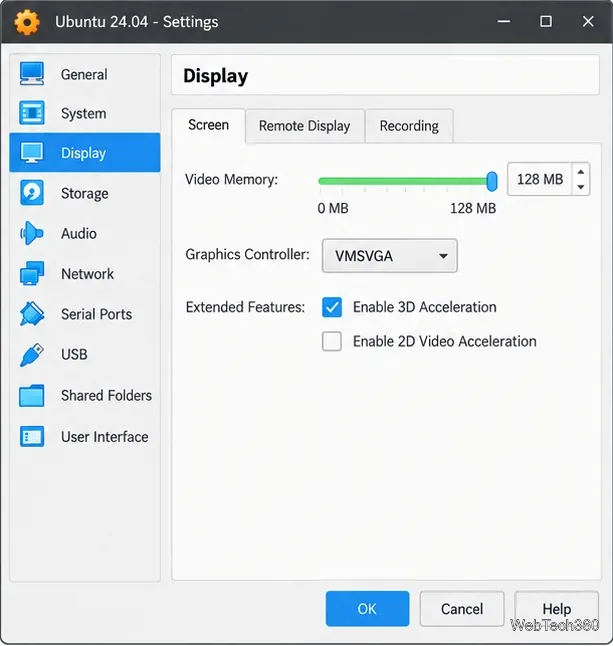
After Guest Additions are installed, you can test Enable 3D Acceleration if window movement or desktop effects are choppy. Restart the VM and compare the same task. If the guest shows flicker, freezes, or other display problems, power it off and turn the option back off. Keep this setting only when it helps your workload.
If the VM remains slow after balancing resources, check what Linux is doing before changing more VirtualBox settings. Close unused applications and startup services, reduce unnecessary desktop effects, and use a lower guest resolution if the display is the bottleneck. On a host with limited RAM or graphics capacity, a lighter desktop such as Xfce or LXQt can reduce the guest’s background load.
Storage can also matter: keep the VM’s virtual disk on a fast local SSD when possible, and make sure the host drive has free space. If the host itself is near full CPU or memory use, close host applications or run fewer VMs at once. A VM cannot perform well when its host is already overloaded.
Use the guest’s system monitor or top during the slow task, then compare it with the host’s CPU and memory use. Active swap points to RAM pressure; sustained CPU use points to a CPU-bound task; choppy graphics with responsive command-line work points to display settings. Change only the resource that matches the bottleneck.
For the relevant VM settings and Linux Guest Additions procedure, refer to Oracle’s VirtualBox 7.2 User Guide.
Send and receive files over Bluetooth on Linux with Blueman. Install OBEX support, pair devices, choose a file, accept transfers, and fix common issues.
Connect GNOME Files to SSH/SFTP, FTP, SMB, WebDAV, or NFS with the correct server URI, sign-in details, and fixes for common connection errors.
Open SFTP, SSH, SMB, FTP, NFS, and WebDAV locations in Dolphin, sign in safely, transfer files, and save network folders for later.
Connect a DualShock 4 to Linux by USB or Bluetooth, then check controller detection and configure Steam Input only when a game needs it.
Use DNF5 parallel downloads to reduce RPM install waits in GNOME Software, then tell when mirror or Flatpak delays need a different fix.
Access iCloud on Linux in a current browser. Learn how to sign in, use iCloud Drive and other web apps, and understand the limits of browser access.
Save GRUB settings, boot files, and UEFI entry details to removable storage, then use rescue media to repair the correct boot path safely.
Install Bitwarden on Linux with the right DEB, RPM, Snap, Flatpak, or AppImage package, then sign in and set a secure vault timeout.
Pick a screensaver theme in Xfce, preview it, choose when it starts, and configure automatic locking in the separate Lock Screen tab.
Stop GNOME Shell from blanking or locking your display automatically. Change Power and Screen Lock settings, or use Caffeine for a temporary keep-awake toggle.








